
Chapter 20 · 20.4
Converting a VBA macro to JavaScript yourself: the translation table
In An Excel file with VBA macros: what now? you read that Euro-Office does not run VBA macros. The file opens, but buttons and automatic actions do nothing. If the macro matters, you convert it to JavaScript, the language of macros in Euro-Office. That sounds harder than it is: most Excel macros do a few simple things with cells, and almost every VBA line has a fixed JavaScript counterpart. This article gives you the translation table and a worked example.
First: automatic conversion is not possible
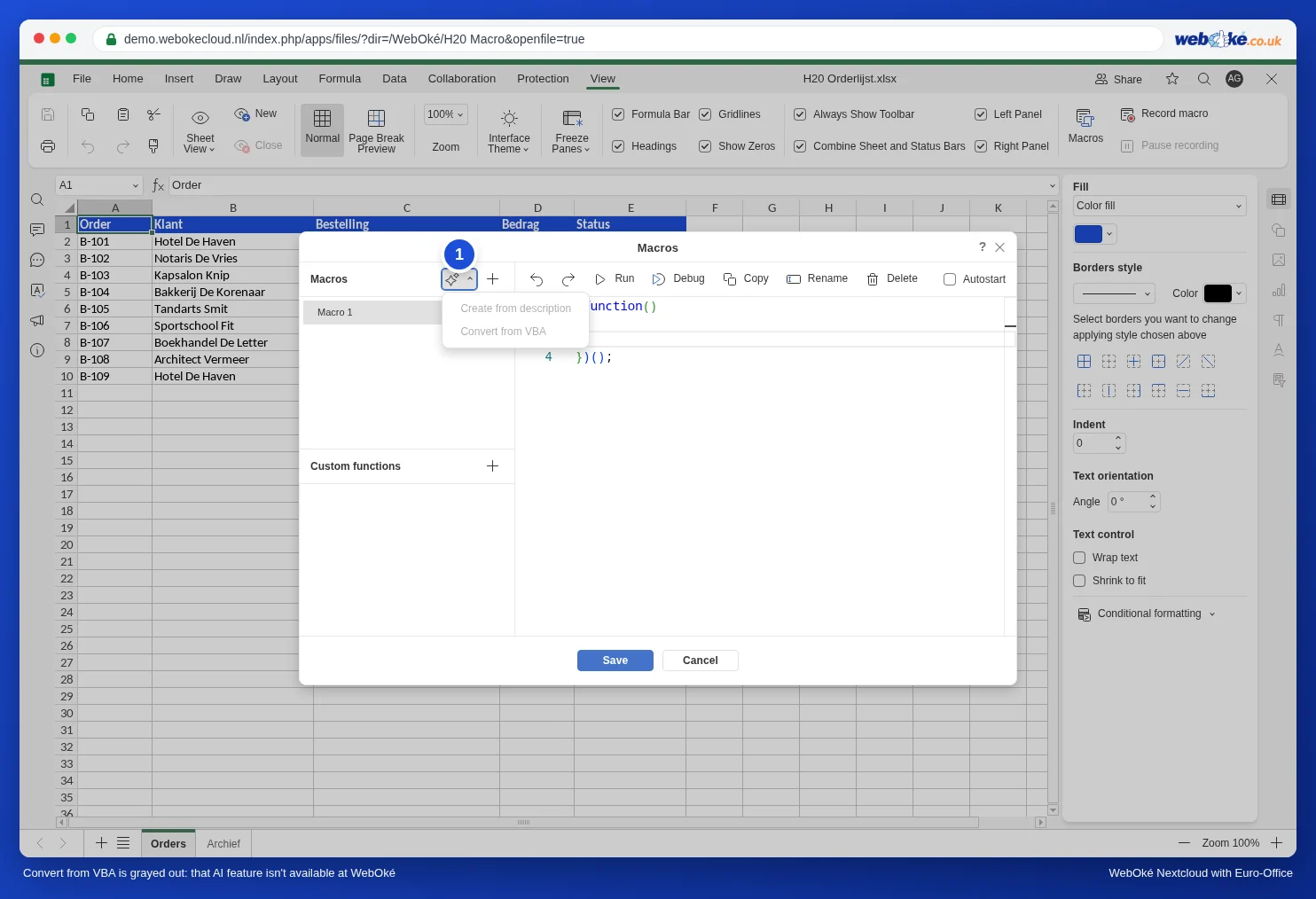
In the Macros window you see a button with a magic wand next to Macros. Below it are Create from description and Convert from VBA. These are greyed out: they only work with a plug-in, and Euro-Office at WebOké deliberately works without plug-ins (see Plugins in Euro-Office: why WebOké doesn't offer them and what to do instead). So you convert a macro yourself, using the table below.
How to do it in three steps
- Write down in plain language what the macro does. Open the xlsm file in Excel, press Alt+F11 and read the code. For example: "go through rows 2 to 10; if the amount in column D is more than 500, make the row yellow and the amount bold".
- Translate line by line using the table below.
- Test on a copy in Euro-Office: View tab, Macros, plus sign, paste the code, Run. If it does not work, see A macro that doesn't work: finding errors.
The translation table
We tested every line below in Euro-Office. ws stands for the worksheet: put const ws = Api.GetActiveSheet(); at the top of your macro.
| VBA | Euro-Office (JavaScript) |
|---|---|
| Sub Name() ... End Sub | (function () { ... })(); |
| ActiveSheet | Api.GetActiveSheet() |
| Worksheets("Archief") | Api.GetSheet("Archief") |
| Range("A1").Value = 5 | ws.GetRange("A1").SetValue(5); |
| x = Range("A1").Value | let x = ws.GetRange("A1").GetValue(); |
| Cells(2, 2) | ws.GetRangeByNumber(1, 1) (counts from 0) |
| Selection | Api.GetSelection() |
| For Each c In Range("D2:D10") ... Next | ws.GetRange("D2:D10").ForEach(function (c) { ... }); |
| For r = 2 To 10 ... Next r | for (let r = 2; r <= 10; r++) { ... } |
| If ... Then ... Else ... End If | if (...) { ... } else { ... } |
| Select Case x ... Case "Done" | switch (x) { case "Done": ...; break; } |
| a = b And c, a = b Or c, Not a | a = b && c, a = b || c, !a |
| "Row " & r | "Row " + r |
| x <> "" | x !== "" |
| Interior.Color = RGB(255, 235, 156) | SetFillColor(Api.CreateColorFromRGB(255, 235, 156)) |
| Font.Bold = True | SetBold(true) |
| Rows(5).Delete | ws.GetRows(5).Delete("up") |
| Range("A2:E2").Copy Range("A12") | ws.GetRange("A2:E2").Copy(ws.GetRange("A12")) |
| Workbook_Open | a macro with Autostart (see Automatically fill in the date and time when someone changes a cell) |
| Worksheet_Change | Api.attachEvent("onWorksheetChange", ...) (see Automatically fill in the date and time when someone changes a cell) |
| Function VAT(x) for use in formulas | a custom function (see Excel formulas with LET or LAMBDA: what to do in Euro-Office instead) |
| MsgBox "Done" | does not exist; put a message in a cell (see A macro that doesn't work: finding errors) |
An example: highlighting large orders
Bloemisterij Het Zonnetje had this macro in Excel to make large orders stand out:
Sub GroteOrdersMarkeren()
    Dim r As Long
    For r = 2 To 10
        If Cells(r, 4).Value > 500 Then
            Range("A" & r & ":E" & r).Interior.Color = RGB(255, 235, 156)
            Cells(r, 4).Font.Bold = True
        End If
    Next r
End Sub
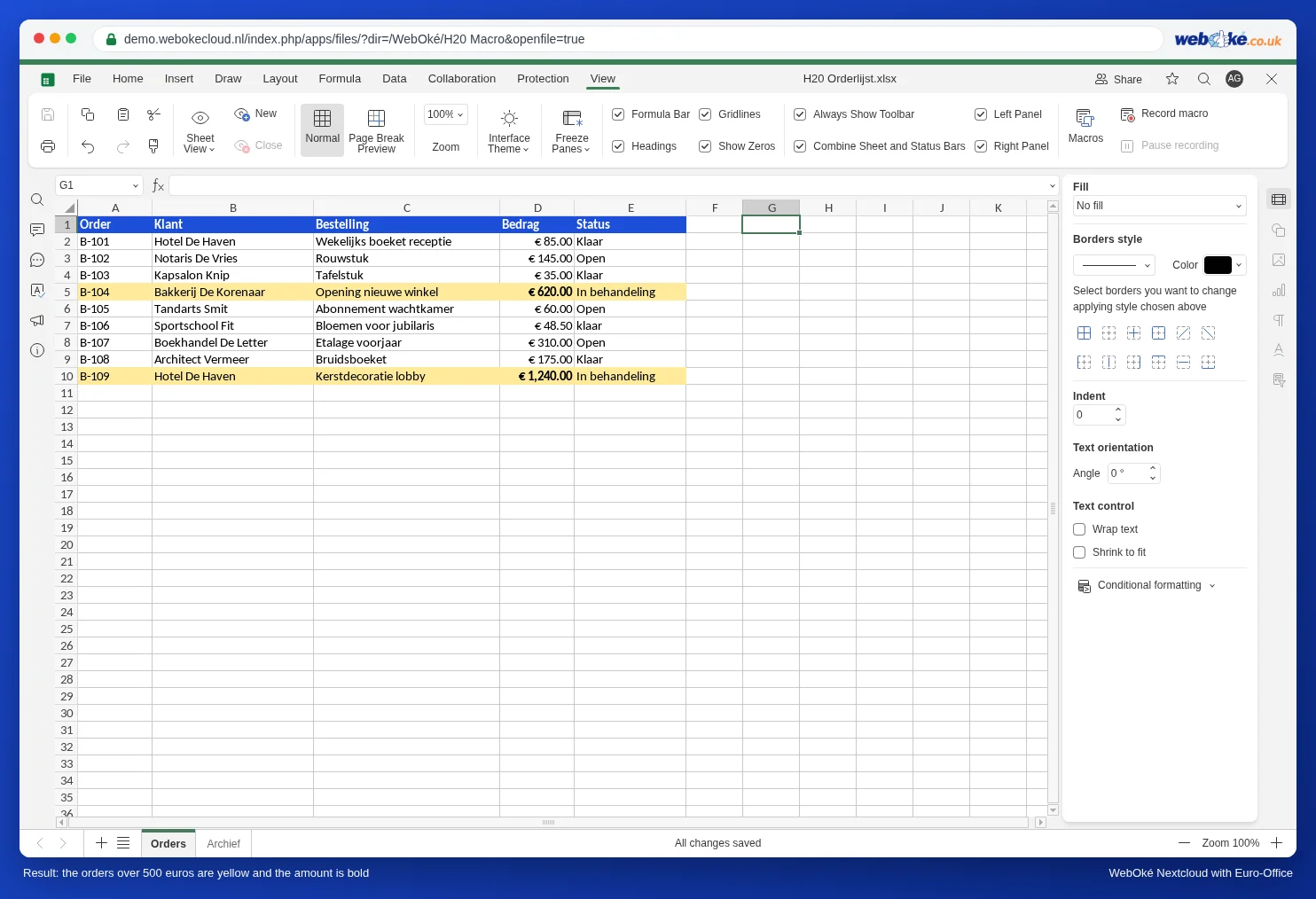
Converted to Euro-Office, it becomes:
(function () {
    // Converted from VBA: orders over 500 euros yellow and the amount bold.
    const blad = Api.GetActiveSheet();
    for (let r = 2; r <= 10; r++) {
        if (blad.GetRange("D" + r).GetValue() > 500) {
            blad.GetRange("A" + r + ":E" + r).SetFillColor(Api.CreateColorFromRGB(255, 235, 156));
            blad.GetRange("D" + r).SetBold(true);
        }
    }
})();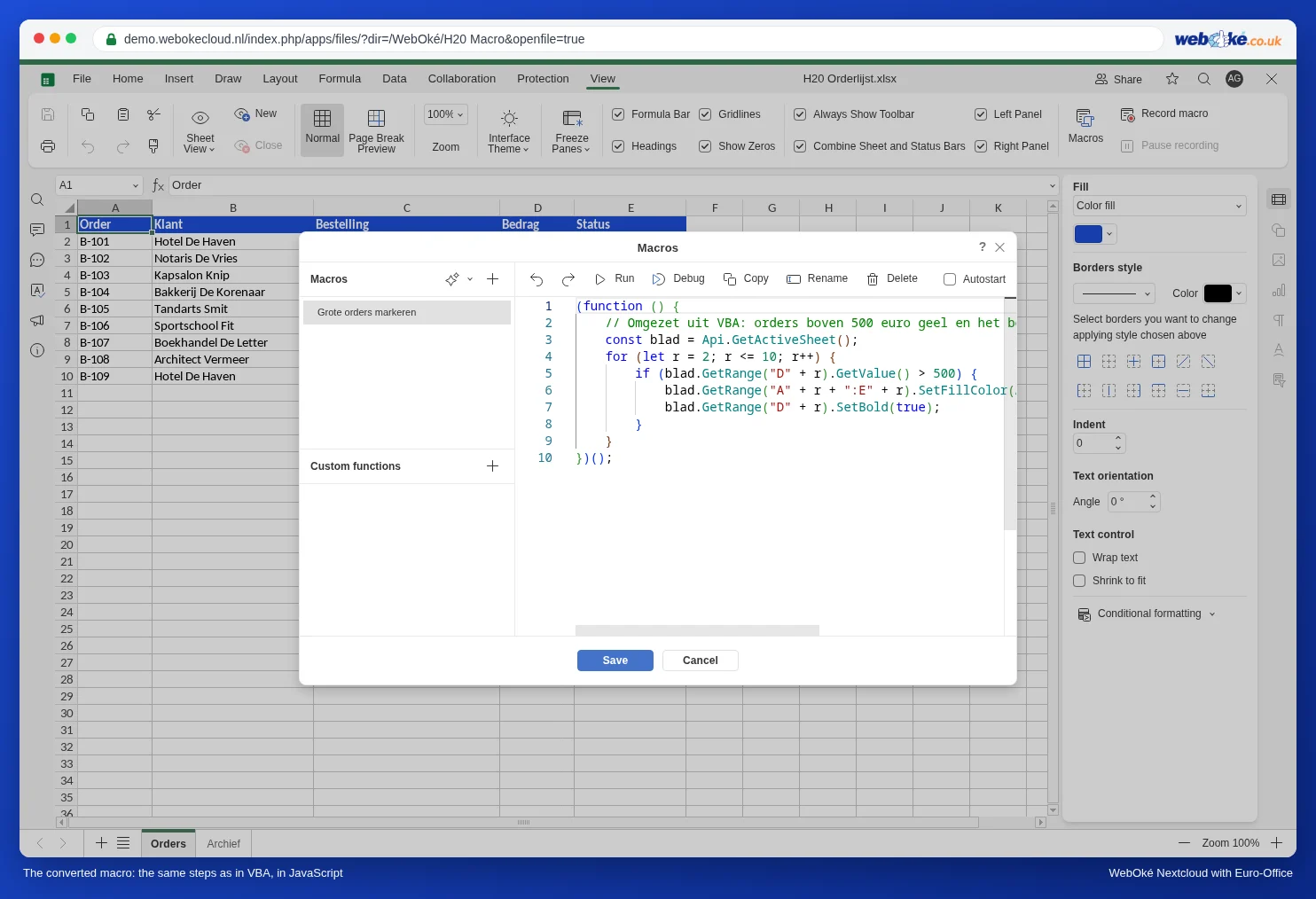
What changed: Sub became a function in brackets, Cells(r, 4) became GetRange("D" + r) (column 4 is D), the & for joining text became a +, and Interior.Color and Font.Bold became SetFillColor and SetBold. Every line ends with a semicolon, and blocks go between curly brackets instead of Then and End If.
Cheat sheet: Record macro
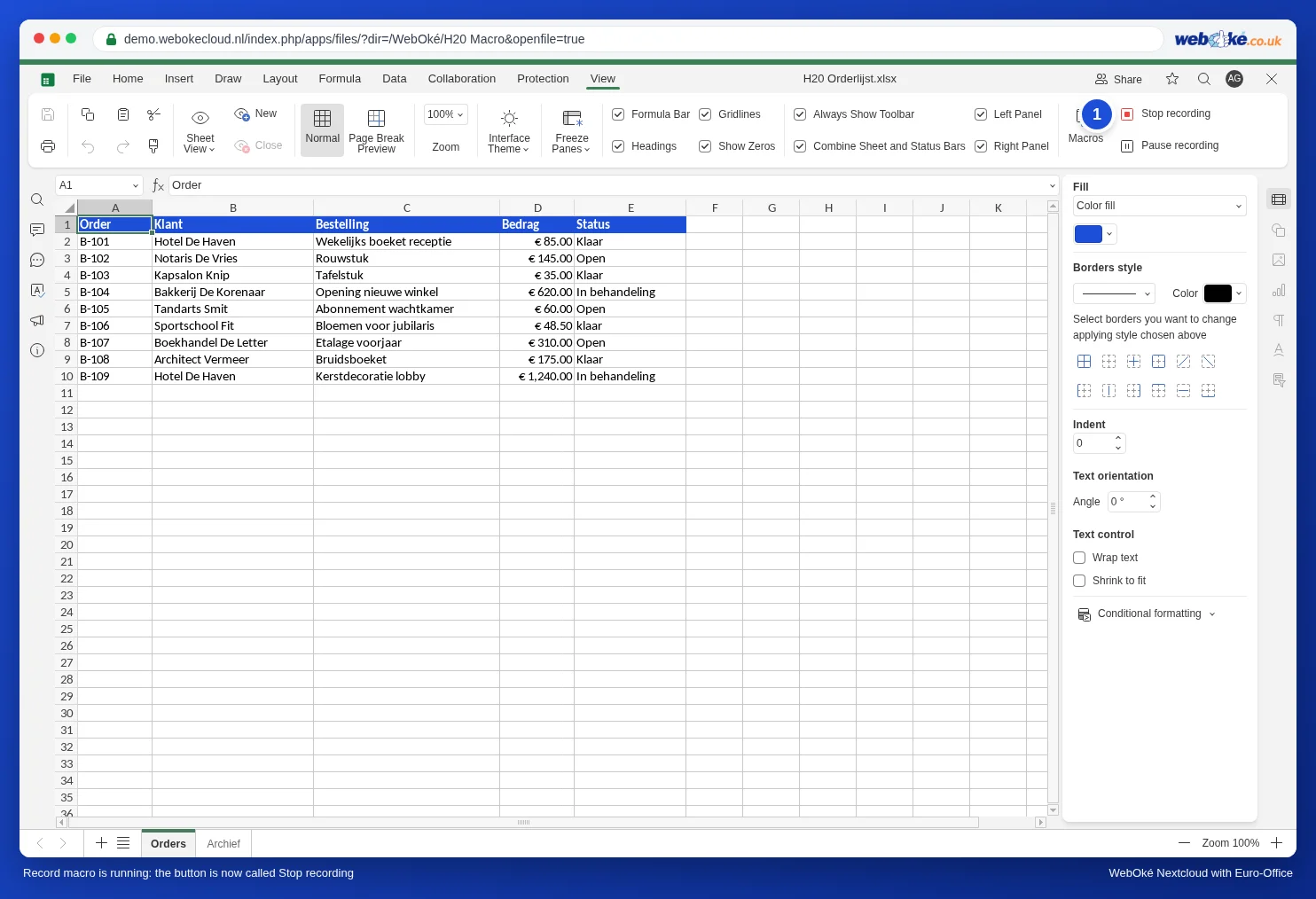
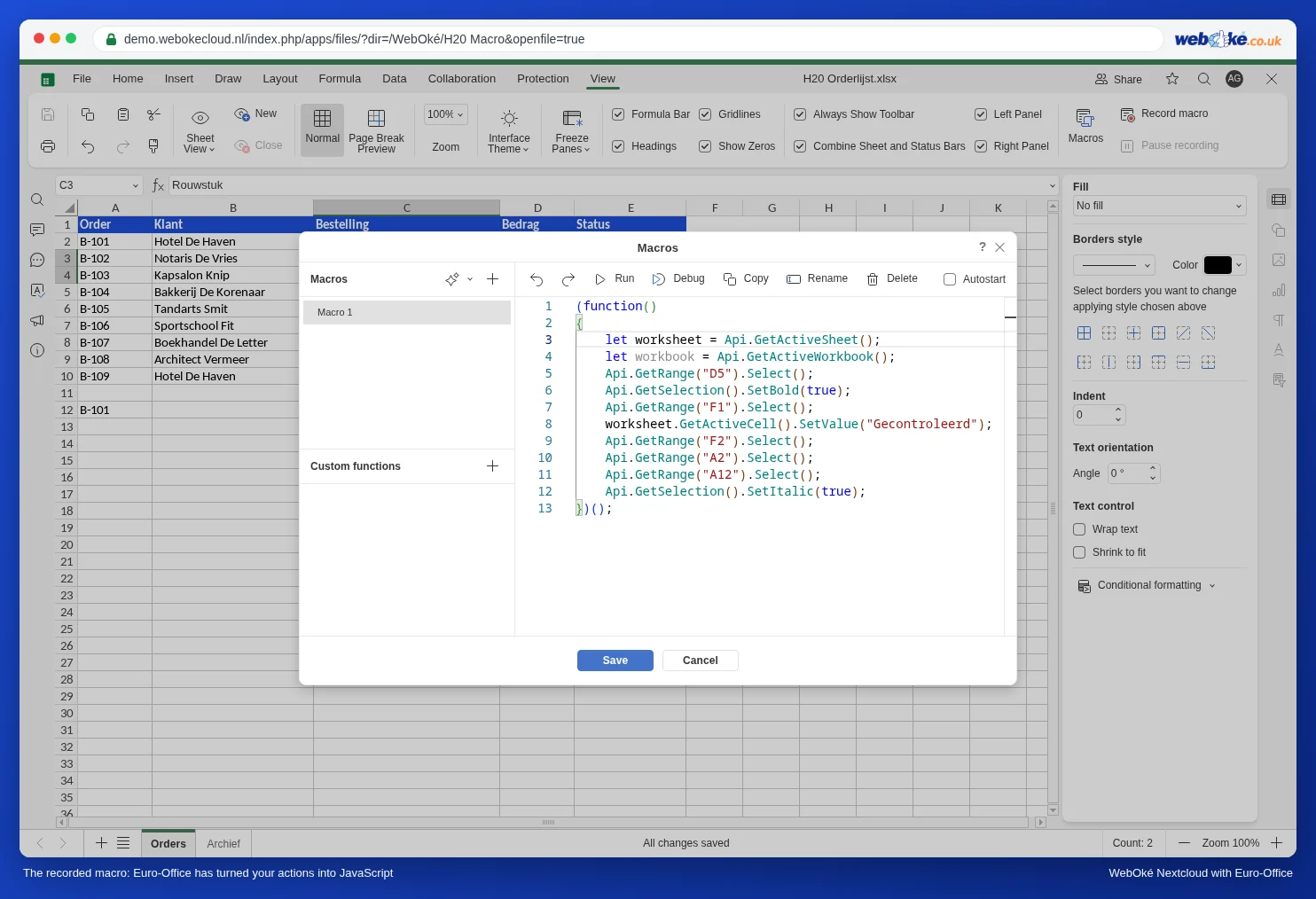
Not sure what an action is called in JavaScript? Record it. On the View tab, click Record macro. The button then changes to Stop recording. Perform your actions, click Stop recording and open Macros: a new macro appears in the list with the code for what you did.
In our test we clicked D5 and made it bold, typed "Gecontroleerd" in F1, copied A2 to A12 and then made C3 and C4 italic. This is what Euro-Office recorded:
(function()
{
    let worksheet = Api.GetActiveSheet();
    let workbook = Api.GetActiveWorkbook();
    Api.GetRange("D5").Select();
    Api.GetSelection().SetBold(true);
    Api.GetRange("F1").Select();
    worksheet.GetActiveCell().SetValue("Gecontroleerd");
    Api.GetRange("F2").Select();
    Api.GetRange("A2").Select();
    Api.GetRange("A12").Select();
    Api.GetSelection().SetItalic(true);
})();
You immediately see the names you need: Select, SetBold, SetValue, SetItalic. But you also see the limits of recording:
- Copying and pasting is not recorded: from A2 to A12 you only see Select twice.
- Selecting via the name box (top left, where you type C3:C4) is not recorded. As a result, the recording applies the italics meant for C3:C4 to A12, the last cell we clicked with the mouse. So click cells with the mouse while recording.
- No loops or conditions are recorded. You cannot record "All rows with Done".
So use recording to look up names, and write the macro yourself. For repetitive work with a fixed selection (formatting a header row, entering a fixed text), a recorded macro can be perfectly adequate.
Pitfalls
- Capitals matter. GetValue works, getValue does not. VBA does not care, JavaScript does.
- Counting from 0 or 1. Cells(2, 2) in VBA is B2. In Euro-Office that is GetRangeByNumber(1, 1): rows and columns count from 0. GetRange("B2") is often clearer.
- GetValue returns text, even for an amount: €85 gives you "85". Comparing with a number (> 500) works, but adding does not: "85" + 10 becomes "8510". If you want to calculate, first turn it into a number with Number(...).
- Entering numbers with decimals. In our test with the region set to Dutch (Netherlands), SetValue(1.25) did not give a number but the text "1.25". If your region uses a decimal comma, pass such a number as text with a comma, just as you type it: SetValue("1,25"), or with String(x).replace(".", ","). Whole numbers work fine.
- Keep the original. If you save the xlsm file in Euro-Office, the VBA code may become unusable for Excel (see An Excel file with VBA macros: what now?). It is better to put the converted macro in a copy saved as xlsx.
- Code from the internet or a chatbot often uses method names that do not exist. Always test, and see A macro that doesn't work: finding errors if nothing happens.
What cannot be converted
A macro in Euro-Office only works within the open file. You cannot convert VBA macros that do the following:
- open, save or print other files (Workbooks.Open, SaveAs, PrintOut);
- send email via Outlook;
- read files or folders on your computer;
- show custom input windows (UserForm) or messages (MsgBox, InputBox).
Keep a macro like that in Excel. Or split it up: the calculations in Euro-Office, the rest by hand or with the features of your WebOké Nextcloud, such as sharing and version history.