
Chapter 20 · 20.1
Automatically move a row to an archive sheet when it is done
An order list, task list or invoice list grows every week. You don't want to throw away what's finished, but you don't want to see it among your current work either. In Excel, many people did this with a VBA macro or a script in Google Sheets: everything marked as done goes to an archive worksheet. In Euro-Office you do the same with a macro in JavaScript. One click, and your list is clear again.
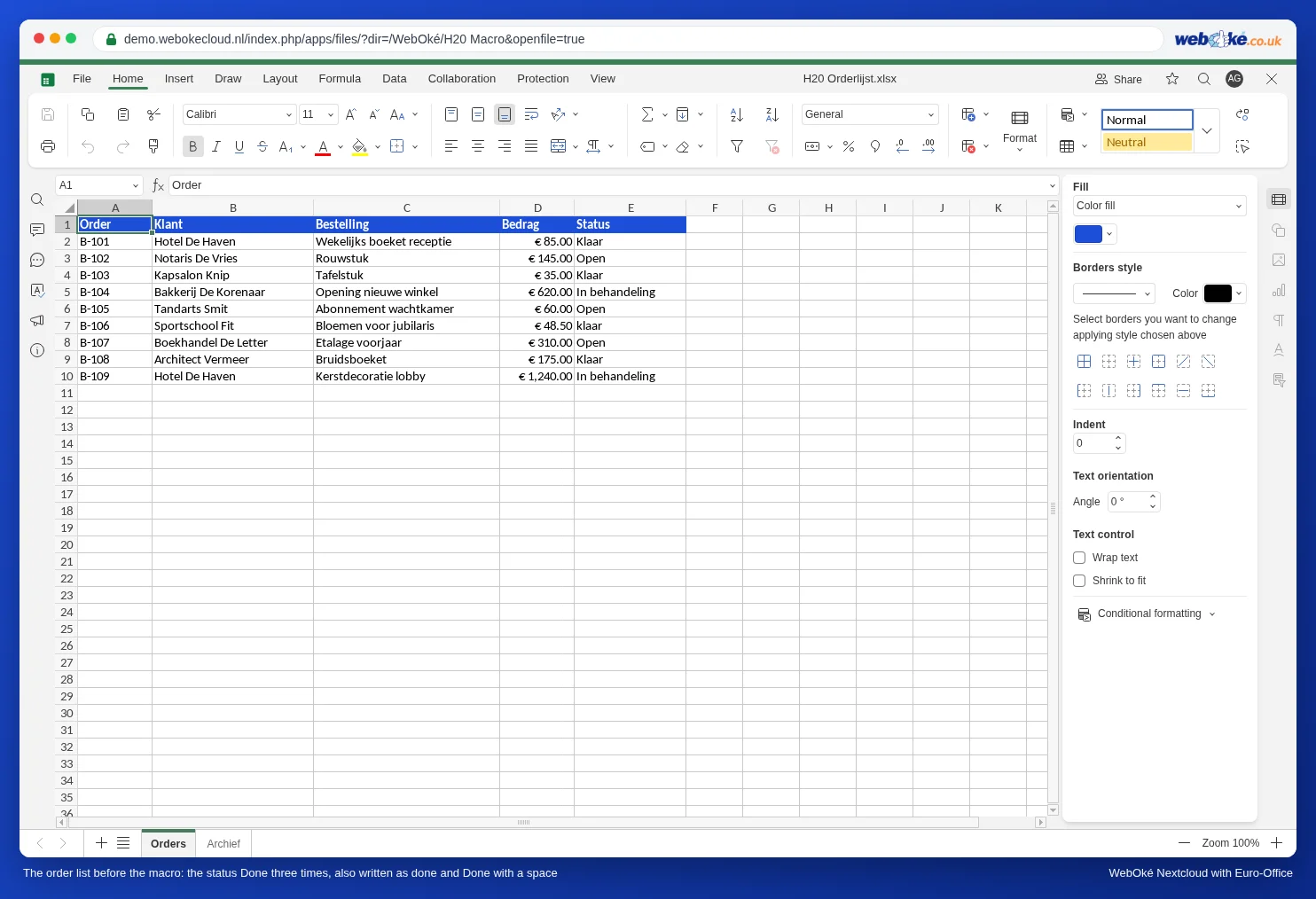
As an example, we use the order list of Bloemisterij Het Zonnetje, a WebOké customer. On the Orders worksheet, columns A to E contain the order number, the customer, the order, the amount and the status (Klaar means done). There is a second worksheet, Archief, with the same column headers.
First: the Macros window
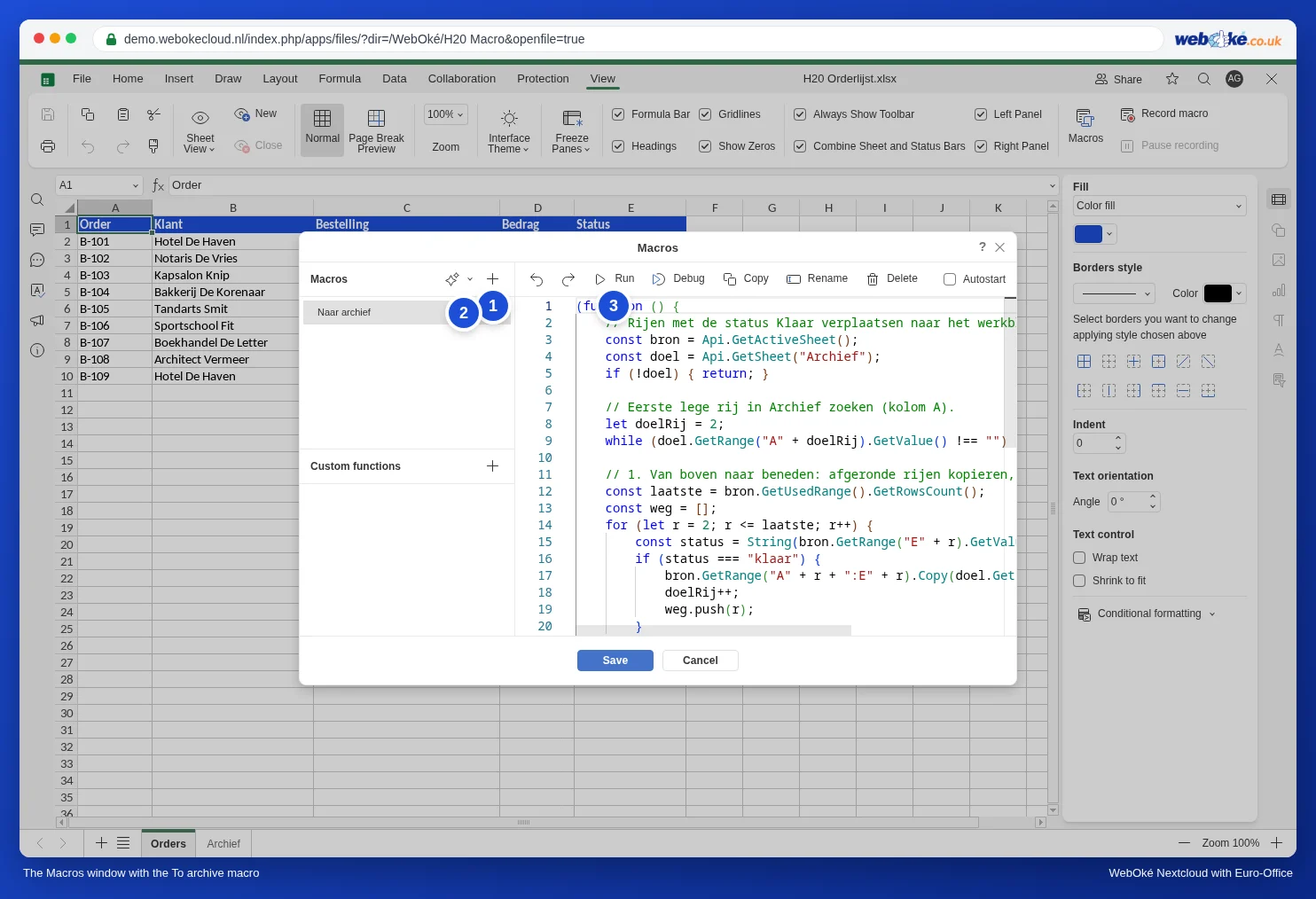
Macros are enabled in your WebOké Nextcloud; you don't need to switch anything on. You'll find them in spreadsheets and text documents on the View tab, under the Macros button. On the left, the window has two lists, Macros and Custom functions (see Excel formulas with LET or LAMBDA: what to do in Euro-Office instead), and on the right the code. Above the code are the buttons Run (the triangle), Debug, Copy, Rename, Delete and the Autostart checkbox.
A macro belongs to the file you create it in. It is saved in the xlsx and goes with it when you copy or share the file.
Step 1: the Archief worksheet
- Click the plus sign at the bottom to add a new worksheet and name it exactly Archief (right-click the tab, Rename).
- Copy the header row from Orders to row 1 of Archief. The macro starts filling from row 2.
Step 2: create the macro
- Go back to the Orders worksheet. This is important: the macro works on the worksheet that is open.
- On the View tab, click Macros.
- Click the plus sign next to Macros (1). An empty macro with a few lines of code appears.
- Click Rename and name the macro Naar archief (2).
- Delete the code on the right and paste this code in its place:
(function () {
    // Move rows with the status Klaar to the Archief worksheet.
    const bron = Api.GetActiveSheet();
    const doel = Api.GetSheet("Archief");
    if (!doel) { return; }

    // Find the first empty row in Archief (column A).
    let doelRij = 2;
    while (doel.GetRange("A" + doelRij).GetValue() !== "") { doelRij++; }

    // 1. From top to bottom: copy finished rows, in the right order.
    const laatste = bron.GetUsedRange().GetRowsCount();
    const weg = [];
    for (let r = 2; r <= laatste; r++) {
        const status = String(bron.GetRange("E" + r).GetValue()).trim().toLowerCase();
        if (status === "klaar") {
            bron.GetRange("A" + r + ":E" + r).Copy(doel.GetRange("A" + doelRij));
            doelRij++;
            weg.push(r);
        }
    }
    // 2. Delete from bottom to top, so the row numbers stay correct.
    for (let i = weg.length - 1; i >= 0; i--) {
        bron.GetRows(weg[i]).Delete("up");
    }
})();
Step 3: run and save
- Click Run, the triangle (3). The macro does its work straight away; the window stays open.
- Click Save. This stores the macro in the file. If you click Cancel, the macro is gone, but whatever it has already done stays.
How the code works
- Api.GetActiveSheet() is the worksheet that is open, Api.GetSheet("Archief") is the archive. If that worksheet doesn't exist, the macro stops without doing anything.
- The while line finds the first empty row in Archief. This means you can run the macro again every week: new finished orders are added below the old ones.
- GetUsedRange().GetRowsCount() counts how many rows are filled.
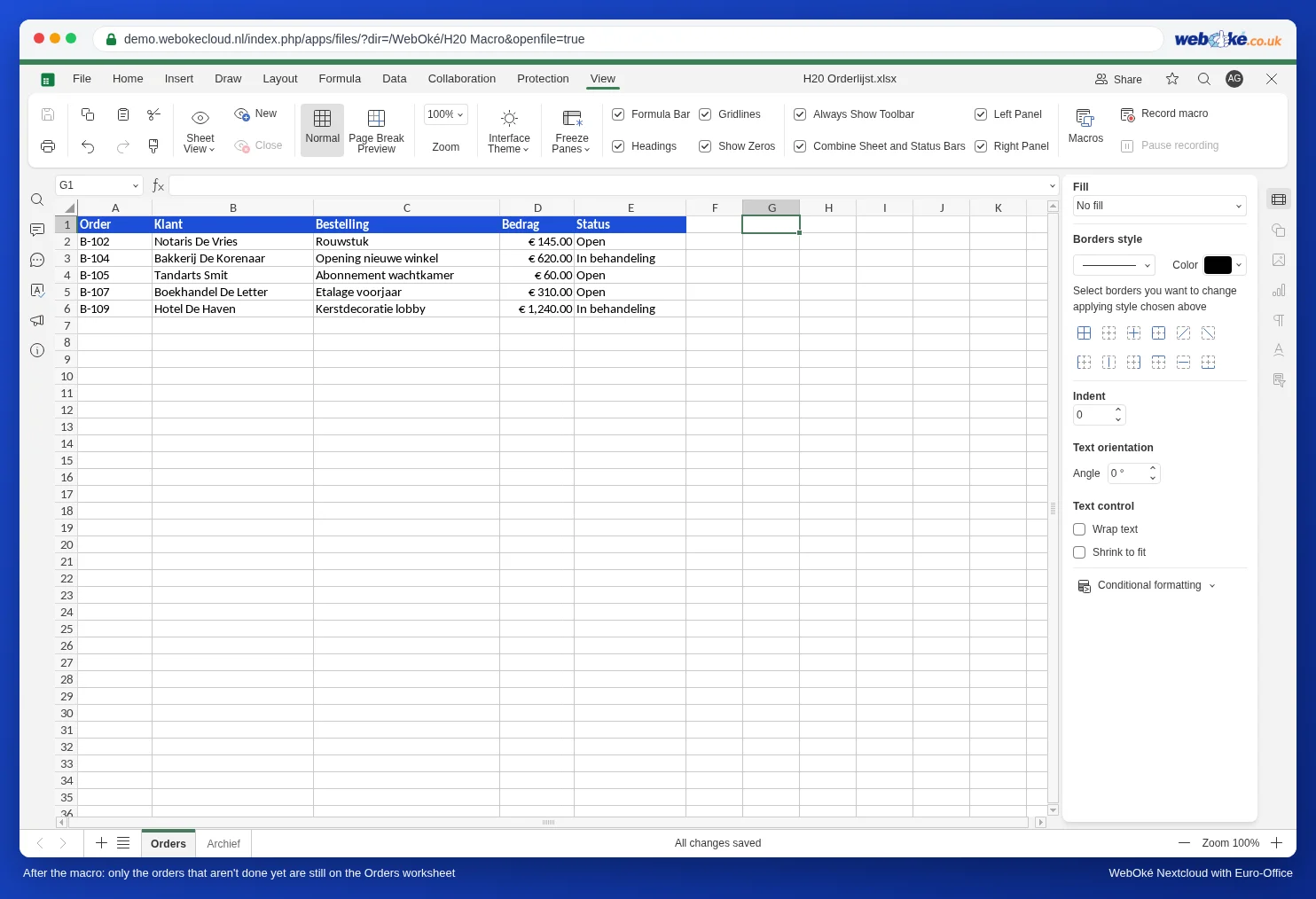
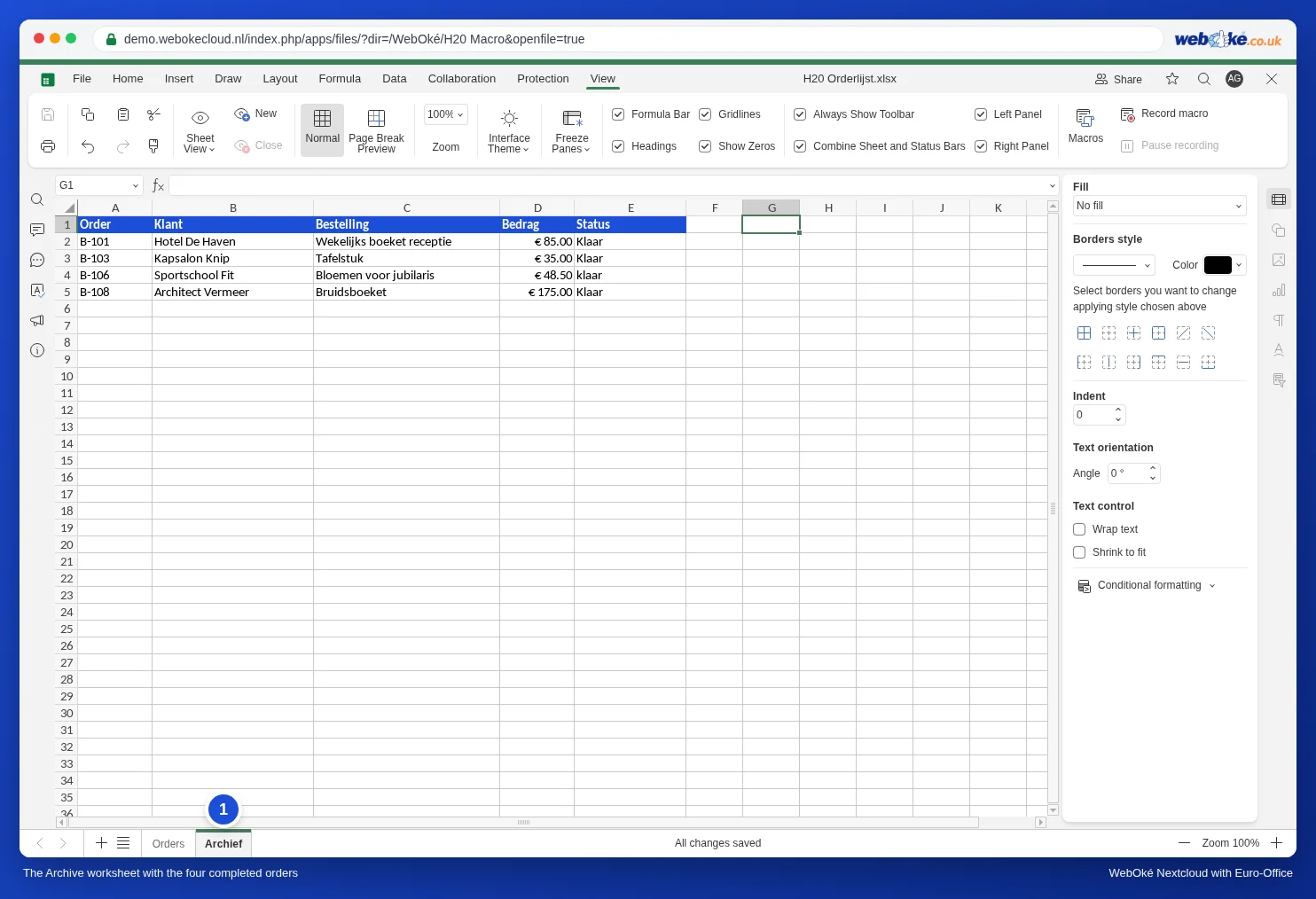
- The status is read for each row. trim() removes spaces and toLowerCase() converts it to lower case. That way "klaar" and "Klaar " with a space also count, as with B-106 and B-108 in our example.
- Copy copies the row including its formatting, such as the euro format of the amount.
- The rows are only deleted at the end, from bottom to top. If you delete row 2 first, everything moves up one place and you skip a row.
Adapting it to your own list
- A different status column: replace the "E" in GetRange("E" + r) with your own column letter.
- More columns: if your list runs to column H, replace ":E" with ":H".
- A different word: replace "klaar" with, for example, "paid" or "completed", always in lower case.
- A different archive: replace "Archief" with the name of your worksheet, exactly as it appears on the tab.
Tip: put a button on the worksheet that starts this macro, so your colleagues never need to open the Macros window. See A button in your spreadsheet that runs a macro.
Pitfalls
- Test on a copy first. A macro does a lot in one go. In our test, Undo did not reverse the macro, not even after clicking twice. Make a copy of the file beforehand, or use the version history to go back (see Version History: restoring an older version).
- Wrong worksheet open? If you run the macro while Archief is open, it searches the archive for Klaar. Then nothing happens, or something strange. Always go to Orders first.
- Your table doesn't start in row 1? GetRowsCount counts from the first filled row. If there is a title and an empty line above your table, add those rows to laatste.
- Formulas in the row? Copy takes formulas with it. If a formula refers to another row in Orders, it may no longer be correct in the archive.
- Working in the file together? Let one person run the macro. See also Using macros safely: macros settings, autostart for colleagues and reuse.
What isn't possible
- Moving rows automatically as soon as someone selects Klaar: in principle this is possible with a macro that watches for changes (see Automatically fill in the date and time when someone changes a cell), but removing a row while someone is still typing is disruptive and error-prone. A button is more reliable.
- Moving rows to another file: a macro can only work within its own file. If you want a separate archive file for each year, copy the Archief worksheet by hand at the end of the year.
- Recording instead of programming: Record macro doesn't capture copying and pasting. So you really need to paste this macro as code. More about recording in Converting a VBA macro to JavaScript yourself: the translation table.