
Chapter 20 · 20.5
Replacing text and template fields in one go with a macro
Many businesses use a fixed template for quotes, contracts or confirmations. Wherever something changes per customer, the template has fields such as {klantnaam}, {datum} and {bedrag}. With Find and replace (see Find and replace) you have to replace each field separately, and it's easy to miss one. Mail merge (see Creating letters from a recipient list) is designed for many letters at once from an address list. For one quote at a time, a macro is the easiest option: you enter the values at the top, click Run, and all fields are filled in at once.
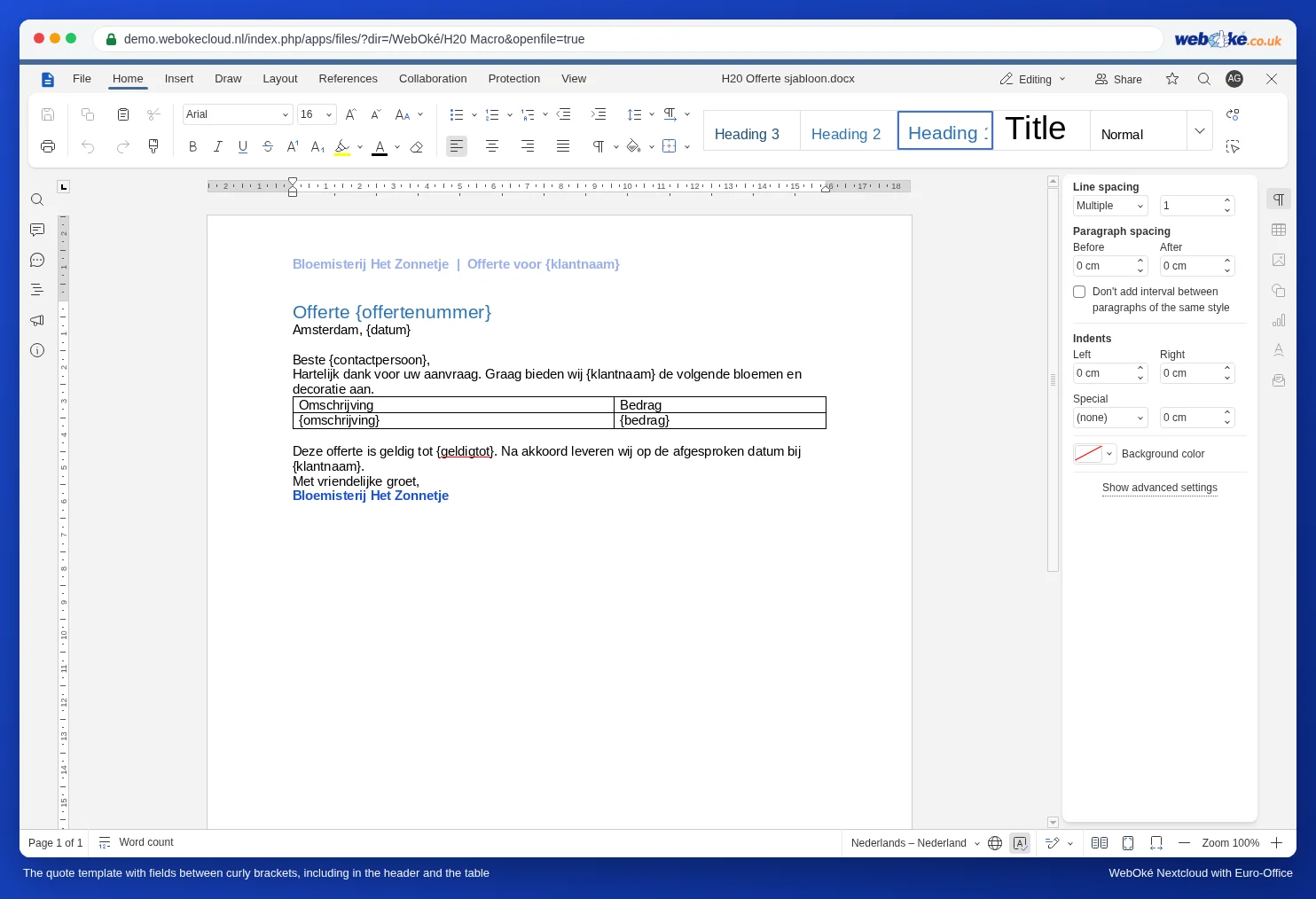
The template
Bloemisterij Het Zonnetje has a quote template with fields in the header, in the body text, in a table and in the footer. Each field is placed between curly brackets. This matters: it guarantees that the word doesn't appear anywhere else in the text. "datum" could also appear in a sentence, "{datum}" can't.
Step by step
- Make a copy of the template for the new quote: in your WebOké Nextcloud via the three dots next to the file and Copy, or in Euro-Office via File, Save Copy As. Never work in the template itself.
- Open the copy and on the View tab, click Macros.
- Click the plus sign next to Macros, name the macro Velden invullen (or any name you like) and paste the code below.
- To the right of each colon, enter the text for this customer.
- Click Run and then Save.
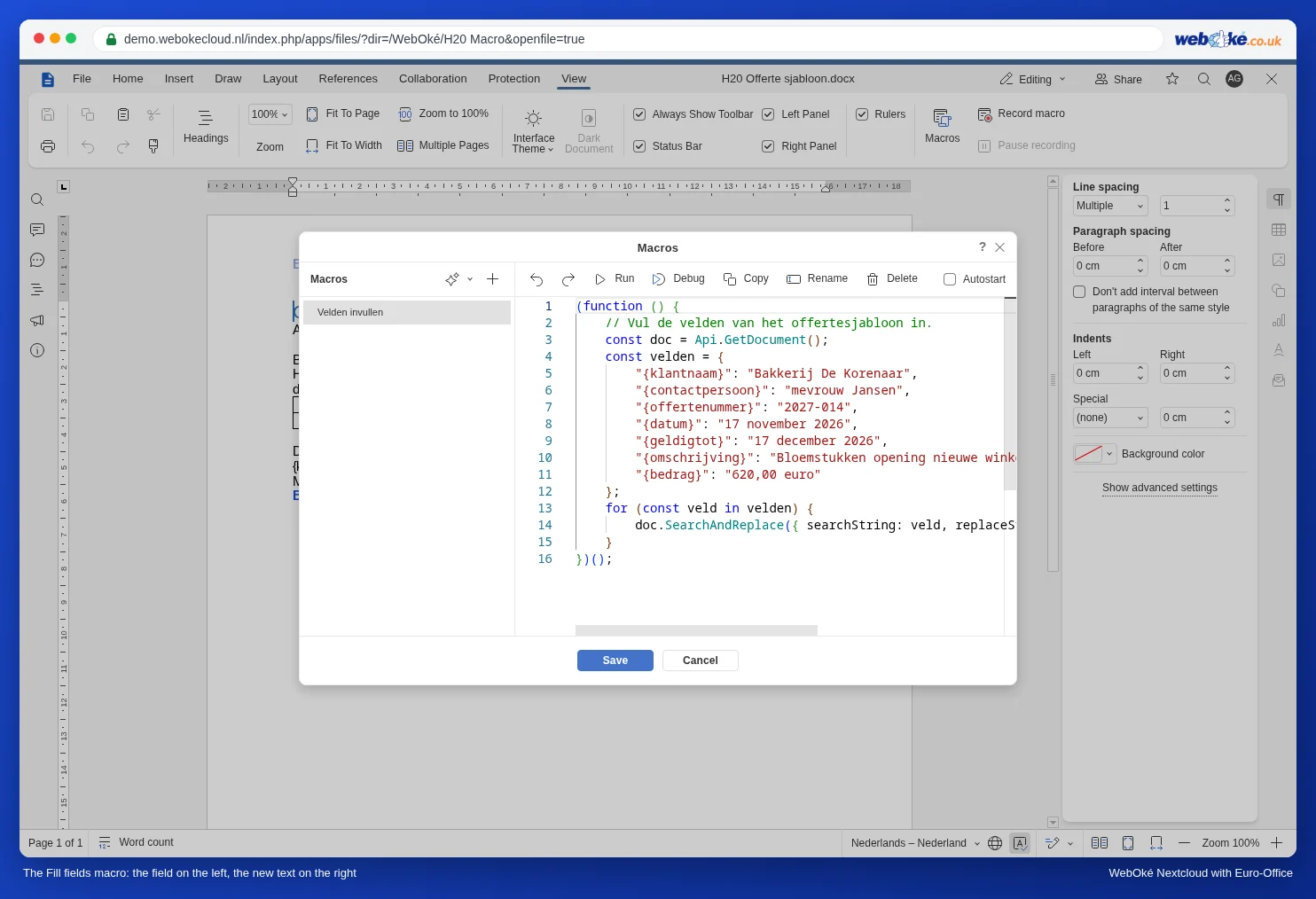
(function () {
    // Fill in the fields of the quote template.
    const doc = Api.GetDocument();
    const velden = {
        "{klantnaam}": "Bakkerij De Korenaar",
        "{contactpersoon}": "mevrouw Jansen",
        "{offertenummer}": "2027-014",
        "{datum}": "17 november 2026",
        "{geldigtot}": "17 december 2026",
        "{omschrijving}": "Bloemstukken opening nieuwe winkel",
        "{bedrag}": "620,00 euro"
    };
    for (const veld in velden) {
        doc.SearchAndReplace({ searchString: veld, replaceString: velden[veld], matchCase: true });
    }
})();
How the code works
- velden is a short list of pairs: the field as it appears in the document, and the new text. You can add as many lines as you like. Remember the comma at the end of each line, except the last one.
- SearchAndReplace replaces every occurrence of the field throughout the document. If {klantnaam} appears three times, it is replaced three times.
- matchCase: true means upper and lower case must match exactly. {Klantnaam} with a capital letter will then not be replaced.
- The formatting stays: a field that was bold or blue becomes bold or blue text.
Where does it work and where doesn't it?
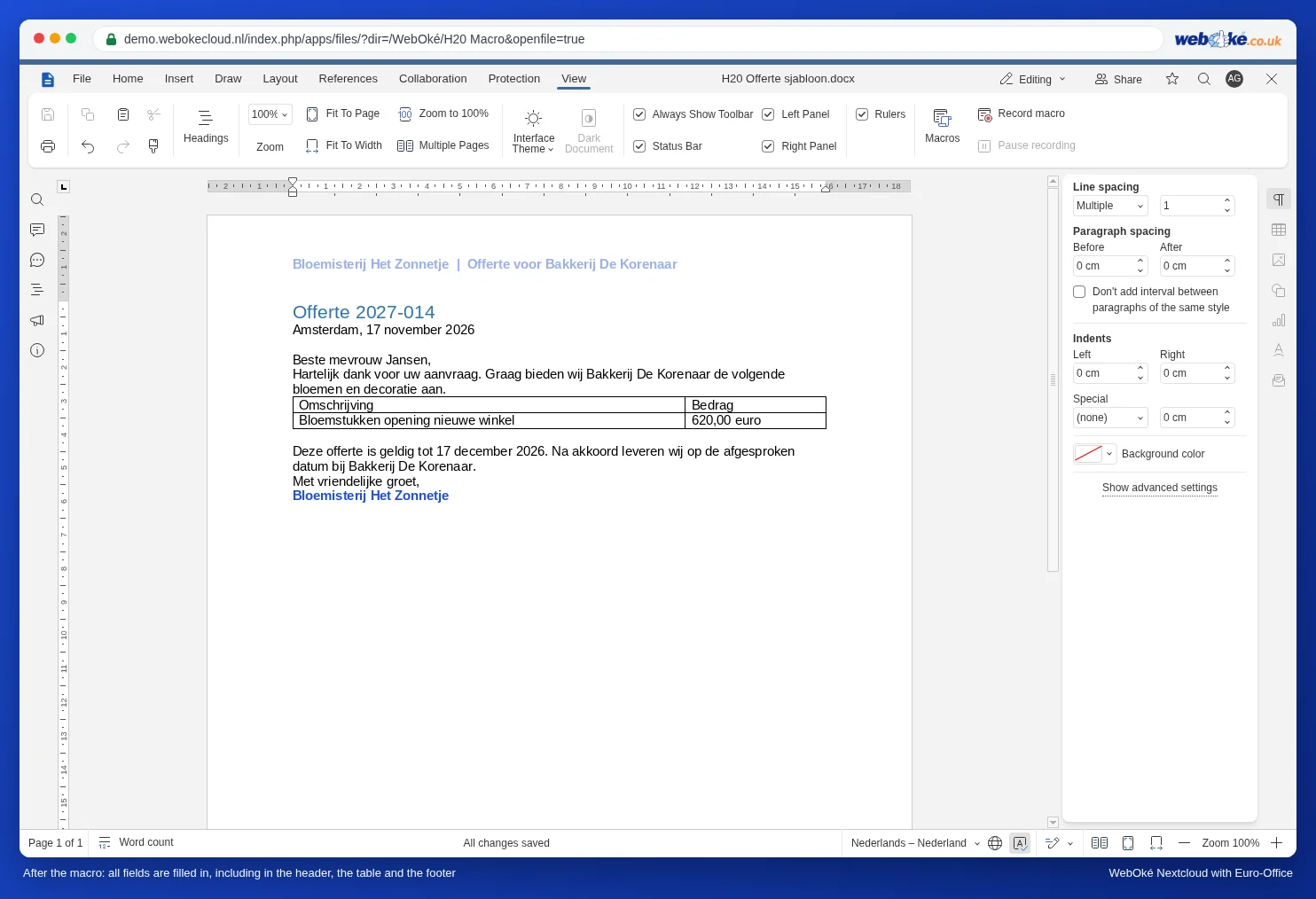
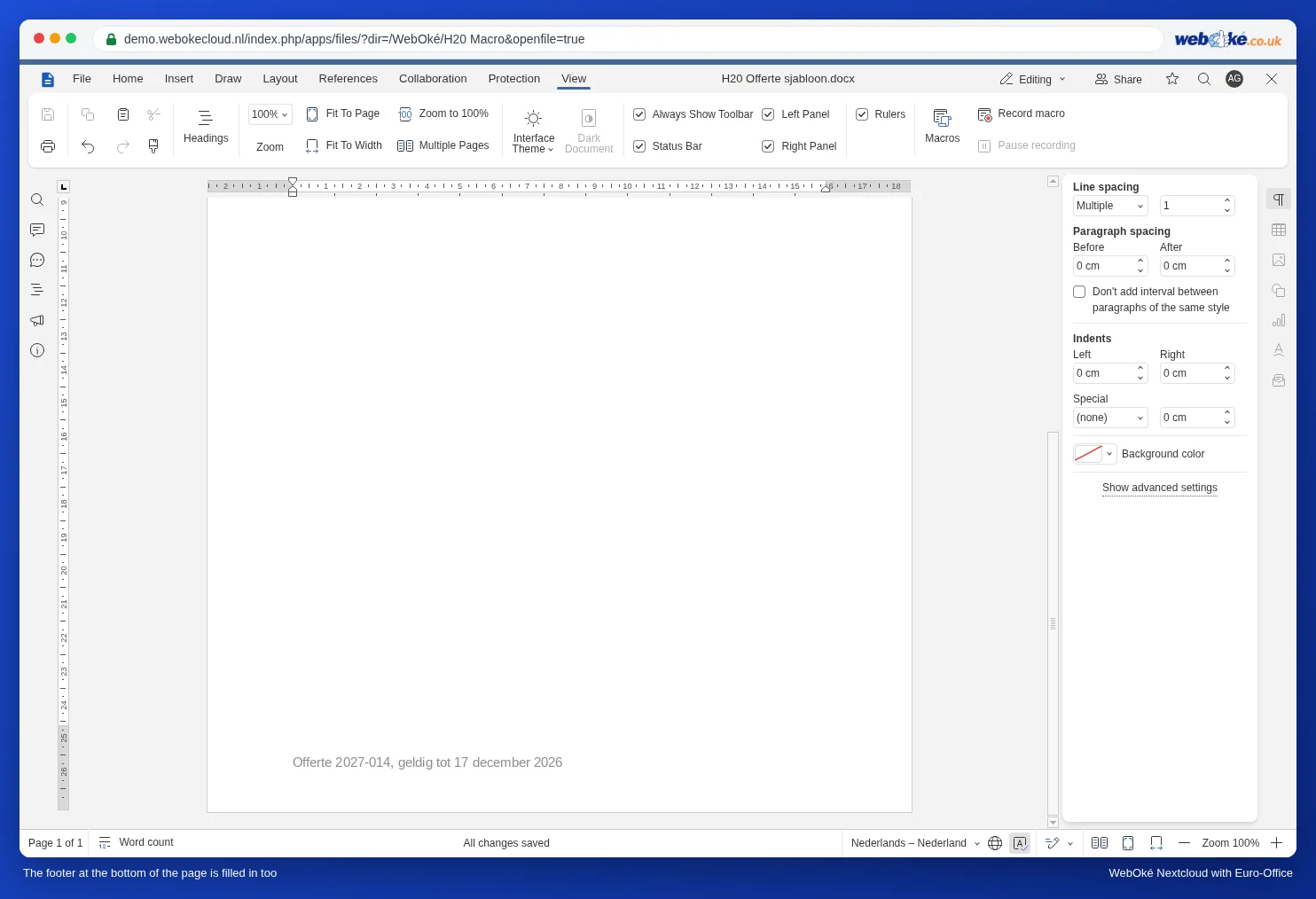
In our test, the macro filled in the fields everywhere: in the body text, in the table, in the header at the top and in the footer at the bottom of the page.
Keeping the macro in the template
Put the macro in the template itself, with empty values or sample values. Every copy will then already contain it: you open the copy, adjust the values and click Run. A macro that works for all your documents at once doesn't exist in Euro-Office; see Using macros safely: macros settings, autostart for colleagues and reuse.
Pitfalls
- A field isn't replaced: check that it appears in the document exactly as written, with the same capitalisation and no spaces inside the curly brackets.
- Quotation marks in your text: if the new text itself contains a straight quotation mark ("), put a backslash in front of it: \". An apostrophe, as in "Hotel 't Anker", is no problem.
- Accidentally ran it in the template? Use the version history to restore the template (see Version History: restoring an older version).
What isn't possible
- Taking the values from a spreadsheet: a macro can only work in its own document; it can't look into another file. If you keep your customer details in a spreadsheet, use mail merge instead (see Creating letters from a recipient list).
- Asking for the values in a dialog box, like InputBox in Word: a macro can't show an input window. You enter the values in the code.