
Chapter 15 · 15.1
A total overview from multiple worksheets: expenses, income and balance
Many people keep their expenses and income on separate worksheets. That's a good idea, as it keeps each list easy to read. But at some point you want to see, in one place, how much came in, how much went out and what you're left with. You do that with a third worksheet that pulls the totals from the other worksheets. Change an amount later, and the overview updates itself straight away.
As an example, we'll use the annual figures of Bloemisterij Het Zonnetje, a WebOké customer, with three worksheets: Expenses, Income and Overview.
Step 1: the Expenses worksheet
- Create a new spreadsheet and name the first worksheet Expenses: right-click the tab at the bottom and choose Rename (see Managing sheets).
- Type Item in A2 and Amount in B2. Below that, in A3 to B11, enter your expenses: rent, energy, purchasing, insurance, your WebOké Nextcloud and so on.
- Type Total in A12 and the formula =SUM(B3:B11) in B12.

Tip: leave a few empty rows above the total row. If you add an item in one of these empty rows later, SUM automatically includes it. If you insert a whole row within the range, the range grows along with it too.
Step 2: the Income worksheet
Click the plus at the bottom to add a new worksheet and name it Income. Set it up exactly like Expenses: items in A3 to A11, amounts in column B, and =SUM(B3:B11) again in B12. Using the same layout makes the overview easy to build later: the total is in B12 on both worksheets.
Step 3: the Overview worksheet
- Create a third worksheet and name it Overview.
- Type Income in A3, Expenses in A4 and Balance in A5.
- Type the formula =Income!B12 in B3. This means: the value from cell B12 on the Income worksheet. The exclamation mark separates the worksheet name from the cell.
- Type =Expenses!B12 in B4.
- Type =B3-B4 in B5: income minus expenses.
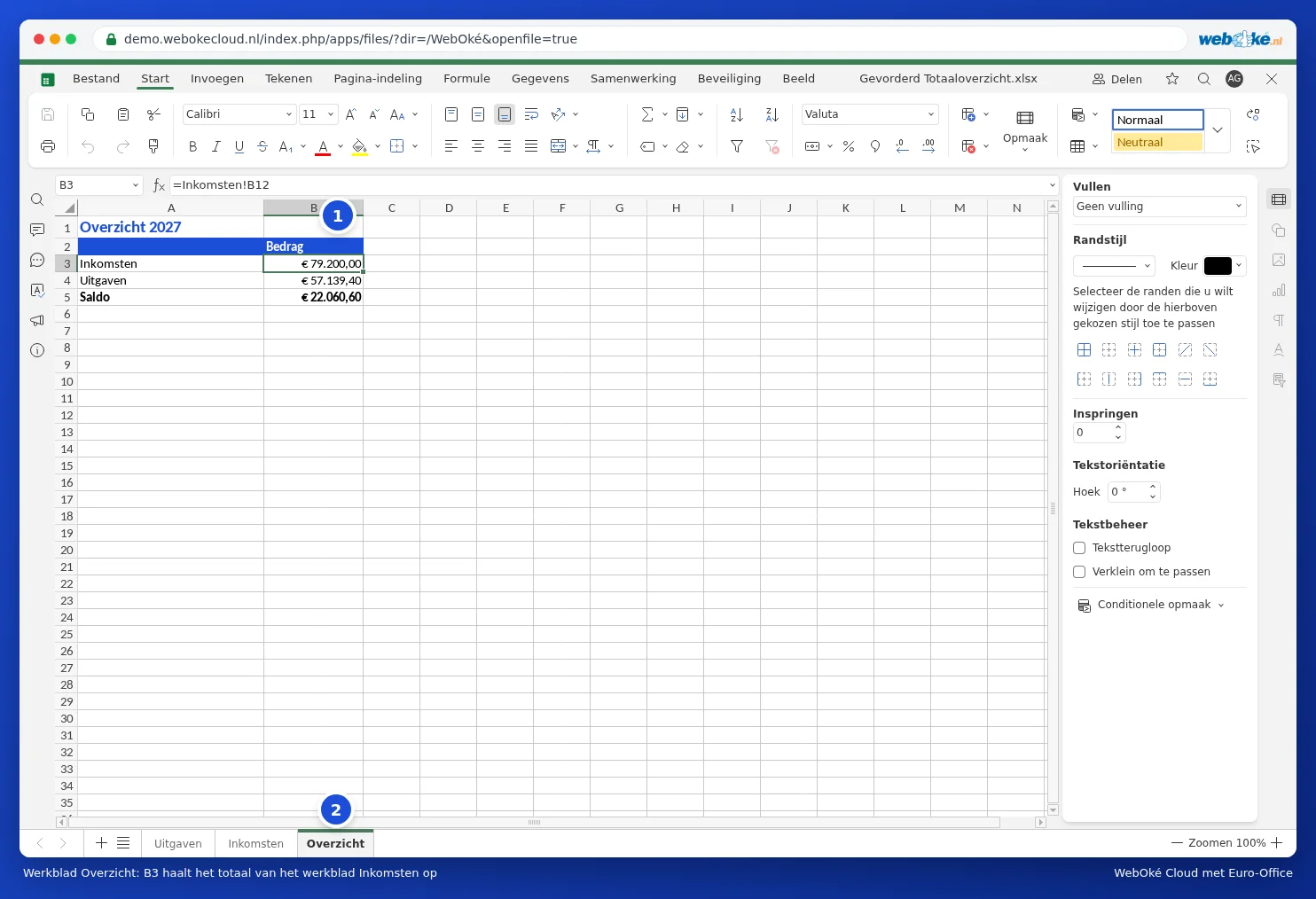
You don't need to type the reference. Type an equals sign in B3, click the Income worksheet tab at the bottom, click cell B12 and press Enter. Euro-Office then enters the reference in the formula for you and jumps back to the overview.

Names with a space
If a worksheet is called Expenses 2027, with a space, put the name in single quotes: ='Expenses 2027'!B12. Without a space, you can still use quotes (='Expenses'!B12); Euro-Office will then simply remove them. If you click the cell instead of typing, Euro-Office always gets the quotes right automatically.
Extending it: by month or by category
- A percentage: type =B4/B3 in C4 and apply the Percentage format to the cell. This shows what proportion of your income goes on expenses.
- By category: on the Expenses worksheet, add a category in column C (for example Housing, Purchasing, Auto). On the overview, =SUMIF(Expenses!C3:C11,"Purchasing",Expenses!B3:B11) adds up only the purchasing expenses.
- The same cell across many worksheets: if you have twelve worksheets, January to December, each with a total in B12, then =SUM(January:December!B12) adds them all up in one go. The worksheets must be next to each other, in that order.
Pitfalls
- #REF! on the overview: you've deleted a worksheet or removed a row that the formula pointed to. Set the reference again.
- Renamed a worksheet? No problem: Euro-Office automatically updates the formulas on the overview.
- Total shifted? If you insert a row above the total row, the total moves to B13 and the reference on the overview shifts neatly along with it. If you retype the reference afterwards, check carefully where the total is now.
- Amount not being counted? If an amount sits on the left of the cell, it's text. See Formatting numbers, dates and currency.
Tip: if several people work in this file, protect the formulas on the overview so no one overwrites them by accident. See Protecting formulas in a shared spreadsheet.