
Chapter 9 · 9.5
Sharing with someone outside your organisation
A client, your accountant or a volunteer doesn't have an account in your WebOké Nextcloud. You can still work together with them. There are two ways to do this.
Method 1: a public link (most common)
Create a public link as described in Creating a public link (view or edit), preferably add a password and expiry date (Password and expiration date on a link), and send the link to the recipient. If the recipient should be able to edit as well, choose Can edit.
The recipient clicks the link and the document opens in Euro-Office in the browser. No account or program is needed. If the link has a password, the recipient enters it first. Euro-Office then asks for a name (1). This name appears next to the changes, comments and in the chat. If the recipient doesn't enter anything, they appear as Guest.

Are you in the document at the same time? Then you work together just like with a colleague: you see each other's changes immediately (see Working on a document at the same time).
Method 2: sharing via External shares
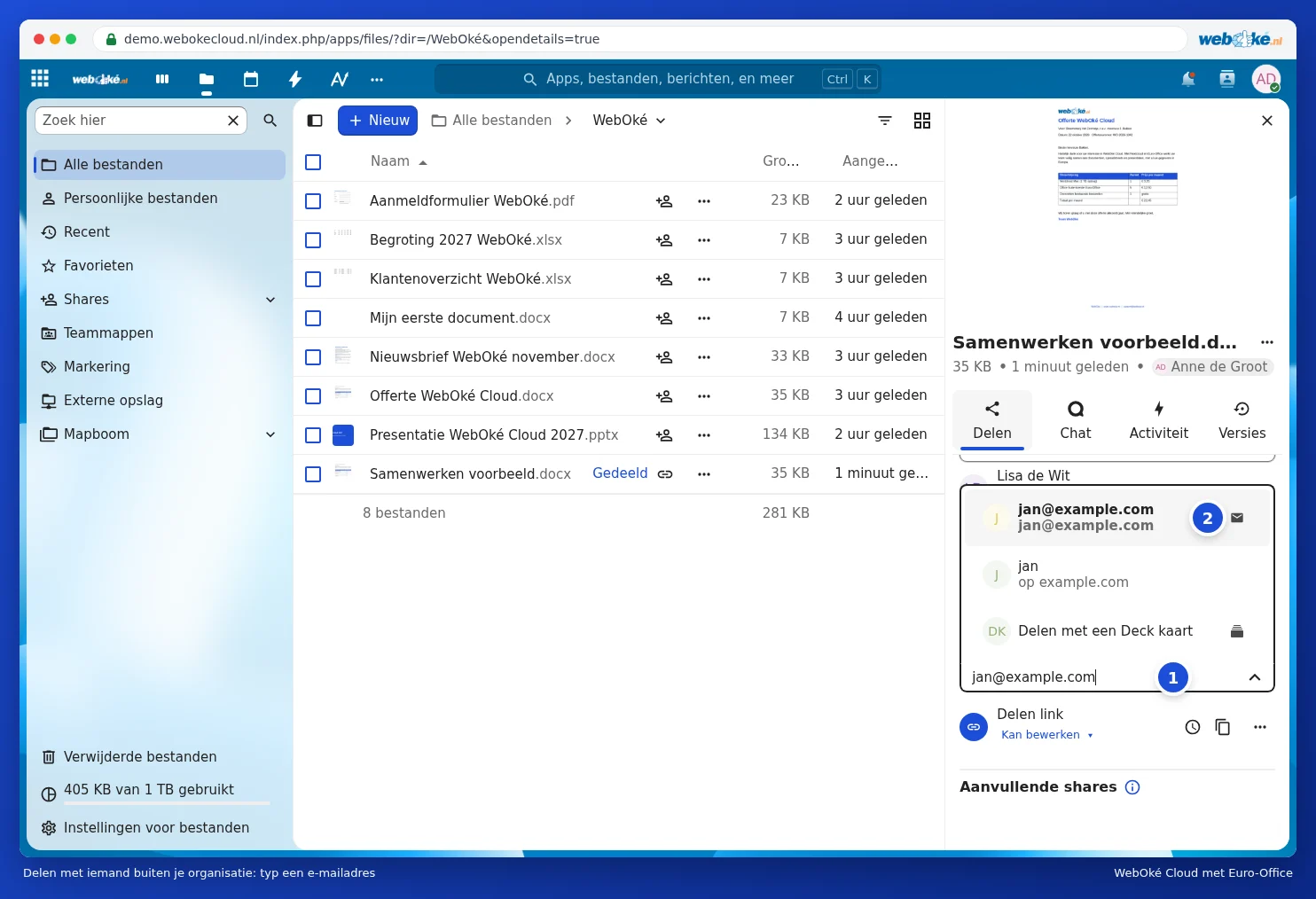
In the sharing sidebar, type an email address (1) in the field under External shares and select the address with the envelope icon from the list (2). Just as with a colleague, you then choose what the other person is allowed to do and click Save share. Your WebOké Nextcloud creates a personal link for that person and sends it by email. This way, you can see exactly who you've shared the file with in the sharing sidebar, and you can unshare per person.
Does the other person also use Nextcloud, for example at a different company? Then type their federated Cloud ID, which looks like name@cloud.example.com. The file then simply appears in the other person's Nextcloud.
Sharing safely with people outside your organisation
- Only grant editing rights if it's really necessary. For reading along, View only is enough.
- Add a password and expiry date to the link (Password and expiration date on a link).
- Share the file itself rather than an entire folder, unless the other person really needs to see everything in that folder.
- Use a watermark if the document is confidential (Using a watermark).
- Done? Choose Unshare in the link's menu.
Tip: everything stays in your own WebOké Cloud, in Europe. You don't send copies around, so you always know which version is the latest.