
Chapter 17 · 17.12
Rounding VAT correctly: per line or over the total
When you create an invoice or quote in a spreadsheet, the total is sometimes one cent off from your accounting software or from what the customer calculates. Or you work out the VAT from a price including VAT and end up just slightly wrong. This is almost always caused by rounding: when you round and what you round.
As an example, we use an invoice from Bakkerij De Korenaar with products at 9% and two lines at 21%.
The layout
| A | B | C | D | E | |
|---|---|---|---|---|---|
| 1 | Description | Quantity | Price excl. | VAT | Amount excl. |
| 2 | Wedding cake | 1 | 186.35 | 9% | |
| 3 | Tompouces | 24 | 2.15 | 9% | |
| 4 | Currant buns | 30 | 0.79 | 9% | |
| 5 | Delivery | 1 | 7.50 | 21% | |
| 6 | Cake stand hire | 1 | 12.40 | 21% |
Type the VAT rates as 9% and 21%, so with the percent sign. The cell then contains 0.09 and 0.21, and you can calculate with them directly.
Step 1: round the line amount
Type =ROUND(B2*C2,2) in E2 and drag the formula down to E6. ROUND with 2 really rounds to cents. Just setting the format to two decimal places is not enough: you then see 2 decimals, but the spreadsheet keeps calculating with all the digits after the decimal point.
Step 2: choose one method for the VAT
You can calculate and round the VAT per line, or over the total per rate. Both are allowed, but don't switch within one invoice. Many accounting packages calculate over the total per rate.
Method 1: over the total per rate
=ROUND(SUMIF(D2:D6,9%,E2:E6)*9%,2) gives the VAT at 9%, and =ROUND(SUMIF(D2:D6,21%,E2:E6)*21%,2) the VAT at 21%. SUMIF first adds up all line amounts with that rate; the formula then calculates the VAT once and rounds it.
Method 2: per line
Enter =ROUND(E2*D2,2) in F2, drag it down to F6 and add up per rate with =SUMIF(D2:D6,9%,F2:F6) and =SUMIF(D2:D6,21%,F2:F6).
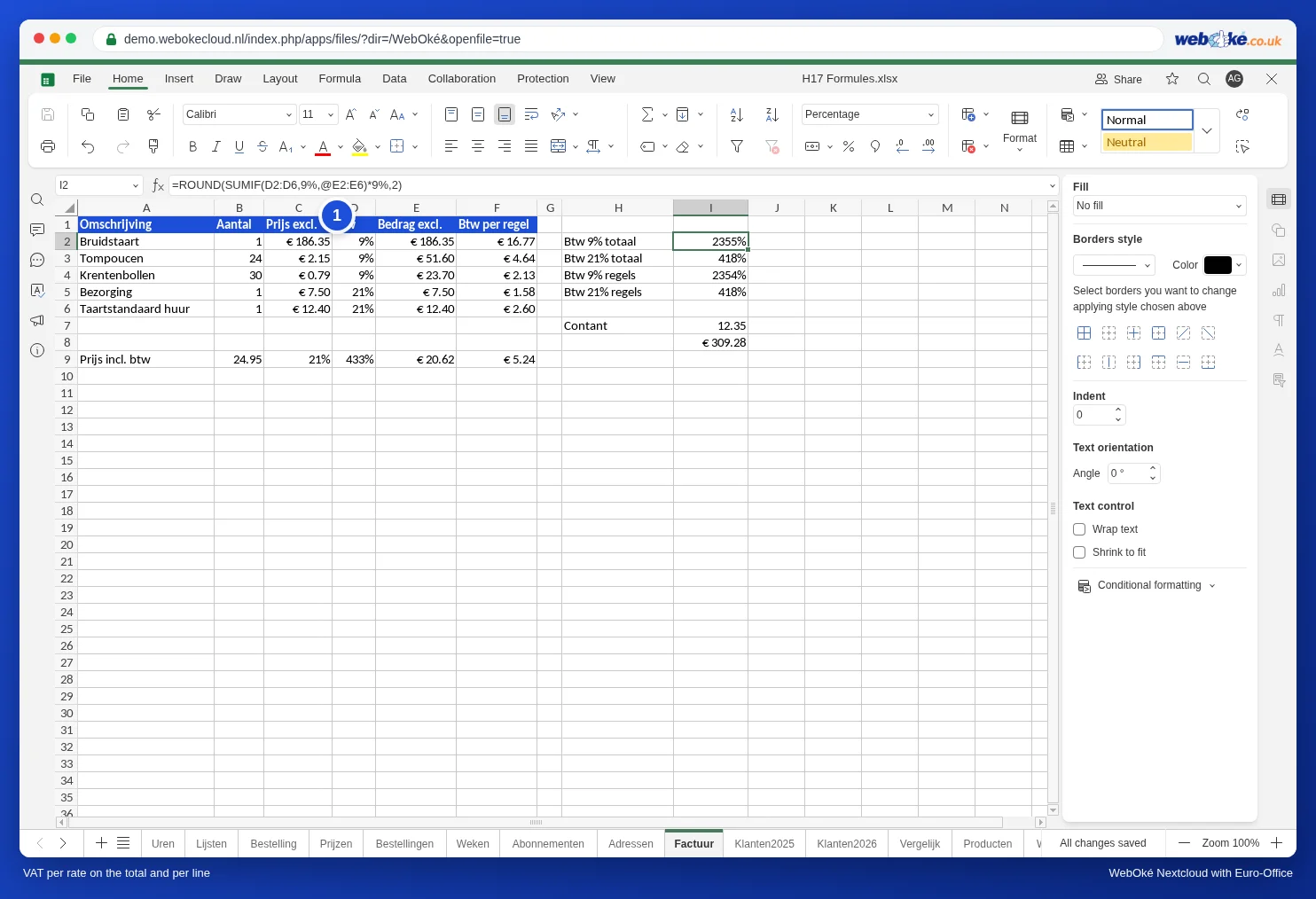
Please note: if a formula calculates with a percentage, such as *9% or a cell containing 21%, Euro-Office often gives the result the Percentage format automatically. A VAT amount of 23.55 then appears as 2355%. Give those cells the Currency format (see Formatting numbers, dates and currency).
In the example, method 1 gives 23.55 at 9% and method 2 gives 23.54. Both are correct, as long as you stick to one method and your total matches it.
Step 3: the total and the check
The total including VAT is =SUM(E2:E6) plus the VAT amounts from your chosen method. If you calculate over the total, never check it by adding up the amounts including VAT per line: you may get a one-cent difference again.
Working out VAT from a price including VAT
A common mistake: taking 21% of the amount including VAT. 21% of 24.95 including VAT is 5.24, while the VAT is only 4.33. The correct formulas, with the price including VAT in B9 and the rate in C9:
- VAT: =ROUND(B9*C9/(1+C9),2) gives 4.33.
- Amount excluding VAT: =B9-D9 (with the VAT in D9) gives 20.62.
Here too, Euro-Office may give the VAT cell the Percentage format: 4.33 then appears as 433%. Choose the Currency format for that cell.
Rounding cash to 5 cents
If you round cash amounts in your shop to 5 cents, use =MROUND(amount,0.05). This turns 12.37 into 12.35. Only round the final amount this way, not the lines and not the VAT.
Pitfalls
- Rate typed as 21 instead of 21% or 0.21: the VAT then becomes a hundred times too high.
- Formatting only, no ROUND: the cells neatly show cents, but the total calculates with the invisible decimals and can differ by a cent from what you add up on paper.
- SUMIF doesn't find the rate: if column D contains text ("9 %" with a space, aligned left in the cell), the line is not counted. Type the rates again as 9%.
- Making invoices for your accounts? Then it's better to use accounting software. A spreadsheet is fine for a quote or a quick calculation.