
Chapter 20 · 20.6
Excel formulas with LET or LAMBDA: what to do in Euro-Office instead
Advanced Excel users work with LET (giving intermediate results a name), LAMBDA (your own reusable formula) and functions such as BYROW and MAP. If you open such a file in Euro-Office, the cell shows an error value. This article explains what you can do instead: helper columns, names and, above all, the custom function, your own formula in JavaScript that you create in the Macros window.
What doesn't work
We typed =LET(x,B2,x*2) and =LAMBDA(x,x*2) in Euro-Office. Both return #NAME?: Euro-Office doesn't recognise these functions. The same applies to the functions built on LAMBDA, such as BYROW, BYCOL and MAP. If a file with these formulas comes from Excel, you'll see the same error value in those cells.
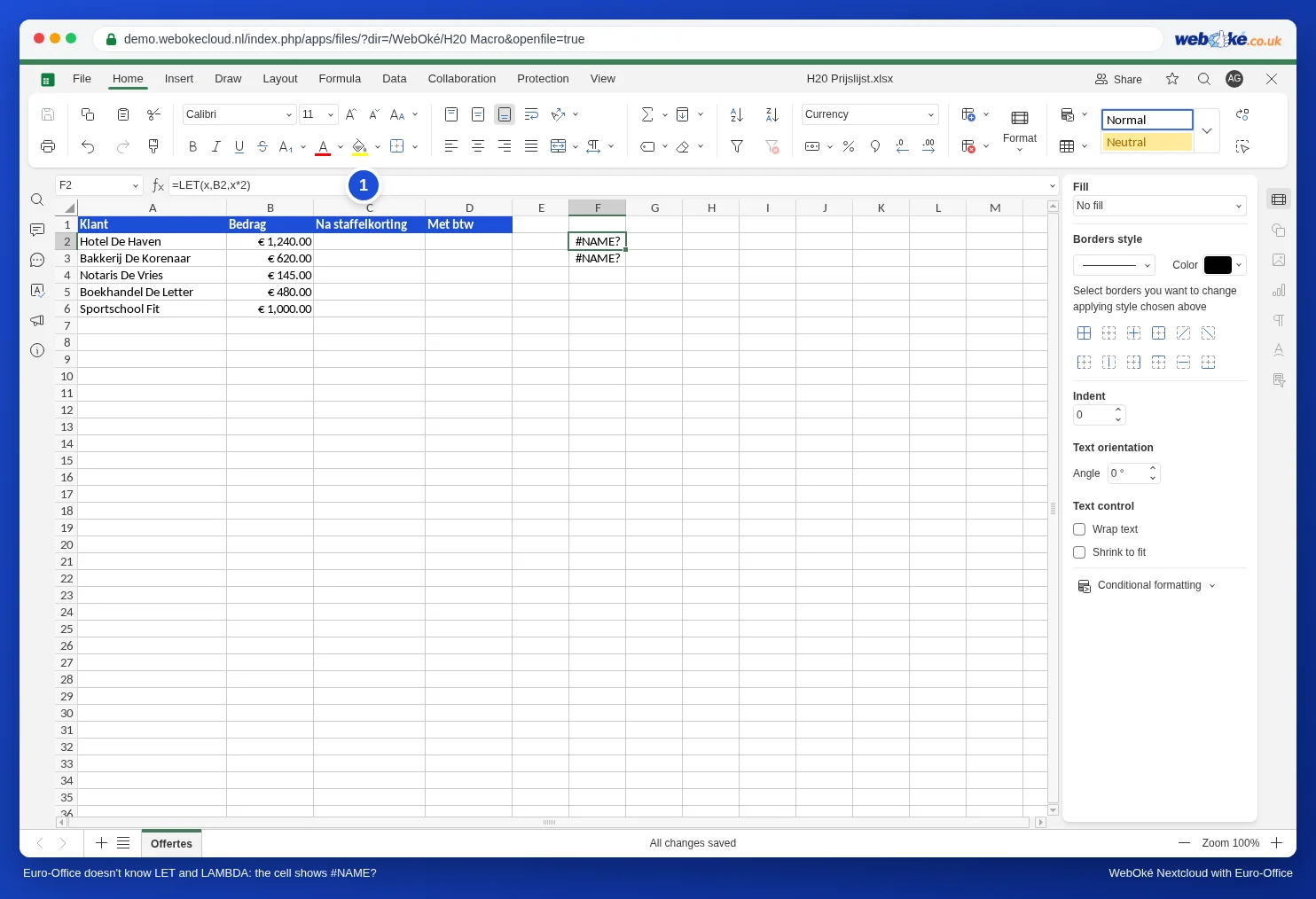
What does work: the new array functions such as FILTER, UNIQUE, SORT and XLOOKUP (see Lists that update themselves with FILTER, UNIQUE and SORT and XLOOKUP: looking up to the left and with your own message).
Instead of LET: a helper column or a name
- A helper column: put the intermediate result in a separate column and refer to it. Then hide the column if you don't want to see it (right-click the column letter, Hide).
- A name for a fixed value: for example, put the VAT rate in a cell and give that cell a name via the Formula tab, Named ranges, Define name. You can then write =B2*vat instead of =B2*$H$1.
Instead of LAMBDA: a custom function
Bloemisterij Het Zonnetje gives a tiered discount: 5 percent from 500 euros and 10 percent from 1,000 euros. In Excel the florist used a LAMBDA for this. In Euro-Office you turn it into your own function, STAFFELKORTING.
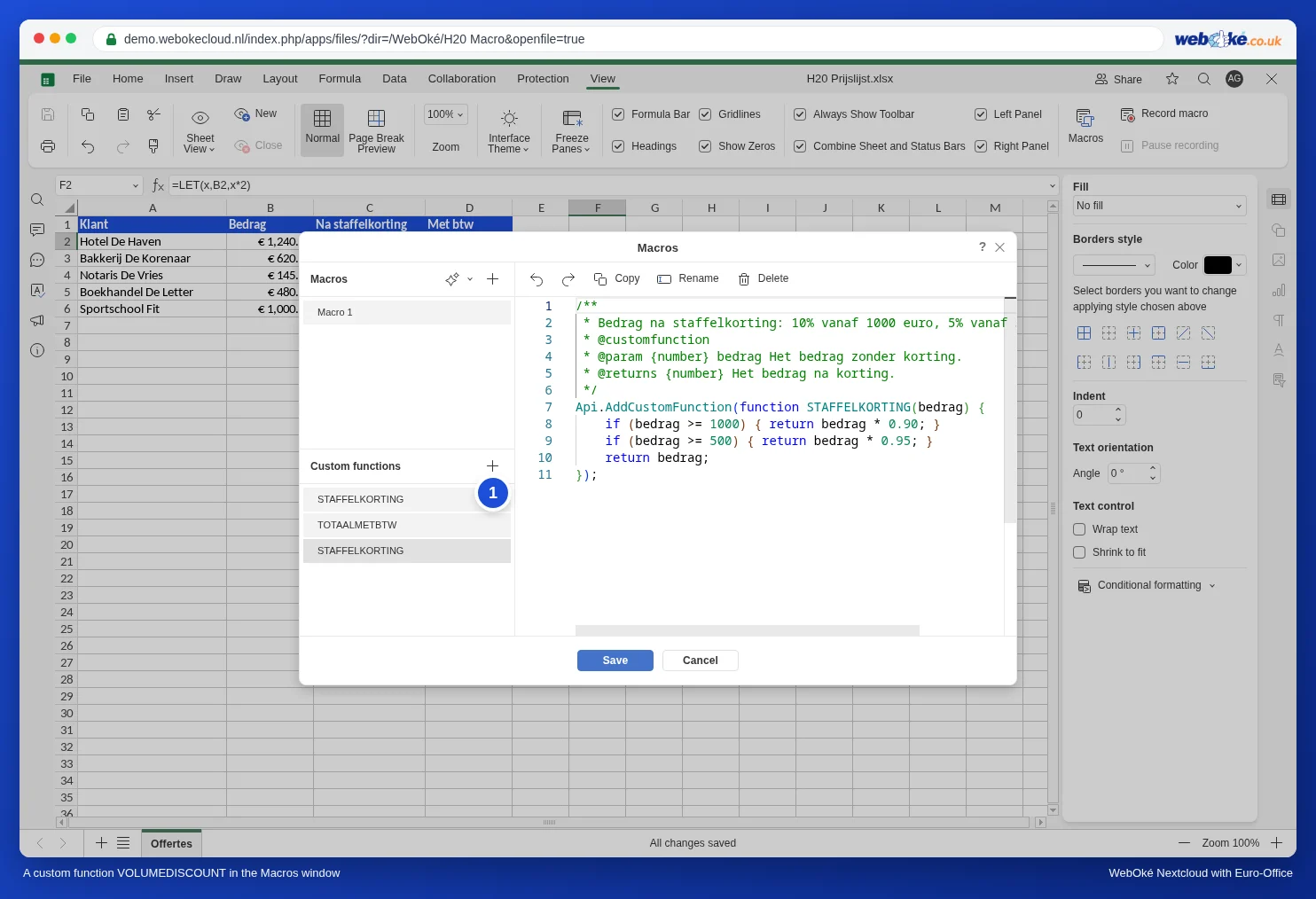
- On the View tab, click Macros.
- Next to Custom functions, click the plus sign (1).
- Click Rename and name the function STAFFELKORTING.
- Delete the sample code and paste this code:
/**
 * Amount after tiered discount: 10% from 1,000 euros, 5% from 500 euros.
 * @customfunction
 * @param {number} bedrag The amount without discount.
 * @returns {number} The amount after discount.
 */
Api.AddCustomFunction(function STAFFELKORTING(bedrag) {
    if (bedrag >= 1000) { return bedrag * 0.90; }
    if (bedrag >= 500) { return bedrag * 0.95; }
    return bedrag;
});- Click Save.
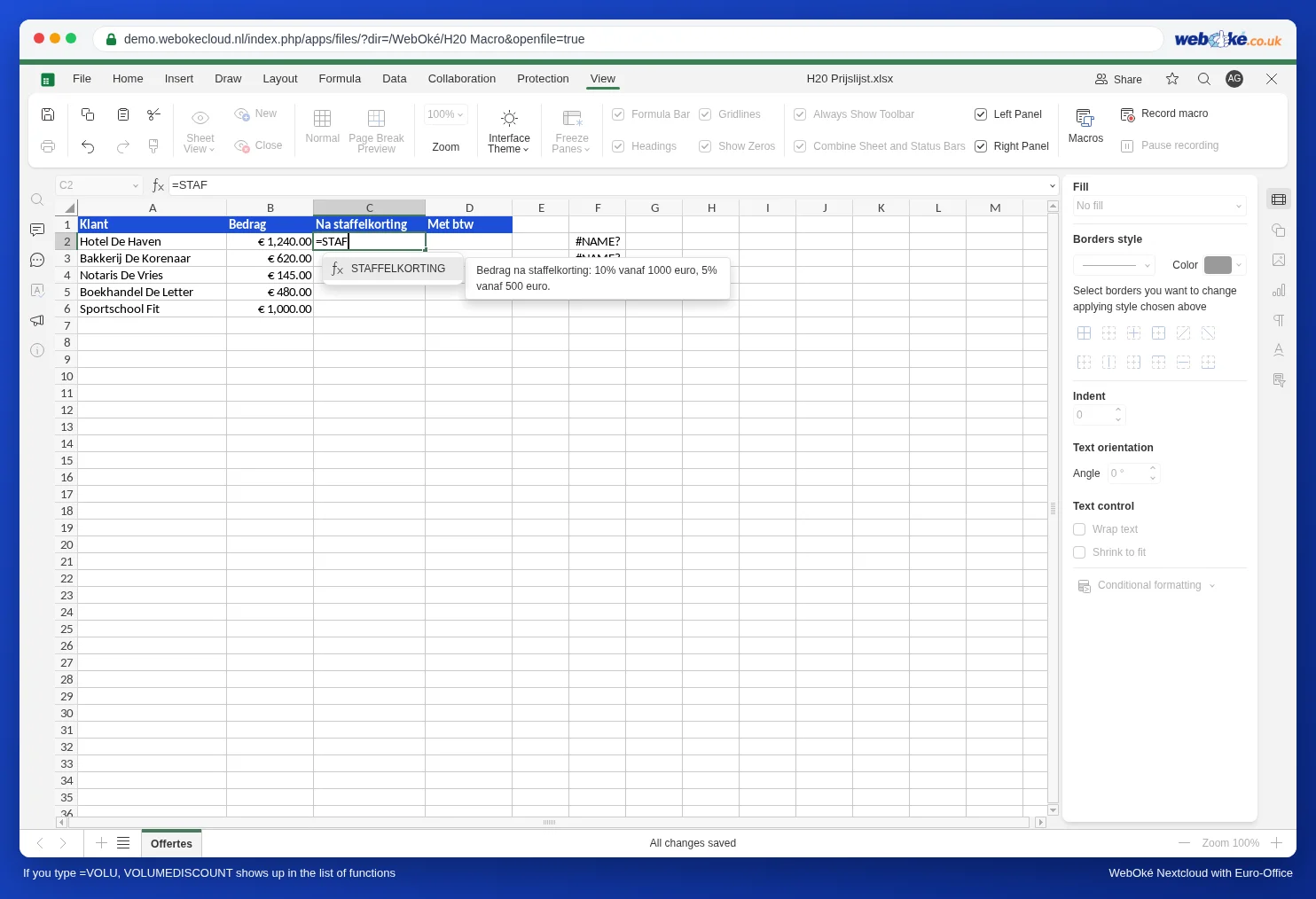
Now type =STAF in a cell. STAFFELKORTING appears in the list of functions, just like SUM or IF, with the description from the comment block in your code next to it.
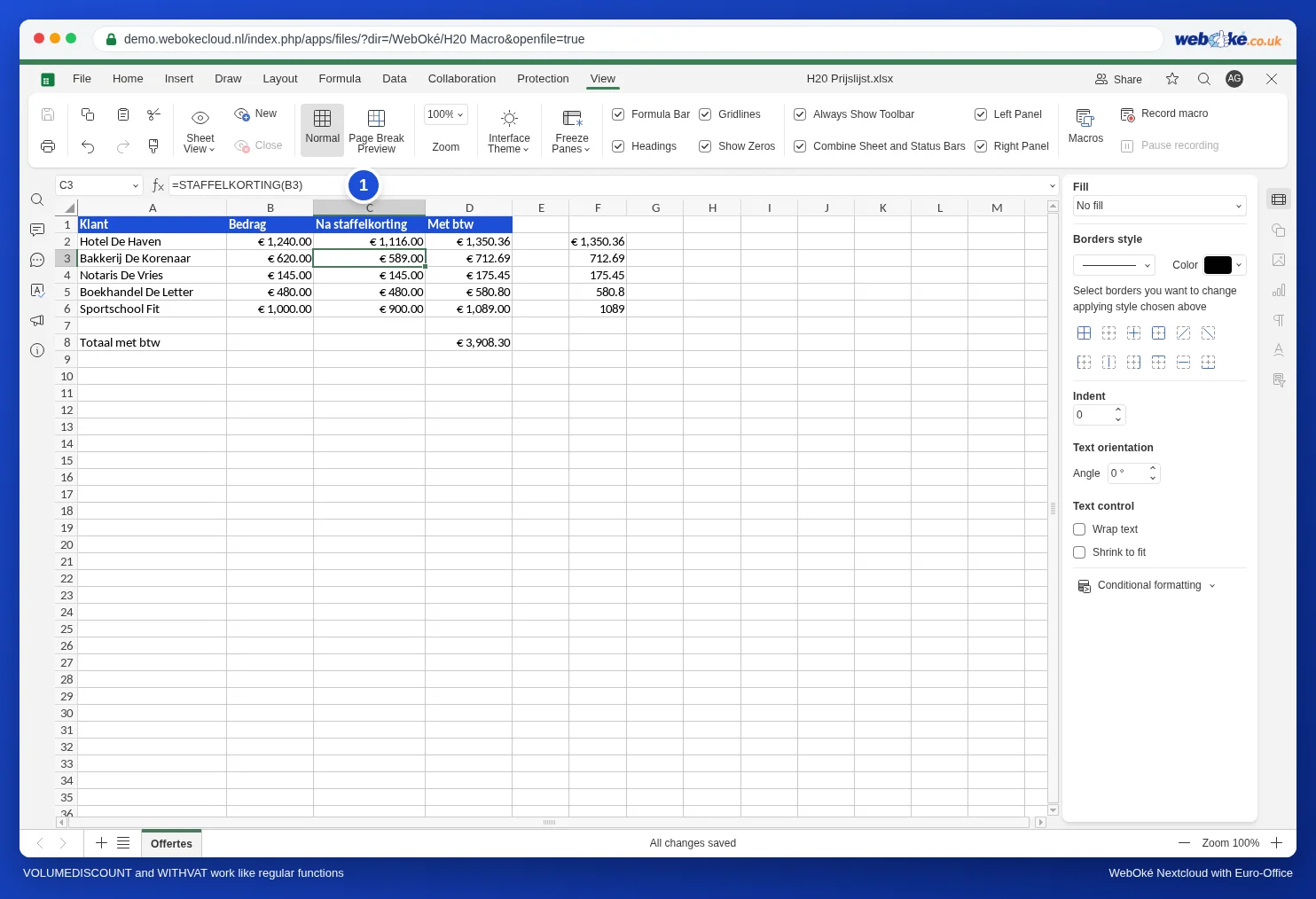
Enter =STAFFELKORTING(B2) in C2 and drag the formula down.
How the code works
- Api.AddCustomFunction registers the function. The name after function (STAFFELKORTING) is the name you type in the cell. Use capital letters, without spaces.
- The block between /** and */ is the description. The first line appears as the explanation in the list of functions. Keep @customfunction in it; after @param you describe what you put between the brackets.
- return sends the result back to the cell.
A second function: METBTW
Create a second custom function in the same way that adds the VAT:
/**
 * Amount including 21% VAT.
 * @customfunction
 * @param {number} bedrag The amount without VAT.
 * @returns {number} The amount including VAT.
 */
Api.AddCustomFunction(function METBTW(bedrag) {
    return Math.round(bedrag * 1.21 * 100) / 100;
});
In column D, enter =METBTW(C2) and drag it down. Below the column, =SUM(D2:D6) adds everything up. This way you combine your own functions with the standard ones.
Passing a range
A custom function works with one value at a time. If you pass a range anyway, such as =METBTW(C2:C6), Euro-Office calculates the function for each cell separately and places the results one below the other, just like FILTER or UNIQUE.
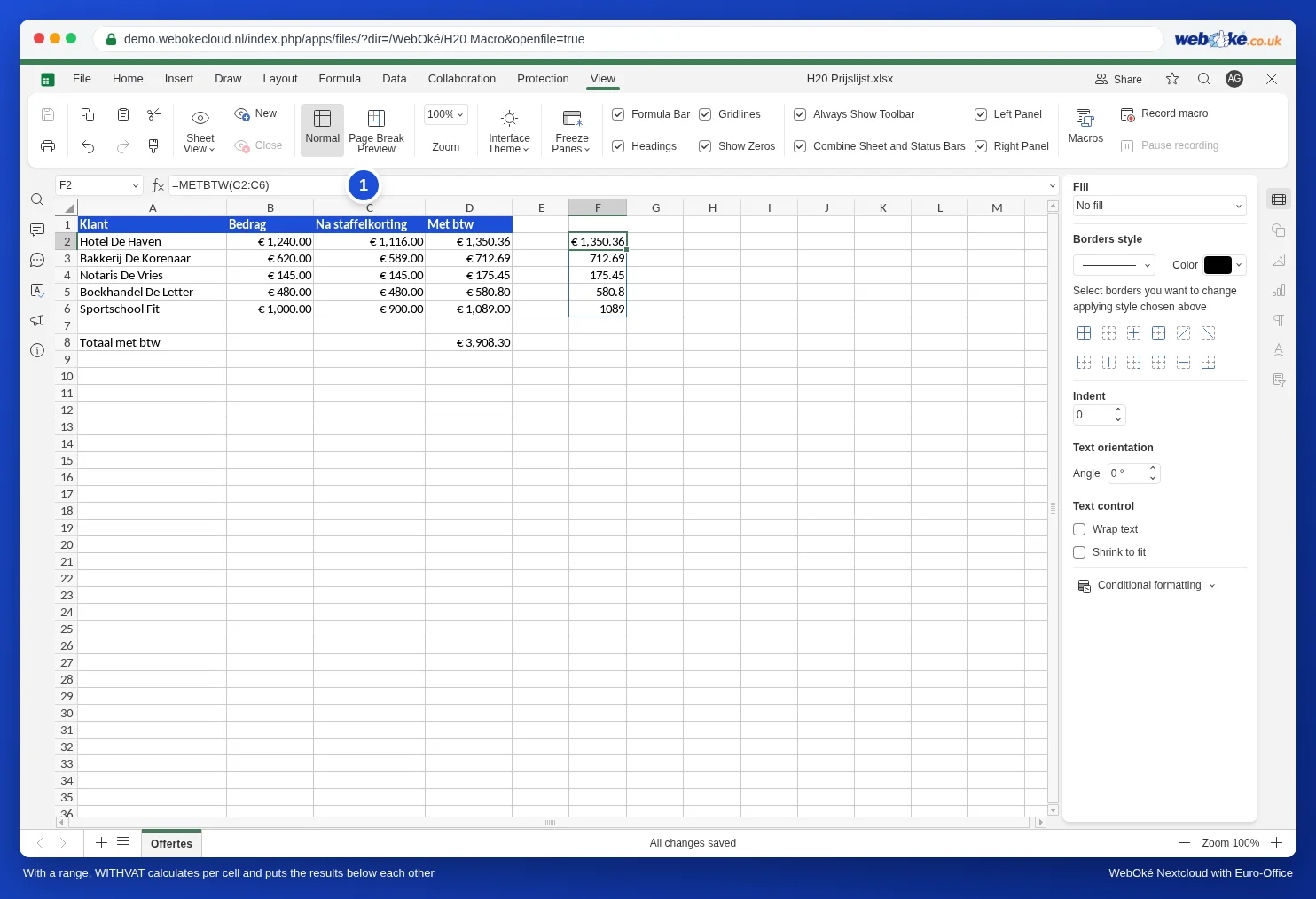
If you want a single total, add up the helper column with SUM, as shown above. =SUM(METBTW(C2:C6)) doesn't work in Euro-Office: in our test it returned #VALUE!.
Pitfalls
- Only in Euro-Office. Excel doesn't recognise your custom function. If the file also needs to work in Excel, use standard formulas instead: =IF(B2>=1000,B2*0.9,IF(B2>=500,B2*0.95,B2)) does the same as STAFFELKORTING.
- Custom functions belong to you, not to the file. In our test, after saving, STAFFELKORTING also appeared in the Custom functions list of another file. A colleague who opens your file doesn't have the function and sees #NAME?. If you want everyone to see the same result, use a standard formula or a helper column.
- Text instead of a number: if the cell you pass contains text, the function returns #VALUE!.
- Decimal numbers: in the code you write 0.90 with a decimal point, just as in the cell. JavaScript only accepts the point, so never use a comma as the decimal separator in your code.
- Function not working? See A macro that doesn't work: finding errors to find out how to track down errors.