
Chapter 18 · 18.2
Animations in the right order, with triggers and motion paths
In Transitions and animations you read how to add an animation. This article goes further: a quiz where the right answer only appears when you click a button, several effects on one object, an object that moves across the slide, and animations that run exactly one after the other without you having to click each time.
Example: Bloemisterij Het Zonnetje runs a flower arranging workshop and starts with a quiz question: "Which flower blooms first?" The slide shows three answers: Tulip, Crocus and Peony. If the presenter clicks Crocus, "Correct! The crocus already blooms in February." appears.
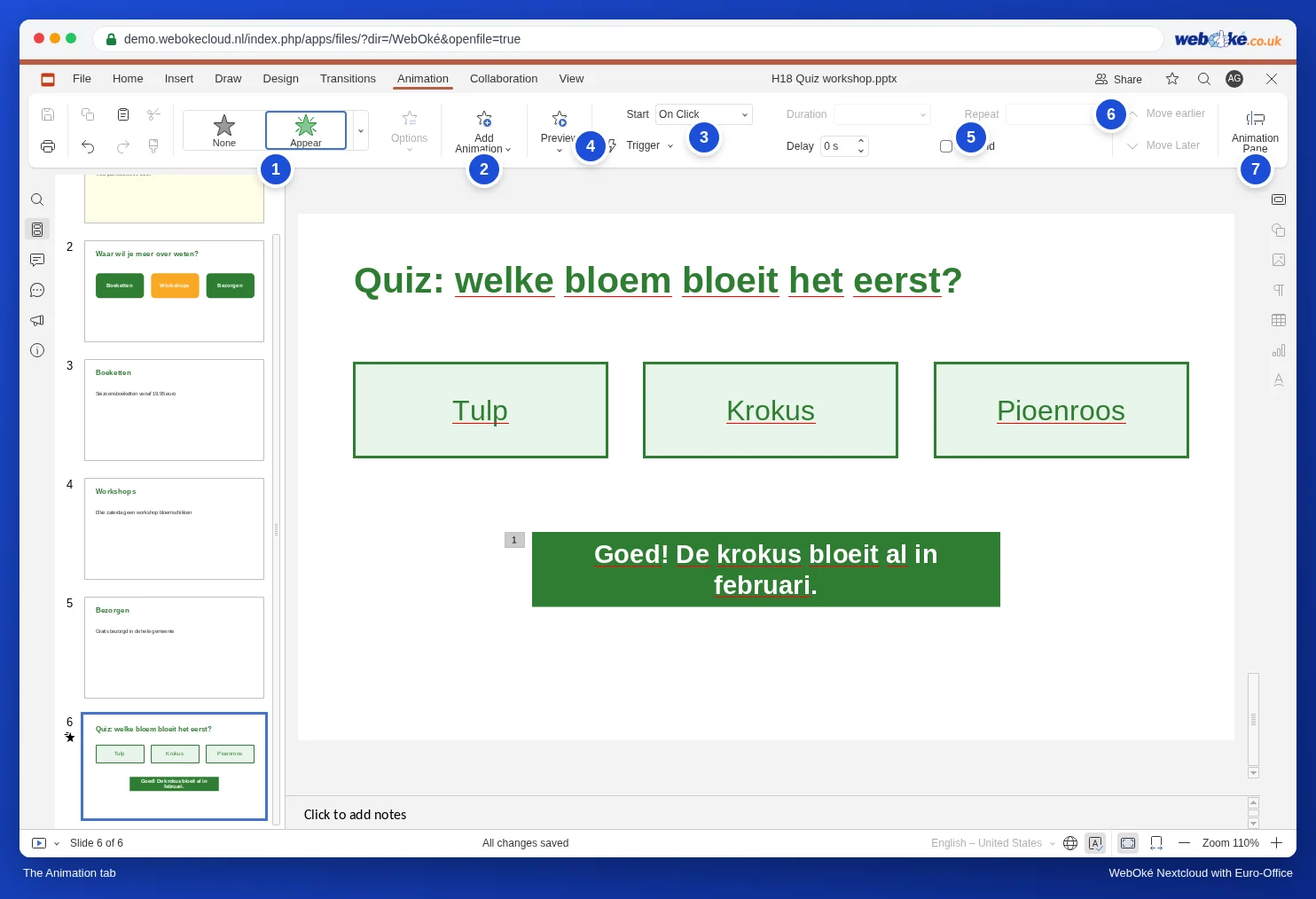
The Animation tab at a glance
- The gallery of effects, divided into Entrance Effects (something appears), Emphasis Effects (something already on the slide stands out), Exit effects (something disappears) and Motion paths (something moves across the slide). At the bottom is Show more effects.
- Options: the direction or shape of the chosen effect.
- Add Animation: a second or third effect on the same object. If you choose a different effect in the gallery, you replace the effect that was already there.
- Start: On Click, With Previous (at the same time as the effect before it) or After previous (as soon as the effect before it has finished).
- Trigger: On Click Sequence (simply after a click anywhere on the slide) or On Click of a specific object.
- Duration, Delay, Repeat and Rewind (the object returns to how it was once the effect ends).
- Bring Forward and Send Backward: the order of the effects.
- Animation Pane: a list of all effects on the slide.
Step 1: give the objects recognisable names
For a trigger, you choose the object that has to be clicked from a list of names. In a presentation from PowerPoint or another program, those objects are often called Text 0, Text 1, Text 2. Then you have to guess which one is Crocus. So give them a name first.
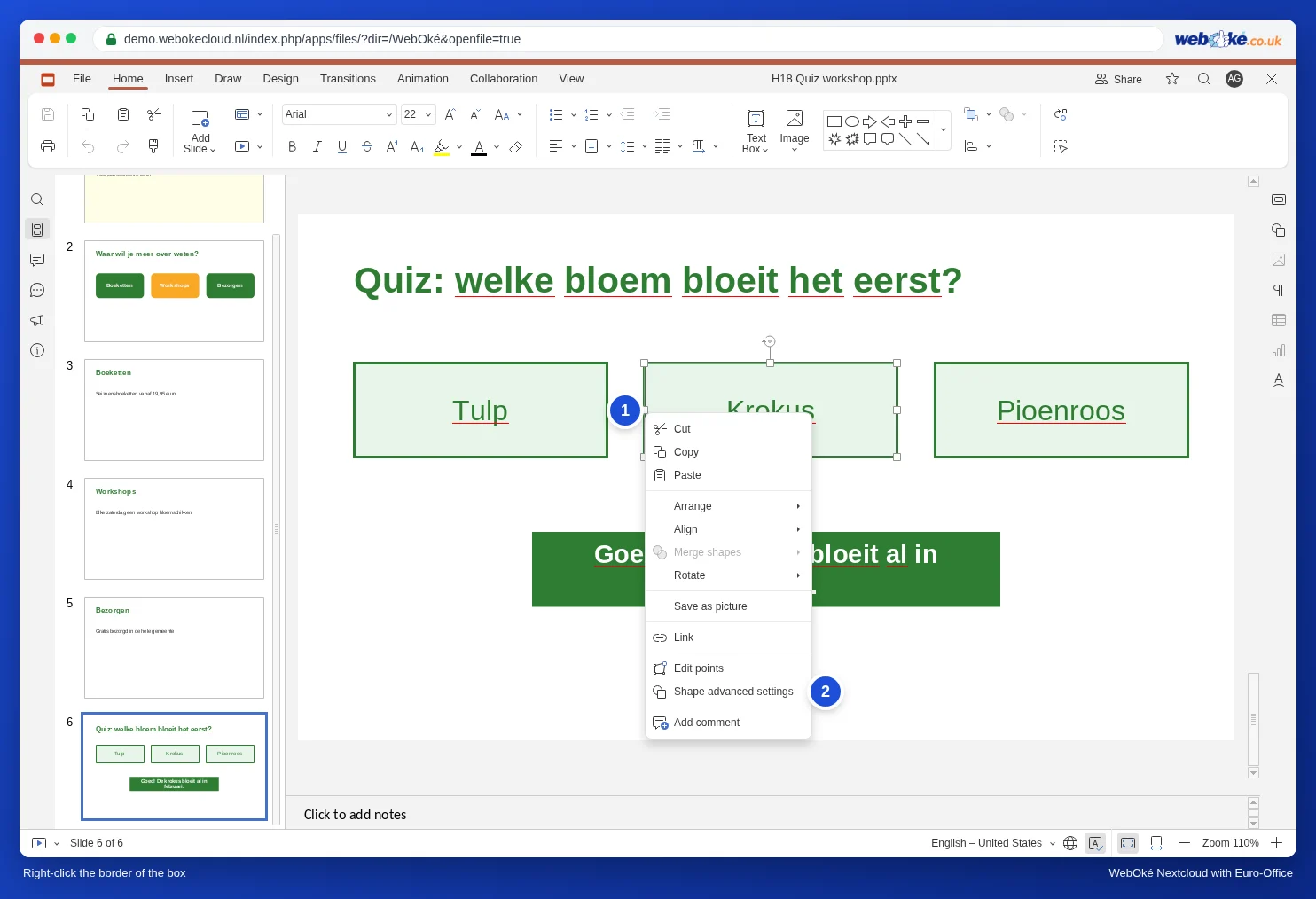
- Right-click exactly on the border of the Crocus box (the green line). If you click in the text, you get the text menu.
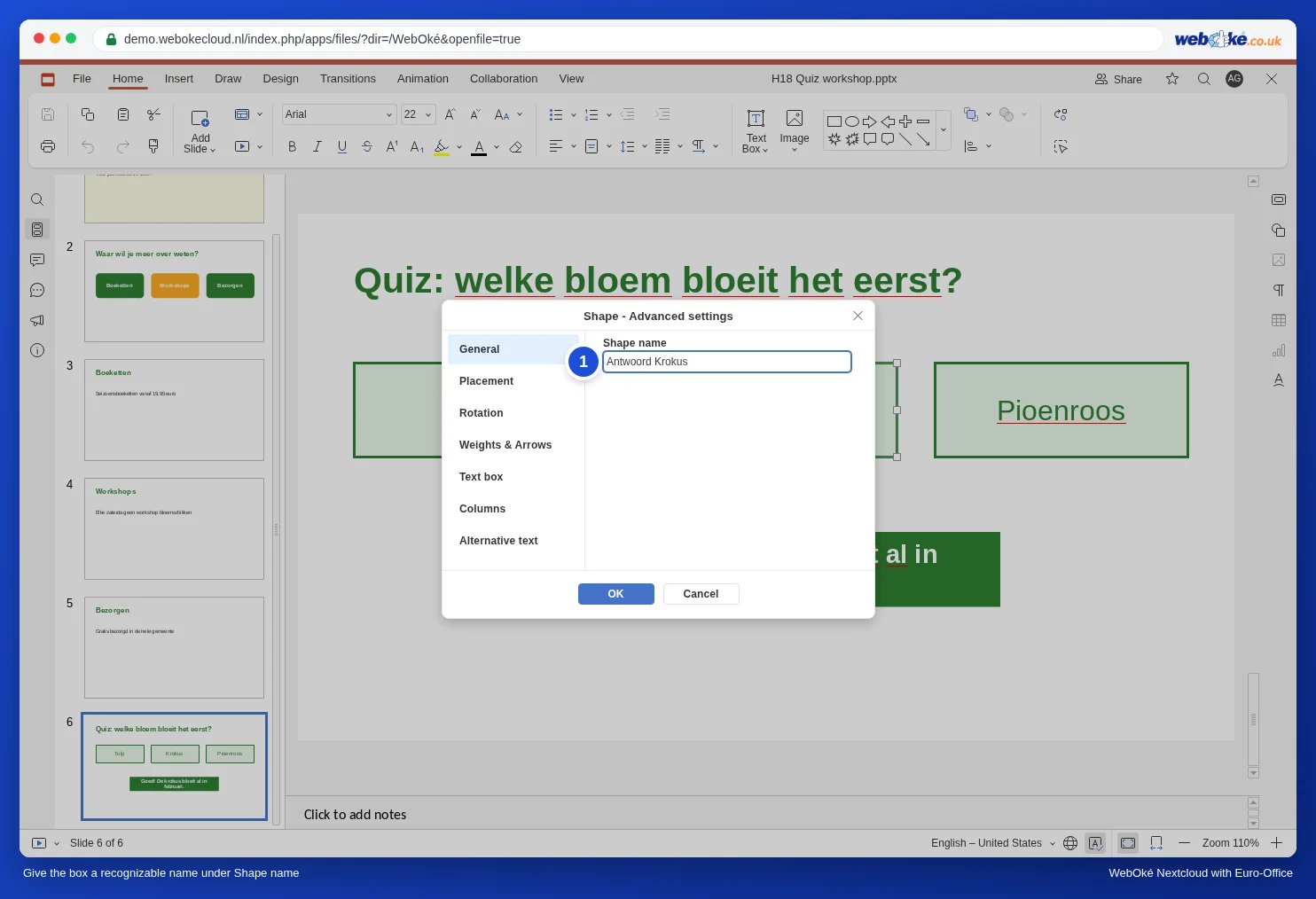
- Choose Shape advanced settings. The Shape - Advanced settings window opens on the General tab.
- Under Shape name, type a clear name, for example Answer Crocus, and click OK.
Step 2: make the answer appear when Crocus is clicked
- Click the box with Correct! The crocus already blooms in February. and press Esc.
- On the Animation tab, choose Appear under Entrance Effects in the gallery (or Fade, for a softer transition).
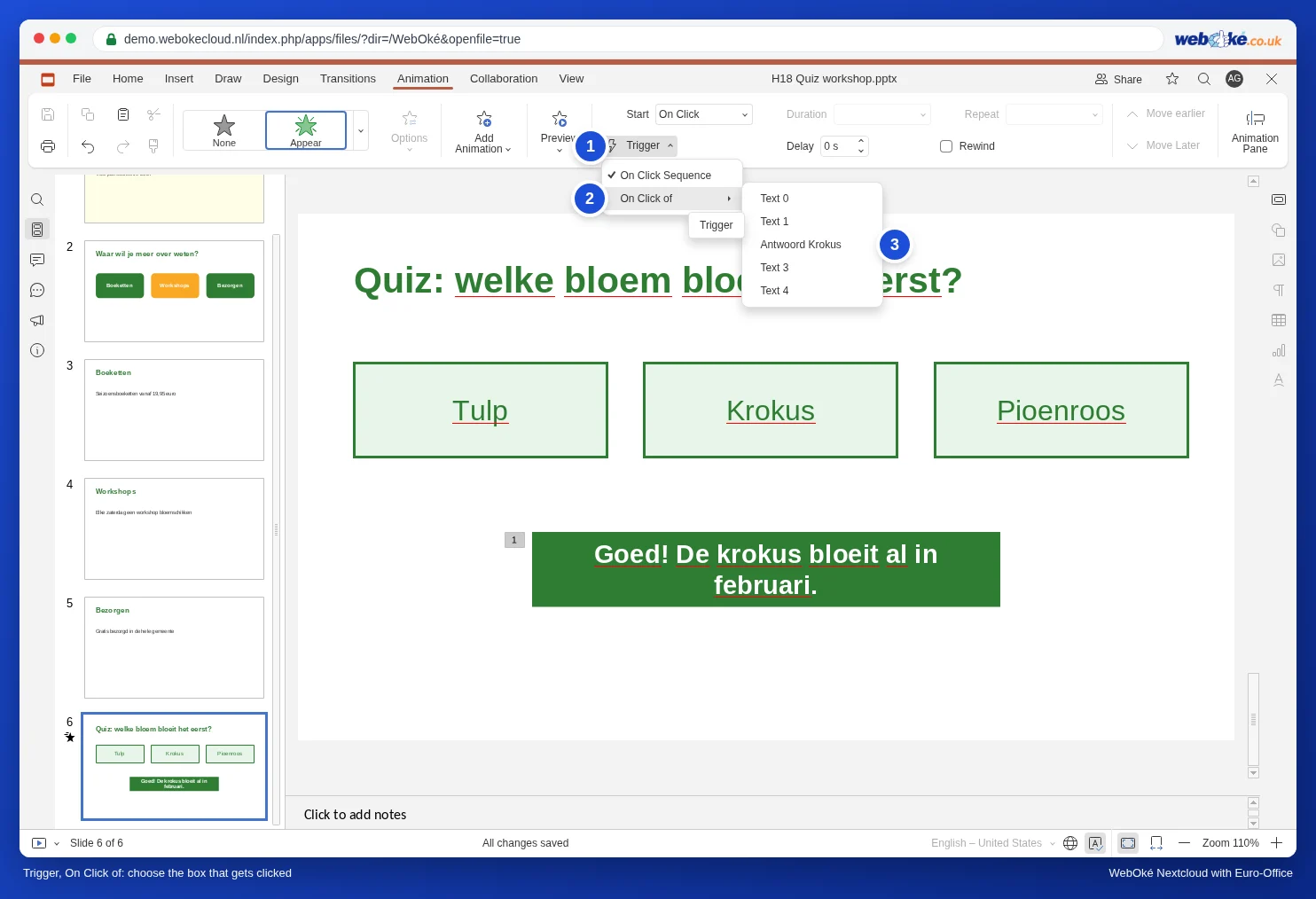
- Click Trigger, go to On Click of and choose Answer Crocus.
On the slide, a small lightning bolt now appears next to the answer box instead of a sequence number: the effect has a trigger and is no longer part of the normal click sequence.
Step 3: test it in the slideshow
Triggers only work in the slideshow. On the Home tab, click the arrow next to the slideshow button and choose Show from Current Slide.
- Click Crocus: the answer appears. A click on a trigger doesn't count as a normal click: effects in the normal click sequence (such as the motion path from step 4) are still waiting.
- If you click anywhere else on the slide, the presentation simply moves on to the next effect in the click sequence, or to the next slide. In our test with a motion path on Tulip, Tulip then moved and the answer did not appear.
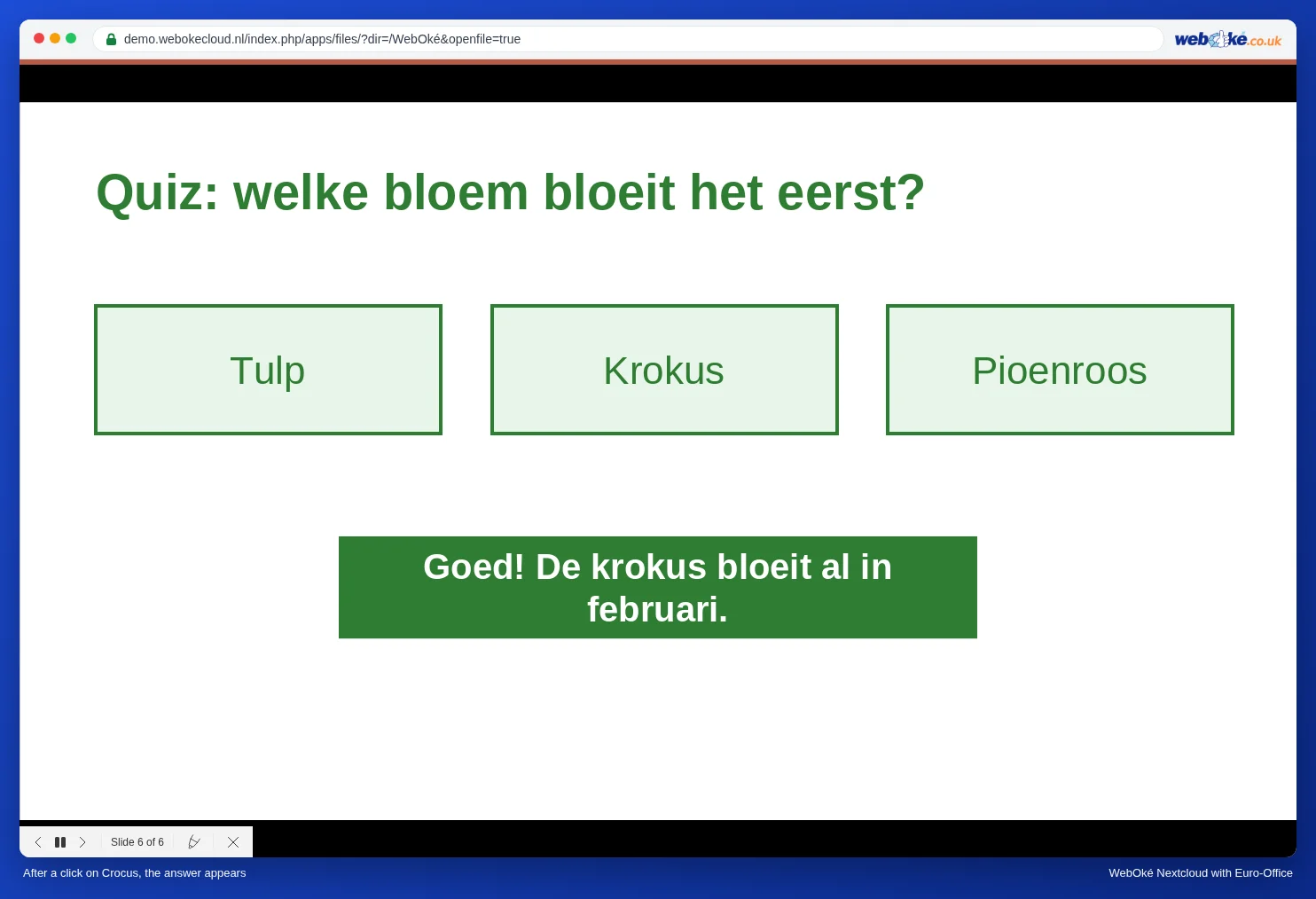
Tip: want to show something for a wrong answer too, for example "Sorry, the tulip doesn't arrive until April"? Create a separate box for it and give it a trigger on the Tulip box.
Step 4: make an object move across the slide
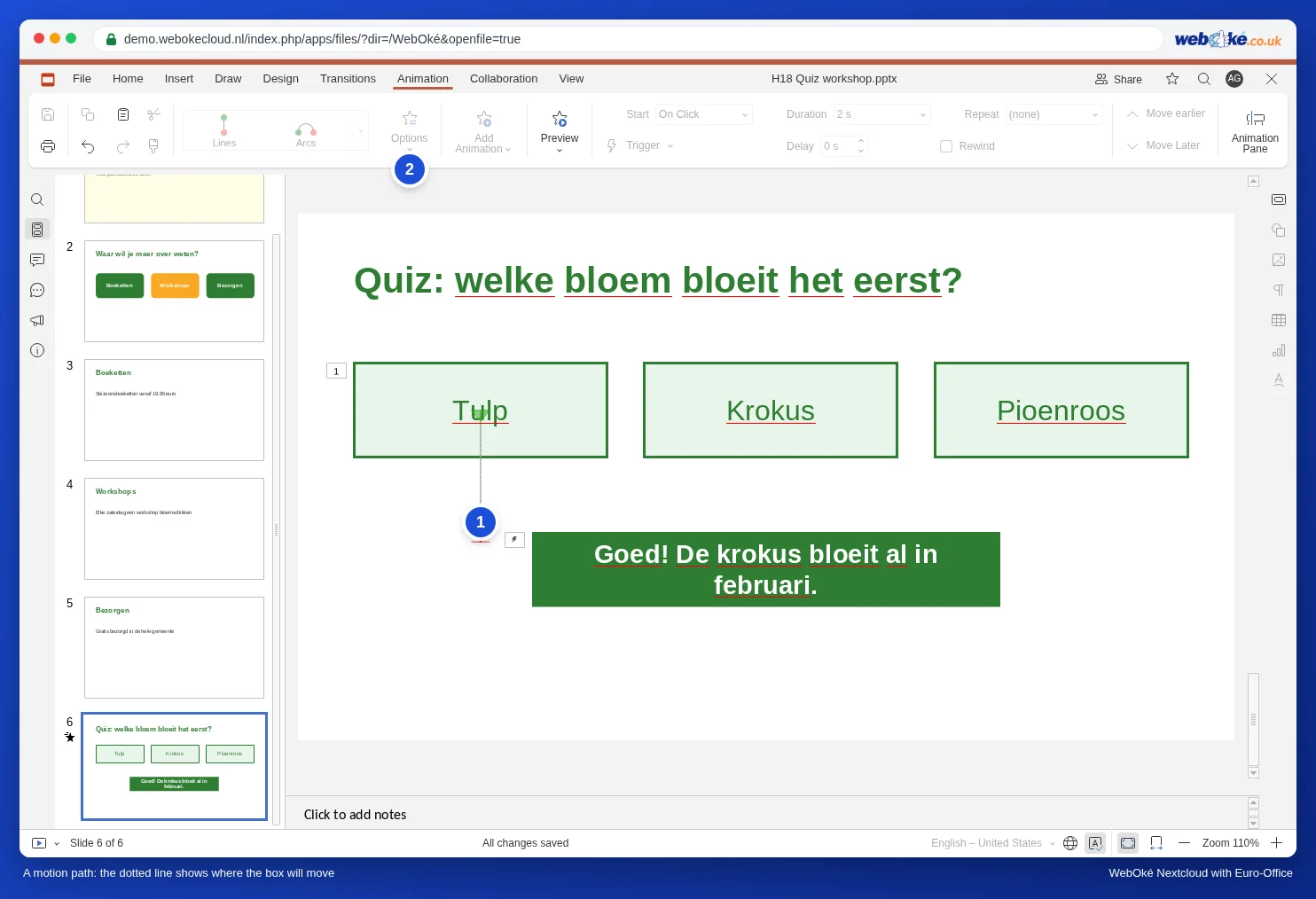
A motion path makes an object follow a route: an arrow that slides across a map to the shop, a flower that floats towards a vase.
- Select the object (click and Esc).
- Open the gallery on the Animation tab and scroll to Motion paths. Choose Lines, Arcs, Turns, Shapes, Loops or Custom Path.
- For Lines, use Options to choose the direction: Down, Left, Right or Move up.
- The path appears on the slide as a dotted line, so you can see where the object is going.
Step 5: set the order and the pace
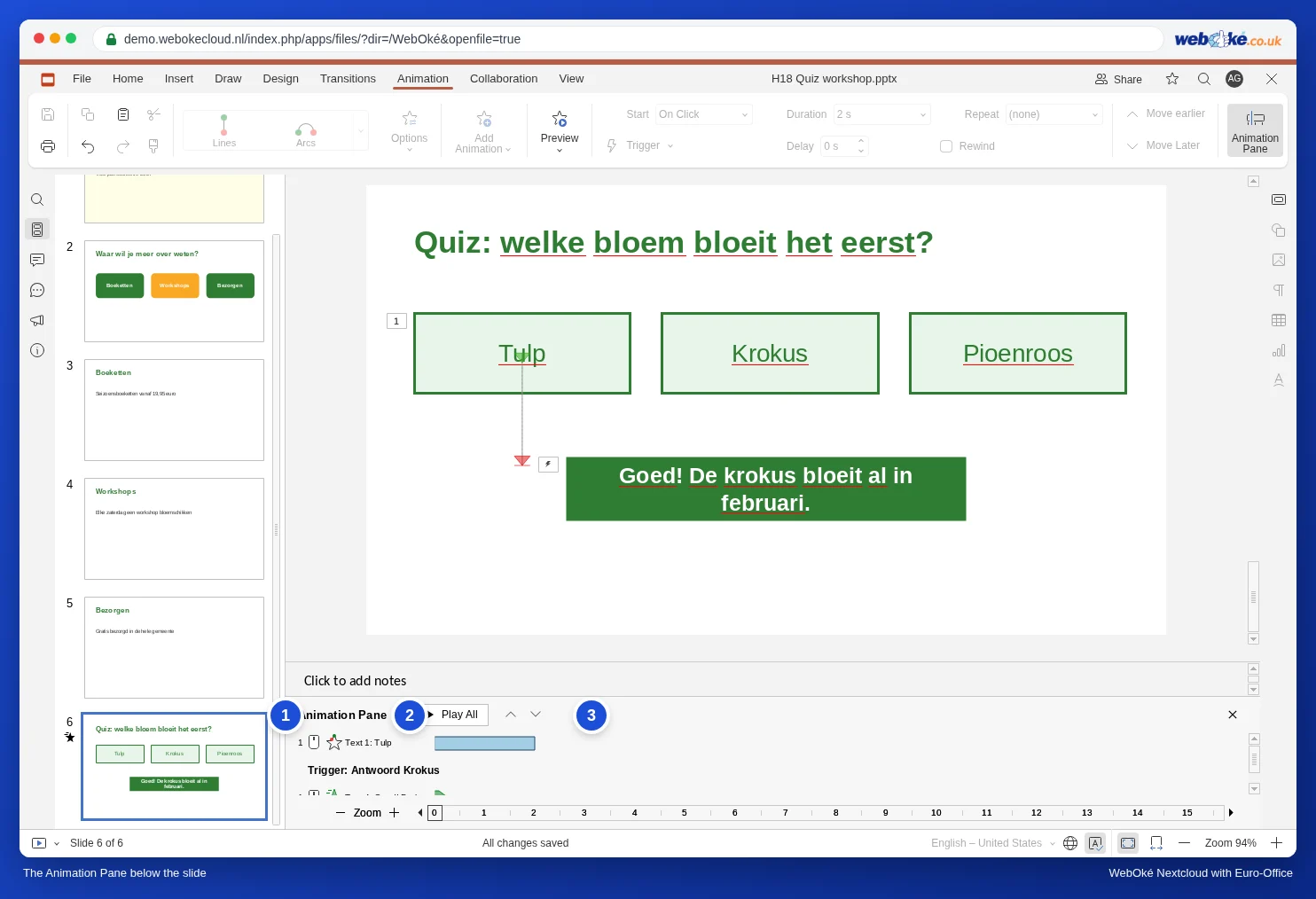
- Click Animation Pane. A list of all effects on this slide appears below the slide, in the order in which they play. Use Play All to watch them one after the other.
- Select an effect and move it to the right place with the arrows, or with Bring Forward and Send Backward.
- Under Start, choose After previous if an effect should start by itself as soon as the previous one has finished. With With Previous, two effects run at the same time.
- Use Delay for a pause before the effect starts, and Duration for the speed.
Several effects on one object
Want an object to appear first and disappear again later? Choose the first effect in the gallery. Then click Add Animation and choose the second effect, for example Fade under Exit effects. If you choose the second effect in the gallery itself, it replaces the first one.
Pitfalls
- An animation only starts after an extra click: Start is set to On Click. Choose After previous or With Previous.
- A trigger on the wrong object: the list only shows names. Always give objects their own name first (step 1).
- The quiz moves on too quickly: a click next to the right answer goes to the next effect or the next slide. Tell your audience or the presenter where to click.
- A presentation from PowerPoint: always play it all the way through once in Euro-Office first, so you can see whether all effects run as intended.
- If you let the presentation run by itself (see Making a presentation loop continuously (trade fair, waiting room, shop window)), don't use triggers: nobody clicks there.
Want to jump to another slide with a click instead of making something appear on the same slide? Then use a button with a link (see An interactive presentation with a menu and buttons that link to slides). If an object only needs to move smoothly between two slides, Morph is often easier than a motion path (see The Morph transition: move objects smoothly between slides).