
Chapter 21 · 21.7
Choose per colleague who can edit which part of a spreadsheet
Think of a budget, rota or schedule that several departments work in. Sales enters the sales figures, only the purchaser changes the cost prices, and everyone else can look but can't touch each other's figures. In Excel you do this with a password per range. Euro-Office has a neater way: with Protect range you choose, per range, which colleagues in your WebOké Nextcloud can edit it. No password needed.
Example: the budget of Bakkerij De Korenaar with the columns Sales, Cost price and Staff. Anne creates the file, Lisa handles purchasing and Tom handles sales.
Preparation: share the file
First share the spreadsheet with your colleagues, with editing rights (see Sharing a document with a colleague). Protect range only controls what someone can do inside the file. If someone can't open the file, rights on a range are no use to them.
Protect a range
- Open the spreadsheet and go to the Protection tab.
- Click Protect Range (1). The Protected ranges window opens. The first time, it's empty.
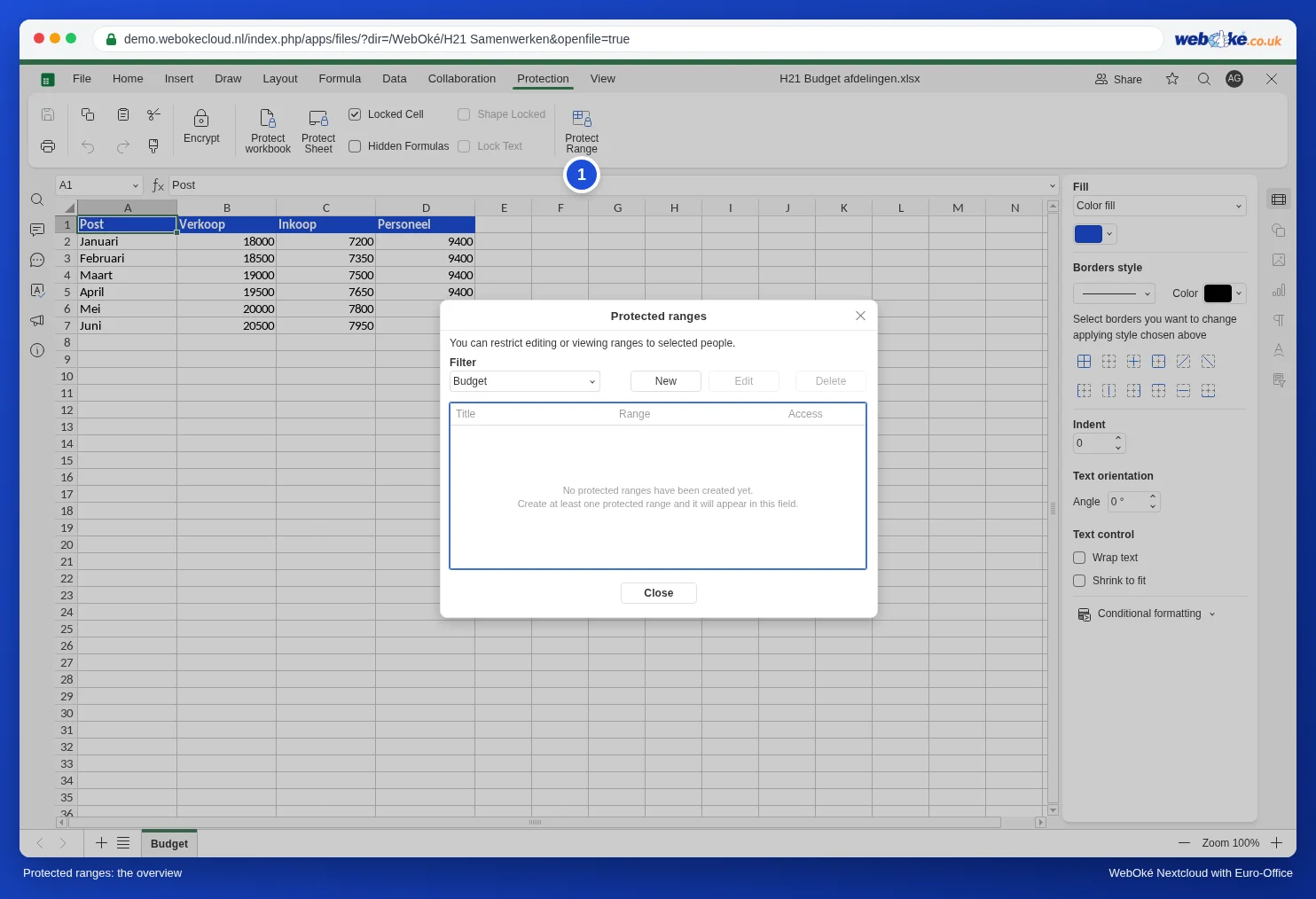
- Click New. The New range window opens.
- Under Title, type a name, for example Cost price. Use only letters, numbers and spaces.
- Under Range, enter the cells. The field already contains a reference to the cell you were in: clear the field first and then type, for example, Budget!$C$2:$C$7 (sheet Budget, cells C2 to C7). You can also click the small button on the right of the field and select the cells in the sheet.
- Under Access to range, type the first few letters of a colleague's name. Euro-Office shows the people in your WebOké Nextcloud; click the right name.
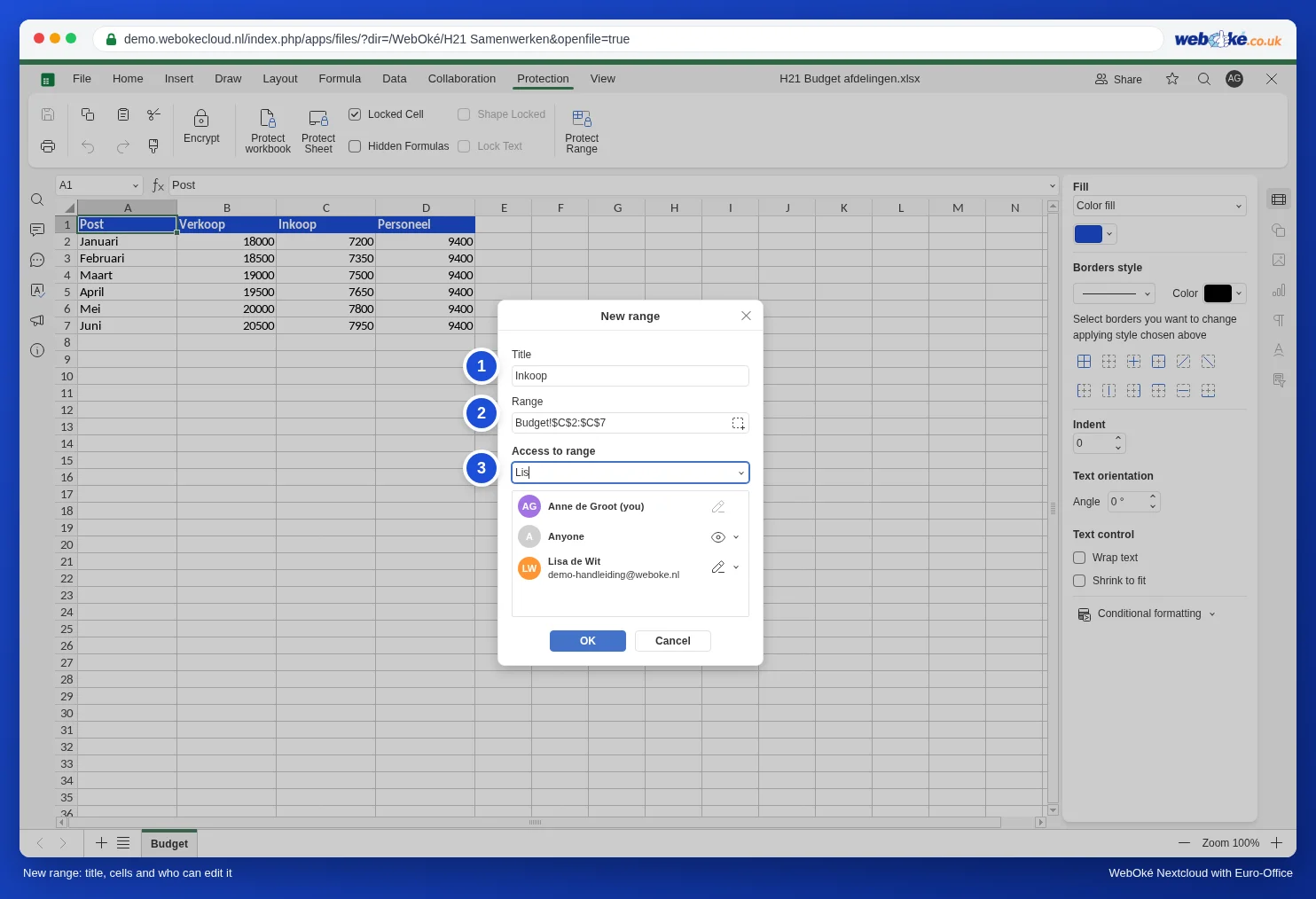
- The list shows what each person is allowed to do. Use the arrow next to the icon to choose:
- Edit: can change the cells.
- View: can see the cells, but not change them.
- Denied: no access to the range.
- Click OK. The range now appears in the overview, along with its access settings.
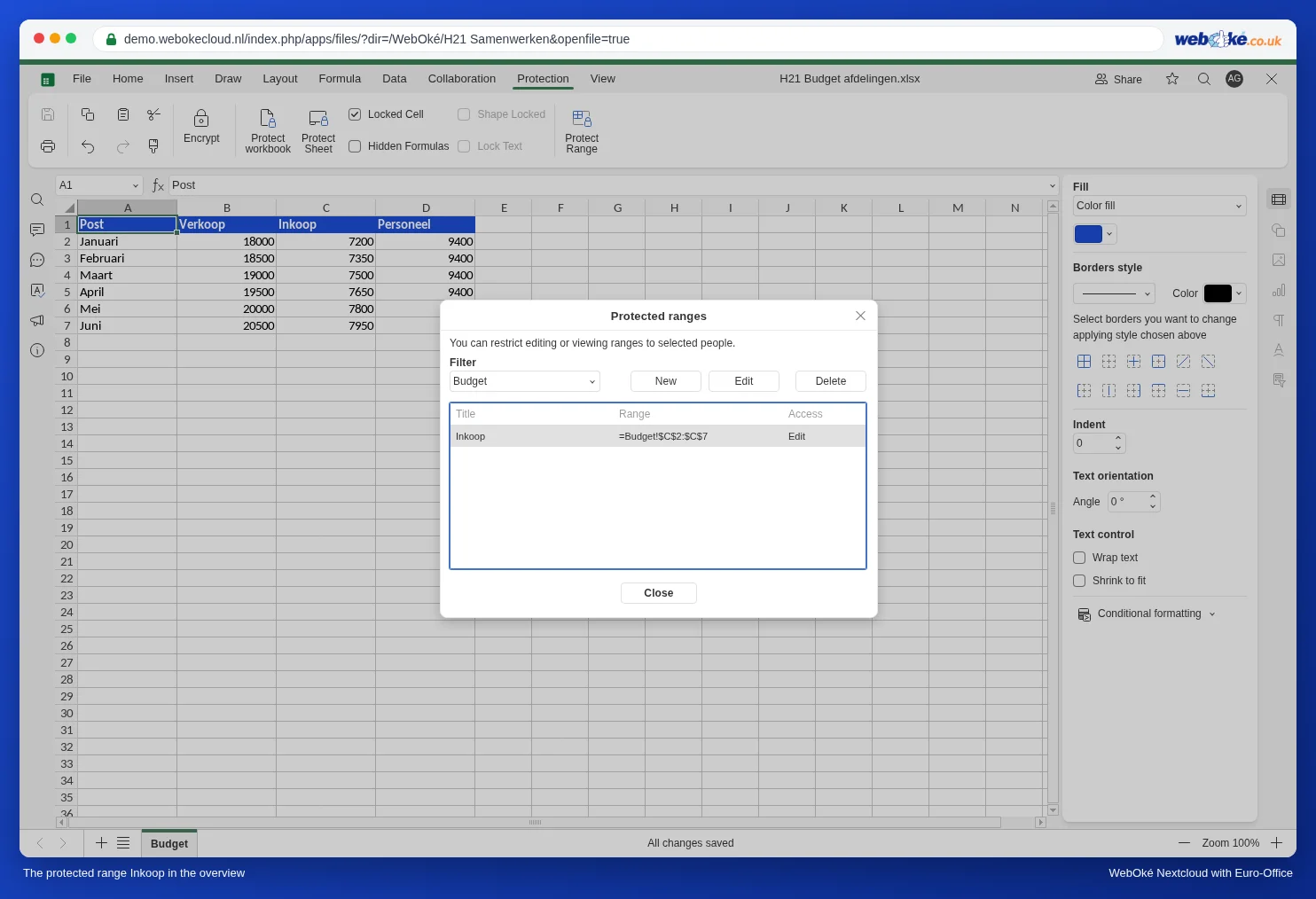
Repeat this for the other columns: a range Sales for Tom, and so on. Cells that aren't in any protected range stay editable for everyone with editing rights.
What your colleagues notice
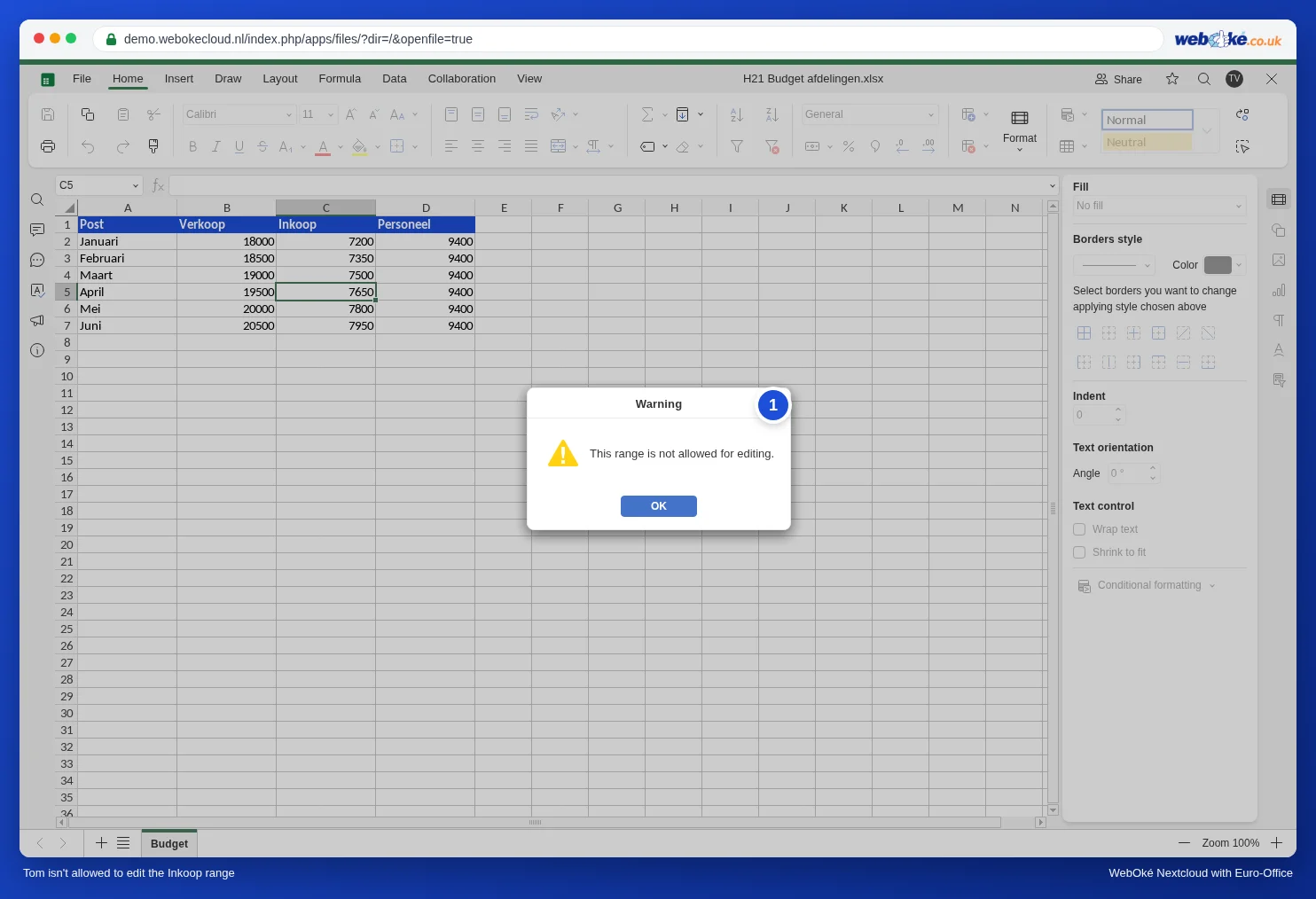
Lisa opens the budget and changes the cost prices as usual. Tom can only view the Cost price range. If he tries to type in one of those cells, he gets the message This range is not allowed for editing. (1). His change isn't saved: we checked in the demo that the cell in the file kept its old value.
Protect range or Allow edit ranges?
The Protection tab also has Protect Sheet, which includes Allow edit ranges (see Protecting formulas in a shared spreadsheet). The difference:
| Protect range | Protect sheet with Allow edit ranges | |
|---|---|---|
| Who can edit | Selected colleagues from your Nextcloud | Anyone who knows the range password |
| Password needed | No | Yes |
| Rest of the sheet | Stays editable | Locked (except the unlocked ranges) |
| Also works in Excel | Don't count on it | Yes, the sheet protection stays |
Pitfalls
- Only in Euro-Office. This protection works in your WebOké Nextcloud, with the names of your Nextcloud users. Assume that anyone who downloads the file and opens it in Excel or LibreOffice can edit everything. Use it to prevent mistakes, not as a lock against people you don't trust. Give people who don't need to change anything View only. To protect a text document, see Protect a document: read only, comments only or tracked changes only.
- Guests via a public link have no account and don't appear in the list. So you can't give them separate rights.
- Insert columns: if you insert a column or row inside a protected range, check in the overview that the range is still correct.