
Chapter 20 · 20.2
Automatically fill in the date and time when someone changes a cell
In a log, stock list or checklist, you want to know when a row was filled in. Bakkerij De Korenaar, a WebOké customer, keeps a log of oven temperatures, for example: whoever takes the measurement enters the temperature, and the time goes next to it. That time must not change afterwards.
The NOW() function doesn't help here: it always returns the current time and changes with every recalculation. There are two methods that do work: a keyboard shortcut and a macro.
Method 1: with a keyboard shortcut
Click in the cell and press Ctrl+; for today's date, or Ctrl+Shift+; for the time. Euro-Office enters a fixed value that never changes. Want both in one cell? Enter the date first, then a space, then the time.
This is the most reliable method and works for everyone, in Excel too. The drawback: you have to remember to do it.
Method 2: a macro that watches for changes
A macro can "listen" for changes in the worksheet. As soon as someone types something in column C, the macro puts the date and time in column D of the same row. In Excel you did this with Worksheet_Change; in Euro-Office it's called onWorksheetChange.
- Open the log. In our example, column A holds the oven, B the employee, C the temperature and D the time.
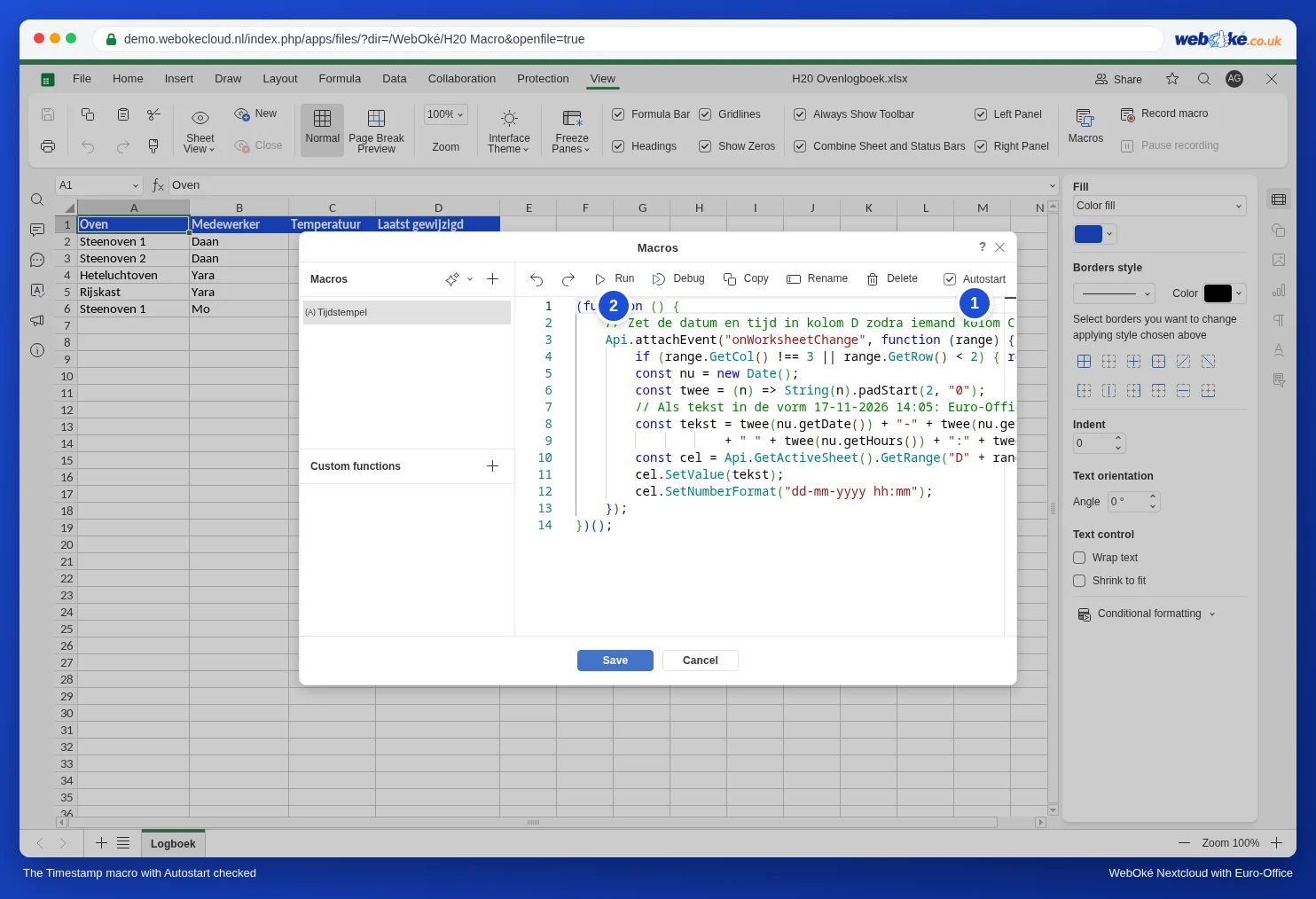
- On the View tab, click Macros, click the plus sign next to Macros and name the macro Tijdstempel (using Rename).
- Paste this code:
(function () {
    // Put the date and time in column D as soon as someone changes column C (Temperature).
    Api.attachEvent("onWorksheetChange", function (range) {
        if (range.GetCol() !== 3 || range.GetRow() < 2) { return; }
        const nu = new Date();
        const twee = (n) => String(n).padStart(2, "0");
        // As text in the form 17-11-2026 14:05: Euro-Office turns it into a real date.
        const tekst = twee(nu.getDate()) + "-" + twee(nu.getMonth() + 1) + "-" + nu.getFullYear()
                    + " " + twee(nu.getHours()) + ":" + twee(nu.getMinutes());
        const cel = Api.GetActiveSheet().GetRange("D" + range.GetRow());
        cel.SetValue(tekst);
        cel.SetNumberFormat("dd-mm-yyyy hh:mm");
    });
})();- Tick Autostart at the top right (1). The macro then starts listening again every time the file opens. Without autostart, the stamp only works until you close the file.
- Click Run once (2) so the macro starts listening right away, then click Save.
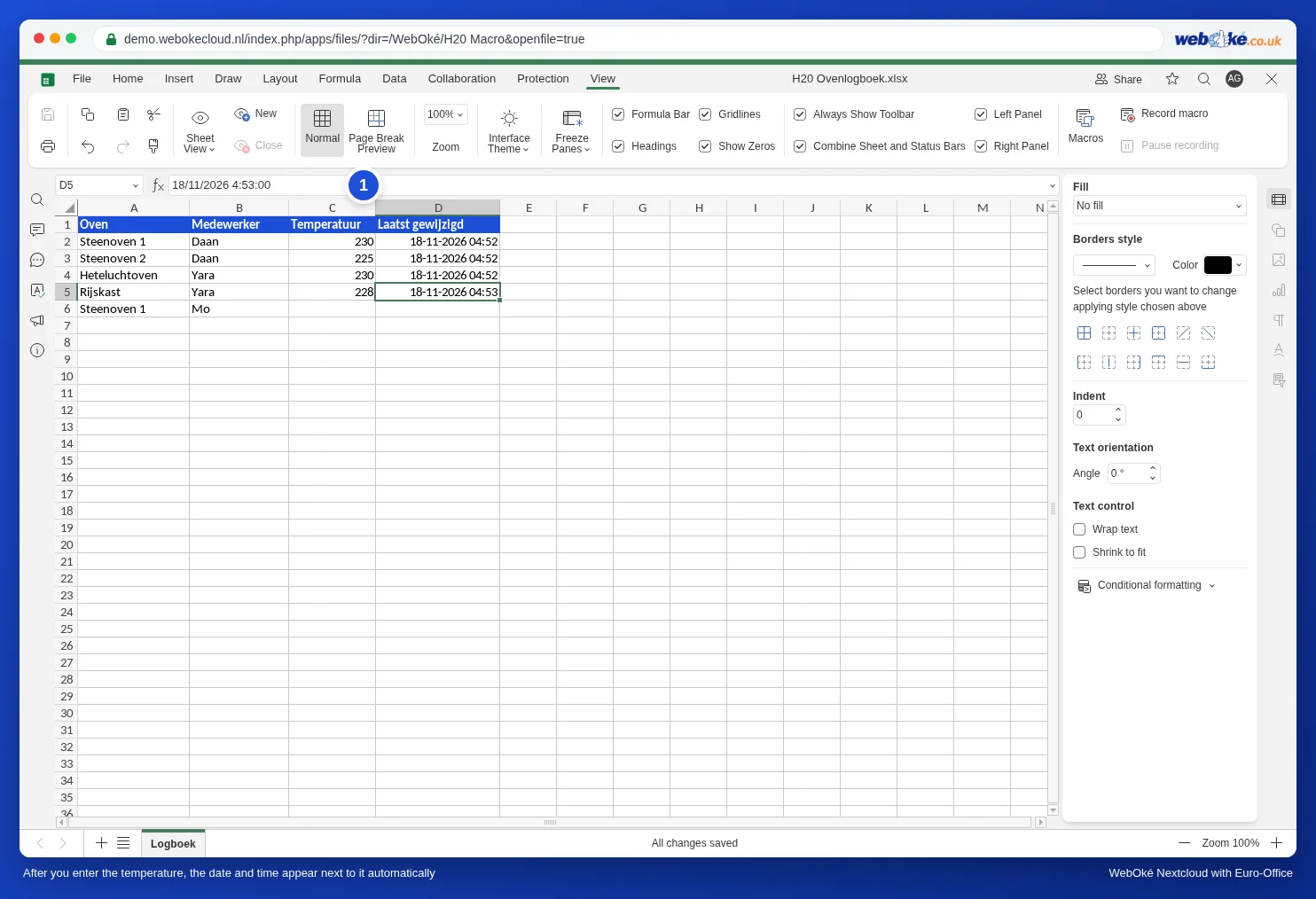
Now type a temperature in column C. The date and time appear in column D straight away.
How the code works
- Api.attachEvent("onWorksheetChange", ...) links a piece of code to every change in the worksheet. range is the cell that has just changed.
- GetCol() !== 3: only column C (the third column) counts. GetRow() < 2: the header row is skipped.
- new Date() is the moment of the change. The macro turns it into text in the form 17-11-2026 14:05, exactly as you would type it yourself. Euro-Office recognises that as a date and time, and SetNumberFormat takes care of the display. This lets you sort, filter and calculate with this column, for example how much time passed between two checks.
- Want a different column? Replace the 3 with the column number (A=1, B=2 and so on) and the "D" with the column for the stamp.
Does it still work after reopening?
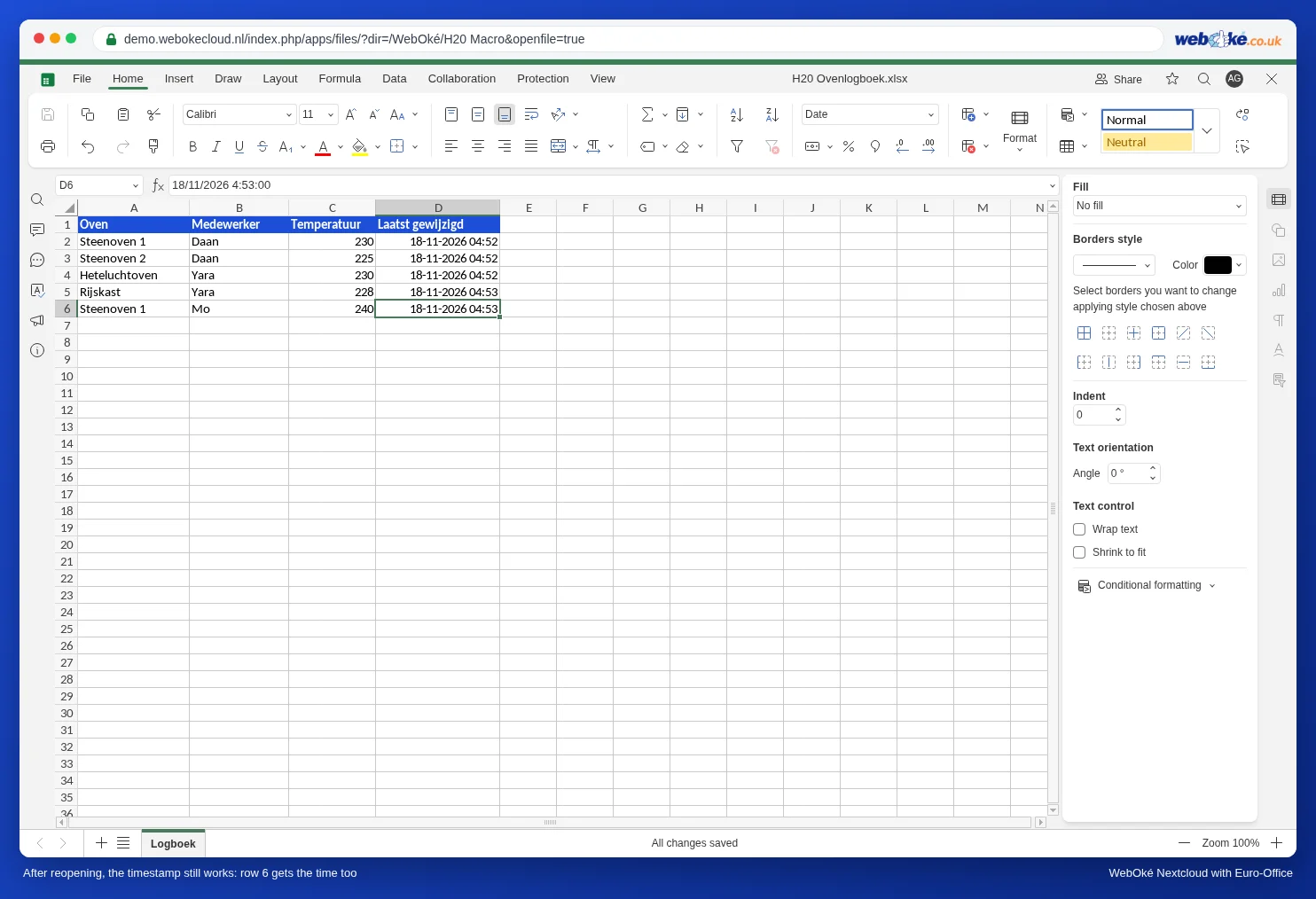
Yes. In our test we closed the log and opened it again. Euro-Office then asks: The file contains automatic macros. Do you want to run macros? Click Yes and the stamp works again, in new rows too. If you choose No, the file opens normally, but without the stamp. Read more about this prompt in Using macros safely: macros settings, autostart for colleagues and reuse.
The Excel trick with a circular reference doesn't work
Excel experts know the trick with a formula that refers to itself: =IF(C2="","",IF(D2="",NOW(),D2)), combined with iterative calculation. Euro-Office has that setting too: File, Advanced settings, under Calculating the option Enable iterative calculation (1).
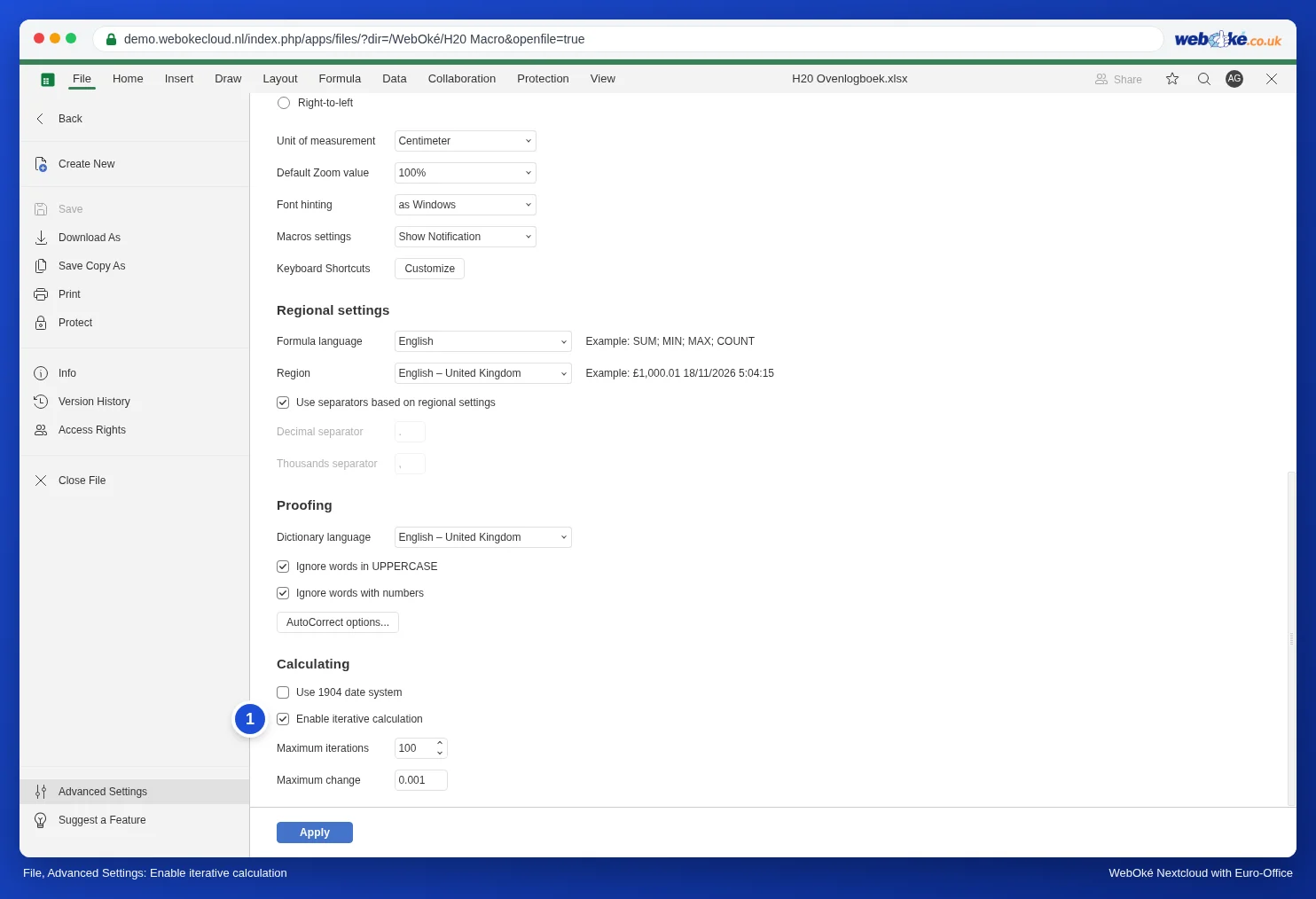
In our test, the trick still didn't work. With the option on and the formula in column D, the cell stayed empty after we entered a temperature. The option was also switched off again after closing and reopening the file, and a warning about circular references appeared on opening.
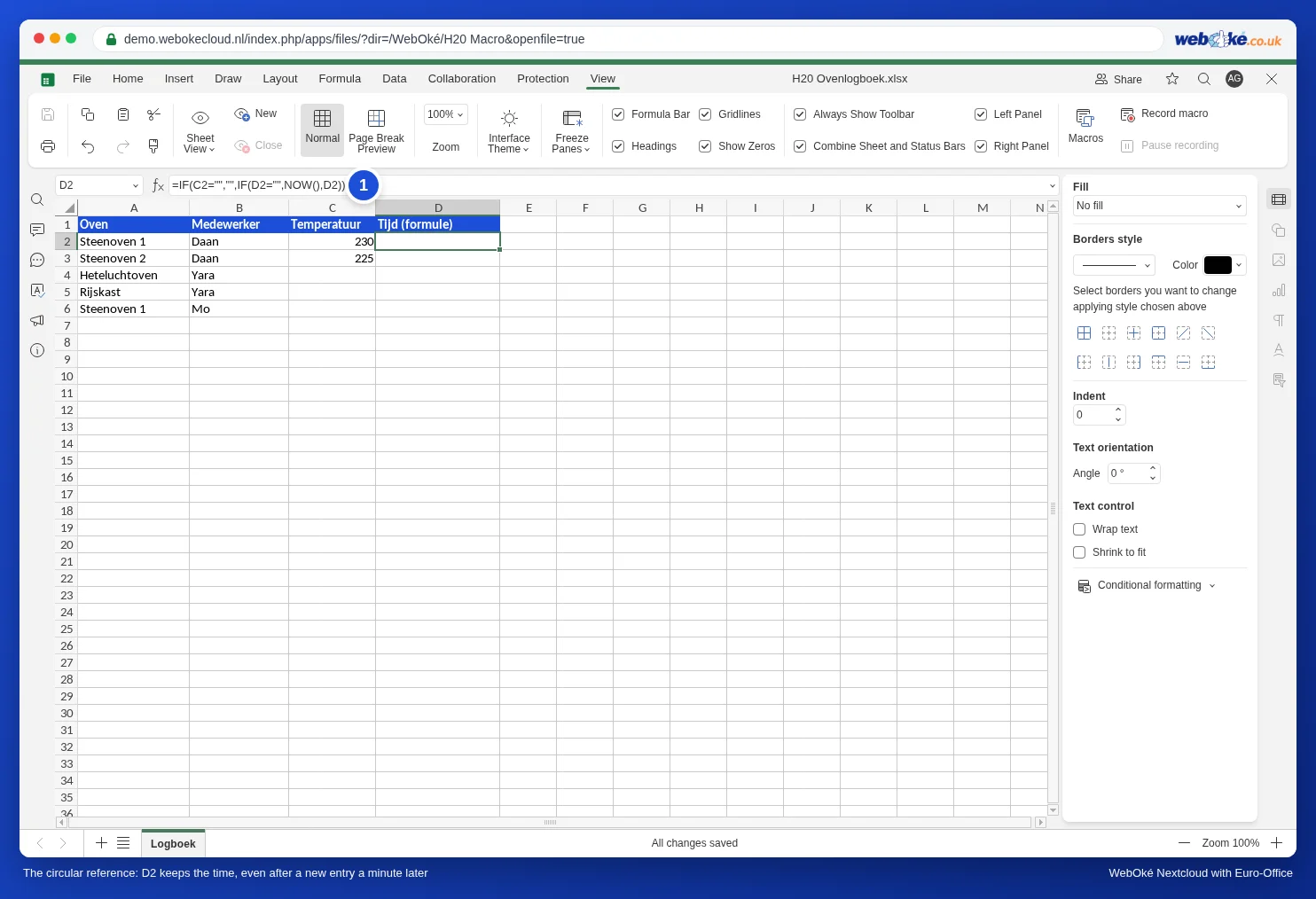
So in Euro-Office, use the keyboard shortcut or the macro. If you have an Excel file with this trick, replace the formulas with the macro from this article.
Pitfalls with the macro
- Pasting multiple cells: if you paste two temperatures into C4 and C5 at once, only the first row (D4) got a stamp in our test. Type the values one at a time, or add the stamp to the rest with the keyboard shortcut.
- The time comes from the computer of the person typing. If a colleague's clock is wrong, the stamp will be wrong too.
- Macros off for a colleague? If a colleague chooses No when opening the file, or has disabled macros, their entries won't get a stamp. Agree that everyone chooses Yes for this file.
- The stamp moves along: if you change the temperature later, D gets the time of that change. So the stamp means "last modified", not "first entered".
- In Excel the stamps remain as ordinary dates, but no new stamps are added there: Excel doesn't run this macro.