
Chapter 16 · 16.2
The chapter title at the top of every page (running header)
In reports and books, the title of the current chapter appears at the top of every page: a running header. Page 5 shows "1. Introduction", page 12 shows "3. Working together in the cloud". In Word you do this with the STYLEREF field in the header, which looks up the last Heading 1. Many people try the same thing in Euro-Office.
STYLEREF doesn't work in the header
Euro-Office does support the STYLEREF field, but only in the body text. In a header or footer it always shows the message Error! No text of specified style in document, whatever style name you use. We tested this in the demo with every spelling ("Kop 1", "Heading 1", 1).
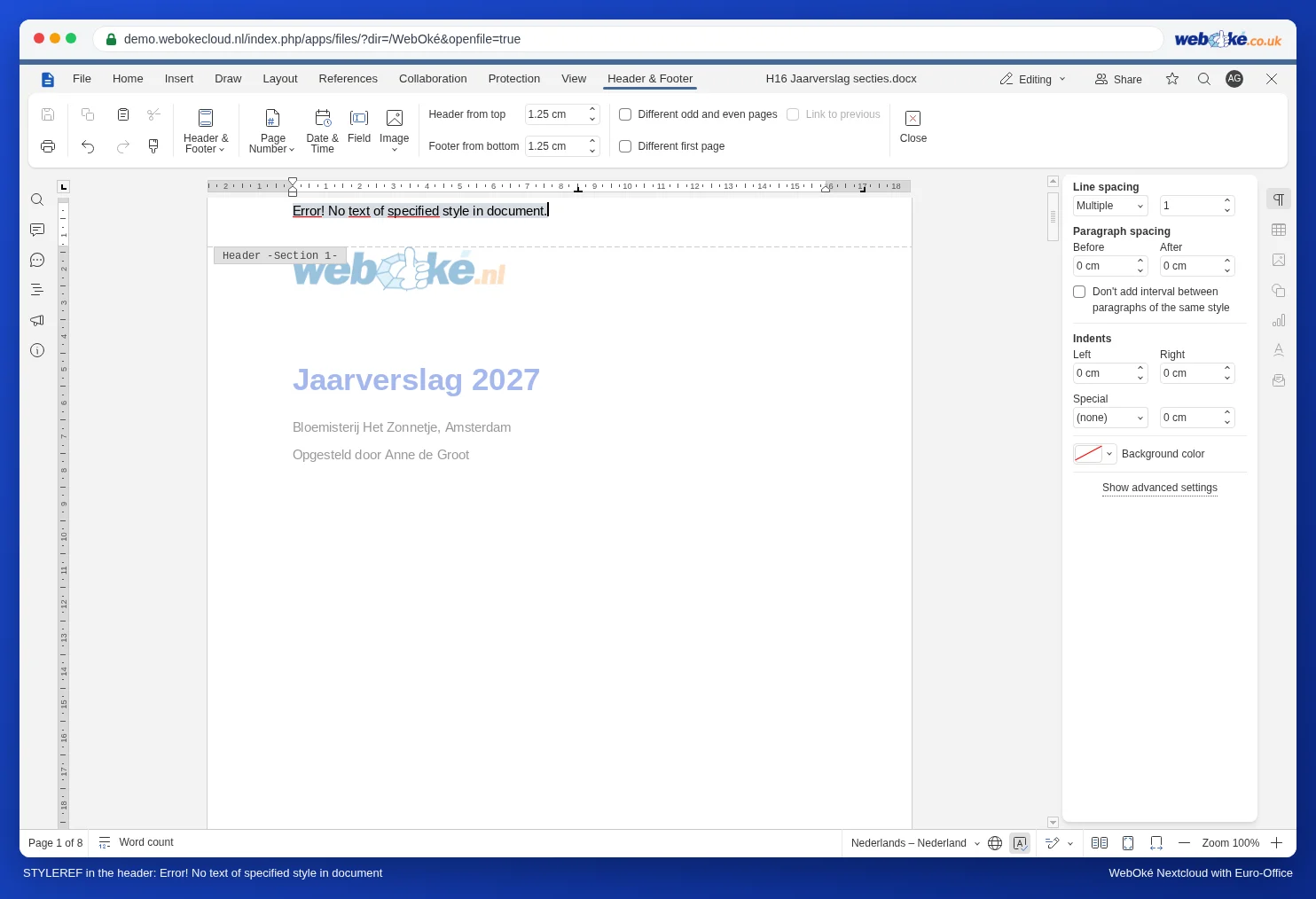
If you have a Word document with a running header like this, expect the field not to update properly in Euro-Office. Check the header and replace the field with typed text as described below.
How to do it: one section per chapter
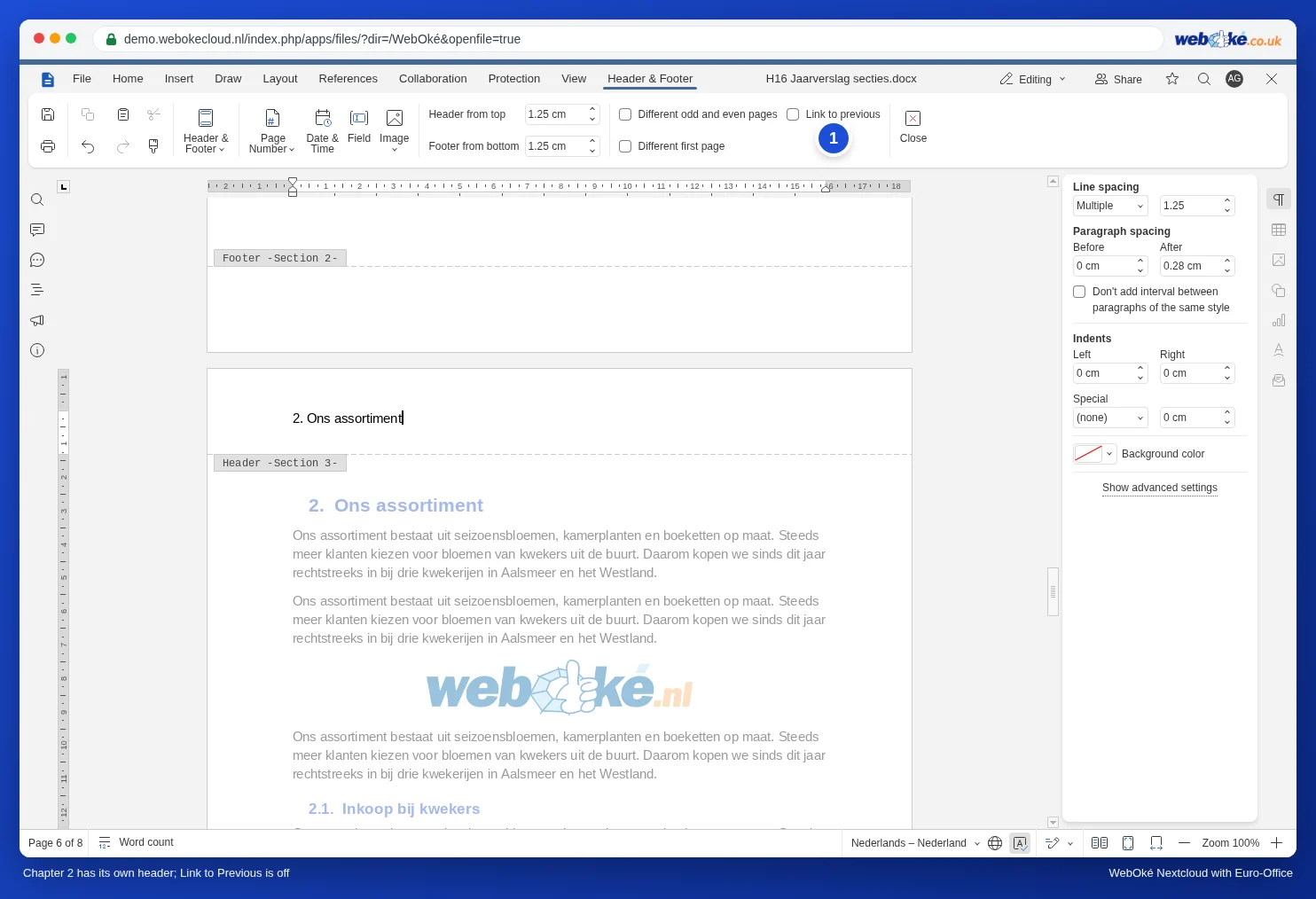
Give each chapter its own section with its own header, and type the chapter title in it. You only need to do this once, and then it stays in place. In short:
- Insert a section break before each chapter: Layout tab, Breaks, Insert section break, Next Page.
- Double-click in the header of the first chapter and type the title, for example "1. Introduction".
- Go to the header of the next chapter, turn off Link to Previous and replace the title with "2. Our product range".
- Repeat this for each chapter.
You'll find all the details, including footers and a first page without a header, in A different header or footer for each chapter.
Where STYLEREF does work
In the body text, the field does fetch the last heading if you use the English style name: STYLEREF "Heading 1" (with quotation marks). A translated style name, such as the Dutch "Kop 1", doesn't work. You don't need this field for chapter numbers in captions (Figure 2-1): the Insert caption window handles that itself (see Captions with chapter numbers and cross-references ("see Figure 2-1")).
Pitfalls
- If you change a chapter title, update the header of that section too. This doesn't happen automatically.
- If you turn on heading numbering (see Number headings automatically as 1, 1.1 and 1.1.1), type the chapter number in the header yourself as well.
- Want the first page of a chapter without a header? Turn on Different first page in that section and leave that header empty.
- Only need a page number or "Page 3 of 12" in the footer? That does work automatically, with fields: see Using fields: page X of Y, "see page 14", a fixed date and your own numbering.