
Chapter 16 · 16.15
Using fields: page X of Y, "see page 14", a fixed date and your own numbering
A field is a piece of text that Euro-Office fills in and updates for you: the page number, the number of pages, the date or the number of an appendix. If you know Word, you know them as field codes. Euro-Office has its own button for them: Field, on the Insert tab and on the Header & Footer tab.
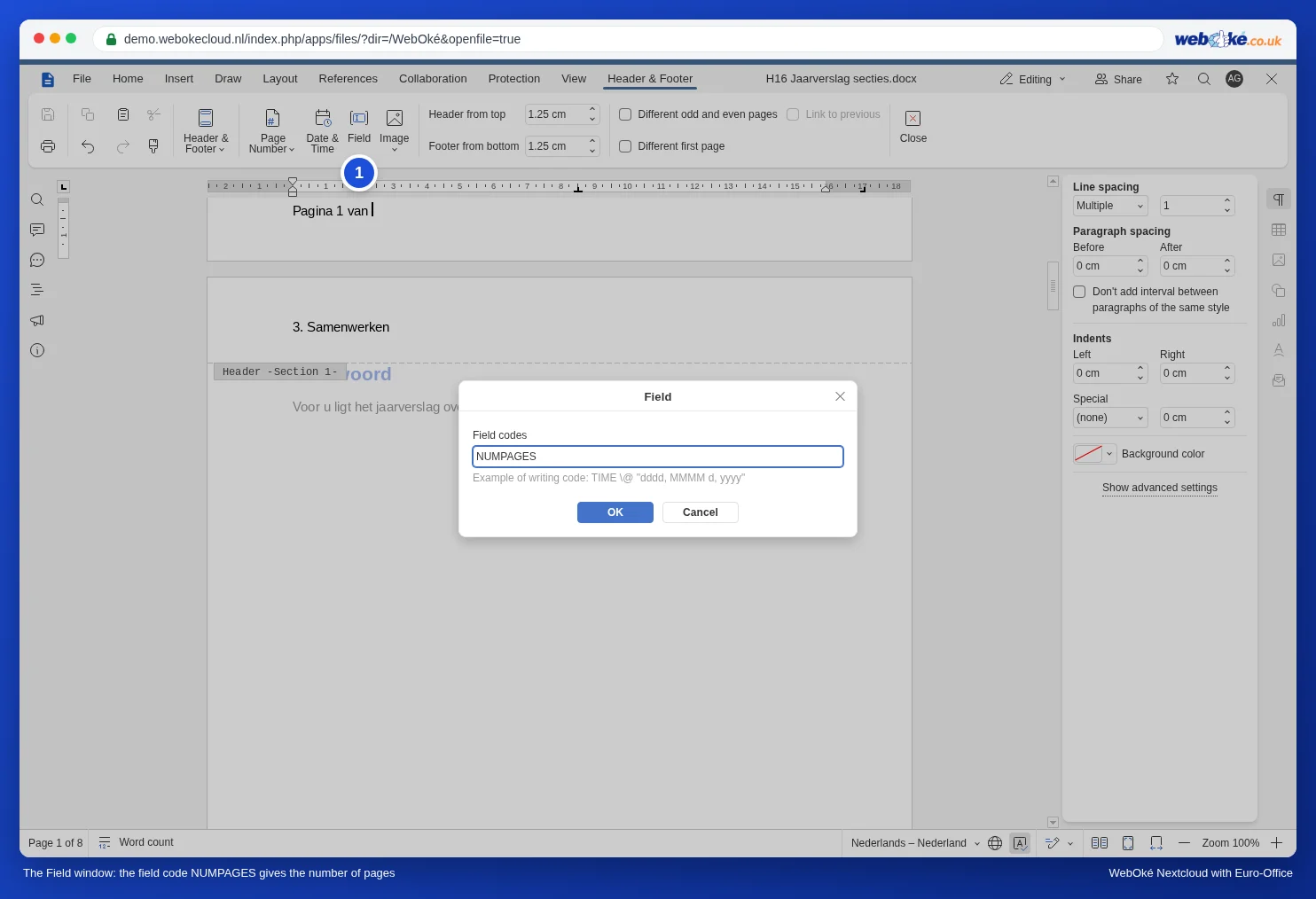
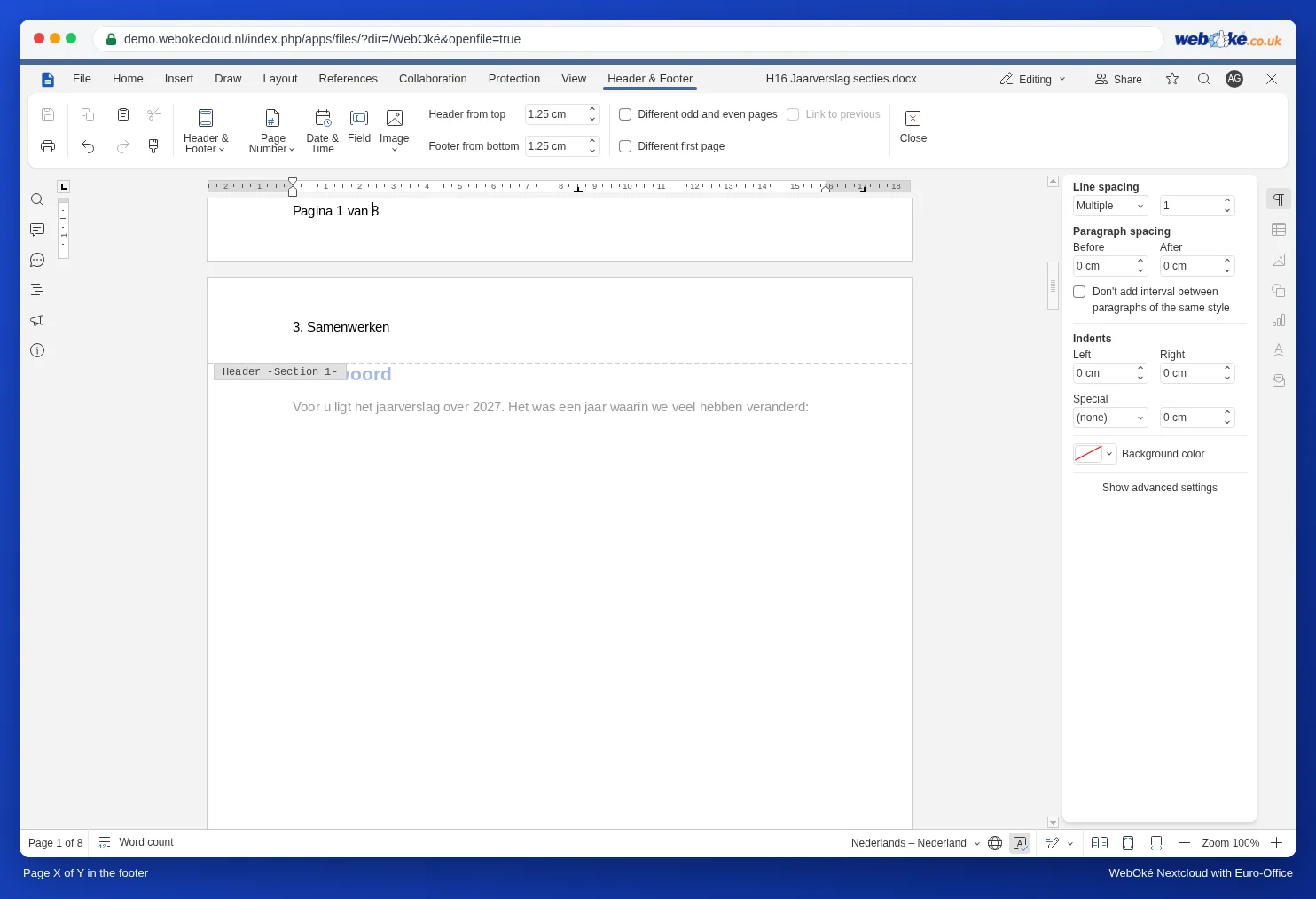
Page 3 of 12
- Double-click in the footer. The Header & Footer tab opens.
- Type "Page " (with a space).
- Click Page Number and choose To current position.
- Type " of ".
- Click Field, type NUMPAGES and click OK. That is the total number of pages.
Referring to a page: "see page 14"
- Go to the place you want to refer to, for example the table of figures. On the References tab, click Bookmark, type a name without spaces (such as Figures2027) and click Add.
- Go to the place where the reference should appear and type "see page ".
- Click Cross-reference. Under Reference type, choose Bookmark, under Insert reference to, choose Page number, and select your bookmark. Click Insert.
If the table later moves to another page, update the number (see below). You refer to headings, figures and tables in the same way, without a bookmark: see Captions with chapter numbers and cross-references ("see Figure 2-1").
A date that doesn't change
In a letter you want today's date, but next week the same date should still be there. Click Date and time, choose a format and turn off Update automatically. The date is then inserted as plain text. With the box ticked, it becomes a field that shows the current date whenever it is updated: handy in a template, not in a letter you have sent.
Your own numbering: Appendix 1, Appendix 2
With the SEQ field you can count things yourself. Type "Appendix ", click Field and type SEQ Appendix. Each time you insert that field again, it counts up by one. If you add an appendix in between, the numbers shift along once you update them.
Updating and viewing the code
- Right-click a field and choose Update field.
- With Toggle field codes you see the code itself, for example { NUMPAGES }, and then the result again.
- With Edit field you change the code.
Which fields does Euro-Office support?
According to the Euro-Office documentation, these include PAGE (page number), NUMPAGES (number of pages), DATE and TIME, SEQ (your own numbering), REF and PAGEREF (reference to a bookmark), HYPERLINK, TOC (table of contents), FORMULA (calculations, see Calculating in a table in a text document (quote or invoice)) and MERGEFIELD (mail merge). In the demo we tested PAGE, NUMPAGES, SEQ and the reference to a bookmark. Fields that Euro-Office doesn't support, such as IF (if-then) and INCLUDETEXT, don't work. If a document from Word contains such a field, the last text shown stays in place; when you update it, you may get an error message.
Pitfalls
- Pressing Ctrl + F9 to type curly brackets, as in Word, doesn't work. Use the Field button and type the code without curly brackets.
- The STYLEREF field, which you use in Word to put the chapter title in the header, doesn't work in headers and footers in Euro-Office. Here's how you can do it: The chapter title at the top of every page (running header).
- Don't type in the middle of a field. Whatever you type there disappears when the field is updated.