
Chapter 20 · 20.7
A macro that doesn't work: finding errors
You paste a macro, click Run and nothing happens. No error message, no explanation. This is the most common complaint about macros in Euro-Office, especially with code from the internet or a chatbot. Euro-Office doesn't show macro errors in the document, so you have to make them visible yourself. There are two ways to do this: put the error in a cell, or use your browser's console.
An example with an error
This macro should read the status from E2 and put "Done" in G2. It contains one error: getValue with a lowercase g.
(function () {
    const blad = Api.GetActiveSheet();
    console.log("step 1: sheet found", blad.GetName());
    const status = blad.GetRange("E2").getValue();
    console.log("step 2: status", status);
    blad.GetRange("G2").SetValue("Done");
})();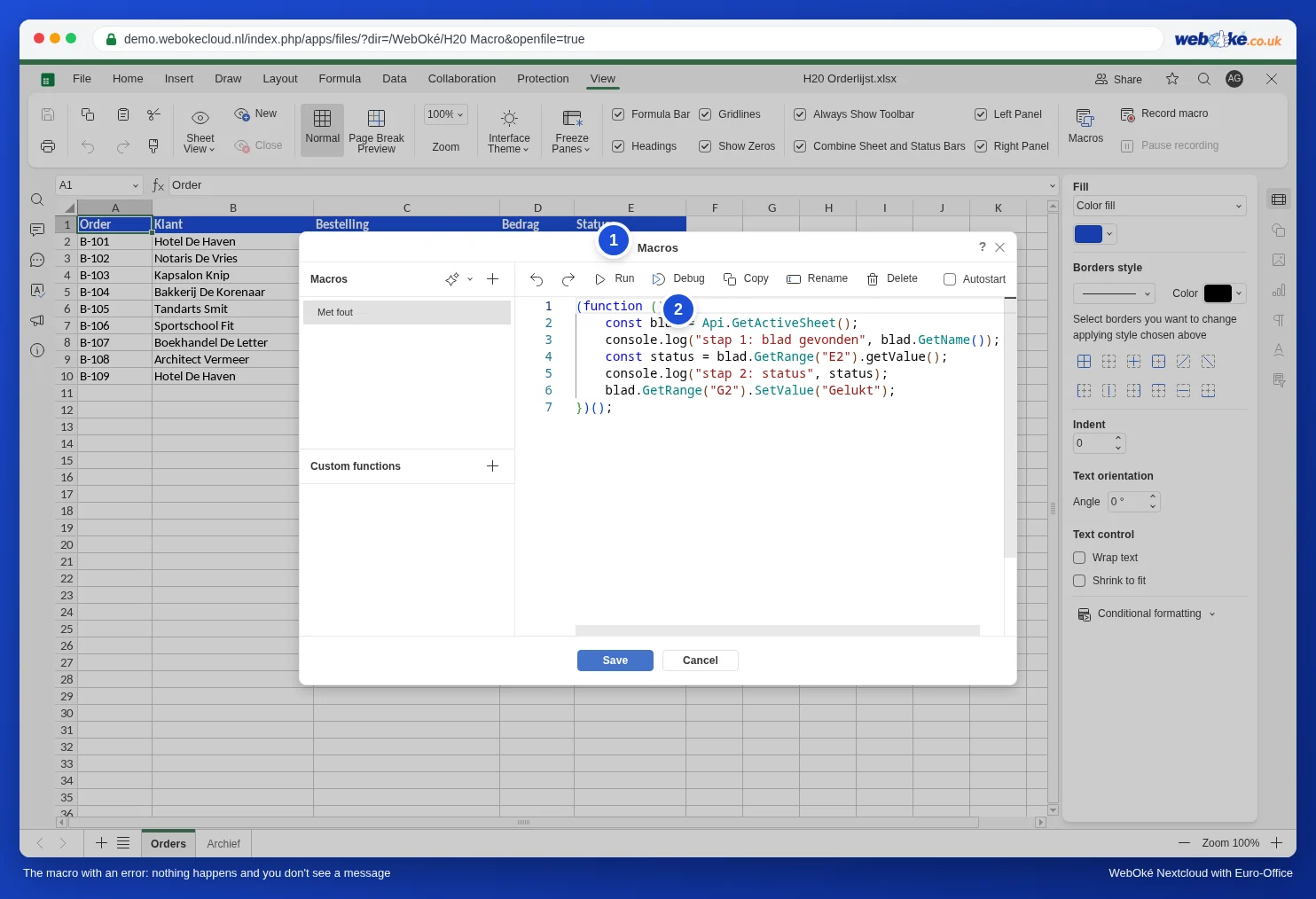
When you click Run, G2 stays empty. The macro stops at the faulty line: everything before it has run, nothing after it has.
Method 1: put the error in a cell
Place your macro's code between try and catch. If something goes wrong, the macro jumps to the catch part. There you write the error message to a cell, so you can simply see it in the worksheet:
(function () {
    const blad = Api.GetActiveSheet();
    try {
        const status = blad.GetRange("E2").getValue();
        blad.GetRange("G2").SetValue("Done: " + status);
    } catch (fout) {
        // Show the error message in a cell.
        blad.GetRange("G1").SetValue("Error in the macro:");
        blad.GetRange("G2").SetValue(fout.message);
    }
})();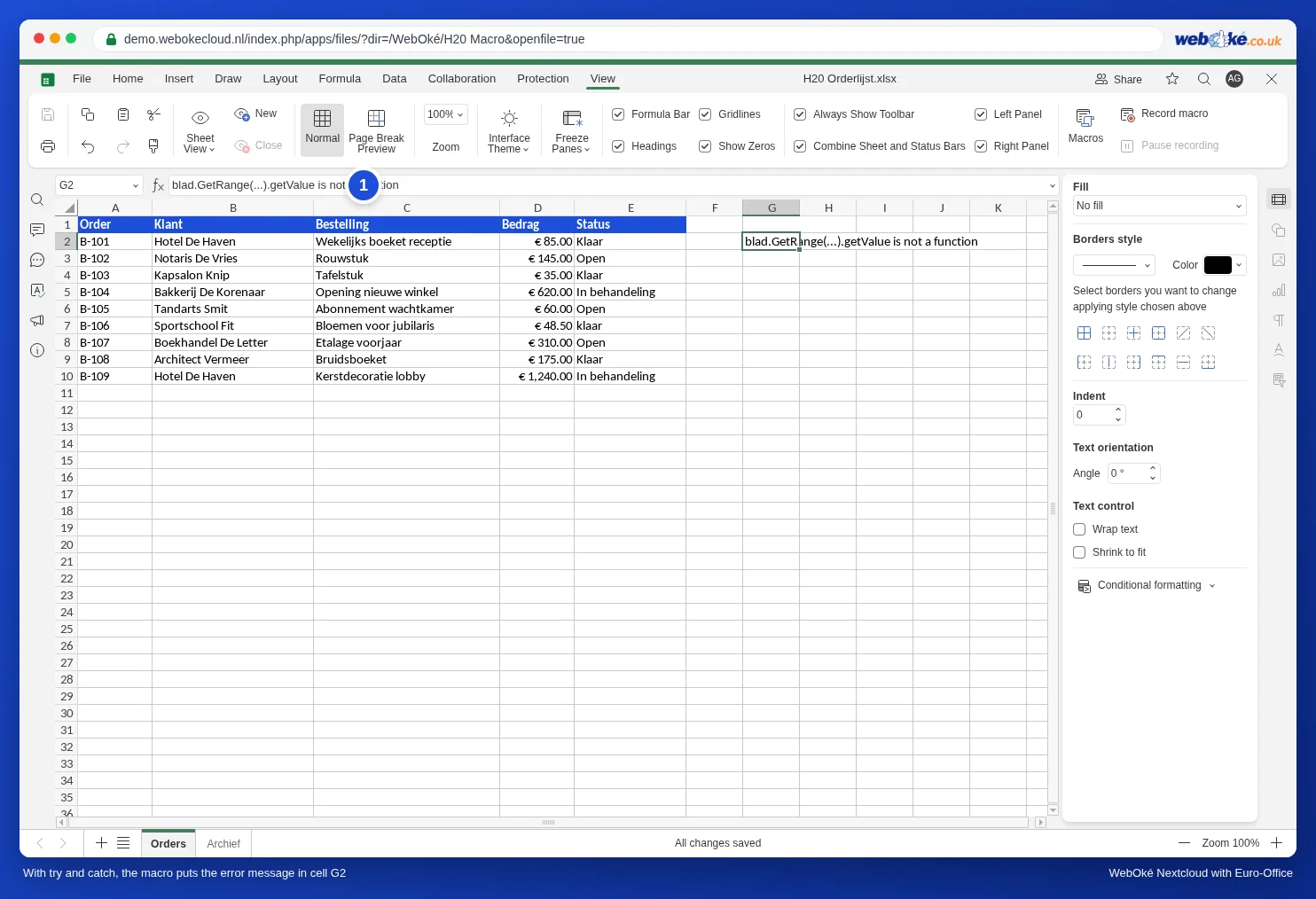
The message is usually easy to understand. The most common ones:
| Message | Meaning | Solution |
|---|---|---|
| ... is not a function | This method doesn't exist. | Check the spelling, with a capital letter: GetValue, SetValue, GetRange. |
| Cannot read properties of null (reading 'GetName') | Something you're asking for doesn't exist. In our test: Api.GetSheet("Archif") with a typo in the worksheet name. | Check the name letter by letter, including capitals and spaces. |
| ... is not defined | A name is used that was never created. | Check that you created the variable with const or let and that the name is spelled the same everywhere. |
A typo in the code itself, such as a missing bracket, doesn't produce a message in a cell: the macro doesn't start at all. The code editor does put a red squiggle under the spot, and there's a red mark in the scroll bar on the right.
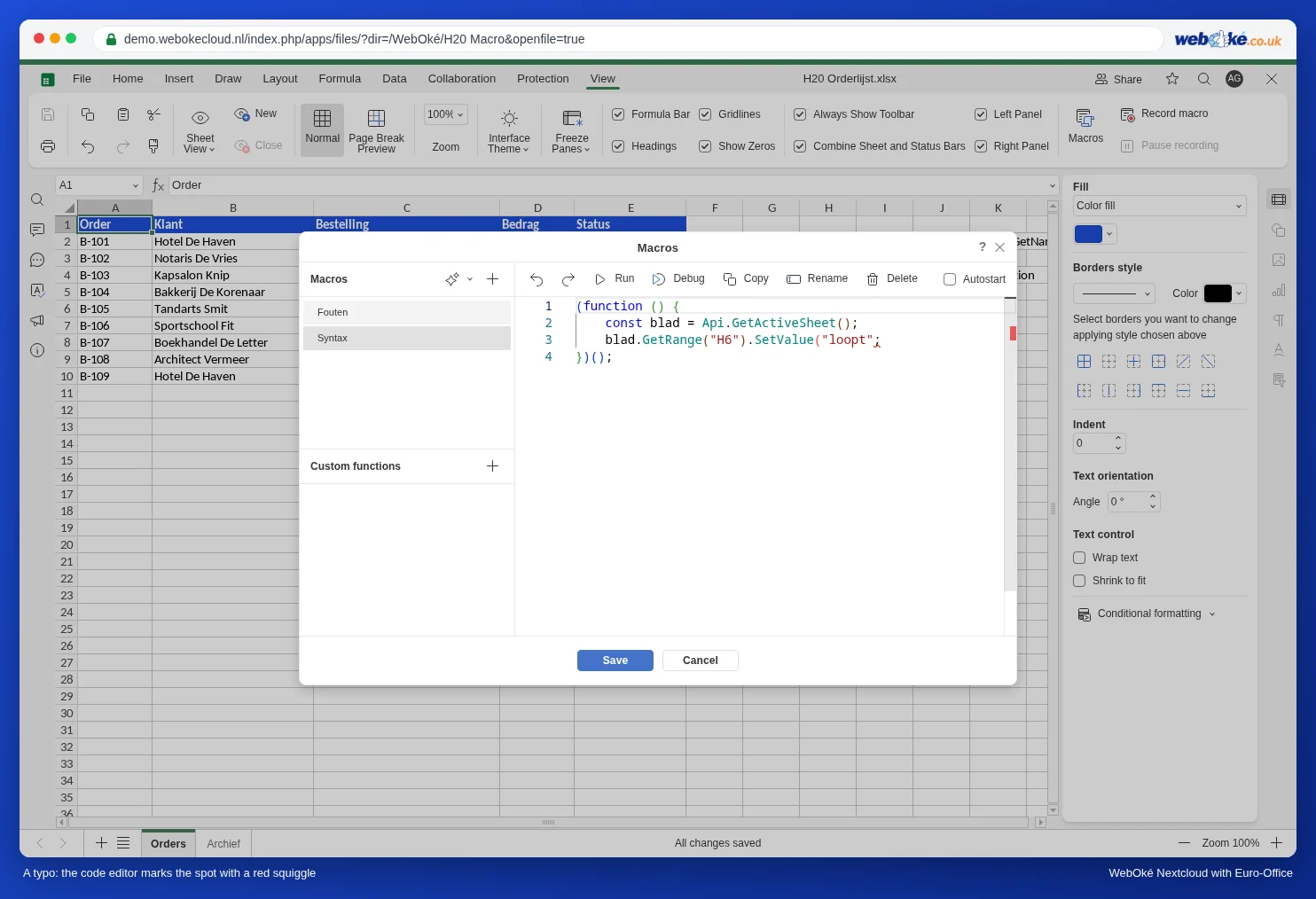
Remove the try and catch once the macro works, or leave them in: they do no harm.
Method 2: your browser's console
For longer macros, you'll want to see how far the macro gets. To do this, add lines with console.log to the code, as in the example above. That text appears in your browser's console.
- In your browser, press F12 (on a Mac Cmd+Option+I). The developer tools open.
- Click the Console tab.
- In the Macros window, click Run.
- The console now shows the console.log lines and, in red, the error. In our example: first "step 1: sheet found Orders", then "TypeError: blad.GetRange(...).getValue is not a function". Step 2 never appears: that's where it went wrong.
The Debug button next to Run is meant for stepping through the code line by line with the developer tools. In our test, Debug gave the same result in the console as Run.
Checklist when nothing happens
- Capital letters: almost all methods start with a capital letter: GetActiveSheet, GetRange, SetValue, GetValue. One exception is attachEvent from Automatically fill in the date and time when someone changes a cell, with a lowercase a.
- The right worksheet: GetActiveSheet is the worksheet that's open. If a different worksheet is open, the macro works on that one.
- Worksheet names: exactly as on the tab, with the same capitals and spaces.
- The outer lines: the code sits between (function () { and })();. If you forget the last line, the macro never runs.
- Code from a chatbot or the internet often uses methods from Excel VBA or Google Sheets that Euro-Office doesn't recognise, such as getRange with a lowercase letter or Cells. See the conversion table in Converting a VBA macro to JavaScript yourself: the translation table.
- A macro with autostart doesn't run if you chose No when opening the file. See Using macros safely: macros settings, autostart for colleagues and reuse.
What isn't possible
- A message on screen like MsgBox in Excel: a macro can't show a window. A cell with a message is the alternative.
- A log of previous runs: Euro-Office doesn't record when which macro ran. If you want to keep track, have the macro write a line with the date and time to a worksheet called Log itself.
- F12 in the app on your phone: the console is only available in the browser on your computer.