
Chapter 17 · 17.1
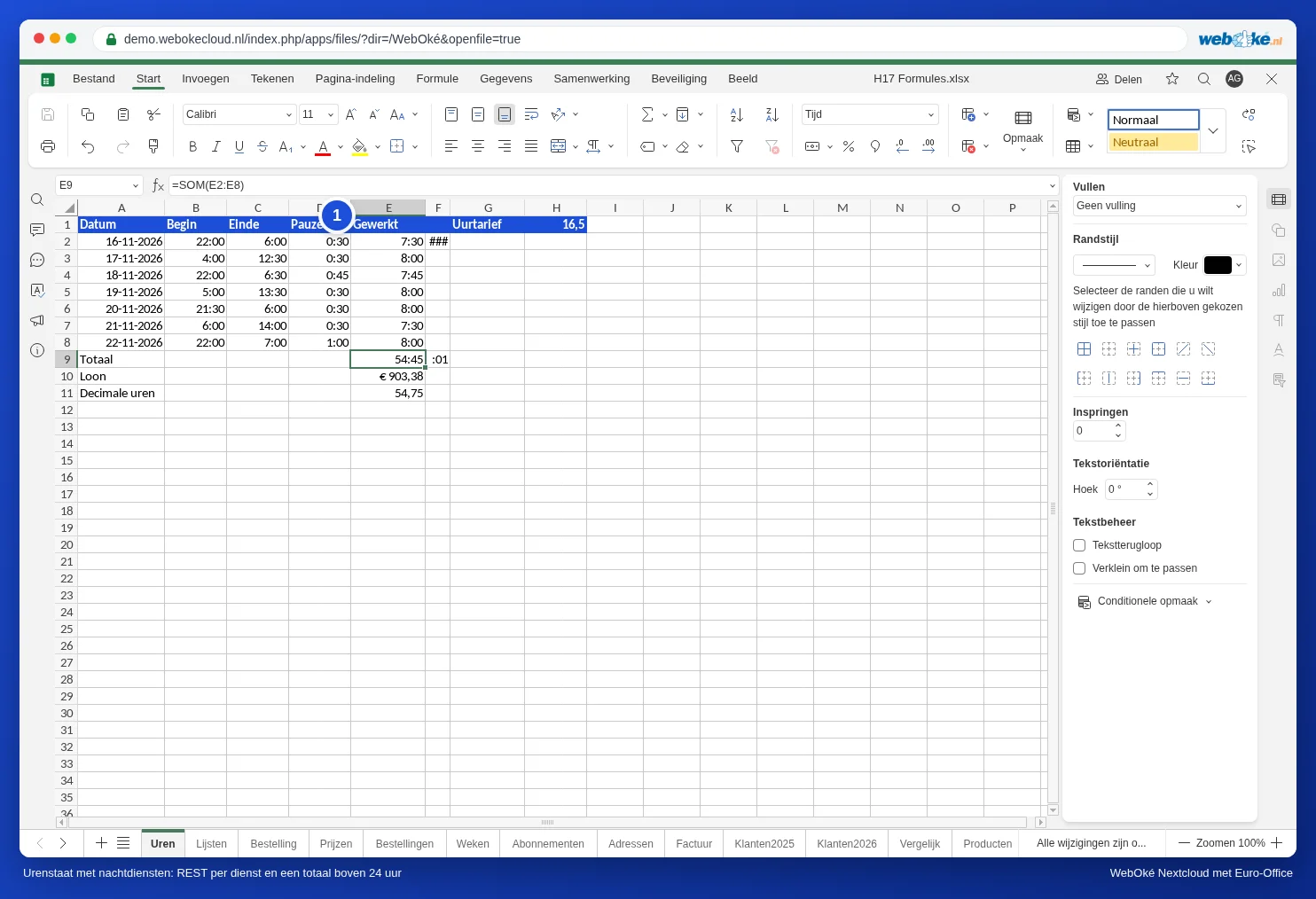
A timesheet with night shifts and totals over 24 hours
A timesheet looks simple: end time minus start time. Until there's a night shift. A shift from 22:00 to 06:00 then gives ##### or a negative time. Once that's fixed, the weekly total jumps back to zero after 24 hours: 54 hours becomes 6:45. Then comes the third surprise: hours times hourly rate gives far too low an amount. You can fix all three in a few steps.
As an example, we use the oven crew at Bakkerij De Korenaar, with a week full of early and night shifts:
| A | B | C | D | E | |
|---|---|---|---|---|---|
| 1 | Date | Start | End | Break | Worked |
| 2 | 16/11/2026 | 22:00 | 6:00 | 0:30 | |
| 3 | 17/11/2026 | 4:00 | 12:30 | 0:30 | |
| 4 | 18/11/2026 | 22:00 | 6:30 | 0:45 |
Always type times with a colon: 22:00, not 22.00 or 22h. Only then does Euro-Office recognise it as a time and align it to the right of the cell.
Step 1: shifts past midnight
Type in E2:
=MOD(C2-B2,1)-D2
and drag the formula down. Why MOD? A spreadsheet treats time as a fraction of a day: 6:00 is 0.25 and 22:00 is 0.917. So 6:00 minus 22:00 is negative. MOD(...,1) keeps only the part after the decimal point and neatly turns -0.667 into 0.333: 8 hours. For a day shift, MOD changes nothing. Then the break is subtracted. The night shift from 22:00 to 6:00 with a half-hour break gives 7:30.
Step 2: a total over 24 hours
Type =SUM(E2:E8) in E9. With the standard time format, Euro-Office only shows the hours within a single day: 54 hours and 45 minutes becomes 6:45. So give the total cell its own format:
- Select E9.
- On the Home tab, click the number format drop-down list (it usually says General) and choose More formats at the bottom.
- In the Number format window, choose the Custom category.
- The field under Format now shows h:mm. Replace it with [h]:mm and click OK.

The square brackets around the h let the hours keep counting past 24. The total now shows 54:45. The individual shifts can keep the h:mm format; only the total cell needs the brackets.
Please note: if your interface is set to Dutch, Euro-Office shows the standard time format as u:mm, but inside square brackets only the English h works. With [u]:mm you get a meaningless result such as :01. So always type [h]:mm.
Step 3: hours times hourly rate
Put the hourly rate in H1, for example 16.50. For the wages, type:
=E9*24*$H$1
and give the cell the Currency format. You really do need to: Euro-Office copies the time format from E9, so at first you see something like 9:00 instead of an amount. Why times 24? Because to the spreadsheet, 54:45 is 2.28 days. Multiplying by 24 turns it into 54.75 hours. Without the 24, you get an amount that is 24 times too low: 37.64 instead of 903.38.
If payroll needs the hours as a number, use =E9*24 with the Number format and two decimal places: 54.75.
Pitfalls
- ##### in the cell: a negative time. You forgot MOD for a shift past midnight.
- Total too low: the total cell has the h:mm format instead of [h]:mm.
- Wages 24 times too low: you forgot to multiply by 24.
- Shifts longer than 24 hours don't fit in MOD. In that case, type both the date and the time for start and end (16/11/2026 22:00) and simply subtract one from the other.
- Negative hours: like Excel, Euro-Office can't display a negative time as a time. Calculate in decimal hours instead (times 24) and subtract those.
- Time as text: if a time is aligned to the left of the cell, it's text and isn't included in calculations. Type it again with a colon.