
Chapter 16 · 16.21
A price list or menu with dot leaders to the right
On a menu, price list, programme or list of services, you want the description on the left and the price on the right, with a row of dots in between: Small bouquet ........ 14.95. If you type the dots or spaces yourself, the prices will never line up neatly. With a tab stop and a leader, it works automatically, even when you change something later.
As an example, we use the bouquet price list of Bloemisterij Het Zonnetje.
Step 1: type the lines
On each line, type the description, press Tab once and type the price: "Small bouquet", Tab, "14.95". It still looks messy, but you'll fix that in the next step.
Step 2: a right tab stop with dots
- Select all the lines of the price list.
- In the panel on the right, click Show advanced settings at the bottom and choose the Tabs tab.
- Under Tab position, type where the prices should end, for example 15 cm (on an A4 page with normal margins, the text width is 16 cm).
- Under Alignment, choose Right. The amounts then align on the right, even if they have different lengths.
- Under Leader, choose the dots. (The leader is the fill character.)
- Click Specify and then OK.
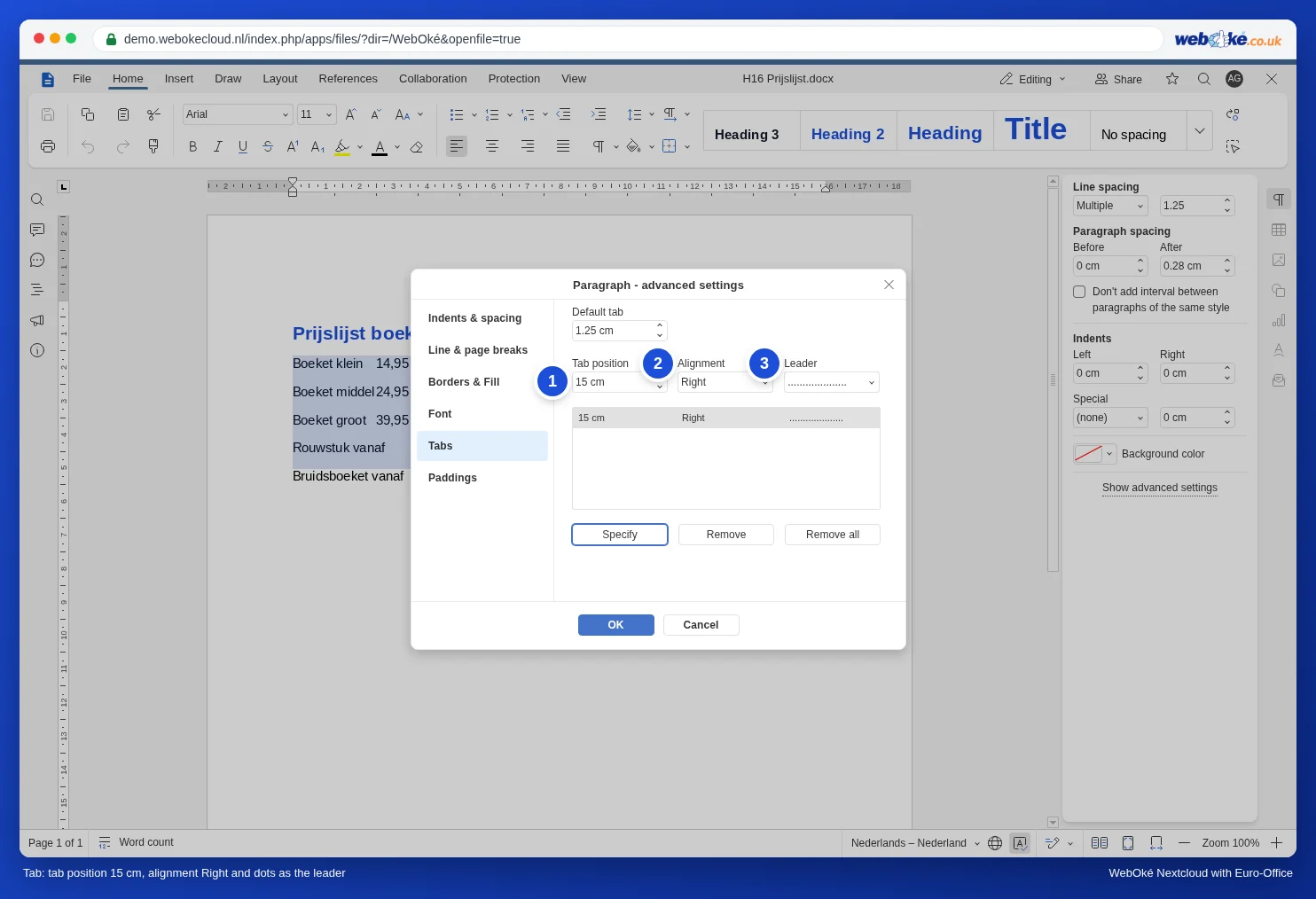
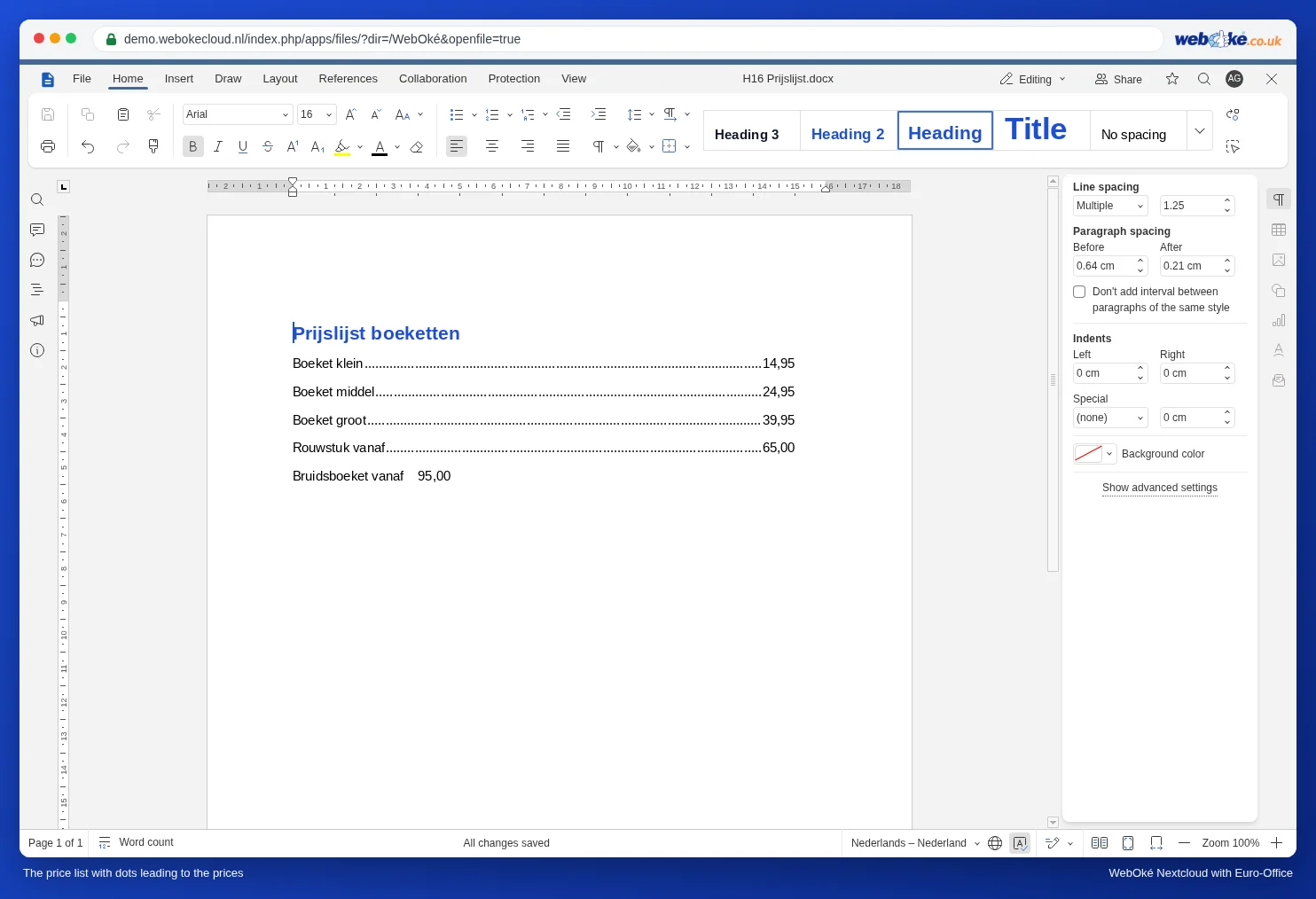
Note the example: the bottom line wasn't selected when the tab stop was set, so it still has the ordinary tab. Select that line and set the tab stop again, or use a style (see below).
Adjusting and reusing
- Want the prices further to the left? Select the lines and drag the tab stop marker on the ruler, or change the tab position in the window.
- Turn it into a style, so every new line gets the tab stop automatically: click in a line and choose New style from selection in the style gallery, for example with the name "Price line".
- You can make a hand-made table of contents (see Roman page numbers for the front matter of your thesis) or a programme with times ("Reception ........ 19:00") the same way.
Pitfalls
- Are the dots in the wrong place, or does the price jump to the next line? Then the line has more tab stops, for example the default tabs. On the Tabs tab, first choose Remove all and then create only the right tab stop again.
- Press Tab only once per line. A second tab jumps to a second tab stop.
- Euro-Office doesn't have a decimal tab (aligning prices on the decimal point). Use a right tab and give all prices two digits after the decimal point, so the decimal points line up automatically.
- In a table cell, Tab jumps to the next cell. So don't use a table for a price list with dots.