
Chapter 18 · 18.8
Editing SmartArt from PowerPoint and your own diagrams
A process diagram with three steps, an organisation chart, a list with arrows: in PowerPoint you make these with SmartArt. Euro-Office also has SmartArt, but it works differently. Adding an extra box in particular doesn't work the way you're used to. Here you can read what you can do and how to extend a diagram neatly anyway.
Example: Bloemisterij Het Zonnetje explains on a slide how ordering works: ordering, paying, arranging, delivering. A process diagram with boxes and arrows is ideal for this.
Inserting a SmartArt
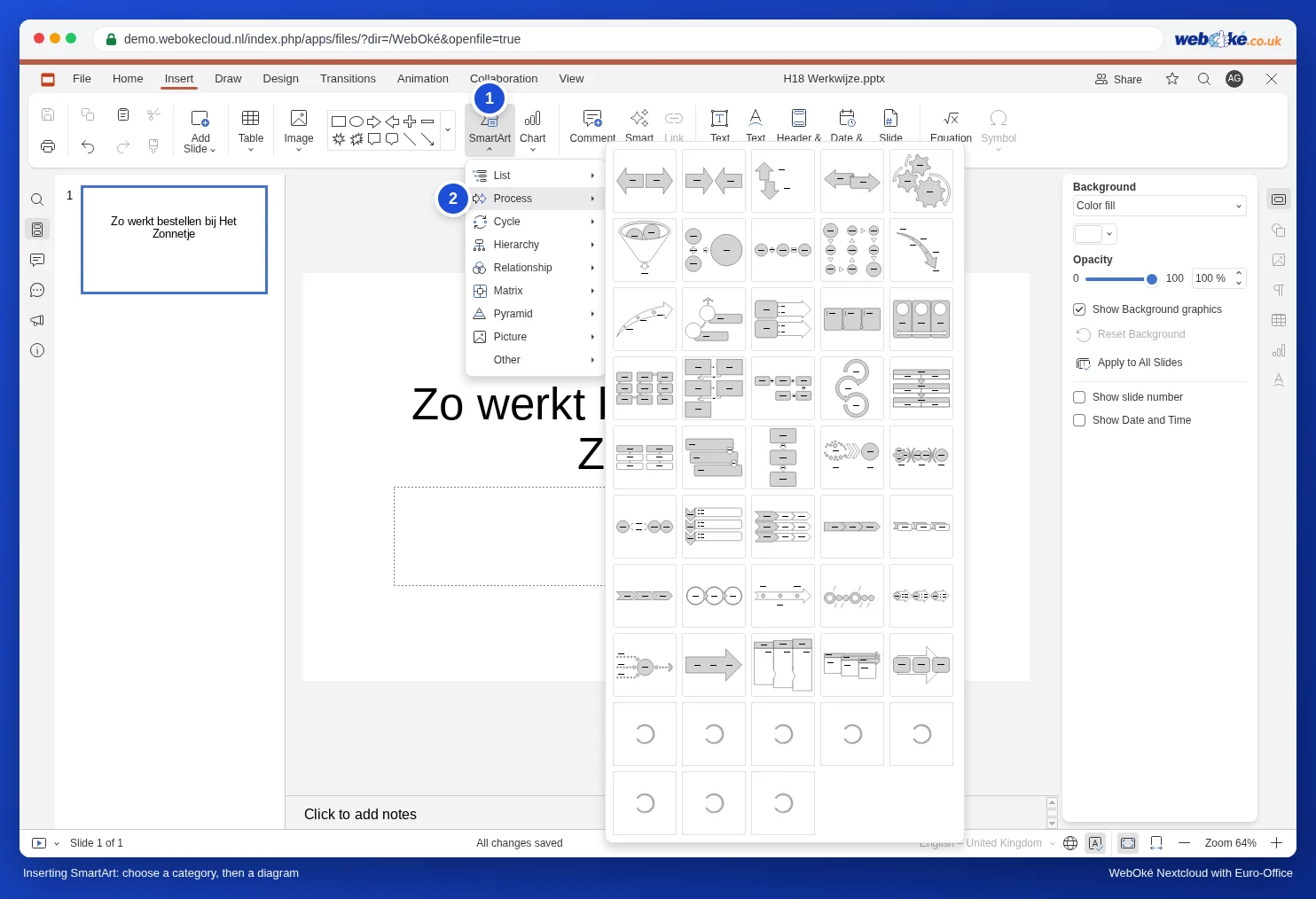
- Go to the Insert tab and click SmartArt.
- Choose a type: List, Process, Cycle, Hierarchy, Relationship, Matrix, Pyramid, Picture or Other.
- An overview with examples opens. Under Process there are almost fifty. The examples have no name, so choose by the picture, and pay particular attention to the number of boxes.
Adding text to the boxes
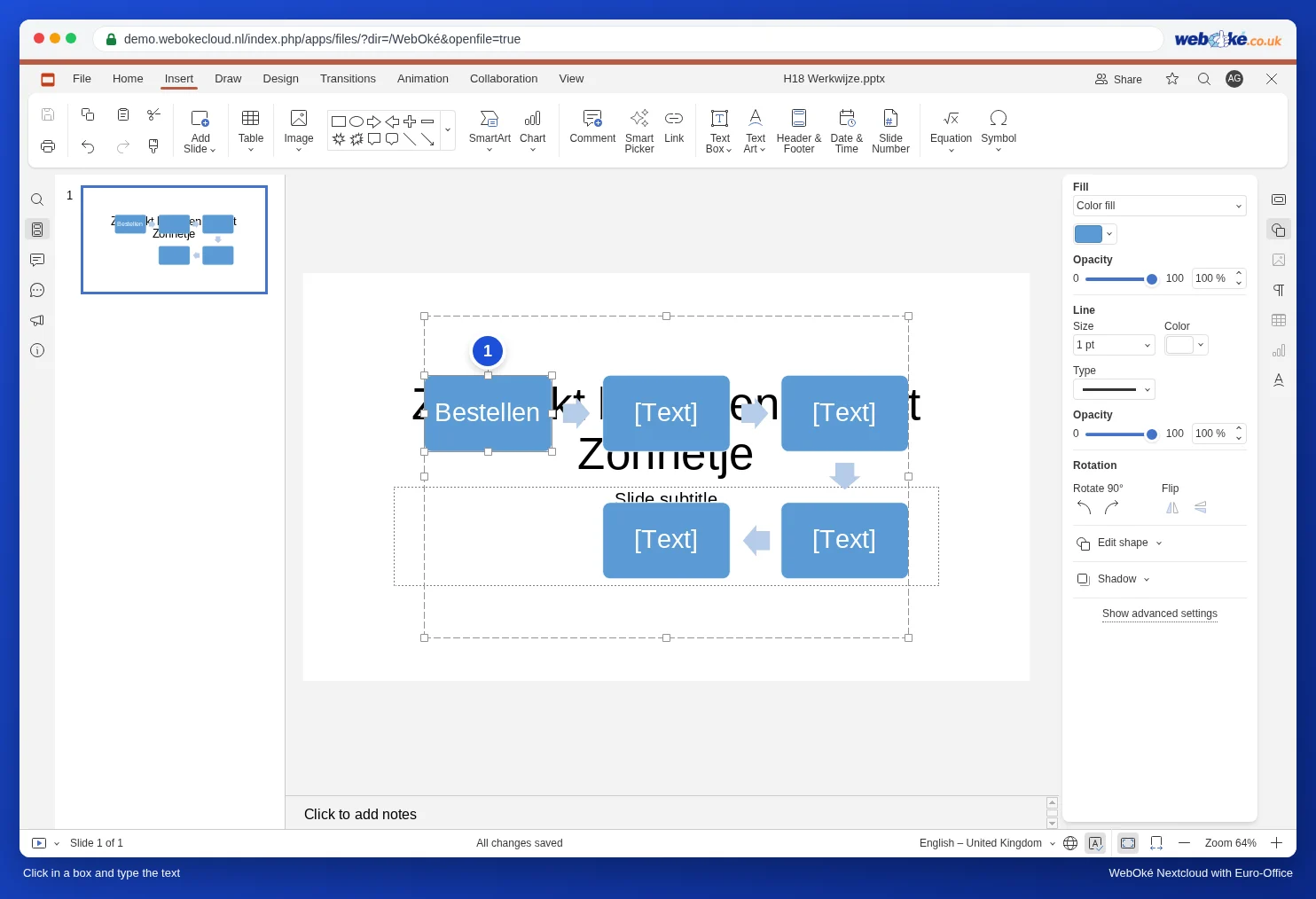
Click in a box that says [Text], click again so you have a cursor, and type.
What doesn't work like in PowerPoint
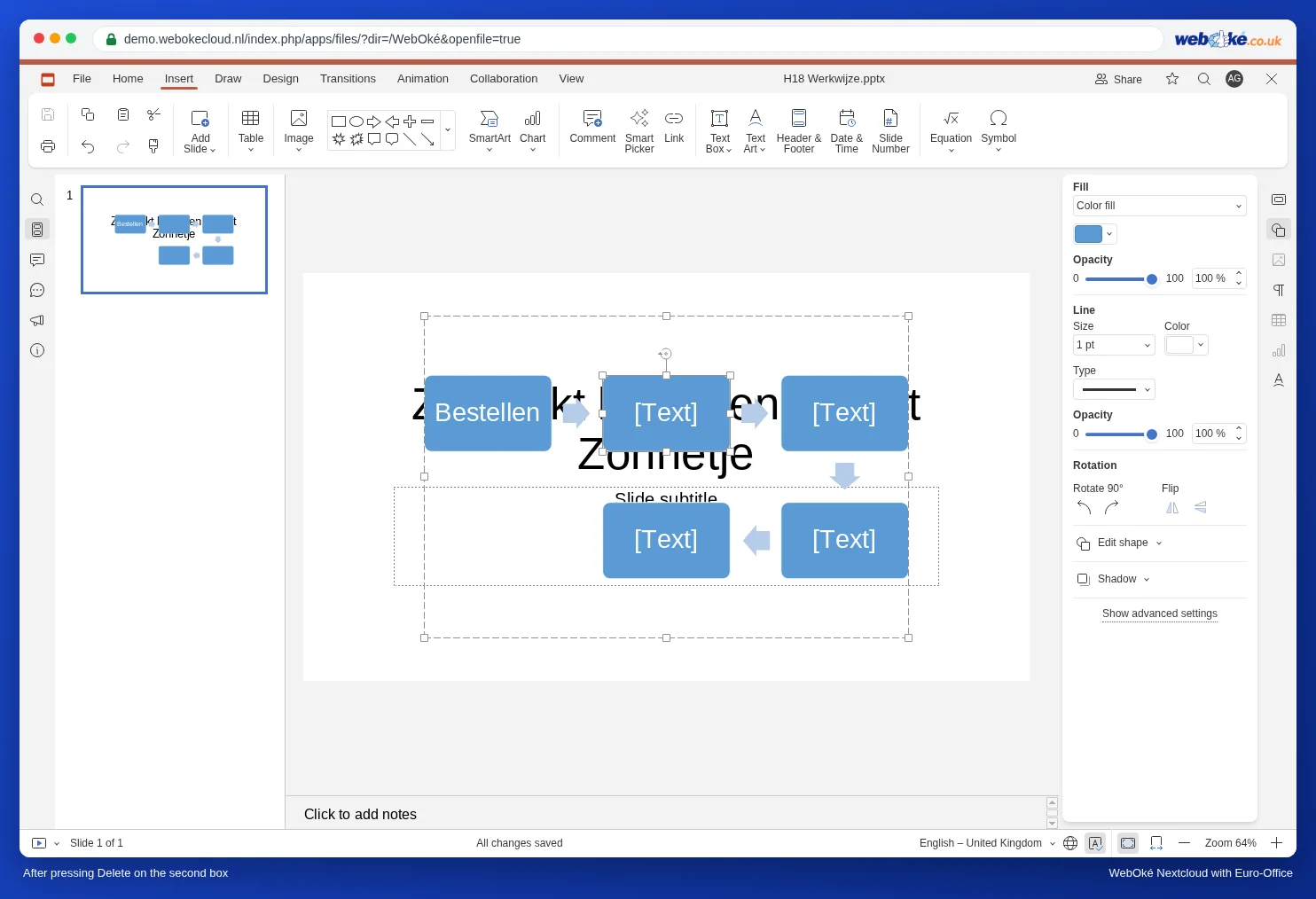
In PowerPoint you add or remove a box and the diagram adjusts automatically. In Euro-Office in your WebOké Nextcloud, that isn't possible. We tested it with a process diagram of five boxes:
- Removing a box: select the box and press Delete. Nothing happens; the box stays put.
- Adding a box: if you copy a box and paste it, you get a separate shape lying on top of the diagram. It isn't part of the SmartArt and doesn't move along with it.
- The right-click menu has no Ungroup option for a SmartArt, so you can't break the diagram up into separate shapes either.

How to approach it
- Choose the right number of boxes in advance. First count how many steps you have, then look in the overview for an example with exactly that many boxes. Four steps? Take a diagram with four boxes.
- One box too many? Choose another example with fewer boxes. Always check the result in the slideshow with Show from Current Slide.
- Lots of steps or a custom shape? Build the diagram with ordinary shapes: the Insert tab, a rounded rectangle, and arrows from the same list of shapes. Select everything while holding Shift and align it with the Align shape button on the Home tab. You can extend a diagram like this as much as you like.
SmartArt from PowerPoint
Have you received a presentation with SmartArt from PowerPoint? After opening it, check every slide with a diagram: is everything in place and is the text correct? Try editing the text as described above. If a step needs to be added or removed, ask the creator to do that in PowerPoint, or recreate the diagram in Euro-Office with the right number of boxes. If the diagram must look exactly the same for the recipient as it does for you, send a PDF (see Saving a presentation as PDF or PPTX).
Pitfalls
- You see the text menu instead of the shape menu: you clicked in the text of a box. Click on the border.
- The diagram as an image: right-click the border of the SmartArt and, if the option is there, choose Save as picture. Or save the whole slide as an image (see Saving slides as images, and a presentation as a video).
More about shapes and SmartArt on a slide: Text, images, shapes and tables on a slide.