
Chapter 21 · 21.4
Reviewing changes from multiple reviewers, person by person
A policy plan, contract or grant application often passes through several people. Everyone works with Track changes (see Tracking and accepting changes), and then you are left with a document full of coloured text. Who made which change, how do you see what it looks like with everything included, and how do you work through dozens of changes efficiently? This article explains how.
Example: the 2027 policy plan of Bakkerij De Korenaar. Lisa de Wit and Tom Visser have both reviewed it.
Seeing who changed what
Open the document and go to the Collaboration tab. Euro-Office gives each reviewer their own colour. Inserted text is underlined in that colour, and deleted text is struck through.
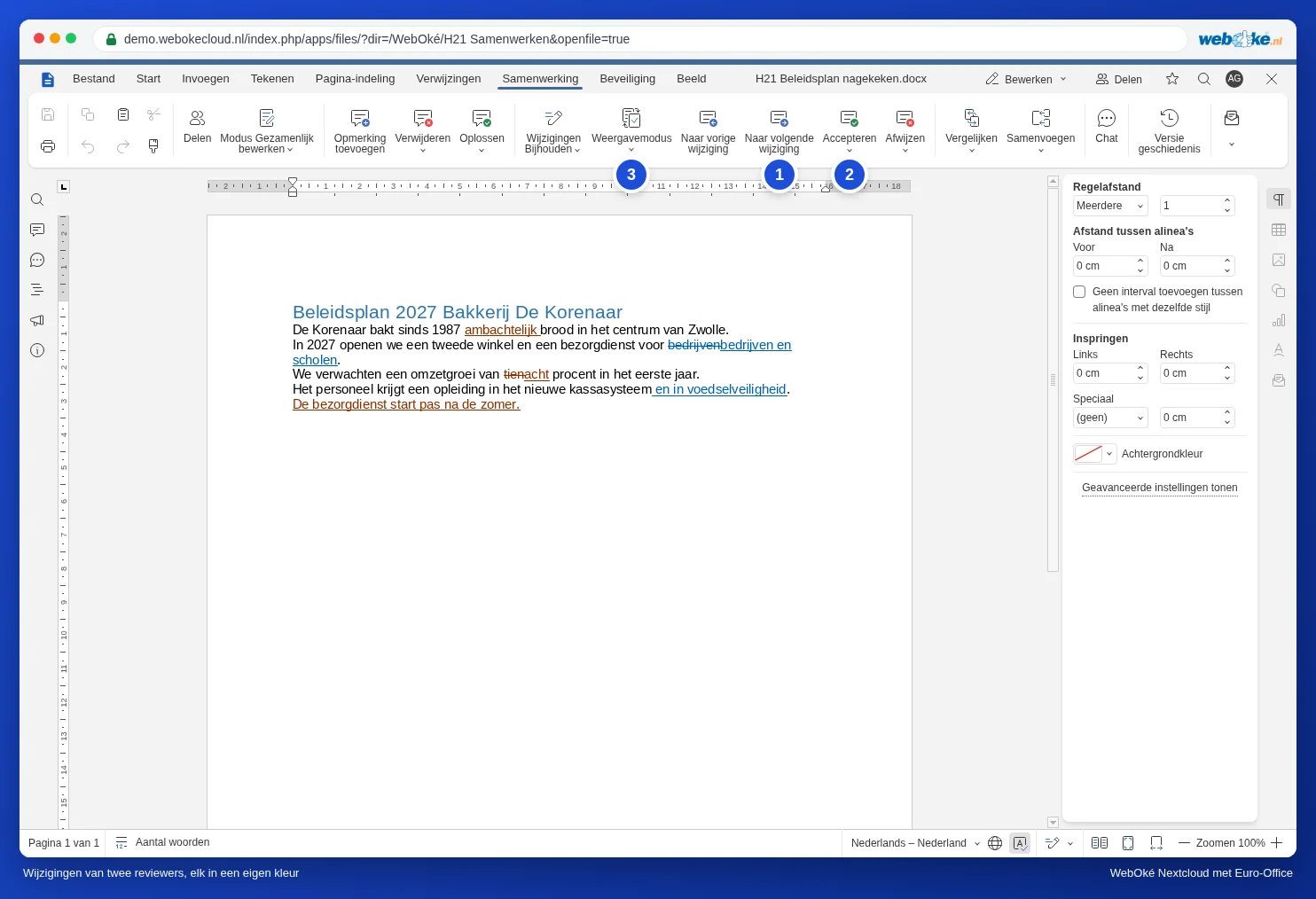
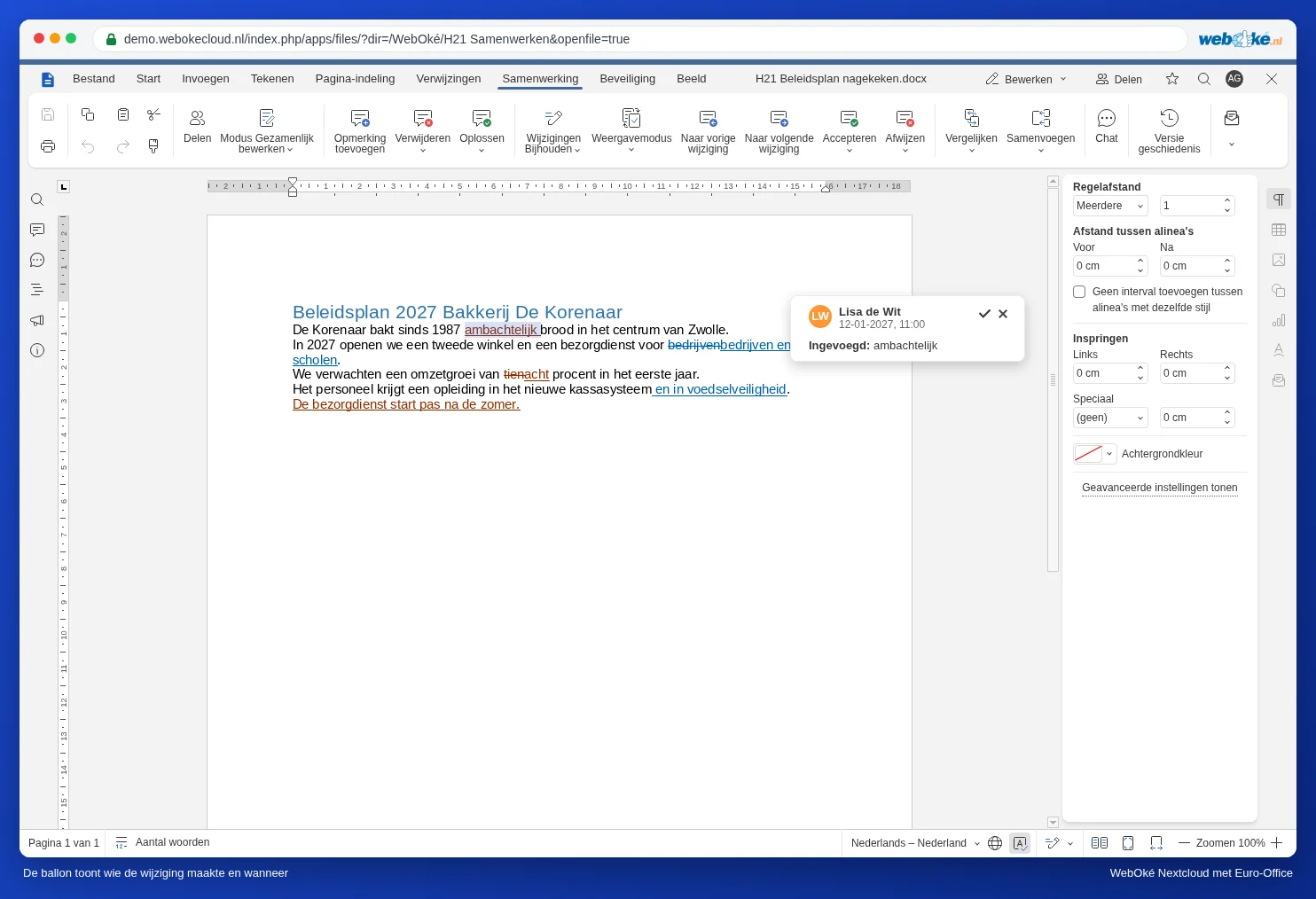
Click To next change (1). Euro-Office jumps to the next change and opens a balloon next to it. The balloon shows the reviewer's name, the date and time, and what happened: Inserted: or Deleted: followed by the text.
Reading the result: Display Mode
With lots of changes, a text is hard to read. Click Display Mode (3) and choose:
- Markup and balloons: all changes in colour, with balloons. Use this while you review.
- Only markup: all changes in colour, without balloons. Calmer on a small screen.
- Final: what the document looks like if you accept all changes. Ideal for reading the whole thing before you decide.
- Original: the text without a single change, as it was before the reviewers started.
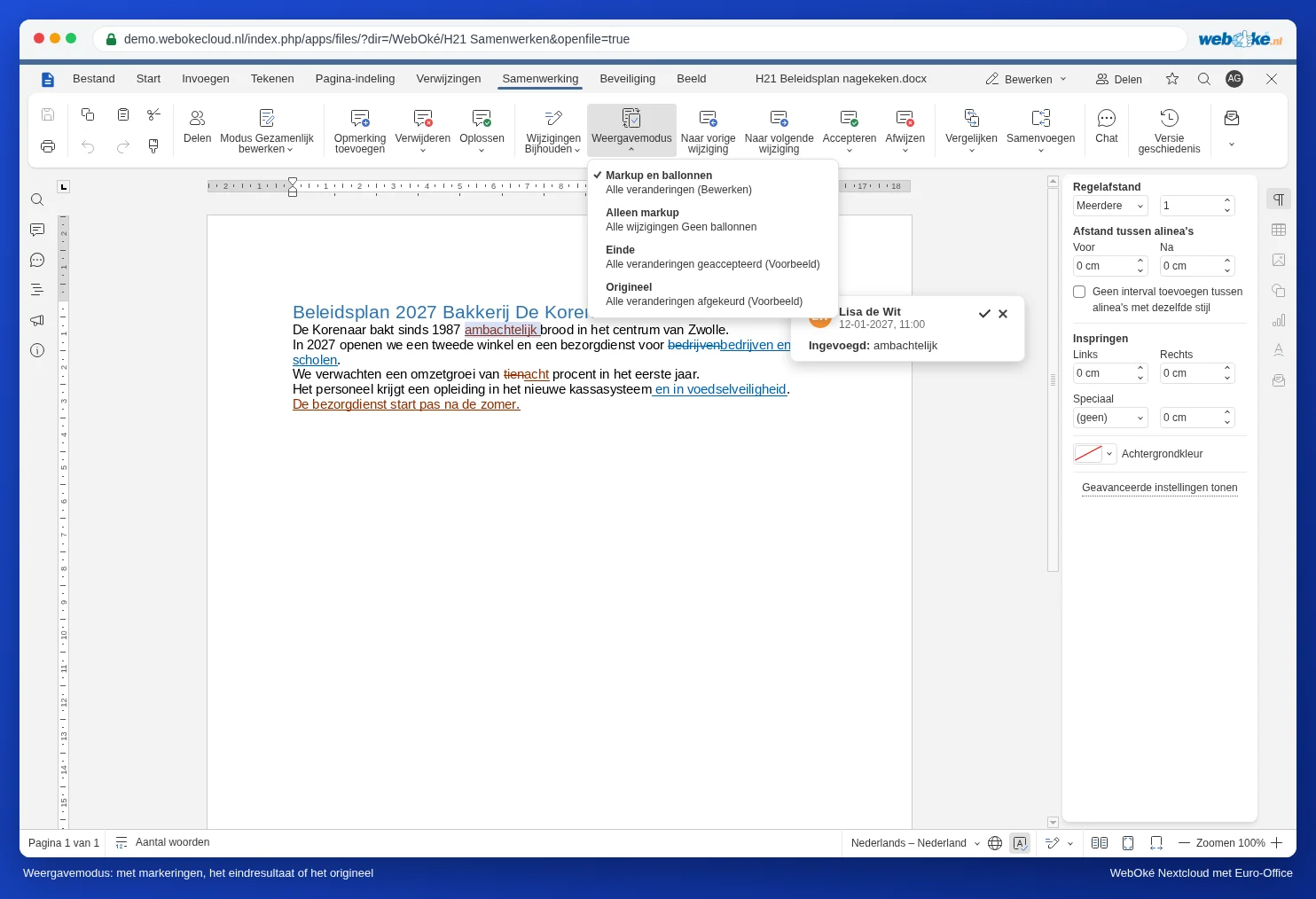
Display Mode only changes what you see on your screen. The document itself and what your colleagues see stay the same.
Reviewing person by person
In Word, you can filter changes by a single reviewer. Euro-Office has no filter by person: you always see everyone's changes. Here is how you can still work person by person:
- Set Display Mode to Markup and balloons and place the cursor at the very top (Ctrl + Home).
- Keep clicking To next change. Look at the colour and the name in the balloon.
- If the change is by the reviewer you are currently handling, choose Accept or Reject. If it is by someone else, skip it with To next change.
- When you reach the end, start again at the top for the next reviewer.
The arrows under Accept and Reject offer two options: Accept current change (just this one) and Accept all changes (everything from everyone). The same applies to rejecting.
Better: give each reviewer their own round
If you really want to work person by person, have the reviewers work in the document one after another rather than at the same time. After Lisa's round, you review her changes and accept what is good with Accept all changes; then it is Tom's turn. If reviewers prefer to work in their own copy, merge those copies one at a time: see Combining copies from different reviewers into one document.
Seeing who did what afterwards
Have you already accepted changes and want to know later who changed something? On the Collaboration tab, click the clock icon Version History (see Version History: restoring an older version). For each version, you can see who worked in the document.
Pitfalls
- Accept all changes accepts everything from everyone, including changes by the reviewer you had not looked at yet. Only use it once you have read everything, for example in the Final view.
- A guest without a name: if a reviewer worked via a public link without entering a name, the balloon shows Guest. Ask reviewers to enter their name (see Sharing with someone outside your organisation).
- Track changes is switched off: if a reviewer types without tracking, you see no colour and no name. You can still make those changes visible afterwards by comparing the document with an older version (see Comparing documents).