
Chapter 18 · 18.5
A PowerPoint with custom fonts: text that shifts or runs over the edge
You receive a presentation from an advertising agency or from head office, made in PowerPoint with a corporate font such as Montserrat, Avenir or Segoe UI. In Euro-Office, titles suddenly wrap onto two lines, text sticks out of its box or the lettering simply looks different. Fonts look different covers the basics. Here we take a closer look at presentations, where the problem is more noticeable than in a text document: a slide has a fixed size and the text has nowhere to go.
Example: Bakkerij De Korenaar, a WebOké customer, receives a presentation in Montserrat from its franchise organisation. In the browser, the baker sees a different font on every slide from the one the makers intended.
Why it happens
Euro-Office in your WebOké Nextcloud draws the text using fonts that are installed on the Euro-Office server. Euro-Office does not use fonts embedded in the pptx. If the font is not on the server, Euro-Office picks a substitute. If the substitute is wider, a title no longer fits on one line.
The WebOké Euro-Office server includes Carlito, Caladea, Liberation Sans, Liberation Serif, Open Sans, Ubuntu, DejaVu Sans and a large range of Noto fonts for other scripts. Arial, Calibri, Montserrat, Avenir Next and Segoe UI are not on it, and neither are most corporate fonts.
Step 1: see which font was actually intended
- Click in the text that looks different.
- On the Home tab, look at the font box. It shows the name stored in the file, for example Montserrat, even if Euro-Office draws the text with a different font.
- Click the arrow next to the name. If the name is not in the list, Euro-Office is using a substitute.
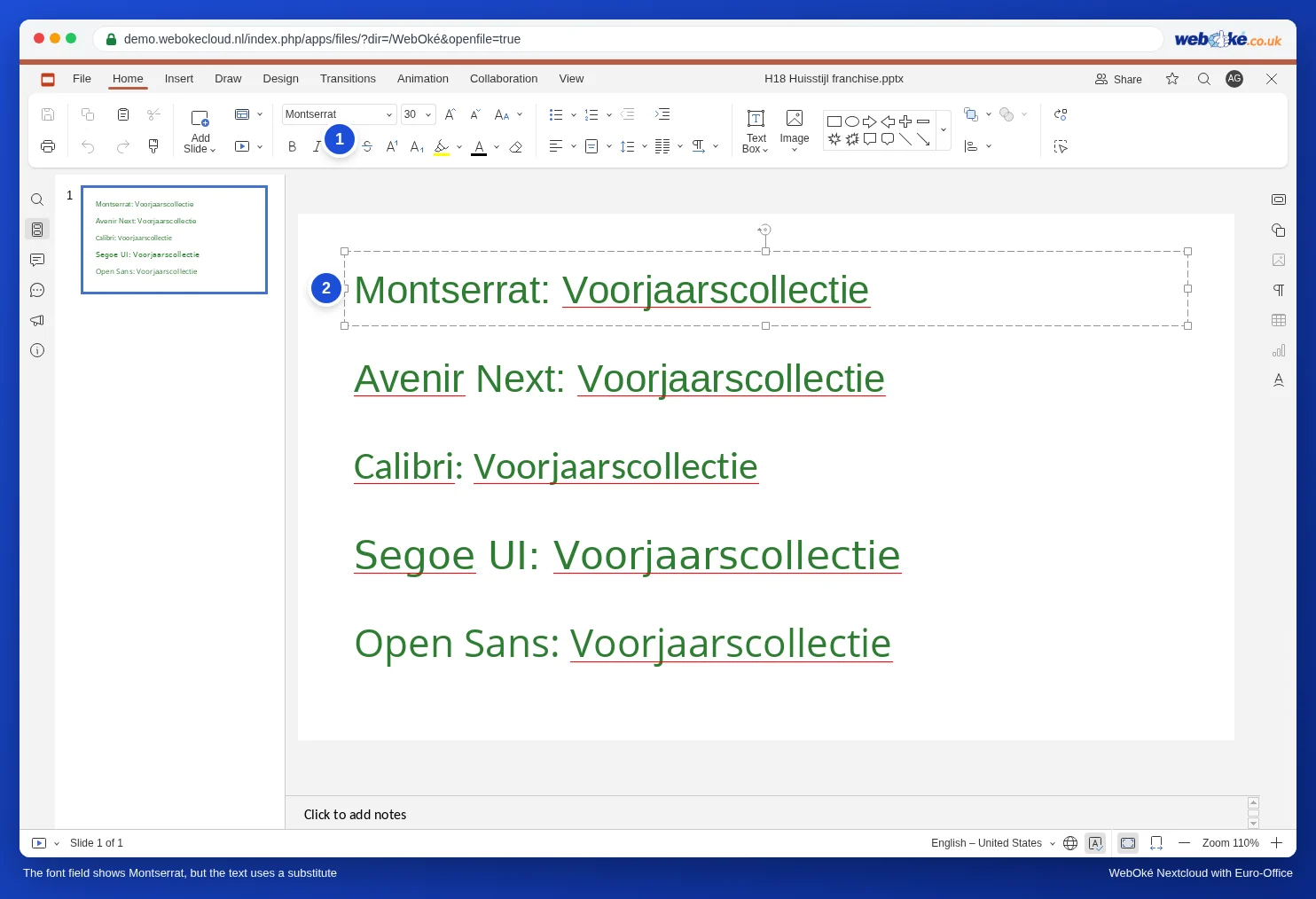
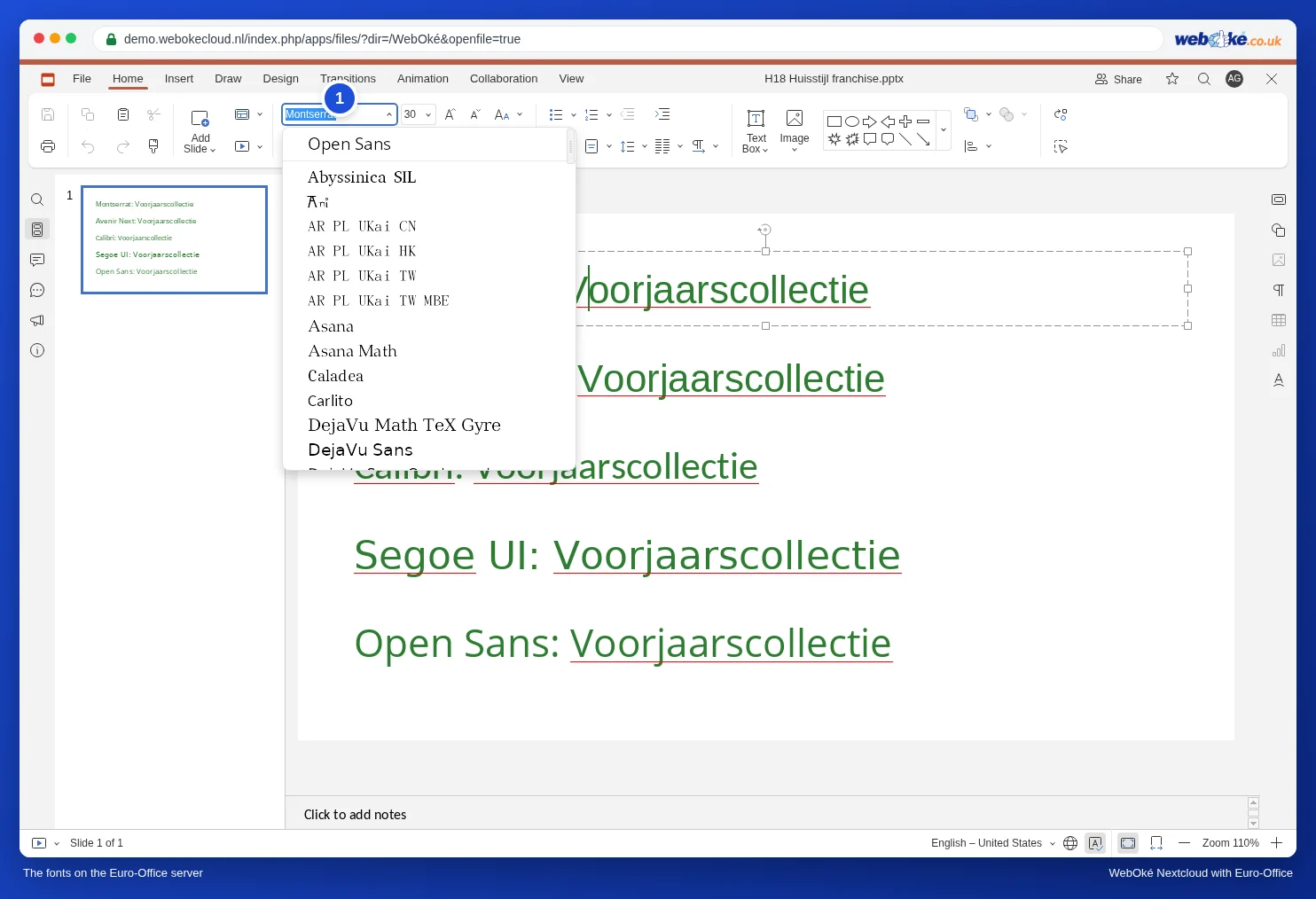
If you type the name of a font that isn't available, Euro-Office warns you: "The font you are going to save is not available on the current device. The text style will be displayed using one of the system fonts, the saved font will be used when it is available." If you choose OK, the name stays in the file and you see a substitute in Euro-Office.

Step 2: decide what you want
There are two good options, depending on who will use the presentation next.
- The presentation goes back to PowerPoint users (head office, the advertising agency): leave the font as it is. It looks slightly different in Euro-Office, but in PowerPoint on a computer with Montserrat everything is back as intended. Only edit the text, and keep it a little shorter than the box so there is some room to spare.
- You present from Euro-Office yourself: replace the font with one that is on the server. That way you and your audience see exactly what is on the slide.
| Font in the file | Good substitute in Euro-Office |
|---|---|
| Calibri | Carlito (exactly the same width) |
| Arial, Helvetica | Liberation Sans (exactly the same width as Arial) |
| Montserrat, Avenir, Segoe UI, Gill Sans | Open Sans or Ubuntu (not the same width: check every slide) |
| Times New Roman, Georgia | Liberation Serif |
Step 3: replace the font quickly
Euro-Office has no button to replace a font throughout the whole presentation in one go. Here's how to do it quickly anyway:
- Start with the slide master. Go to View, Slide Master, click the master slide, select the title box and the text box and choose the new font. All slides that use the template's boxes follow automatically. See Creating your own house style template: slide master, layouts and placeholders. Finish with Close Master.
- Then the separate text boxes, slide by slide. Click an empty spot on the slide and press Ctrl+A (Mac: Cmd+A). All boxes on the slide are now selected. On the Home tab, choose the new font. All the text on the slide gets it at once.
- Click the next slide on the left and repeat step 2.

Step 4: check for overflowing text
Then go through all the slides, preferably in the slideshow (Show from Beginning). Look out for titles that suddenly wrap onto two lines, text that runs out of the bottom of a box and bulleted lists that touch the edge. Make the text one point smaller or the box slightly larger.
Pitfalls
- Embedded fonts: PowerPoint can embed fonts in a pptx. Euro-Office does not use them. In that case too, you see a substitute.
- Replacing is permanent: if you choose Open Sans and save, the file will contain Open Sans, for PowerPoint users too. Not sure? First make a copy with File, Save Copy As.
- A special title font that really has to stay as it is: ask the maker to save the title as an image in PowerPoint and place that image on the slide. An image looks the same everywhere.
- Does it have to look exactly the same for the recipient? Send a PDF (see Saving a presentation as PDF or PPTX).
What isn't possible
You can't add your own fonts to the Euro-Office server: the server is the same for all WebOké customers. The Nextcloud Office program on your computer uses the fonts installed on your own computer (see Fonts look different and Euro-Office as a program on your computer: what is it and when do you use it?). You can download it from www.weboke.nl/en/download.