
Chapter 19 · 19.1
Sharing a form so everyone fills in their own copy
You've made a nice registration form, for example for the workshops of Bloemisterij Het Zonnetje, and you want to send it to twenty people. Your first thought: share one link and you're done. But a PDF in your WebOké Nextcloud is one file. If you share that file with editing rights with several people, they all fill in the same copy: the second person sees the name, address and IBAN of the first and types over them. That's awkward and also a GDPR risk. And if you share it with a public link, the answers never come back to you at all.
Euro-Office doesn't automatically make a copy for each person filling in the form, and it doesn't collect answers. Below you can read which route does work, depending on what you need.
What happens when you share a PDF form with a link
We tested this in the WebOké Nextcloud:
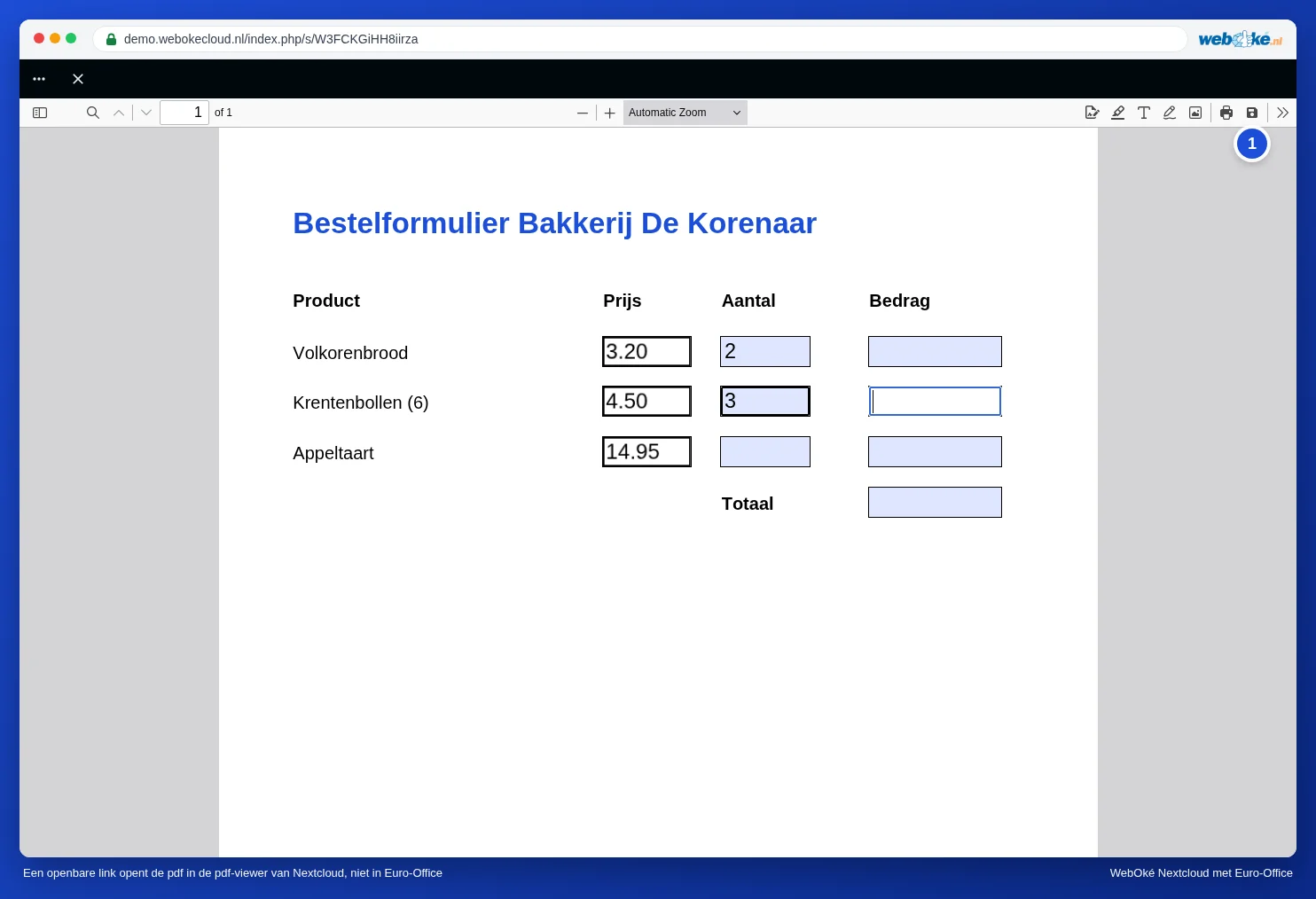
- A public link (see Creating a public link (view or edit)) doesn't open the PDF in Euro-Office for the visitor, but in the Nextcloud PDF viewer. This also applies if the link is set to editing. The visitor sees the form fields there and can type in them, but the values they enter don't come back to your file: in our test, the PDF in the Nextcloud stayed unchanged. To keep their completed copy, the person filling in the form uses the viewer's Save button (the floppy disk icon at the top right) (1). That copy ends up on their own device, not in your Nextcloud.
- Sharing with a colleague who has an account (see Sharing a document with a colleague) does open the PDF in Euro-Office. With Allow editing, that colleague works in your file, so in the same copy as everyone else you share it with.
- There is no separate "fill in form only" sharing permission: when sharing, you choose from View only, Allow editing and Custom permissions.
Which route should you choose?
| You want | Choose |
|---|---|
| Answers from many people in one overview (registrations, survey, sign-ups) | Route 1: the Forms app |
| Everyone to fill in and return their own PDF, for example with a signature | Route 2: a public link plus a file request |
| A small, known group that each fill in their own PDF | Route 3: a copy per person |
Route 1: the Forms app for many people
Is it about data you want to collect, such as names, email addresses and which workshop someone chooses? Then a PDF isn't the right tool. Your WebOké Nextcloud includes the Forms app (in the app menu at the top). There you create an online form with questions. Everyone who fills it in gets a blank form and can't see other people's answers, and you see all the answers listed under Responses. You can also download them as a spreadsheet and work on them further in Euro-Office.
Route 2: a public link plus a file request
Does it really have to be a PDF, for example because it needs a signature? Then let everyone fill in their own copy and return it to a folder that only you can see.
- Share the blank form with a public link set to View only (see Creating a public link (view or edit)). The person fills it in in the PDF viewer and keeps their copy with Save, or downloads the PDF and fills it in on their own computer. Your blank form stays blank.
- Create a folder for the completed forms, for example "Inschrijvingen workshop".
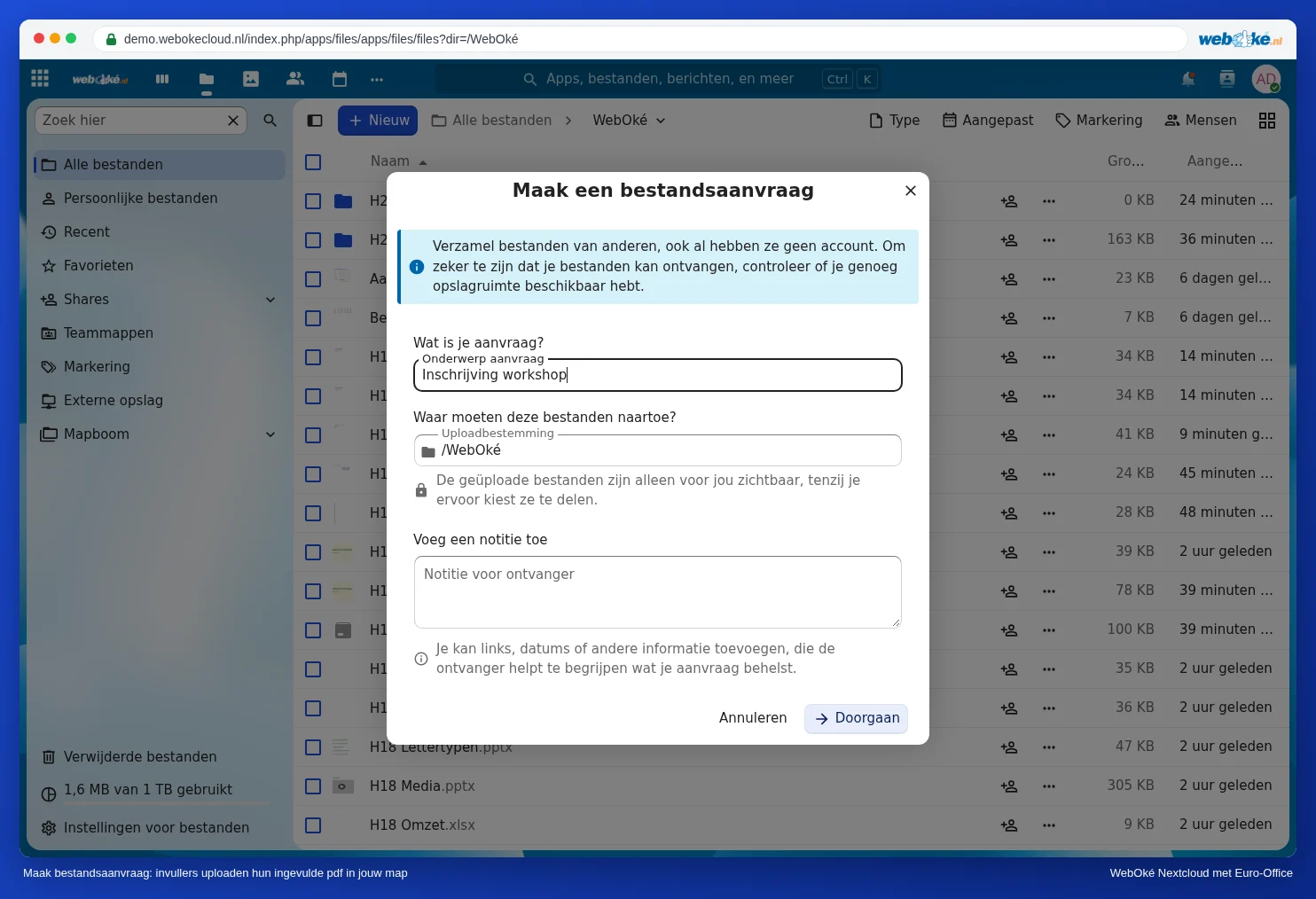
- In your files, click New and choose Create file request. Under Request subject, type for example "Inschrijving workshop", choose the folder under Upload destination and, if you like, add an explanation under Note for recipient. Click Continue and complete the request; you'll then get the link.
- Send the link to the file request along with it. People upload their completed PDF there. They can't see each other's files; the uploaded files are visible only to you.
Route 3: a copy per person
For a small group, for example five employees who each fill in an intake form:
- Open the blank form, click File, choose Save Copy As and PDF. Put the person's name in the file name, for example "Intake Lisa de Wit".
- Repeat this for everyone.
- Share each copy only with that one person (see Sharing a document with a colleague), or with its own public link.
This way, everyone only sees their own form.
Please note: Euro-Office doesn't automatically save what you fill in or change in a PDF. Press Ctrl + S or click Save at the top left before you close the PDF. If you close it without saving, your work is lost. In our test (November 2026), the values filled in were in the file in your WebOké Nextcloud within a few seconds after saving and closing (see Filling in a PDF form). Feel free to open the PDF again afterwards to check that everything is there.
Pitfalls
- One file with editing rights for a whole group is the biggest risk: everyone sees and changes each other's data. Never do this with personal data.
- A public link on its own isn't enough to collect answers: what the person types in the viewer doesn't reach you. So always combine the link with a way to get the completed copy back, such as the file request from route 2.
- Overwritten anyway? If someone has typed over an earlier entry after all, you can get it back via the version history, see Version History: restoring an older version.