
Module 3 · 3.5
English
Versions, restoring and the memory
Module 3: Text, photos and sections · Reading time: 9 minutes
Learning objective: After this lesson you can view and restore any earlier state of your site, give important versions a name, and check and maintain the AI's memory, so the AI works with the right details and nothing is in there that doesn't belong.
Key concepts: version, Versions, Revert, Restore this version, Save this version, Undo, "put it back", memory, category, Structure of your site, Add a line, secrets
Every change is a version
Everything that changes your site becomes a version: an AI suggestion you apply, text you save yourself, a photo you replace, a section you move, a different colour. Each version has a number (v1, v2, v3 ...), a short description and a time. That means you can't lose anything by trying things out. So feel free to experiment.
A version is not the same as what is online. Versions live in the builder; putting your site online is a separate step (lesson 5.1). If you restore an old version, your online site only changes when you put it online again.
The Versions panel
At the bottom of the rail you'll find Versions. At the top it says: "Every change is a version. Click a version to view it; restoring doesn't lose any version." Below that is the list, newest at the top. The version that currently applies has the label Current.
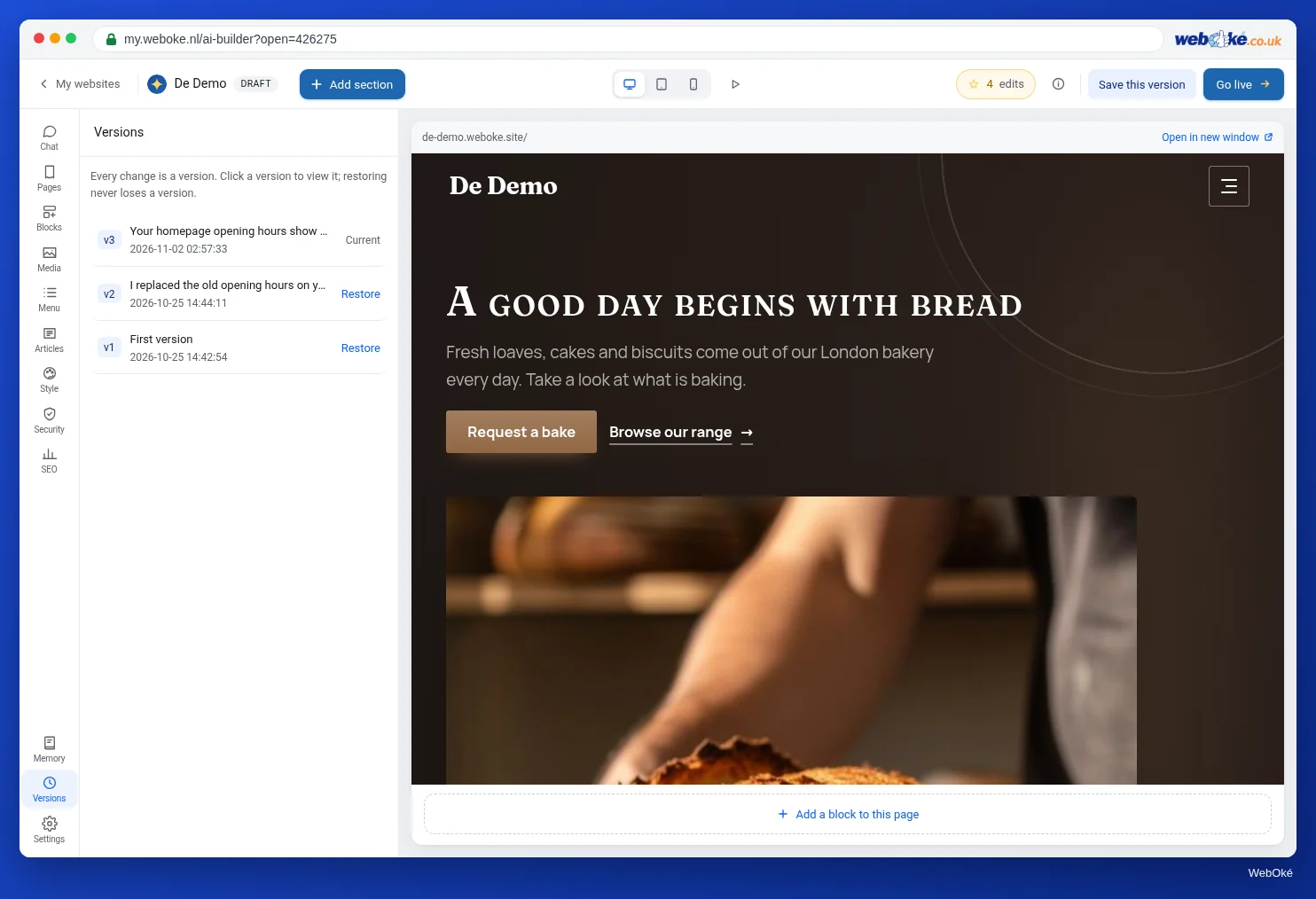
There are two ways to go back:
- View, then restore. Click a version. The preview shows your site as it was then, with "You are viewing version ... from ..." above the preview. Click Restore this version, or Back to current if you only wanted to look.
- Restore directly. Click Revert next to a version in the list.
Either way, the builder turns it into a new version: "Version ... has been restored as a new version." The versions in between stay. If you regret restoring, simply restore the version from before that.
Restoring is free. You can also do it in two other ways:
- Undo in the chat, right after a change ("Free, your previous version is kept").
- Type in the chat: "put it back". The AI restores the version from before the last change, as a suggestion. Choose Apply to keep it that way, or Discard to keep the last change after all. If a suggestion is still open, "put it back" removes that suggestion. This costs nothing either.
Giving a version a name
If you're working towards an important state, for example the site as it goes online for the first time, or a special version for a promotion, give it a name. Click Save this version in the top bar, enter a name (for example "Before the Christmas promotion") and click Save. The builder reports: Your site has been saved as version ...: "...". You'll find it under Versions, with the label saved. Here too: "Publishing is a separate step; nothing goes online automatically."
Why this matters: the builder keeps the last 50 versions per site. It clears out older versions, except the very first version and versions you gave a name. If you do a lot of work, you'll reach 50 versions sooner than you think: every text change and every moved section counts. That's why Bas of Schildersbedrijf Example saves every state he puts online, with the date in the name: "Online 12 November".
The memory: what the AI knows about your site
The AI remembers what you tell it, per site. This is in the Memory panel, at the bottom of the rail above Versions, under the heading What the AI knows about your site. The AI uses it for every instruction and every question. That's why you don't have to repeat with every instruction that Bas only works in the region or that he doesn't want pink.
The memory is divided into categories:
| Category | What belongs in it |
|---|---|
| Business | Who you are, what you do, since when and what makes you special |
| Offer | Services, products, prices and terms |
| Contact | Address, phone, email, opening hours and links to book or follow you |
| Audience and tone | Who your site is for, the tone and how you address visitors |
| Style | What you do and don't like: colours, mood, photos and motion |
| Agreements | Fixed wishes and rules, such as "no motion" or "prices include VAT" |
| To do | What you still need to supply or what still needs to happen |
| Key decisions | Earlier decisions and why you made them |
Each line shows where it came from: From your description, By the AI, By you or From your old website. At the top is the Structure of your site (menu, pages with their sections, footer and house style). The builder keeps that up to date itself; you don't need to do anything with it.
Maintaining the memory
You can Edit or Remove any line, and create a line yourself with Add a line. Choose a category and write one fact or wish per line (300 characters at most). This costs nothing. If you remove a line, the AI no longer takes it into account.
Check the memory after the first version and occasionally after that. Why: the first version contains sample content (lesson 2.4). If the memory contains, for example, made-up opening hours or a price that's wrong, the AI may use it again for a later instruction. Bas sees the line "Free quote within 24 hours" under Offer. He doesn't promise that; he edits the line to "Quote within three working days". From now on, the AI writes it correctly.
The memory has a limit. When it's full, the builder says "The memory is full. First remove a few lines or merge them."
Discarding a suggestion also affects the memory: a wish that belonged to a discarded suggestion is forgotten by the AI. What you told it about your business stays.
What doesn't belong in it
Passwords, codes and payment details don't belong in the memory. The builder says so itself: "whatever the builder recognises of these, it doesn't store". Among other things, it recognises passwords, login details, PINs, alarm and wifi codes, API keys, payment details and Dutch citizen service numbers (BSN). But recognising isn't a guarantee. So never type such details into the chat, not even "just so it remembers". Keep a password in a password manager (Safe online course, lesson 2.2).
Personal data of other people, such as names and phone numbers of customers, doesn't belong there either. The memory is for your business and your site, not for your customer records.
Pitfalls
- Thinking that restoring also restores your online site. After restoring, you need to put your site online again.
- Not naming important versions. After 50 versions, the oldest unnamed version disappears.
- Never looking at the memory. A made-up detail then keeps coming back.
- Leaving a contradictory line in place. If Agreements says "no motion" and you later ask for a moving banner, change that line first.
- Typing secrets into the chat. Even if the builder doesn't store them: don't do it.
In the builder: how to do it
- Open Versions and click an older version to view it.
- Click Restore this version, or Back to current.
- Click Save this version in the top bar, give it a name and click Save.
- Type "put it back" in the chat and choose Apply or Discard.
- Open Memory and go through each category.
- Fix a wrong line with Edit, or create a new one with Add a line.
Summary
- Every change is a version; restoring is free and creates a new version, without losing anything.
- You can go back via Versions (Revert or Restore this version), Undo or "put it back" in the chat.
- The last 50 versions are kept, plus the first one and the versions you named via Save this version.
- The Memory stores what the AI knows about your business, in categories; editing it is free and stops made-up details from coming back.
- Passwords, codes, payment details and customer data don't belong in it.
Quiz
Exercise
Exercise D3.5: Back in time. Practise restoring and tidy up your site's memory.
Checklist:
- [ ] saved the current state with Save this version and a clear name;
- [ ] made a change (for example moved a section) and then viewed an older version;
- [ ] restored an older version and seen that a new version was added;
- [ ] then restored your saved version again;
- [ ] tried "put it back" in the chat once;
- [ ] gone through all categories of the Memory;
- [ ] edited or removed at least one incorrect or made-up line;
- [ ] checked that it contains no passwords, codes or customer data.
Questions:
- What name did you give your saved version, and why that name?
- Which line in the memory was wrong, and what does it say now?
- What would have gone wrong if you had left that line in place?
After "done" you'll see a sample answer: version saved as "Before going live 12 November"; under Contact it said "Open on Saturday from 9 am to 5 pm", now "Saturday by appointment only"; otherwise, for a later instruction such as an Opening hours section, the AI would have put the made-up Saturday back on the site.
Exercise D3.5: Back in time
You do this exercise yourself; no one checks it. Tick off what you've done and mark the exercise as done.
Version saved as "Before going live 12 November". In Contact it said "Open on Saturday from 9 am to 5 pm", now "Saturday by appointment only". Otherwise the AI would have put the made-up Saturday back on the site with a later request, such as an Opening hours section.
Your ticks and notes only stay in this browser; we don't send them anywhere. If you're signed in, we only save in My courses that you've done the exercise.