
Module 8 · 8.3
Measuring, improving and the final check
Module 8: After going live · Reading time: 11 minutes
Learning objective: After this lesson you can choose how to measure what your site does (with or without cookies), read the most important Search Console reports, improve or refresh your site in small, measurable steps, and use the final check to see whether your site is technically sound and meets the basic rules.
Key concepts: measurement goal, visitor statistics, Plausible, Google Analytics 4, Search Console, impressions, clicks, click-through rate, average position, indexing, small step, final check
First the question, then the measuring
Measuring without a question gives you charts you never use. So start with two or three questions that matter to your business. Schildersbedrijf Example wants to know:
- Do people in the area find the site when they search for "painter" plus the name of their town?
- Which pages do visitors read, and where do they drop off?
- Do the visitors lead to quote requests?
The first question is answered by Search Console: what happens in Google before someone clicks. The second is answered by visitor statistics: what happens on your site. The third you count yourself: how many requests came in through the form, the phone and WhatsApp? That last one is your most important number.
Measuring visitors: with or without cookies
The AI Builder has no visitor statistics of its own. You connect a service under Settings > Integrations (lesson 7.2). The two common choices:
| Plausible | Google Analytics 4 | |
|---|---|---|
| What you enter | your domain name | your measurement ID (G-...) |
| Cookies | none | yes (_ga, _gid) |
| Cookie banner needed for this service | no, the builder loads it straight away | yes, it only loads after consent for Statistics |
| What you see | visitors, pages, sources, country, device | much more, with events and audiences |
| Completeness | counts all visitors | only counts those who gave consent |
| Cost | a paid subscription with Plausible | free from Google |
One important difference for the numbers: with Google Analytics you only see the visitors who clicked Accept all. If half of them decline, you see half. So compare trends above all (is it going up or down?), not exact numbers. With Plausible you see everyone, because it measures without cookies. Whichever service you use, name it in your privacy statement (lesson 7.1).
If you have a package, you also have server statistics in DirectAdmin (the DirectAdmin button next to your site in My websites). These work without a script and without a cookie, but they also count bots and are updated once a night. Good as a rough check, not for comparing pages precisely.
Reading Search Console
If you have connected Search Console (lesson 6.2), look at three reports once a month:
- Performance: for each search query and each page, the number of impressions (how often you appeared in the results), clicks, the click-through rate (CTR in Search Console: clicks divided by impressions) and the average position. Look for pages with many impressions but few clicks: a better title and description can help there.
- Pages (indexing): which pages are in Google and which are not, with the reason. If an important page is missing, find out why.
- URL inspection: see how Google knows a single address, and ask Google to look again after a big change.
Search Console needs time: the first numbers appear after a few days, and you get a good picture after a few weeks. The course Getting found online explains these reports step by step.
Improving in small steps
Improving works best in small steps you can measure:
- Pick one thing from your numbers. For example: the Exterior painting page has 900 impressions a month but only 9 clicks.
- Think of one change that fits it: a title and description that say what people are looking for ("Exterior painting in Example and the surrounding area, free no-obligation quote").
- Make the change: in the SEO panel, yourself (free) or with the AI (1 edit), and click Publish changes.
- Give it time: four to eight weeks. Don't change three other things on that page in the meantime, or you won't know what helped.
- Look again and write down what you did and what happened.
Other examples of small steps: a contact form with fewer fields (lesson 7.1), a clear Request a quote button at the top of every service page, your own photo of a real job instead of a stock image, a new page for a service people search for but that you don't yet describe separately. That last one is one instruction in the chat (2 edits).
Refreshing without losing anything
After a few years you may want a fresher look. That doesn't have to mean a new site:
- A different Style, other colours or fonts, or a different menu design: you choose these in the Style panel. That costs nothing.
- A section in a different design is something you ask for in the chat ("make the services section three cards with a photo"); that costs 2 edits.
- Having texts rewritten in a different tone is one instruction.
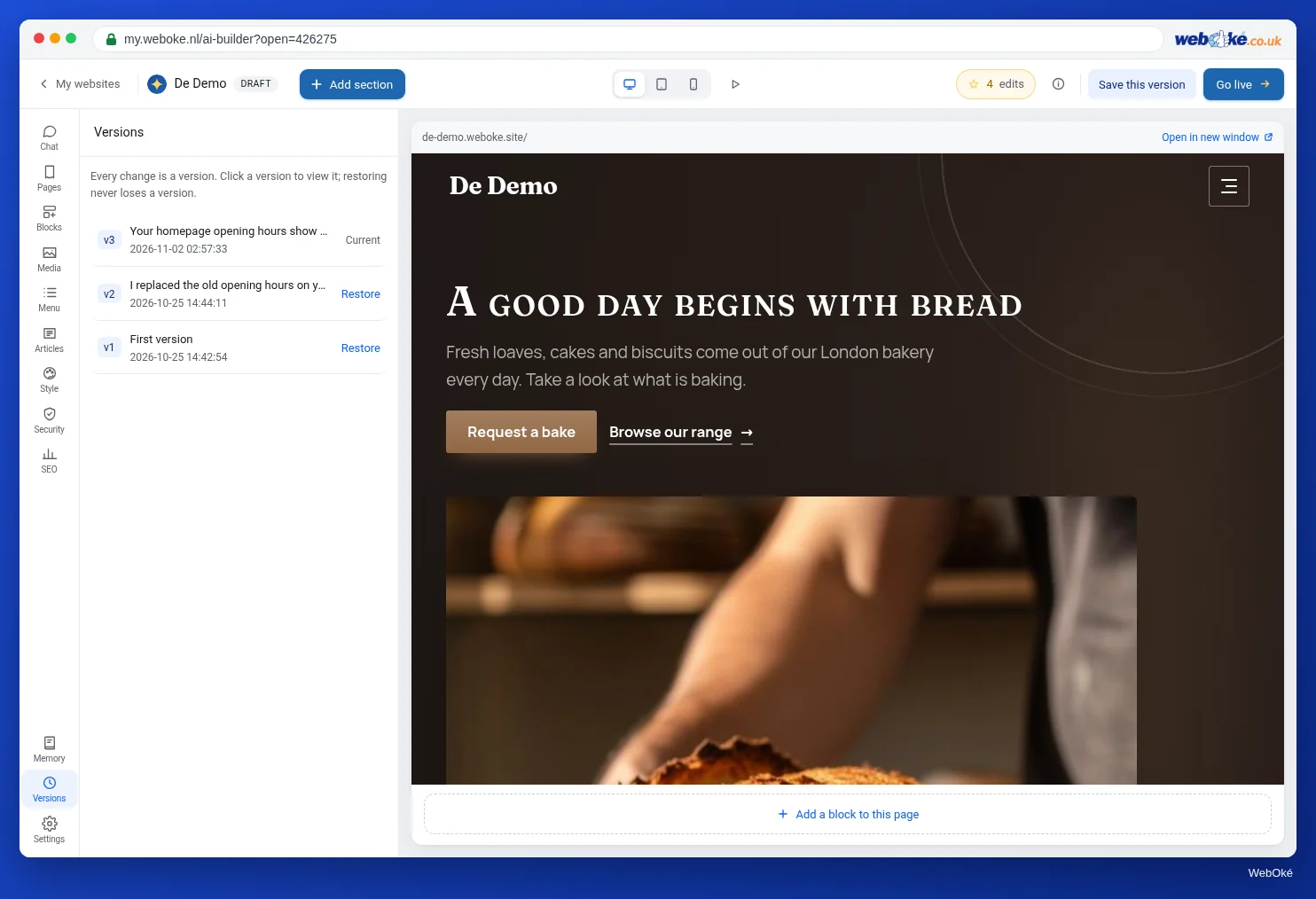
Before a major overhaul, give the current version a name in Versions, for example "Before the 2028 redesign". If you don't like the result, you restore it in one click. Having a completely new layout built costs 5 edits; a package holds one website, so decide beforehand where the new site will go.
After a refresh: go through lessons 7.1 to 7.3 again. New sections may contain placeholder content again, and new photos don't have a description yet.
The final check
In this course you have built your site step by step, put it online, made it findable and set it up according to the basic rules. The final check reviews everything in one go, the way a visitor and a search engine see your site. It separates required (what must be in order) from advice (what could be better).
Before you start the check, do these five things yourself, because no program can do them for you:
- Open your site on your phone and go through every page.
- Send a test message through your form and check that it arrives.
- Read every page once more for made-up facts and reviews (lesson 7.3).
- Open your site in a private window and check the cookie banner (lesson 7.2).
- Check that your opening hours and details are the same everywhere (lesson 8.1).
Summary
- Start with two or three questions; your most important number is the number of requests, not the number of visitors.
- Plausible measures without cookies and counts everyone; Google Analytics 4 loads after consent and only counts those who gave consent. Name your measuring service in your privacy statement.
- Search Console shows impressions, clicks, click-through rate and position, and which pages are in Google.
- Improve one thing at a time, give it weeks, and write down what you did; give a good version a name before a major overhaul.
- The final check shows what must be in order and what could still be better.
Quiz
Exercise
Exercise A8.3: Final check of your site. First do the five checks from this lesson yourself. Then enter the web address of your AI Builder site (your free address or your own domain). The program visits your site like a visitor and checks everything from the course together: whether the site can be reached over https and is recognised as an AI Builder site, whether the pages in your menu work, whether there is a privacy statement linked on every page, whether there is still placeholder content or text in square brackets, whether photos have a description, whether no tracking code loads without consent, and whether your pages have a title and description. On your own domain it also looks at your certificate and your business details for search engines. The result lists required and advice separately. If you are taking the exam, you can also do this check as a practical exercise: you then put the code of your exam attempt as text on your homepage, so the program can see that the site is yours.
Further reading
- Free course Getting found online 8.1: Measuring with privacy-friendly analytics
- Free course Getting found online 2.3: Reading the Performance report
- Free course Getting found online 2.4: The Page indexing report and URL inspection
- Measuring visitors without a cookie banner
- Free course Getting found online 8.4: Final exercise: your findability check