
Module 8 · 8.2
English
Managing edits, credit and your package
Module 8: After going live · Reading time: 10 minutes
Learning objective: After this lesson you can read and plan your credit of edits, explain what carries over to the next month and what expires, decide when buying extra edits makes sense, and know what happens to your site if you cancel your package.
Key concepts: edit, monthly bundle, welcome month, carrying over, purchased edits, credit, period, cancelling, suspension
What an edit is
An edit is one instruction to the AI. Before you have something done, the builder shows below the text box what it costs. The overview:
| Costs edits | Count |
|---|---|
| An instruction in the chat (having something changed) | 1 |
| An instruction that adds a new section or page, or changes a section into a different type | 2 |
| Having a photo created (two suggestions) | 1 |
| Having a logo designed (three suggestions) | 1 |
| Having a post written or improved | 1 |
| Having SEO texts written (also for all pages at once) | 1 |
| Translating your site | 2 per language |
| Having a complete site rebuilt, also with Redesign an existing site | 5 (free the very first time) |
Free are: asking questions, editing text yourself, choosing or uploading photos, house style, adding, moving or removing sections with the buttons and the picker, restoring versions, pages and menu, summarising a post, the security check, the privacy statement and publishing. Anything that fails or isn't possible costs nothing. If you throw a suggestion away with Discard, you get the edits back, up to 10 times a day.
An instruction costs 1 or 2, no matter how many pages it affects. "Put a Request a quote button at the bottom of every page" is therefore one instruction. Combine small wishes that belong together into one clear instruction, instead of five separate ones.
The pill in the top bar
At the top right of the building screen there is a pill showing the number of edits you have left. Click it and the Edits you have left window opens.
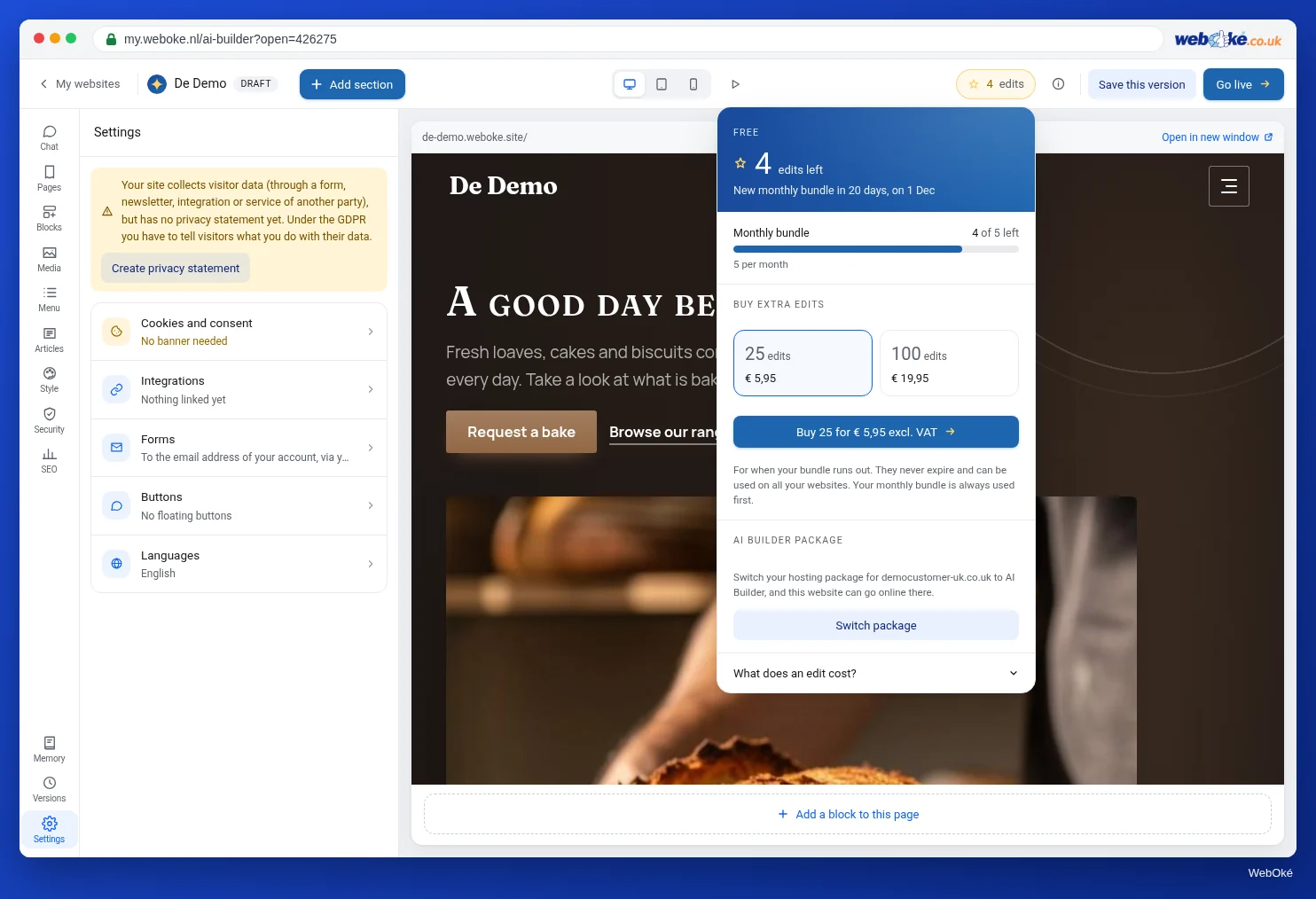
There you see:
- the name of your package (or Free) and how many edits left you have;
- when you get new ones: New monthly bundle in 12 days, on ...;
- a Monthly bundle bar showing what is left of this month; in your first month it also says that this is your welcome month;
- Bought extra, if you bought extra edits, with "Never expire";
- Buy extra edits, with a choice of 25 or 100;
- What does an edit cost?, an expandable block with the overview above.
The start screen shows the same information in the Edits block. Click How do I get this number? there for the breakdown: your package, the bonus of your first month, what you have Carried over from last month, what you bought extra and what you have Used this month.
Your monthly bundle and what carries over
Without a package (your free site) you get 5 edits per calendar month. On the 1st of the month you start again; anything left over expires.
With the AI Builder package you get 50 edits per month, and 100 in your first month: the building month is the heavy month. Your month doesn't run from the 1st to the 1st, but from the day your package started, in line with your billing. Whatever you don't use from your monthly bundle carries over to the next month, up to at most half your bundle (25) and for one month. So you can't save up over several months.
The builder uses your credit in this order:
- this month's bundle (expires at the end of the month);
- what you carried over from last month (expires at the end of this month);
- purchased edits (never expire).
That way, what expires soonest is used first, and what you paid for separately lasts the longest.
An example. Schildersbedrijf Example takes out the package on 14 March.
| Period | Bundle | Carried over | Used | What carries over |
|---|---|---|---|---|
| 14 March to 14 April (welcome month) | 100 | 0 | 60 | 40 left, at most 25 carried over |
| 14 April to 14 May | 50 | 25 | 30 (from the bundle) | 20 left from the bundle: 20 carried over; the 25 carried over expire |
| 14 May to 14 June | 50 | 20 | 10 | 40 left from the bundle, at most 25 carried over |
If you have two packages, you get two bundles. Your credit applies to all your websites together.
Buying extra edits
When your edits run out, the builder says: "Your edits for this month are used up. You can buy more or wait until your new month starts." Everything that is free keeps working: you can edit texts, swap photos and publish.
You buy extra edits in bundles of 25 or 100, via the pill or the Edits block on the start screen, even without a package. You receive an invoice; as soon as it has been paid, the edits are added to your balance. Purchased edits never expire and apply to all your websites. The builder only uses them once your monthly bundle has run out. The current prices are on the product page (see Further reading).
When does buying extra edits make sense? When you do a big overhaul in a busy month: a new service with three new pages, a second language and new photos. For regular maintenance (lesson 8.1) you need few edits, because editing yourself is free.
Using edits wisely
- Plan big changes at the start of your month, so you know how many you will have left.
- Point at an element with Pick a section before you give an instruction: the instruction then only affects that part and you need to retry less often.
- Do small things yourself: change a price, an opening time or a heading with Edit, without AI.
- Ask first: "what does it cost to create a Jobs page?" is a free question.
- Don't discard too quickly: a suggestion that is almost right is often quicker to finish by adjusting the text yourself than by asking again.
Managing and cancelling your package
The AI Builder package is a hosting package for one website on your own domain, with email and 20 GB of storage. You manage it in your WebOké account, just like other products. A second website on its own domain needs a second package.
You cancel in your account, at the product (knowledge base 133). Then this happens:
- Everything works until the end of the paid period, including your credit.
- After that, the site from that package goes offline. It is kept in the builder for as long as your account exists and falls back to your free spot.
- Purchased edits remain.
- Your domain is a separate product: you cancel or transfer it separately. The mailboxes in the package also stop; secure your email first.
- There is no export button or ZIP download. In your package your site is stored as ordinary HTML files; you can download them before the end date via the file manager in DirectAdmin (the DirectAdmin button next to your site in My websites).
With a suspended package (for example because of an unpaid invoice), the site goes offline and comes back automatically once the package is active again.
Summary
- An instruction costs 1 edit, or 2 if a section or page is added; editing yourself, asking questions and publishing are free.
- The pill in the top bar shows your balance, when you get new edits, your purchased edits and what things cost.
- Free: 5 per calendar month. Package: 50 per month from your start date, 100 in the first month; at most 25 unused edits from the bundle carry over for one month.
- Buy extra in bundles of 25 or 100; these never expire and are used last.
- After cancelling, everything works until the end date; after that the site goes offline but stays in the builder.
Quiz
Exercise
Exercise D8.2: Your edits per month. Estimate how many edits your site needs per month, and compare that with your credit.
Checklist:
- [ ] opened the pill in the top bar and noted your balance, your monthly bundle and the date of your new bundle;
- [ ] looked at How do I get this number? on the start screen;
- [ ] expanded What does an edit cost?;
- [ ] made a list of what you want to change on your site over the next three months;
- [ ] decided for each change whether it can be done for free (yourself) or costs edits, and how many.
Questions:
- How many edits do you have now, and when do you get new ones?
- Which three changes are you planning, and what does each of them cost?
- Which change will you make yourself instead of with the AI, and why?
- Is your monthly bundle enough, or do you expect a month in which you will need to buy extra?
After "done" you will see a sample answer: 32 edits, new ones on the 14th; a Jobs page (2), having three project photos created (3), SEO texts for all pages (1); the new prices and opening hours done yourself with Edit (free); the bundle of 50 is plenty, buy extra only if a second language is added.
Exercise D8.2: Your edits per month
You do this exercise yourself; no one checks it. Tick off what you've done and mark the exercise as done.
32 edits, new ones on the 14th. A Vacancies page (2), three project photos generated (3), SEO texts for all pages in one go (1). The new prices and opening hours myself with Edit (free, no AI needed). The bundle of 50 is more than enough; only buy extra if a second language is added (2 edits per language).
Your ticks and notes only stay in this browser; we don't send them anywhere. If you're signed in, we only save in My courses that you've done the exercise.
Further reading
- Cancelling products and domains, withdrawing a cancellation, and what happens next
- Leaving WebOké: here's how to take your data with you
- The AI Builder and the package (product page with the current prices): https://www.weboke.nl/en/ai-website-builder