
Module 2 · 2.3
English
Redesigning an existing site
Module 2: The first version · Reading time: 10 minutes
Learning objective: After this lesson you can have an existing website read in, choose which pages and which house style to keep, explain what is and isn't carried over and what happens to your photos, and compare the new version with the old one.
Key concepts: Redesign an existing site, reading in, Read my site, import panel, ticking pages, design wish, current colours and fonts, AI model, photo description, robots.txt, parking page
Why redesign instead of starting over
If you already have a site, there is work in it already: your own texts, photos, contact details and often a privacy statement. With Redesign an existing site, the builder reads that site and uses it to build a new design. Your own wording is carried over word for word, not summarised. That is exactly what makes a site personal.
This works for ordinary sites, WordPress or Joomla sites, sites that are only built up in the browser, and also sites made with the Drag-and-drop Builder. Your current site simply stays online until you publish the new one on the same domain.
Reading in: how it works
- In the start card, choose Redesign an existing site.
- Under Address of your current website, enter the address, for example
www.example.com. - Click Read my site. This usually takes about half a minute and is free.
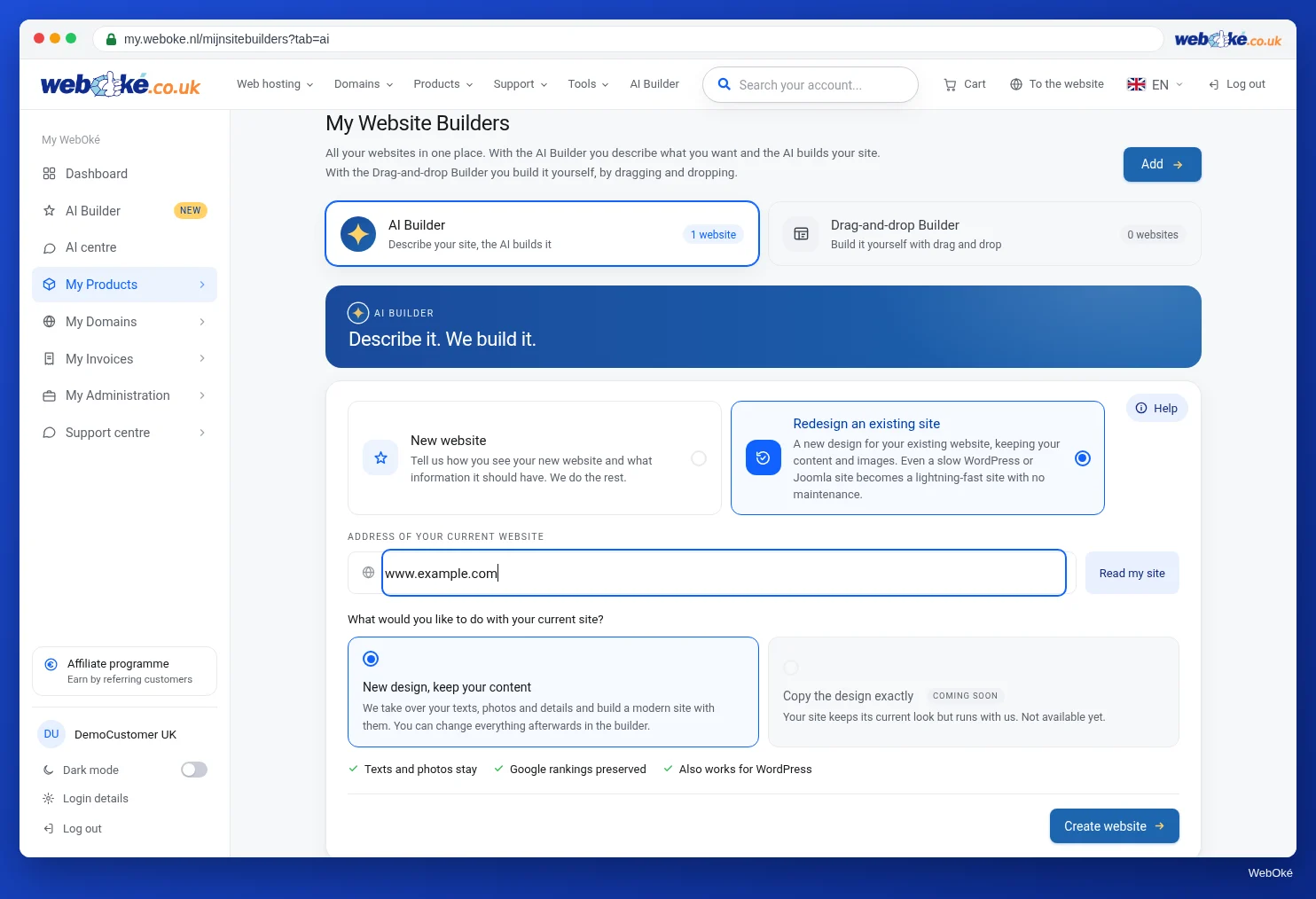
The builder behaves like a polite visitor. It starts at the address you give, follows the links in your site, and always includes the links from your main menu. It follows robots.txt (the file in which a site states what visiting programs may not read) and reads at most 60 pages at a time; if your site is bigger, it takes the most important ones and tells you so. It skips login pages, shopping carts, checkout pages and search pages. You can have a site read in at most 10 times per hour.
If the address doesn't hold a site of your own but a parking page or default page, or if the builder can't read anything, it switches to a new website: it prepares the start of a description for you to complete (lesson 2.1).
The import panel: choosing what to keep
After reading in, the start card shows what was found:
- a heading such as "Read in: 5 of 7 pages included, 9 photos", sometimes with the platform the site was made with;
- the Pages list, each with a tick box and the address;
- the number of words, photos and forms;
- Details we recognised: name, email, phone, address;
- the switch Keep current colours and fonts as a starting point;
- the field What would you like to change about the design?
Which pages are ticked? The homepage, pages in your menu, pages with your own photos and pages with at least 25 words. Untick what doesn't need to come along: an old promotion page, a "News 2019" page, a thank-you page. At least one page must stay ticked.
Note: as soon as reading in has succeeded, the Where should your website go? window opens straight away. If you first want to untick pages or type a design wish, click Cancel in that window, adjust the import panel and then click Create website. When redesigning, you only choose the location in that window; the type of images doesn't apply, because the builder uses your own photos.
Current colours and fonts: if the switch is on, your colours (up to four) and fonts (up to three) remain the starting point. Off: the builder chooses a suitable look itself. It always carries over your logo and photos.
What would you like to change about the design? Here you say how the new site should feel, for example "fresher and more modern, calmer with more white space, larger text". Your texts are carried over; this is about the form. Saying it beforehand is free, changing it afterwards costs edits.
What happens to your photos
The builder carries over at most 12 photos from your old site. To know what is in them, those photos are sent once to an AI model from OpenAI (American), the same one that writes the texts for your site. It briefly describes what is in each photo, so the builder knows where a photo fits. Hardly any site has useful descriptions for its photos, and file names usually say nothing; that is why this is needed.
Two consequences. If there are people in your photos, those images are sent to an AI service provider; weigh that up, and mention it in your privacy statement where necessary (module 7). And if you don't want a carried-over photo on your new site, click it in the preview and replace it with Replace photo.
What is and isn't carried over
| Carried over | Not carried over |
|---|---|
| Texts of the chosen pages, word for word | Menu, header, footer and sidebar as text (the builder creates these again) |
| Page titles and the structure of your menu | Forms (you get a new contact form) |
| Logo and favicon | Scripts, embedded videos and widgets (add them again, lesson 4.3) |
| Colours and fonts, if you leave that switched on | Login, shopping cart, checkout |
| Contact details, opening hours and prices shown on the site | More than 12 photos |
| Your privacy statement, word for word | The exact design (Copy design exactly is not available yet) |
For a redesigned site, the AI in principle adds nothing: it uses what your old site and your attachments provide, and doesn't make up a name. Still check all prices and times: a detail that wasn't on your old site doesn't belong on the new one.
What it costs: building the redesigned site costs 5 edits, unless it is your very first build. Reading in itself is free.
Comparing with the old site
After the build you don't get a list of pages that didn't come back. So compare for yourself:
- Open your old site in a second tab.
- Put the menus side by side: which pages are missing on the new site? Was that your intention?
- Check per page whether important pieces of text are still there.
- Check contact details, prices and times.
- See which widgets or videos you need to add again.
Schildersbedrijf Example had a WordPress site with seven pages. He unticks "News 2019" and the thank-you page, keeps his blue house style and asks for "calmer, more white space, larger text". After the build he sees that his embedded YouTube video is gone; he adds it back later as a widget.
If the address of a page changes, that can affect how people find you. Nobody can guarantee a position in Google. How to redesign without losing visibility is covered in the course Getting found online.
Summary
- Redesign an existing site reads in your site (free, usually about half a minute, at most 60 pages, robots.txt is respected) and uses it to build a new design.
- In the import panel you choose the pages, whether your colours and fonts remain the starting point, and what may change; cancel the location window if you want to make adjustments first.
- At most 12 photos are carried over; they are sent once to an AI model from OpenAI for a short description.
- Texts are carried over word for word; forms, scripts and widgets are not.
- Compare the new site with the old one yourself: you won't get a list of what was missing.
Quiz
Exercise
Exercise D2.3: Importing and choosing what to keep. Read in an existing site: your own site or, if you don't have one, a site of a club or family member with their permission. You don't need to build if you have already used your location; this is about the import panel.
Checklist:
- [ ] Chose Redesign an existing site and entered the address;
- [ ] Clicked Read my site and looked at the import panel;
- [ ] reviewed the pages and unticked what doesn't need to come along;
- [ ] checked Details we recognised;
- [ ] decided on Keep current colours and fonts as a starting point;
- [ ] written a design wish;
- [ ] noted which widgets, videos or forms you need to add again.
Questions:
- How many pages did the builder find, and which did you untick? Why?
- Which details did the builder recognise, and were they correct?
- What do you need to add again or complete yourself after the build?
After "done" you will see a sample answer: 7 pages found, "News 2019" and the thank-you page unticked because they are outdated or unnecessary; name, phone and email were correct, the address was missing; to add again: the YouTube video as a widget and setting up the contact form.
Exercise D2.3: Importing and choosing what to keep
You do this exercise yourself; no one checks it. Tick off what you've done and mark the exercise as done.
7 pages found, "News 2019" and the thank-you page unticked because they are outdated or unnecessary; name, phone and email were correct, the address was missing; to place again: the YouTube video as a widget and set up the contact form.
Your ticks and notes only stay in this browser; we don't send them anywhere. If you're signed in, we only save in My courses that you've done the exercise.
Further reading
- Free course Getting found online 8.3: Moving or redesigning your site without losing your visibility
- Free course Getting found online 3.3: robots.txt: what you do and don't block
- Sitebuilder and AI Builder: which one should you choose and how do you open it?
- Free WordPress course 9.3: GDPR: cookies, forms and Privacy Policy