
Module 3 · 3.4
English
Adding and moving sections and dragging sizes
Module 3: Text, photos and sections · Reading time: 10 minutes
Learning objective: After this lesson you can build a page from sections: add a section using the picker or the chat, move, copy and remove it, drag spacing and sizes, and choose the columns, corners, background and visibility on mobile for each section.
Key concepts: section, Blocks, Add section, layout, Section below, three designs, Make it with AI, Edit section, Spacing, Gap, Columns, Corners, Hide on mobile, handle, Custom HTML
A page is a stack of sections
Every page of your site is made up of sections: horizontal bands placed one below the other. At the top there is usually a Hero (the large opening with a heading, text and a button), and below it, for example, Cards with your services, Reviews, Opening hours and, at the bottom, Contact. The builder has 35 types, each in one or more layouts: the same content, styled differently.
If you think this way, you build a better page. Put the most important information at the top, keep one topic per section, and end with what the visitor should do (call, email, request a quote). At Schildersbedrijf Example the homepage looks like this: a Hero with "Request a quote", Cards with three services, Photo and text about how they work, Reviews, Questions and Contact.
Adding a section: three routes
1. Choosing it yourself in the picker (free)
Open the Blocks panel in the side rail, or click Section below in the preview: that button is in the toolbar of a selected section and on the line with a + that appears when you move between two sections. Below the preview there is also Add section.
The picker shows the types in groups: Popular, Opening and header, Text and story, Services and products, Prices and offers, Trust and team, Photo and video, Practical info, Contact and call to action and Custom and widgets. There is a search box ("Search, for example reviews, prices or team"). You see each type as a preview in your own house style. Click a type to see its layouts and pick one with Add. If you did not get there from a particular section, the builder asks "Where should ... go?": click a green line on your page, or choose At the top or At the bottom. You can also drag a block straight from the panel onto your page.
This costs nothing. The new section comes with placeholder text that you then edit yourself (lesson 3.2) or have the AI fill in (lesson 3.1). Important: as long as your site still contains such placeholder text, the builder will not put your site online. You then see "Your site still contains placeholder text. Fill it in first or remove the section."
2. Asking in the chat: three designs
If you type in the chat "I want a section showing our way of working in four steps", the AI first shows three suitable designs from the section library, in your house style. You choose with This design, or click Let the AI choose. The AI then fills the section with content, as a proposal. Because a section is added, this costs 2 edits.
If you say something should go into an existing section ("put the opening hours in the contact block"), or you mention a service such as Spotify or Calendly with a link, the builder skips the three designs: then it is clear what you want.
3. Having a block made for you
Can't find what you are looking for? At the top of the picker is Make your own section with AI. Describe what visitors should be able to do, for example a price calculator or a short quiz, and click Make it with AI. This costs 2 edits, because a new block is added.
Moving, copying and removing
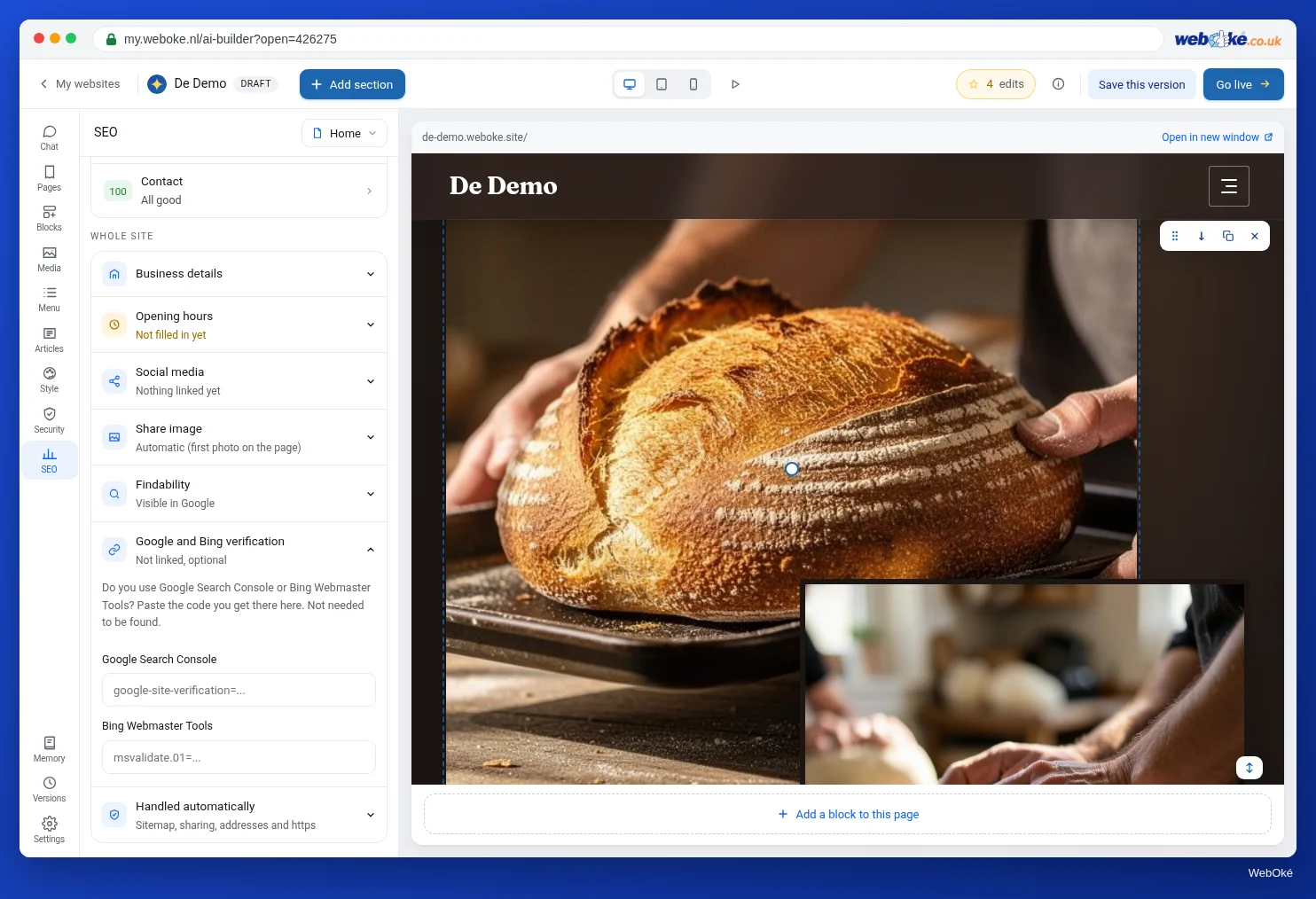
Move your pointer over a section. A toolbar appears with Change with AI, Move up, Move down, Duplicate, Section below and Delete, plus a handle to drag the section ("Drag this section to another place"). With Delete, the builder first asks "Sure?". You can also drag, duplicate and remove individual items within a row, such as one card or one review.
All these buttons are free. Every action creates a new version ("Section moved (version ...)"), so if you remove a section by mistake, you can restore it via Versions (lesson 3.5). Removing something with an instruction in the chat does cost an edit: so use the button.
Dragging sizes
Move your pointer over a section, photo or text in the preview and handles appear. Dragging is free and does not use the AI:
- Bottom edge of a section: more or less space above and below the section.
- Hero: make it taller or shorter.
- Photo: wider or narrower, taller or flatter (the shape), rounder or squarer corners, and the focal point (lesson 3.3).
- Text block: wider or narrower (right edge).
- Heading: larger or smaller, and the space below it.
- Row of cards or columns: the width of the whole row.
Double-click a handle and the default size comes back; for the hero, the builder then chooses the height itself again.
Why dragging is better than asking "make it bigger": you see straight away what happens, it costs nothing, and the AI does not change any text along the way.
Edit section: the settings of one section
Click a section and choose Edit section. A window opens with:
| Setting | Options |
|---|---|
| Background | Automatic, None, Light panel, Tint, Dark, Main colour, Gradient |
| Spacing | from 50% to 300%, or Default |
| Gap (between cards or columns) | 0 to 96 px, or Default |
| Columns (for a row of cards) | 1 to 6, or Default |
| Corners | 0 to 48 px, or Default |
| Height (hero only) | 40% to 100%, or Default |
| Hide on mobile | on or off |
Below that are the same buttons as in the toolbar (Move up, Move down, Duplicate, Section below, Delete), and under "Or ask the AI something else:" a text box for an AI instruction about this section only.
A few tips. Alternate backgrounds (light panel, none, tint), so visitors can see where one topic ends. Use no more than three or four columns for a row of cards; on a phone they are stacked anyway. Be sparing with Hide on mobile: never hide your contact details or anything a mobile visitor needs. To check how it looks, choose Mobile in the top bar.
Custom HTML
The Custom and widgets group also contains Custom HTML: a section where you paste your own HTML and, if you like, CSS. Once it is placed, you change it with Edit HTML on the section. Colours and fonts follow your house style through variables such as var(--acc), var(--tekst) and var(--kop-font). The CSS applies to this section only.
The limitations are deliberate: scripts, iframes and forms do not work here. For a player, calendar, map or form from another service, use the Widget (lesson 4.3). Custom HTML is for people who know HTML; for everyone else, the regular sections and the AI are the quicker route.
Pitfalls
- Leaving placeholder text in a section from the picker: then you cannot go online.
- Too many sections. A long page with ten sections does not get read. Remove anything that adds nothing. A page can have up to 40 sections, but you will never need that many.
- Arranging spacing through the chat. That costs edits and is less precise than dragging.
- Only checking on your computer. Columns, spacing and hiding work differently on a phone.
- Removing things in the chat while the Delete button is free.
In the builder: how to do it
- Click Section below in the preview, or open Blocks.
- Choose a group, a type and a layout, and click Add.
- Replace the placeholder text yourself or with the AI.
- Move sections with Move up, Move down or the handle; duplicate or delete them via the toolbar.
- Drag the bottom edge for spacing; double-click to go back to the default.
- Open Edit section for background, columns, corners, hero height and Hide on mobile.
- Check on Mobile.
Summary
- A page is a stack of sections; 35 types, each in one or more layouts.
- Adding via the picker is free and gives placeholder text that you must replace before you can go online; via the chat you get three designs and it costs 2 edits.
- Moving, duplicating, removing and dragging sizes are free; double-clicking a handle restores the default.
- Edit section controls background, spacing, gap, columns, corners, hero height and Hide on mobile.
- Custom HTML is possible, but without scripts, iframes and forms; that is what the widget is for.
Quiz
Exercise
Exercise D3.4: One section in, one section out. Improve the structure of your homepage using the buttons and handles, without unnecessary AI instructions.
Checklist:
- [ ] written down the sections of your homepage from top to bottom;
- [ ] added one section via the picker and replaced all the placeholder text;
- [ ] removed or merged one section that added nothing, using Delete;
- [ ] moved one section with Move up, Move down or the handle;
- [ ] dragged the spacing of at least one section, and reset it once by double-clicking;
- [ ] changed the background or the columns in Edit section;
- [ ] viewed the page on Mobile.
Questions:
- What did the order of your sections look like before and after, and why did you choose this order?
- Which section did you remove, and why will a visitor not miss it?
- How many edits did this exercise cost you, and which step would have cost edits via the chat?
After "done" you will see a sample answer: from Hero, Numbers, Cards, Reviews, Contact to Hero, Cards, Photo and text (way of working), Reviews, Questions, Contact, so the services sit right below the opening; the Numbers section is gone because the figures were made up; the exercise cost 0 edits, whereas removing a section or adding a new one via the chat would have cost 1 or 2.
Exercise D3.4: One section in, one section out
You do this exercise yourself; no one checks it. Tick off what you've done and mark the exercise as done.
From Hero, Numbers, Cards, Reviews, Contact to Hero, Cards, Photo and text (how we work), Reviews, Questions, Contact, so the services sit right below the opening. The Numbers section is gone because the figures were made up. The exercise cost 0 edits; removing a section or adding a new one through the chat would have cost 1 or 2.
Your ticks and notes only stay in this browser; we don't send them anywhere. If you're signed in, we only save in My courses that you've done the exercise.