
Email on your domain and the mail from your form
Module 5: Going live and your own domain · Reading time: 9 minutes
Learning objective: After this lesson you can use an email address on your domain, have the contact form send mail from your own domain, and check whether your domain's MX, SPF, DKIM and DMARC are in order.
Key concepts: mailbox, Send messages to, Send via, sender, Email from your contact form, Set it up for me, MX record, SPF, DKIM, DMARC
Email is included in the package
The AI Builder package is also an email package. You can create unlimited mailboxes on your domain, such as info@example.com or offerte@example.com. Your site and your mail share the package's 20 GB of storage. You create a mailbox in your WebOké account or in DirectAdmin (the DirectAdmin button is next to your site in My websites); the steps are in the knowledge base under Further reading. You read your mail via webmail, or in a program such as Outlook or the mail app on your phone.
Why an address on your domain and not your old Gmail address? Because info@example.com looks more professional, because the address belongs to your business and not to one person, and because you decide who may send mail on behalf of your domain. That last point is the core of this lesson.
The free WebOké address has no email: there is no domain of yours attached to it.
Four records that make your email work
Whether mail arrives and is trusted depends on four things in your domain's DNS. You don't have to create them yourself if your DNS is with WebOké, but you do need to know what they do:
- MX record: says which server mail for
@example.comshould go to. Without MX, no mail comes in. - SPF: a TXT record listing the servers allowed to send mail on behalf of your domain. A recipient checks whether the sender is on that list. There may be only one SPF record.
- DKIM: a digital signature on every email. WebOké's mail server signs your mail automatically; the matching record is in your DNS if your DNS is with WebOké.
- DMARC: says what a recipient should do with mail that pretends to come from your domain but fails SPF or DKIM. A WebOké hosting package comes with a DMARC record with
p=rejectby default, the strictest setting: such mail is rejected.
If you only send mail via WebOké, you can leave it like that. If you also send via another service (a newsletter program, Microsoft 365, accounting software that emails invoices), that service must be in your SPF record and should preferably use DKIM. Otherwise recipients will reject that mail because of the strict DMARC policy. Don't create a second SPF or DMARC record; adjust the existing one instead.
If your DNS is somewhere else, you set these records yourself with that provider. The course Email in order explains them step by step, including how to read DMARC reports. See Further reading.
Two addresses for your contact form
A form on your site involves two different addresses. Don't confuse them:
- Where messages arrive. In Settings > Forms this is called Send messages to. If you leave it empty, messages go to the email address of your WebOké account. This can be any address, including a Gmail address.
Which address the mail is sent from. You set this under Send via. There are two options:
- WebOké server: works straight away, with
noreply@weboke.siteas the sender; - Your own email address (SMTP): "Recommended. The mail comes from your own domain and is less likely to end up in spam."
- WebOké server: works straight away, with
Why the second option is better: an email from website@example.com, sent via the mail server of your own package, matches your SPF, is signed with your domain's DKIM and therefore passes the DMARC check. Mail programs trust such an email more than one from a generic address.
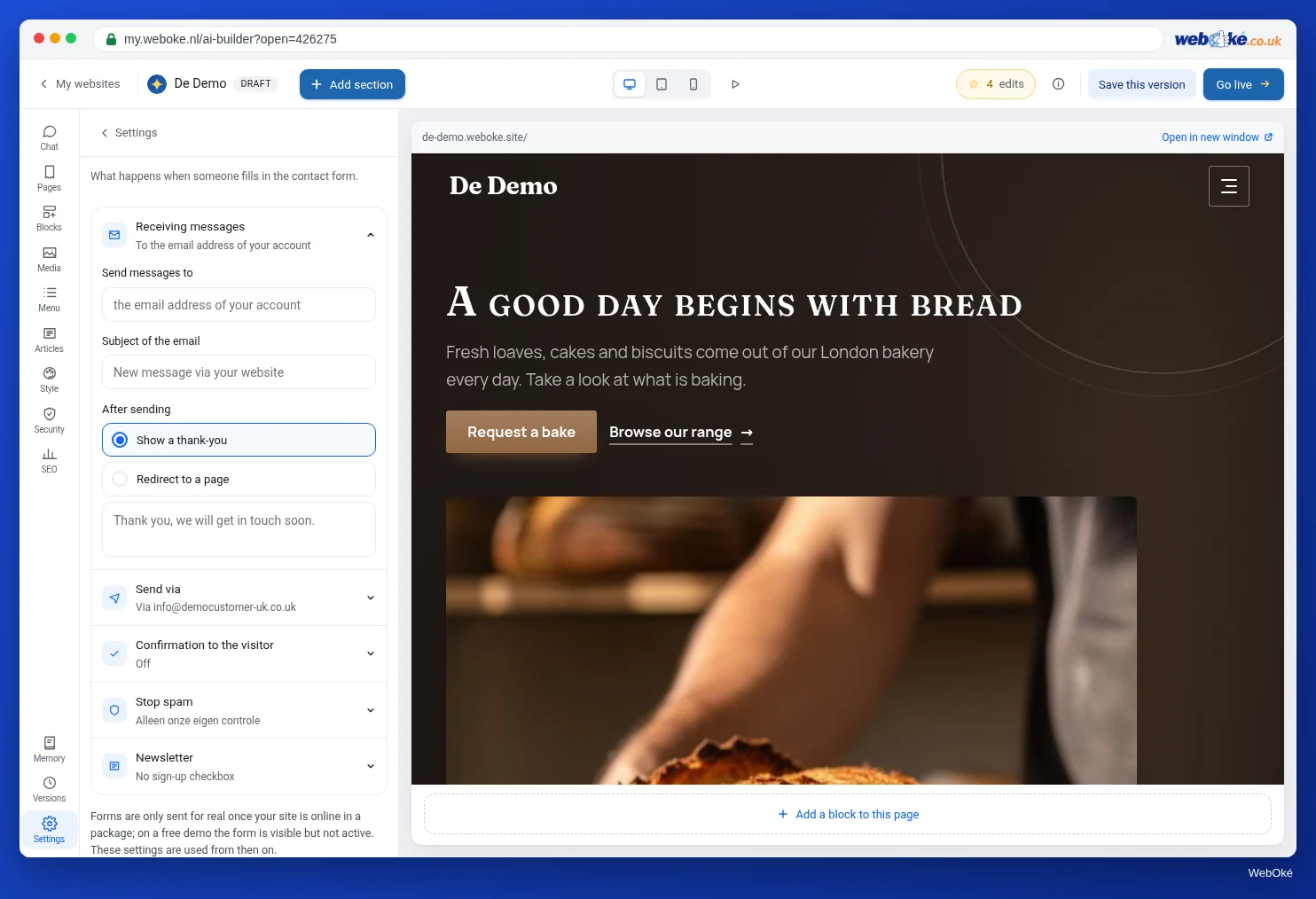
Note: a form only sends mail if your site belongs to a package. On a free site without a package, the form is greyed out. A site that belongs to a package does send mail, even if it is (still) on our address. The Your own email address (SMTP) option appears as soon as your site belongs to an AI Builder package with its own domain.
The "Email from your contact form" card
You don't need to create a mailbox or type in a password. The builder has the Email from your contact form card for this. You see it at three moments:
- right after generating a site that belongs to a package, next to the style card;
- after your first publication on your own domain;
- later, always via Settings > Forms, under Send via, with the Set it up for me button (visible when Your own email address (SMTP) is selected).
On the card, under Messages arrive at, you enter the address where you want to read the messages. Under Sent from you choose:
- We'll create this address for you (recommended): the builder suggests a name that is still available, such as
website@example.com; - A new address with your own password: you choose the name before the @ yourself and a password of at least 8 characters, so you can also use the mailbox yourself;
- An existing address on your domain: you pick an address from the list and enter that address's password.
Click Done. You see "Done: messages go to ..., sent from ...". If logging in to the mail server didn't work yet, it says the address has been set up but that the mail will come from the WebOké server until it does. With Later you close the card and choose at another moment.
The painter chose the first option. Messages from his quote form now arrive at his own info@example.com and are sent from website@example.com. When he replies to such a message, his reply goes to the visitor.
Testing whether it works
After publishing, you see under "Your site is online" where the messages go. Don't rely on that blindly; test it for real (lesson 5.4):
- Open your site in a private window and fill in the form using another address of your own.
- Check whether the message arrives at the address under Send messages to, including in your junk mail folder.
- If you have turned on Send the visitor a copy, also check whether the confirmation arrives at the address you entered.
- Click Reply and check who your reply goes to.
Nothing arriving? First check whether your site belongs to a package, then whether the address under Send messages to is correct. A visitor can send at most 5 messages per hour, so don't test twenty times in a row.
Pitfalls
- Two SPF records: you add a second SPF record for a new service. That makes SPF invalid. Add the service to the existing record.
- Simply removing DMARC because a newsletter service's mail doesn't arrive. Solve it by setting up that service properly in SPF and DKIM.
- Forgetting the recipient: you entered an old address while building. The security check (lesson 5.4) flags it when messages go to an address other than your account's. If that is correct, all is fine.
- Leaving mail on the WebOké server while you have your own domain. It works, but your mail ends up in spam more easily.
In the builder: how to do it
- Open Settings (at the bottom of the toolbar) and choose Forms.
- Under Send messages to, enter the address where you want to read messages.
- Under Send via, choose Your own email address (SMTP) and click Set it up for me.
- On the card, choose We'll create this address for you (recommended) and click Done.
- Save the settings and push the change live with Publish changes.
- Test the form on your real site.
Summary
- The AI Builder package has unlimited mailboxes on your domain; site and mail share the 20 GB.
- MX determines where mail comes in; SPF, DKIM and DMARC determine whether your mail is trusted. At WebOké, DMARC is set to
p=rejectby default. - Send messages to is where messages arrive; Send via determines which address they are sent from.
- The Email from your contact form card creates a sender on your domain in a few clicks; after that, the mail comes from your own domain.
- Always test the form on your real site.
Quiz
Exercise
Exercise A5.3: Email for your domain set up properly. Enter the web address of your AI Builder site on your own domain. The program looks at that domain's DNS, just as any mail server does, and checks:
- whether there is an MX record, so mail for your domain arrives somewhere;
- whether there is exactly one valid SPF record;
- whether there is a DMARC record.
Green on a line means: in order. Orange is advice, for example an SPF that ends with a rule that is too broad. Red means a record is missing or invalid; the explanation on that line tells you what to change. This exercise isn't possible on a free address on weboke.site: there is no domain of yours attached to it.
Further reading
- Free course Email in order: setting up and making sure it arrives properly 7.3: Mail from your website and forms
- Free course Email in order: setting up and making sure it arrives properly 4.2: SPF in practice: mapping out all your senders
- Free course Email in order: setting up and making sure it arrives properly 4.4: Rolling out DMARC: from none to reject
- Create a new email address/mailbox
- Creating a DMARC record in DirectAdmin