
Module 3 · 3.1
English
Instructions to the AI: chat, picking a section and proposals
Module 3: Text, photos and sections · Reading time: 9 minutes
Learning objective: After this lesson you can phrase and target an instruction to the AI so you get what you mean first time. You also see beforehand what it costs and decide on purpose whether to keep or discard a proposal.
Key concepts: chat, instruction, question, Pick a section, proposal, Apply (Keep), Discard, Different, Undo, edit, cost beforehand
The chat: instructions and questions in the same box
After the first version, you will mostly work in the Chat panel, at the top of the rail on the left of the build screen. At the bottom is the text box with the text "Tell us what you want to change...". You type two kinds of messages there, and the difference matters.
An instruction changes your site: "Make the heading shorter", "Add our opening hours", "Make the text more personal". An instruction costs edits (lesson 1.2). A question changes nothing: "Where do I set the email address for my form?", "What does a translation cost?", "Why is my site not in Google yet?". Asking questions is free, including questions about the builder itself. The AI knows the builder's manual, so it can tell you where a button is.
You don't need to say whether something is a question or an instruction: the builder recognises that by itself. Not sure whether something is possible? Ask it as a question first. That costs nothing, and afterwards you know exactly what to ask for.
With the paperclip next to the text box you can attach files: a price list as a PDF, a Word document with your story, or a photo that needs to go in a particular place.
Pick a section: point out what it is about
If you type "make the text shorter", the AI has to guess which text you mean. On a page with six sections, that sometimes goes wrong. So point out what it is about first.
Click Pick a section below the text box. A bar appears above the preview: "Click a part of your site to pick it". Now click the text, button, photo or section you mean in the preview. A label with your choice then appears above the text box, and the text box asks "What should happen to ...?". Your instruction now only applies to that part. Click the cross on the label to remove your choice. You can also click a section directly in the preview.
At Schildersbedrijf Example, the hero has the heading "Craftsmanship in and around your home". Bas, the owner, wants a heading that says where he works. He clicks Pick a section, clicks the heading and types: "Say that we paint throughout the region, inside and out, in no more than eight words." Because the heading has been picked, only that heading changes.
The more precisely the AI knows where to work, the smaller the chance that it changes other things as well.
What it costs: visible beforehand
As soon as you type something in the text box, the builder works out what it costs and shows it below the text box, before you send it:
- Asking a question is free: the builder sees your message as a question.
- Small change · 1 edit: a normal instruction.
- 1 edit, or 2 if a section or page is added: your instruction may produce a new section or page. In that case the builder charges 2.
The price is per instruction, not per page: "make all the text on the site shorter" is one instruction. If an instruction fails or isn't possible, you pay nothing. If you get a message such as "I cannot make exactly that", it also says that nothing on your site has changed and that it hasn't cost you an edit.
The proposal: look first, then decide
The AI never changes your site directly. Every AI change first arrives as a proposal. A bar appears above the preview: "You are viewing a proposal. Nothing has changed yet." In that bar, use Current and Proposal to switch between your site as it was and as it would become. The chat shows a card with a short explanation of what changed, for example "2 sections changed" or "1 new".
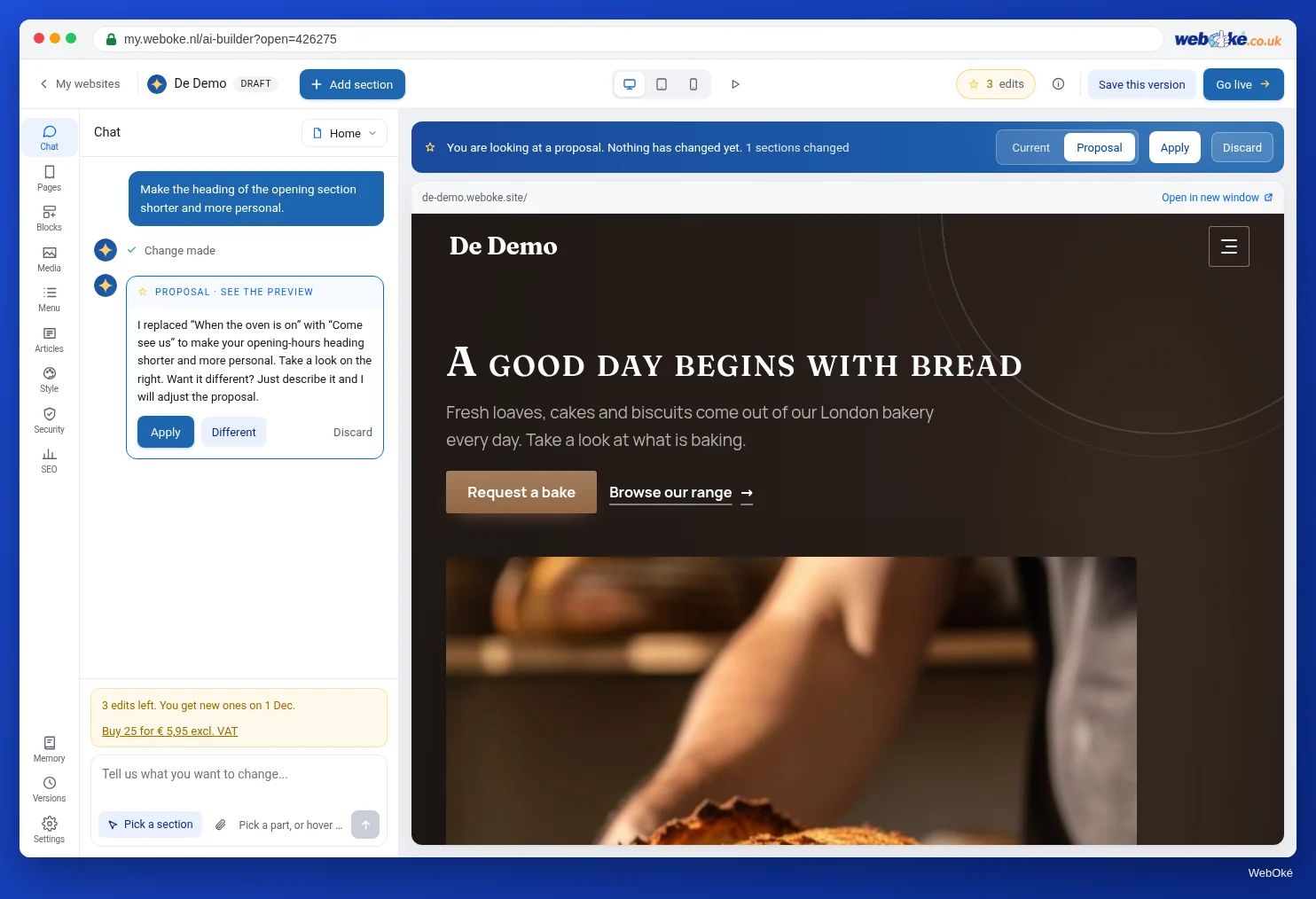
You have three choices:
- Apply: you keep the proposal. A new version of your site is created (lesson 3.5). In the builder's messages this is called Keep.
- Discard: you throw the proposal away and your site is back to how it was. The builder's messages also call this Discard.
- Different (in the chat card): you say what should be different, and the AI adjusts the proposal.
After Apply, the chat shows "Applied" with the link Undo. That is free: your old version is kept.
Discarding is generous: if you discard a proposal, you get the edits for it back. That works up to 10 times per day (across all your sites together). When you are close to that limit, the builder tells you how many more free discards you have left today. After that, discarding does count that day, and the next day it is free again.
As long as a proposal is open, you can't do anything else to your site. You will then see "A proposal is still open. Choose Keep or Discard first." So decide first. A proposal is also never online: going live is a separate step (lesson 5.1).
Phrasing a good instruction
The AI is good at text and design, but it only knows your business from what you tell it. A few rules make the difference:
- One thing per instruction. "Make the heading shorter and move the reviews up and make the colours warmer" produces a big proposal in which it is hard to see what happened. Three separate instructions are easier to judge and to discard one by one.
- Point it out. Use Pick a section for anything that concerns one place.
- Say what you want, not just what you don't want. "Not so boring" gives the AI little to go on. "More businesslike, with the emphasis on a five-year guarantee on exterior painting" does.
- Give real details. "Add our opening hours" without the hours leaves the AI guessing. That is how made-up details appear. Just write them in.
- State limits. A maximum number of words, "keep the existing list", "don't change the photo".
Compare:
- Vague: "Make the services better."
- Precise: (Services section picked) "Write two sentences for private customers for each service. For Exterior painting, mention that we use water-based paint. Keep the titles."
What the AI can't do
Some wishes the builder can never carry out, however you phrase them. A few examples you will come across in this course: letting visitors log in, storing visitor input on your site, a webshop with a shopping basket, or uploading files through the contact form. With a wish like that, the AI honestly tells you what isn't possible and what is, and changes nothing. If your wish has a part that is possible and a part that never is, it carries out the possible part and tells you what didn't work.
The chat also deliberately doesn't do certain things: it doesn't put anything online, doesn't register a web address, doesn't order or buy anything and doesn't set up a contact form or connections. You do those steps yourself, with the buttons in the builder (modules 4 to 7).
The builder also checks its own result. If it sees that something doesn't look right, it tells you.
Pitfalls
- Applying without looking. Always switch between Current and Proposal, on the phone view too. AI text can change a detail you didn't ask for.
- Building on a bad proposal. If the direction is completely wrong, discard it and rephrase. With Different you keep working on a proposal, and that costs another instruction.
- Small text changes through the AI. Fix a typo or a different phone number yourself, free and without a proposal (lesson 3.2).
- Removing things through the chat. Removing a section with the buttons is free; through the chat it is an instruction.
In the builder: how to do it
- Open your site and go to Chat in the rail.
- Click Pick a section and click what you want to change in the preview.
- Type your instruction and check below the text box what it costs.
- Send it with Enter.
- Compare with Current and Proposal, also on Mobile.
- Choose Apply, Different or Discard.
Summary
- In the chat you type instructions (cost edits) and questions (always free); the builder recognises the difference itself.
- With Pick a section you aim an instruction at one text, button, photo or section.
- Below the text box you see beforehand whether something costs 0, 1 or 2 edits; failed or not possible means you don't pay.
- Every AI change is a proposal first: Apply (Keep) or Discard; discarding gives the edits back up to 10 times per day.
- One thing per instruction, pointed out, with real details and clear limits.
Quiz
Exercise
Exercise D3.1: Three instructions, one precise. Give the AI three instructions on your own site and judge each proposal deliberately.
Checklist:
- [ ] first asked a question about the builder (free) and read the answer;
- [ ] gave instruction 1 without pointing anything out and looked at where the AI changed things;
- [ ] gave instruction 2 with Pick a section on one text or section;
- [ ] gave instruction 3 with real details and a limit (number of words, something that must stay);
- [ ] checked the cost below the text box beforehand for each instruction;
- [ ] compared each proposal with Current and Proposal, also on Mobile;
- [ ] deliberately discarded at least one proposal and saw the edits come back.
Questions:
- Which of your three instructions gave the best result, and why do you think so?
- In the instruction without pointing anything out, what did the AI change that you hadn't asked for?
- Rewrite the instruction that went least well, as precisely as possible.
After "done" you will see a sample answer: the pointed-out instruction with real details worked best, because the AI didn't have to guess where and what; without pointing anything out, the AI also changed the intro text; rewritten: (heading picked) "Say that we paint inside and out throughout the region, in no more than eight words."
Exercise D3.1: Three instructions, one precise
You do this exercise yourself; no one checks it. Tick off what you've done and mark the exercise as done.
The instruction with the element selected and real details worked best, because the AI didn't have to guess where and what. Without selecting, the AI also changed the intro text. Rewritten: (heading selected) "Mention that we paint inside and outside across the whole region, in eight words at most."
Your ticks and notes only stay in this browser; we don't send them anywhere. If you're signed in, we only save in My courses that you've done the exercise.
Further reading
- Sitebuilder and AI Builder: which one should you choose and how do you open it?
- AI Website Builder (what you get and current prices): https://www.weboke.nl/en/ai-website-builder
- Free course Getting found online 7.3: Writing a page that gives answers