
Module 6 · 6.1
English
The SEO panel: titles, descriptions and share image
Module 6: Getting found · Reading time: 10 minutes
Learning objective: After this lesson you can write a good title and description for each page in the SEO panel, read and fix the check with its points, let the AI do the work when that suits you, choose the share image and explain what the builder handles automatically.
Key concepts: SEO, page title, description (meta description), main heading, photo description, check, title template, share image (og:image), sitemap, robots.txt, noindex, Site visible in Google
What the SEO panel does
SEO stands for search engine optimisation: making your site so that a search engine understands what each page is about, and so that people want to click on it in the search results. Most of that is simply good content: a page that answers what someone is looking for. The course Getting found online covers that in detail. The SEO panel in the builder takes care of the technical side and the two lines of text people see from you in Google.
You open it with SEO in the toolbar on the left. At the top you choose between Whole site and This page. Everything you change here, you save with Save; that creates a new version. It only goes online after Publish changes (lesson 5.1).
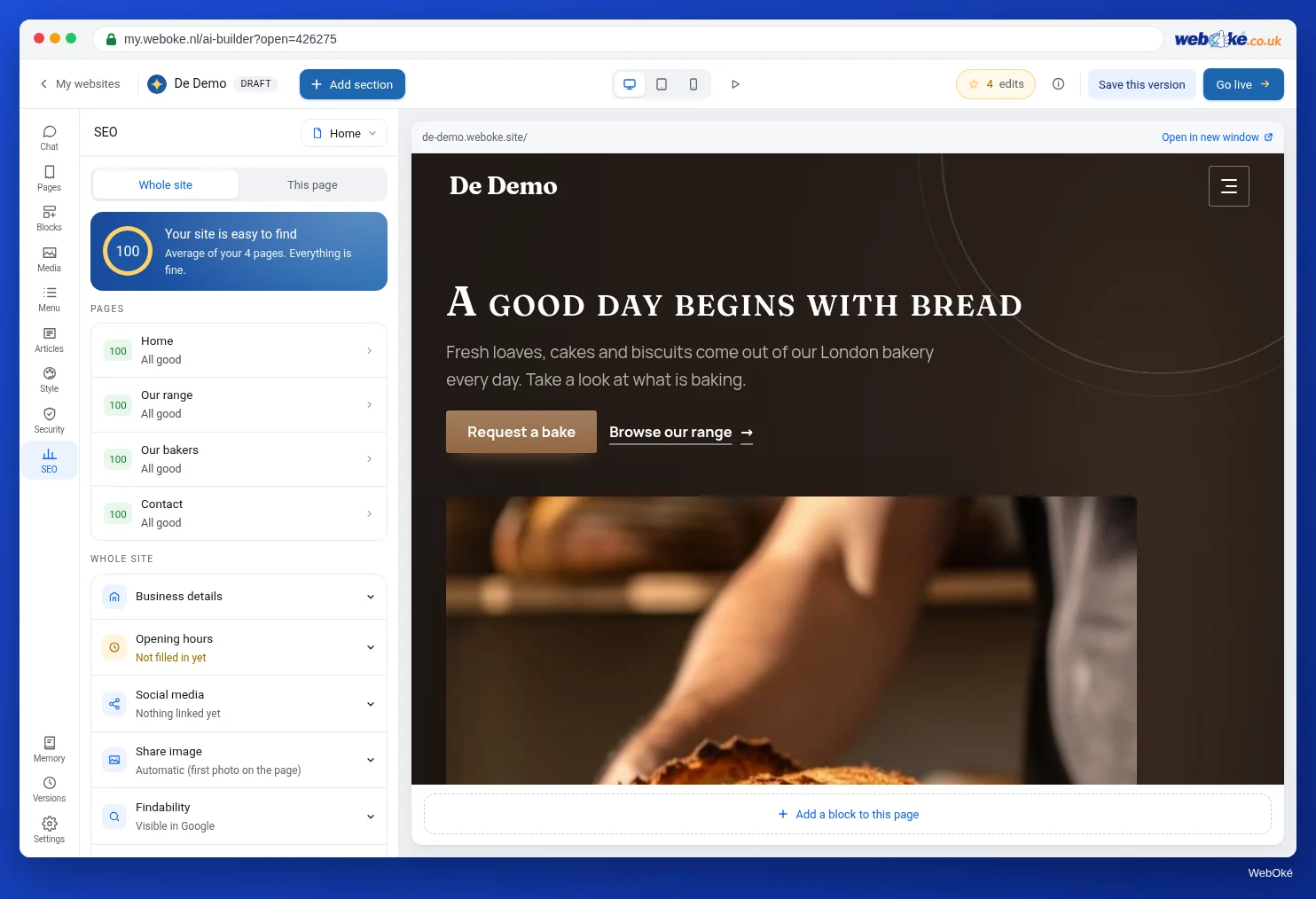
Whole site: the score and your pages
On Whole site you see a score from 0 to 100 at the top: the average of all your pages. Below it you see how many pages can be improved, with the button Improve ... pages with AI, and the list Pages showing the score for each page and the first point that can be improved. Click a page and you go to This page for that page.
The score is deliberately simple: a site with good texts should be able to reach 100 quickly. A high score means the basics are in order, not that you are at the top of Google. Where you end up also depends on your content, on other sites that link to you and on the competition.
This page: title, description and the check
On This page you first see roughly how the page looks in Google: your site name, the address, the title and the description. Below that are the two fields:
- Page title: the blue line in the search results and the text on the browser tab. The counter goes up to 60. Above that, Google often shortens the title.
- Description: the short text below the title. The counter goes up to 155. If you leave it empty, Google picks a piece of text from the page itself, often not the best one.
The counter changes colour as you type: too short or too long gives a warning. For the title, roughly 30 to 60 characters works well, for the description 70 to 155. These are rules of thumb, not a hard limit set by Google.
What makes a good title and description?
A good title says in plain words what is on the page, with the term people search for and, if you work locally, your town. A good description tells the visitor in one or two sentences what they will find and why they should click.
Example for the Interior painting page of Schildersbedrijf Example:
- Title:
Interior painting in Voorbeelddorp | Schildersbedrijf Example(61 characters: just too long, so shorter:Interior painting Voorbeelddorp | Schildersbedrijf Example) - Description:
Walls, ceilings and window frames painted neatly, with clear agreements on planning and price. Request a quote in two minutes.
Every page gets its own title. Two pages with the same title confuse Google and your visitors. The panel has no separate field for a keyword: you work your main search term into the title, the description and the main heading of the page yourself.
The check with points
Below the fields is Check of this page. For each page the builder looks at:
- is there a page title, and is it no longer than 60 characters;
- is there a description, and is it no longer than 155 characters;
- does the page have a main heading at the top;
- do all photos have a description (alt text);
- is there enough text on the page (at least 50 words);
- is the title unique on the site.
A missing title or description costs the most points, a title that is too long or too little text the fewest. Next to a point that can be improved there is a button. Let AI improve has the AI write the title, description or photo descriptions. Ask the AI prepares an instruction in the chat, for example to write more text or create a clear main heading; that instruction costs an edit, like any chat instruction.
Letting the AI write it
You can also have the AI write the texts:
- on This page with Improve with AI (or Rewrite with AI if everything is already in order) for one page;
- on Whole site with Improve ... pages with AI for all pages that can be improved.
Based on the text on the page, the AI writes a title and a description and fills in missing photo descriptions. That costs 1 edit, for one page and also for all pages at once. The result becomes a new version that you can adjust or roll back.
Always read what the AI wrote. The AI only knows what is on your page. If there is still an invented price or a placeholder (lesson 2.4), it can easily end up in your description.
Sharing on social media
When a link to your site is shared on WhatsApp, Facebook or LinkedIn, an image appears with it: the share image. Technically this is called og:image. On Whole site you choose an image for the whole site under Share image. On This page you can choose a different one for each page. If you choose nothing, the builder uses the first photo on the page. Choose a photo that is recognisable even when small, such as a nicely finished project, and not your logo on a white background.
Settings for the whole site
Under Findability on Whole site there are two settings:
- Site visible in Google: on by default. Off means: "search engines skip your whole site. Useful while you are still building." Don't forget to switch it back on.
- Title for pages without their own title: the title template. Choose
{pagina} | {site},{pagina} · {site}, only{pagina}or a Custom layout.{pagina}becomes the name of the page,{site}your site name. That way every page still has a title, even if you didn't write one yourself.
For each page, under More for this page, you find the switch This page visible in Google. Off means: the page stays reachable, but search engines skip it. Useful for a thank-you page after the form. There you also find Page address. Preferably don't change it once your site is online and being found: links that others already use point to the old address.
The free address stays invisible
On the free WebOké address every page gets a noindex, even if Site visible in Google is on. You can still fill in the panel; it only takes effect once your site is on your own domain (lesson 5.2).
What the builder handles automatically
Under Handled automatically you see what you don't have to do yourself:
- a sitemap at
/sitemap.xml, the list of all your pages with the date of the last change; the builder updates it every time you publish; - a robots.txt, the small file search engines read before they visit your site; on your own domain it states where your sitemap is;
- the texts and image for sharing on WhatsApp, Facebook and LinkedIn;
- your business details in a form Google can read (lesson 6.3);
- clean addresses, https and a site that works on mobile.
In the builder: how to do it
- Open SEO in the toolbar and choose Whole site. Check that Site visible in Google is on.
- In the list Pages, click the first page that can be improved.
- Fill in Page title and Description, or click Improve with AI and read the result.
- Fix the points under Check of this page.
- Under Share image, choose a striking photo.
- Click Save and repeat this for every page. Then put everything online with Publish changes.
Summary
- The SEO panel has Whole site (score, pages, site-wide settings) and This page (title, description, check, share image).
- Keep titles to about 60 characters and descriptions to about 155, unique for each page, with your search term and your town if relevant.
- Improve with AI costs 1 edit, for one page or the whole site; always read the result.
- The builder handles the sitemap, robots.txt and the technical side of sharing; Site visible in Google must be on.
- The free address always has a noindex; you can only become findable on your own domain.
Quiz
Exercise
Exercise A6.1: Titles and descriptions. Enter the web address of your AI Builder site on your own domain. The program visits the pages from your sitemap the way a search engine does and checks for each page:
- whether there is a title of reasonable length (about 10 to 65 characters);
- whether there is a description of reasonable length (about 50 to 160 characters);
- whether titles are unique on your site;
- whether there is exactly one main heading on the page;
- whether, on your own domain, there is no noindex on the page;
- whether
sitemap.xmlandrobots.txtexist.
You see green, orange or red for each page. On the free address the noindex is shown as information: it belongs there and is not an error. The limits here are slightly wider than the counters in the panel; if you stick to the counters, you are fine.