
Module 3 · 3.2
English
Editing text and buttons yourself
Module 3: Text, photos and sections · Reading time: 8 minutes
Learning objective: After this lesson you can edit text and buttons yourself without AI, use links and formatting, and make every button go to the right place: a page, an email address, a phone number, another website or a section.
Key concepts: Edit, double-click, formatting toolbar, link, Accent word, Edit button, button destination, mailto and tel, anchor (section), submit button, Set up form
Why edit it yourself
Not everything has to go through the AI. A typo, a different phone number, a sentence that needs a small change: you type that faster yourself. Editing yourself is free, works without AI and without a proposal. You see straight away what you are doing, and the AI doesn't change anything along the way that you didn't ask for. Every time you save, the builder creates a new version ("Your text has been saved as version ..."), so you can always go back (lesson 3.5).
Rule of thumb: content you already know, you type yourself; new text or a different tone, you ask the AI for. Bas from Schildersbedrijf Example lets the AI write the service texts, but he types his Netherlands Chamber of Commerce (KVK) number, address and phone number himself. That way he knows for sure they are correct.
Editing text in the preview
In the preview, move your mouse over a piece of text. A small Edit button appears. Click it, or double-click the text directly. The text now becomes an input field and you type in it as you would in a word processor.

You save and cancel with the keyboard:
- In a short text, such as a heading: Enter saves, Esc cancels.
- In a longer text with paragraphs: Ctrl+Enter saves (Enter then starts a new line), Esc cancels.
You can also start from the chat: use Pick a section to choose a text and click Edit text next to the label. The Save and Cancel buttons then appear at the bottom of the chat.
If you get the message "You can't edit this part directly. Ask for it in the chat.", it is a part that the builder builds itself. In that case, ask for the change in the chat, with that part selected.
The formatting toolbar: headings, lists, colour and links
While you edit, a Formatting toolbar with small buttons appears next to the text; hover over a button to see its name. Which buttons appear depends on the kind of text: a heading has fewer than a paragraph. You'll find, among others:
- in a longer text, the kind of line: Normal text, Heading, Small heading;
- Bold, Italic, Underline, Strikethrough, Highlight;
- Bullet list, Numbered list, Quote;
- Align (left, centre, right) and Size (smaller, normal, larger, much larger);
- Text colour, with the colours of your house style (main colour, second colour, text colour, soft text, white, dark);
- Add or edit link and Remove link;
- Accent word: puts one to four chosen words in the accent style of your house style;
- Clear formatting.
With the keyboard, press Alt+F10 to go to the toolbar.
A few tips. Choose a colour from your house style, not a random one: that keeps your site calm and makes everything fit together. If you pick a colour that is hard to read on the background, the builder tells you ("hard to read on this background"). Use headings to structure your text, not to make something big; search engines and screen readers rely on that structure (course Getting found online, lesson 3.2). And use bold sparingly: if everything is bold, nothing stands out.
A link in a text
Select the words and click Add or edit link. You choose a Page of your site, or enter an address, email address or phone number. The builder accepts a web address (https://...), an email address (mailto:), a phone number (tel:), a path on your site (/page) or a section (#section). If it doesn't recognise the address, it won't save the link and it tells you so.
Write link text so that people know where they will end up. "View our prices" is better than "click here". That is nicer for visitors and for people using a screen reader.
Buttons: the text and where they go
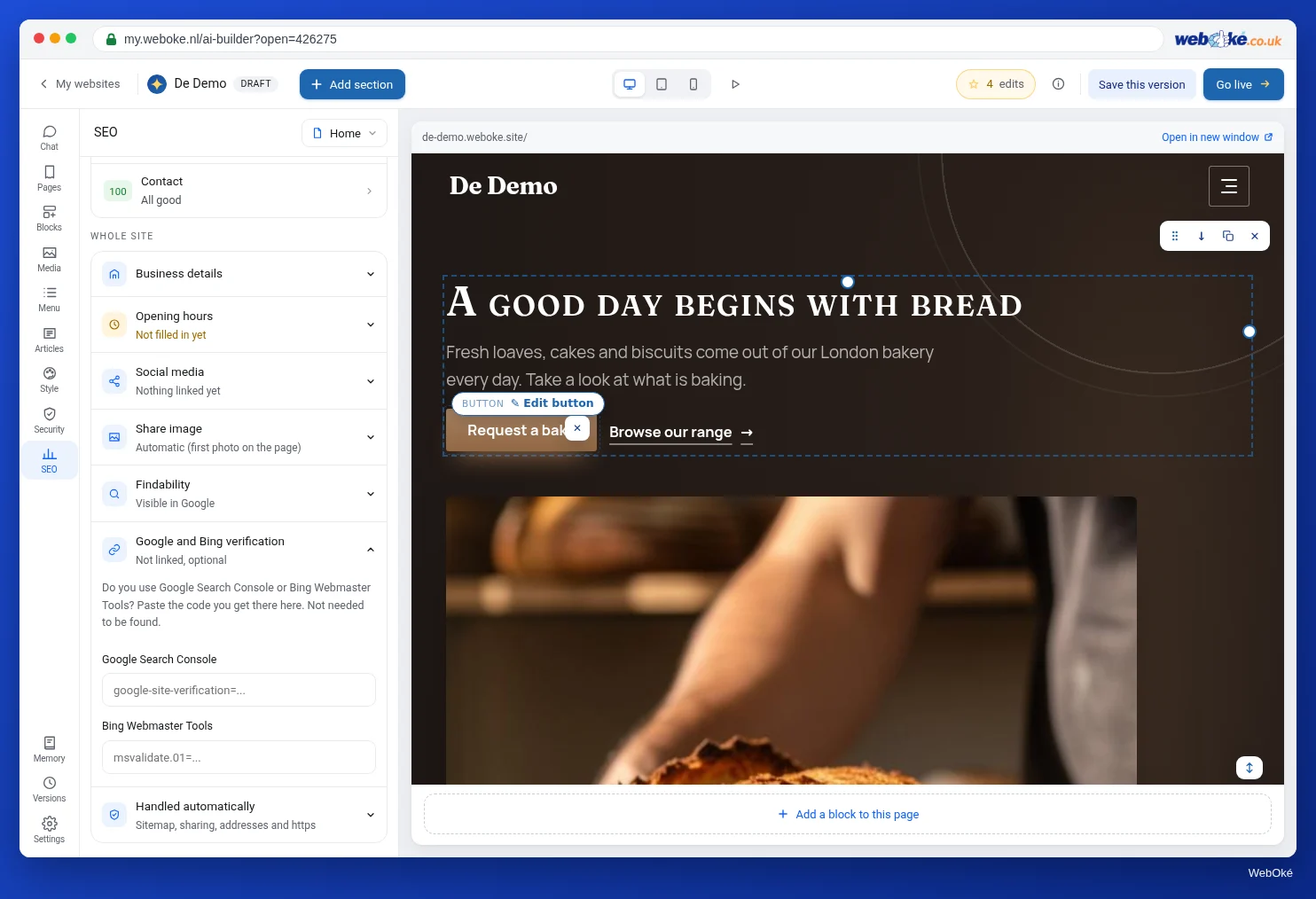
A button has two things: its text and its destination. Hover over a button and click Edit button. You'll see:
- Text on the button;
- Where does this button go?, with five options.
| Option | What the visitor gets | Example for Schildersbedrijf Example |
|---|---|---|
| Page | A page of your site | "View our work" to the Projects page |
| A new email to that address in their own email program; also works without a package | "Mail us" to info@example.com | |
| Call | On a phone, the visitor calls this number straight away | "Call now" to the real business number |
| Website | A page on another website, for example your booking system or Instagram | "Book an appointment" to an appointment scheduler |
| Section | The page scrolls to that section | "Request a quote" to the contact form at the bottom |
The builder checks what you enter. An email address must be valid, a phone number must have at least 8 digits and a web address must be a real address. Edit button is free and without AI.
Why this matters: a button is often the most important spot on a page. A "Request a quote" button that goes nowhere costs you customers. If there is a link without a destination, the builder warns you: "This link doesn't point anywhere yet and won't work on your published site. Choose a page or an address."
Watch out with the Call option: the input field shows 06 12345678 as an example. That is an example, not a number. Enter your own number.
The form's submit button is not a link
The button under your contact form looks like any other button, but it does something different: it sends the form. When you hover over it, you see Set up form instead of Edit button. Click it and you'll see Submit button of the form and the address where messages arrive. If that hasn't been set yet, it says "your account's email address". Change address takes you to Settings > Forms. There you set the address and the rest of the form (lessons 4.3 and 5.3).
Want visitors to be able to email you without a form? Then add a normal button with the Email option. That also works on the free site without a package, because the visitor sends the email themselves from their own email program.
Pitfalls
- A phone number only in the text. Also put it in a button or link with Call, so people can call you directly from their phone.
- Buttons that go to the wrong page after you rename or remove a page. If you remove a page, the builder removes the links to it as well and tells you how many. Check your buttons afterwards.
- Leaving sample details in place. An email address or number from the first version may be made up (lesson 2.4). Type your real details yourself.
- Colours outside your house style. Random colours make your site look restless and sometimes unreadable.
- Letting the AI "improve" what is already fine. Every AI instruction can change more than you want. Do small things yourself.
In the builder: how to do it
- In the preview, hover over a text and click Edit (or double-click).
- Change the text; use the Formatting toolbar for headings, lists and links.
- Save with Enter (short text) or Ctrl+Enter (longer text).
- Hover over a button and click Edit button.
- Change the Text on the button and choose a destination under Where does this button go?.
- Click the submit button of your form and use Set up form to see where messages arrive.
Summary
- Editing text yourself is free, without AI and without a proposal; every save is a new version.
- With the Formatting toolbar you create headings, lists, colour from your house style, accent words and links.
- Edit button sets the destination: Page, Email, Call, Website or Section.
- The form's submit button is not a link; you set the receiving address under Settings > Forms.
Quiz
Exercise
Exercise D3.2: Buttons that go somewhere. Go through all the buttons on your homepage and contact page and give each button a real destination.
Checklist:
- [ ] clicked every button on the homepage with Edit button;
- [ ] chosen a destination for every button (Page, Email, Call, Website or Section);
- [ ] at least one button with Call or Email using your real details (not 06 12345678);
- [ ] at least one button with Section to a section on the same page;
- [ ] looked at the form's submit button via Set up form and checked the receiving address;
- [ ] edited one text yourself with a link via Add or edit link;
- [ ] checked on Mobile that the buttons look right.
Questions:
- Which button went nowhere or to the wrong place at first, and where does it go now?
- At which address do your form's messages arrive, and is it an address you read every day?
- Which link text did you choose, and why?
After "done" you'll see a sample answer: the "Request a quote" button in the hero went nowhere and now scrolls to the Contact section; messages arrive at info@example.com, which Bas reads every day; link text "View our prices" instead of "click here", because then a visitor knows where they will end up.
Exercise D3.2: Buttons that go somewhere
You do this exercise yourself; no one checks it. Tick off what you've done and mark the exercise as done.
The "Request a quote" button in the hero went nowhere and now scrolls to the Contact section. Messages arrive at info@example.com, which Bas reads every day. Link text "View our rates" instead of "click here", because then a visitor knows where they will end up.
Your ticks and notes only stay in this browser; we don't send them anywhere. If you're signed in, we only save in My courses that you've done the exercise.