
Getting found locally: business details and profile
Module 6: Getting found · Reading time: 9 minutes
Learning objective: After this lesson you can fill in your business details in the SEO panel, explain how the builder turns them into structured data for Google, and make sure your name, address and phone number are the same on your site, in that data and in your Google Business Profile.
Key concepts: local search, NAP (name, address, phone), Business details, Type of business, structured data, JSON-LD, LocalBusiness, Organization, opening hours, sameAs, Google Business Profile
Why local is different
When someone searches for "painter exampletown" or "hairdresser near me", Google shows not only the usual results but often also a map with businesses. It lists your address, your phone number, your opening hours and a button to call you or plan a route. For a local business, those results are often more important than the regular list.
Google takes that information from several sources: your Google Business Profile, your website and mentions on other sites. If they match, Google trusts them. If your site shows a different phone number from your profile, or an old address, Google has doubts, and so does a customer. That is why you often hear about NAP: name, address and phone, exactly the same everywhere.
Business details in the SEO panel
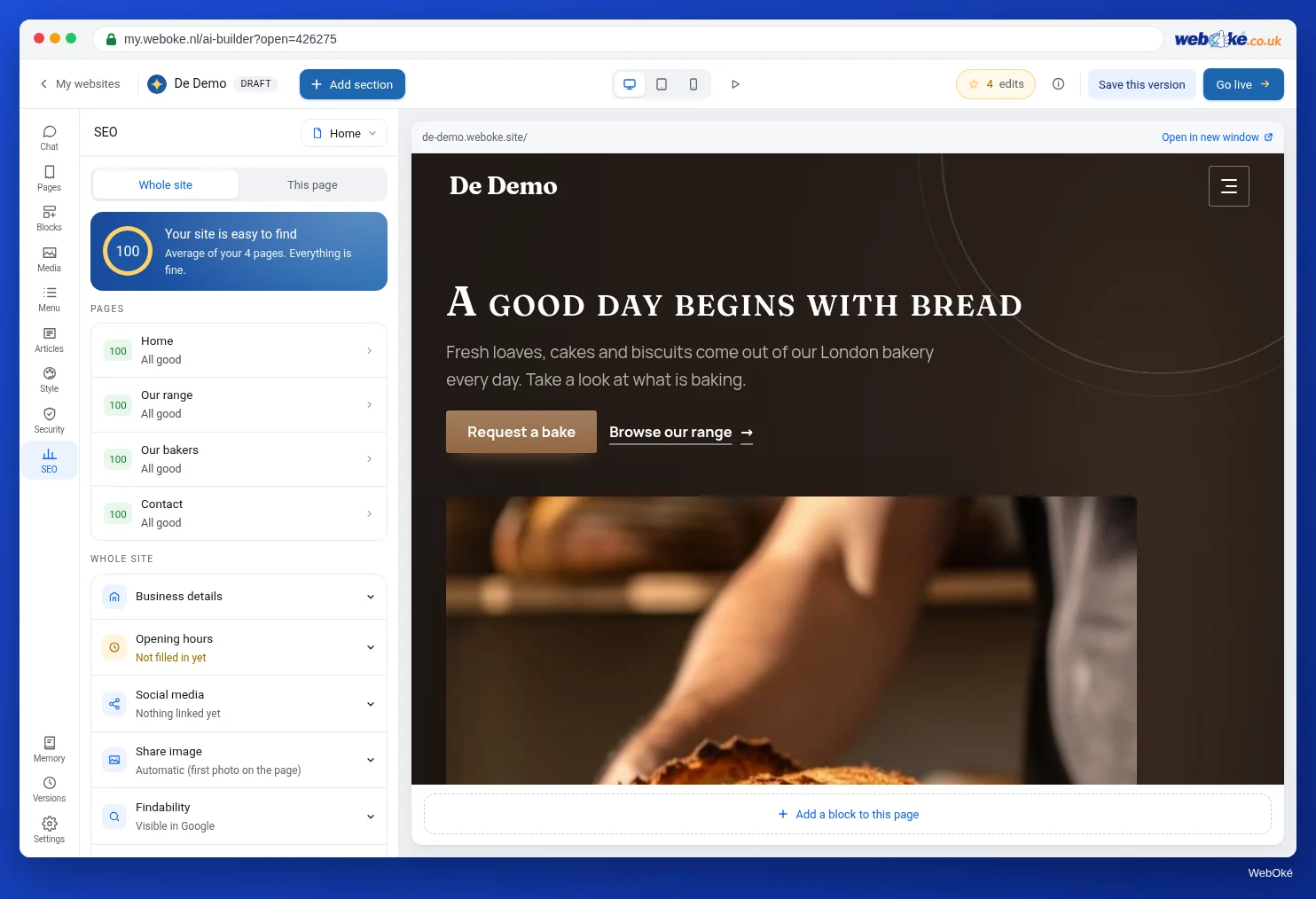
Open SEO, tab Whole site, and expand Business details. The builder explains: "Google shows these details next to your site. They come from your contact page; change them here if they need to be different." The fields are:
- Type of business: a drop-down list with dozens of types, such as Painter, Hair salon, Bakery, Plumber, Bookkeeper or accountant, and Local business (general). At the bottom you will find Organisation (no premises).
- Street and number, Postcode and City.
- Phone and Email.
Below that are three more blocks:
- Opening hours: on or off for each day, with a time from and to. If you prefer to work with text, click Rather fill in as text and write one line per day or range of days, for example "Mon to Fri 08:00 - 17:00". Without opening hours, Google cannot show whether you are open.
- Social media: fields for Facebook, Instagram, LinkedIn, TikTok, YouTube and X, plus Other links, one link per line, starting with
https://. - In the site-wide items under Handled automatically you can see whether everything is in order: "Address and phone for Google filled in", or the instruction "Fill in address, city and phone, and Google will show them with your site".
If you leave a field empty, the builder fills it in from what is already on your site: the address, phone, email and opening hours from your contact section or footer, and the links to your social media. That is handy, but do check it. If your contact page still has a placeholder number or a made-up address from the first version (lesson 2.4), the builder will copy it. Replace the placeholder content first, and then fill in the fields here deliberately.
What the builder makes of it: JSON-LD
A person reads your contact page and understands that Voorbeeldstraat 1 is your address. A search engine prefers it to be stated explicitly. That is why the builder adds a piece of structured data to the code of your homepage, and of every page with a contact section. Visitors cannot see it. It is written as JSON-LD, using the vocabulary of schema.org, the shared agreements used by Google, Bing and others.
What goes into it:
- the type from Type of business, for example
HousePainterfor Painter orLocalBusinessfor Local business; - your site name, your site's address, the page description, an image and your logo;
- your phone number, converted to the international format with the country code (a Dutch mobile number starting with 06 becomes +316...);
- your email address and your address with street, postcode, city and country;
- your opening hours, in two formats that Google understands;
- your social media links, under the name
sameAs: "this is also us".
One rule is important to know. Without an address or city, the builder does not create a LocalBusiness but an Organization: Google requires an address for a local business. An organisation has no opening hours, so those are left out.
Working from home and your address
Many freelancers work from home and do not want their street on the internet. You do not have to put it there. Fill in only City and leave Street and number empty: it stays a local business with a city, and your opening hours stay in. If you never receive customers and you work across a large area, Organisation (no premises) may suit you better. Do make sure that what you choose here matches what is on your contact page and in your Google Business Profile. What you are legally required to show on your site, such as your Netherlands Chamber of Commerce (KVK) number or your registration number in your country's trade register, is a separate matter (lesson 7.3).
Keeping it in line with your Google Business Profile
You create your Google Business Profile with Google itself. It holds your business on Google Maps, your photos, your reviews and your opening hours. The AI Builder has no link with that profile: it is up to you to keep the two the same.
A practical way of working for the painter:
- He writes down his official details once: the name as registered in the trade register (in the Netherlands: the KVK), the address, the phone number in one fixed format, the opening hours.
- He puts them on his contact page, in SEO > Whole site > Business details and in his Google Business Profile.
- With every change (new holiday hours, a different number) he updates all three, and puts the site live with Publish changes.
- He fills in his Facebook page under Social media, and adds his site's address to his profile at Google.
How to create and verify a Business Profile, and how to fill it in properly, is covered in the course Getting found online.
Checking whether Google can read it
Google has a free test for structured data: the Rich Results Test. Enter the address of your homepage there. You will see what Google finds, for example an item for your local business with your name and address, and whether there are any errors or warnings. This works on your own domain and on the free address, because the test simply fetches the page.
A common warning: no opening hours, or no image. Add them if they are correct. An error such as "address missing" cannot happen with this builder, because without an address it becomes an organisation.
In the builder: how to do it
- First replace all placeholder content on your contact page with your real details.
- Open SEO, tab Whole site, and expand Business details.
- Choose the right Type of business and fill in address, postcode, city, phone and email.
- Fill in Opening hours, per day or as text.
- Fill in your profiles under Social media.
- Click Save, put it live with Publish changes and test your homepage in the Rich Results Test.
Summary
- In local search, what counts is that your name, address and phone are the same everywhere: on your site, in your business details and in your Google Business Profile.
- You fill in business details under SEO > Whole site; the builder fills empty fields from your contact section, so replace placeholder content first.
- The builder adds your details as JSON-LD to the homepage and to pages with a contact section, using the type from Type of business.
- Without an address or city it becomes an Organization, without opening hours.
- The builder has no link with your Google Business Profile: keep them the same yourself.
Quiz
Exercise
Exercise A6.3: Your business details for search engines. Fill in your business details and publish your site. Then enter the web address of your AI Builder site. The program fetches your homepage and your contact page and checks:
- whether the homepage has structured data (JSON-LD) with a LocalBusiness or a type of it, such as HousePainter;
- whether it contains your name, an address and a phone number;
- whether the name, address and phone match what is on your contact page.
Green means: complete and consistent. You get orange, for example, if there is an Organization instead of a local business, or if the phone number on the contact page is written differently. Red means the details are missing or do not match.
Further reading
- Free course Getting found online 5.2: LocalBusiness: your business details in JSON-LD
- Free course Getting found online 6.4: Local signals: NAP and citations
- Free course Getting found online 6.1: Creating and verifying a Google Business Profile
- Your company details for Google: structured data (LocalBusiness)
- Rich Results Test (Google): https://search.google.com/test/rich-results