
Module 8 · 8.4
English
When something goes wrong
Module 8: Safe and worry-free · Reading time: 10 minutes
Learning objective: After this lesson, when you have a problem logging in, sending or delivering, you can work out where it goes wrong, read an error message or bounce, and ask for help with the right details.
Key concepts: login error, IP block, SMTP error 535, sender check, daily limit, bounce, delay notice, status code x.y.z, temporary and permanent error, Diagnostic-Code
First: where does it go wrong?
An email problem often feels like "my email isn't working". But email consists of three separate steps, and each step has its own errors:
- Logging in: the webmail talks to your mail server over IMAP to show your mailbox.
- Sending: the webmail hands your message to your own mail server over SMTP.
- Delivering: your server hands the message to the recipient's server.
With steps 1 and 2, you see the error on screen straight away. With step 3, you get an email back later: a bounce. Once you know which step goes wrong, you also know where to look.
You can't log in
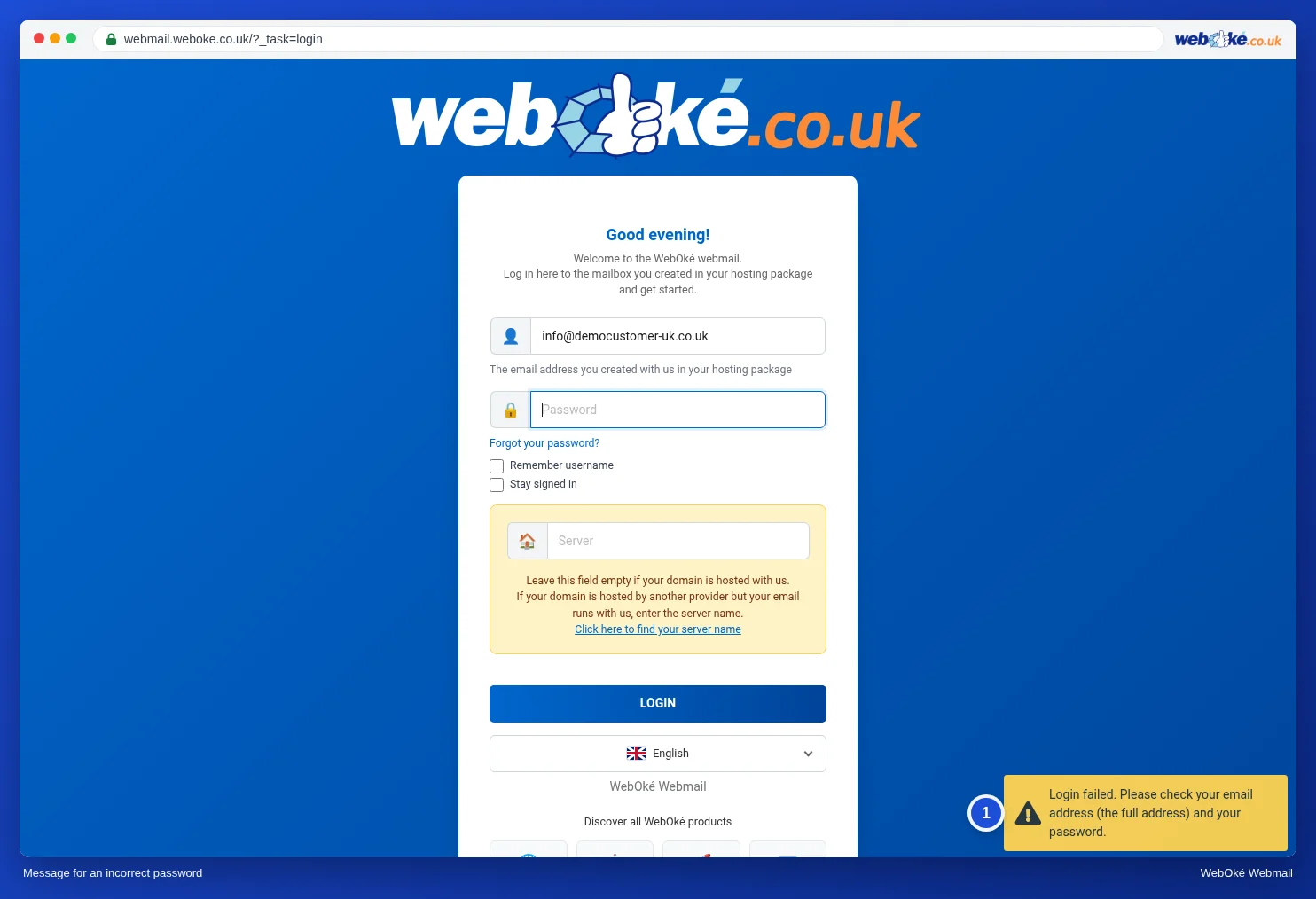
The image shows the message the webmail displays when the email address or password is wrong. Check these points, in this order:
- The full address. The username is your whole email address, so sanne@example.com and not just sanne.
- The right password. The password of the mailbox, not the one for your customer account or control panel. Watch out for Caps Lock.
- The Server field. Leave it empty, unless your domain doesn't point to your mail server (lesson 1.3). A wrongly entered server name also causes an error.
- A blocked IP address. Does the webmail not load at all, but it does on your phone over 4G? Then the firewall may have blocked your IP address, usually because a device kept trying an old password (lesson 8.1). First set the correct password on all your devices, then have the block lifted.
You can't send
If you can log in but can't send, the error message almost always tells you what's going on.
| Message | What it means | What you do |
|---|---|---|
| SMTP Error (535): Authentication failed | The server for outgoing mail doesn't accept your login | Log out and log in again; for a linked mailbox, check that mailbox's details |
| Account ... can not send emails from ... | You're sending from an address your mailbox has no permission for (the sender check, lesson 4.1) | Choose an identity with your own address, or an address that forwards to your mailbox |
| Daily send limit ... is reached / You have reached your message limit | Your package has reached its daily limit today | Wait until the counter resets overnight; sent very little? Check whether a mailbox is being misused |
| 552 Message too big | The message with attachments is too large | Use a share link (lesson 3.3) |
One more warning about the daily limit: mail that's refused because the limit has been reached won't go out by itself later. Send important messages again the next day.
Reading a bounce
If your server can't deliver a message, you get an email back from Mail Delivery System or MAILER-DAEMON, with a subject such as "Mail delivery failed" or "Undelivered Mail Returned to Sender". A bounce consists of three parts, and it's mainly the middle one you need.
- A text for people: what failed and for which address.
- A part for programs, the delivery status notification (DSN, RFC 3464), with fixed fields.
- The headers of your own message, so you can see which email it was.
The middle part looks like this:
Action: failed
Final-Recipient: rfc822;info@example.org
Status: 5.2.2
Remote-MTA: dns; mail.example.org
Diagnostic-Code: smtp; 552 5.2.2 <info@example.org>: Mailbox full, quota exceeded- Action tells you whether it failed (
failed) or is still being tried (delayed). - Final-Recipient is the address concerned.
- Status is the status code in the form x.y.z.
- Remote-MTA is the recipient's server that gave the response.
- Diagnostic-Code is that server's literal response. Always read this line: this is where the real reason is, often in plain words.
Temporary or permanent: the first digit
The status code (RFC 3463) starts with a 2, 4 or 5. The same goes for the three digits of the SMTP reply code (RFC 5321), such as 550 or 452.
- 4.x.x is temporary. The recipient's server is saying: not now, try again later. Your own server keeps the message and tries again by itself, usually for a few days. At most you get a delay notice (
Action: delayed, often withWill-Retry-Until). Don't send the message again, or the recipient will end up getting it twice. - 5.x.x is permanent. The server gives up. Sending again without changing anything is pointless.
The middle number tells you where the problem lies. Three codes you'll see often:
| Code | Meaning | Cause in plain words |
|---|---|---|
| 5.1.1 | Address doesn't exist | A typo, or the address has been closed |
| 5.2.2 (or 4.2.2) | Mailbox full | The recipient has no space left |
| 5.7.1 | Refused by policy | The recipient's spam filter or rules refuse your email |
If you get a bounce, you usually choose from four causes: the address doesn't exist, the recipient's mailbox is full, the receiving server refuses the email because of policy or spam, or there's no connection to the receiving server. And you do one of three things: check the address and send the message again to the correct address, send nothing again and wait, because the server is still trying by itself, or have something changed in your own email or domain and ask your provider for help.
Two examples. Sanne emails Ahmed (ahmed@example.net) and gets a bounce with Status: 5.7.1. The Diagnostic-Code says Ahmed's server refuses the email because the SPF check for example.com fails. Permanent, and refused by policy: sending again won't help. Something needs to change in her domain, so she asks her provider for help. A day after sending, Daan gets a delay notice with Action: delayed, Status: 4.4.1 and "Connection timed out" for a supplier's server. Temporary, no connection: he sends nothing again, because his server keeps trying by itself until the time in Will-Retry-Until. If he wants to be sure, he calls the supplier to say his email is on its way.
It can also work the other way round: if other people get "Mailbox full" or "Quota exceeded" when emailing you, your mailbox is full. Clear it out (lesson 5.4) and then ask them to try again.
Asking for help without the back and forth
If you can't work it out, your email provider can help you faster if you include the right details straight away:
- the email address concerned, and the recipient's address;
- the date and time, as precisely as possible;
- the exact error message: a screenshot or the whole bounce, not "it doesn't work";
- what you've already tried, and whether it's the same in the webmail and in your email program.
Never send your password. A trustworthy helpdesk won't ask for it.
In practice: how it works in the webmail
The webmail shows error messages for logging in and sending at the bottom right of the screen. A bounce arrives as an ordinary email in your Inbox; with Headers above the message or More > Show source you can also see the machine part and your own headers. The Roundcube manual (chapter 13) explains what to do for each error message, and the Error messages guide goes deeper into the codes. Other webmail works in a similar way: the messages have different names there, but the codes in bounces are the same everywhere.
Summary
- First identify the step: logging in (IMAP), sending (SMTP) or delivering (bounce).
- Logging in: full address, mailbox password, Server field, and a possible IP block.
- Sending: 535 is a login error when sending, "can not send emails from" is the sender check, and the daily limit applies to your whole package.
- In a bounce, read Action, Status and above all Diagnostic-Code; 4.x.x is temporary (the server tries again by itself), 5.x.x is permanent.
- Ask for help with address, time and the exact error message, and never with your password.
Quiz
Exercise
Exercise A8.4: Reading a bounce message. Open the materials bounce-1.txt and bounce-2.txt (two real but anonymised error messages). For each bounce, enter the status code in the form x.y.z. Then, for each bounce, choose the cause from the four causes in this lesson (the address doesn't exist; the recipient's mailbox is full; the receiving server refuses the email because of policy or spam; there's no connection to the receiving server) and what you do from the three options (check the address and send again to the correct address; send nothing again and wait, because the server is still trying by itself; have something changed in your own email or domain and ask your provider for help). The program compares your six answers with the answer key: the status code must be exactly right (spaces don't count), cause and action are choices. Green if everything is right, orange if something is wrong for only one bounce, red if something is wrong for both bounces. Tip: read the Action, Status and Diagnostic-Code lines.
Further reading
Where steps in the webmail are described, they apply to the WebOké webmail; other webmail works in a similar way.
- Roundcube Webmail 13.1: Can't log in
- Roundcube Webmail 13.2: SMTP error 535 when sending
- Roundcube Webmail 13.3: Your mailbox is full
- Roundcube Webmail 13.4: The daily limit has been reached
- Roundcube Webmail 13.5: Other errors when sending
- Mail delivery failed: how to read the error message and what the codes mean
- Error messages solved 1.1: Error code 550: which variant do you have and what should you do?
- Error messages solved 1.8: Account ... can not send emails from ...
- Free course Email in order: setting up and making sure it arrives properly 6.1: Reading a bounce
- RFC 3463, Enhanced Mail System Status Codes: https://www.rfc-editor.org/rfc/rfc3463