
Module 3 · 3.1
English
To, Cc, Bcc and Reply-To
Module 3: Writing email · Reading time: 11 minutes
Learning objective: After this lesson you can choose To, Cc or Bcc for each recipient on purpose, you know exactly what Reply all, Reply-To and forwarding do, and you avoid leaking addresses.
Key concepts: To, Cc, Bcc, envelope, Reply all, Reply list, Reply-To, Followup-To, forwarding as attachment, data breach, daily limit
Three fields, three roles
When you write an email, you see one field for recipients by default. The plus sign next to it adds more. These fields aren't decoration: each field tells the recipient something about their role.
- To is for people who need to do something or who you expect a reply from. Put three people in To and all three feel addressed. Or none of them do, because everyone thinks someone else will pick it up. So preferably put one person in To, or say in the first sentence who does what.
- Cc (carbon copy) is for people who read along. Someone in Cc doesn't need to do anything, but does know what's going on. All recipients can see who is in Cc.
- Bcc (blind carbon copy) is for someone who gets a copy the others mustn't see. People in Bcc are invisible to the recipients in To and Cc, and recipients in Bcc can't see each other either.
How can Bcc be invisible if the email still reaches those people? It comes down to the difference between the envelope and the headers from lesson 1.1. The mail server delivers to the addresses on the envelope (RCPT TO). The To and Cc headers are just text in the message. With Bcc, your email program does put the address on the envelope, but it removes the Bcc header from the message the others receive. The standard for the message format (RFC 5322) describes exactly this behaviour.
Bcc and the GDPR: a visible address can be a data breach
An email address like ahmed@example.net is personal data: it belongs to an identifiable person. If you send one email to forty customers and put them all in To or Cc, every customer gets the addresses of the thirty-nine others. They never agreed to that.
The GDPR calls this a personal data breach (Article 4(12)): a breach of security that leads, among other things, to the unauthorised disclosure of personal data. In plain language: a data breach. Whether you have to report it to the supervisory authority depends on the risk to the people concerned (Article 33). Forty addresses of a flower shop's customers is different from forty addresses of members of a debt support group: in the second case, the mere fact that someone is on the list reveals something sensitive. If in doubt, record it and find out whether you need to report it. The Safe online course goes into this in more depth.
The rule is simple: if you email a group of people who don't (need to) know each other, put them in Bcc and put yourself in To. This also applies when you pick a group from your address book: the webmail then puts all the addresses in the field you're using.
A pitfall few people know about: a Bcc recipient who clicks Reply all gives themselves away. Their reply goes to everyone in To and Cc, who suddenly see that they had a hidden copy. If you put someone in Bcc to read along, tell them not to reply. If you want to involve someone openly, use Cc.
Replying: Reply, Reply all, Reply list
With a message you've received, you have three ways to reply.
- Reply goes only to the sender (or to the address in Reply-To, see below).
- Reply all goes to the sender and to everyone in To and Cc. Only use it if all the others really need your reply. "Thanks!" to twenty people is noise.
- Reply list (via the arrow next to Reply all) is for email from a mailing list. List software adds a List-Post header to the message (RFC 2369), and the webmail then sends your reply to the list instead of to the person who wrote it.
Unsure whether to use Reply or Reply all? Check the To and Cc fields before you send. You can see exactly who will get it. Remove anyone who doesn't belong there.
Reply-To and Followup-To
With Reply-To (the Reply-To header) you say: I'd like replies to this email to go to a different address. For example, Sanne sends an email about an order from sanne@example.com, but wants replies to arrive at the shared address info@example.com, so Daan sees them too. She enters info@example.com in Reply-To. When the customer clicks Reply, info@ is already filled in as the recipient.
Reply-To is also a common trick used by scammers: the sender looks right, but your reply goes to a completely different domain (lesson 2.4). So now and then, check the address the webmail fills in when you reply.
Followup-To (the Mail-Followup-To header) comes from the world of mailing lists. You use it to say where follow-up replies in a discussion should go, for example only to the list and not to you personally as well. Not every email program does anything with it. In ordinary business email, leave it empty.
Forwarding: inline or as attachment
With Forward you send a message you've received to someone else. The arrow next to it lets you choose how:
- inline: the old message appears as a quote below your text. Handy for quickly bringing someone up to speed. The recipient can read it as a normal email.
- as attachment: the entire original message is included as an .eml file, with all its headers. You need this when someone must be able to see where an email really came from, for example when you forward phishing to a helpdesk.
When forwarding, pay attention to what's in the quote. A long thread often contains addresses, phone numbers or arrangements of people who don't know you're passing it on. Remove whatever the new recipient doesn't need to see.
Lots of recipients: the daily limit
A mailbox is made for personal email, not for newsletters. To prevent abuse, you can send a limited number of emails per day. At WebOké that limit applies to your whole package combined: all mailboxes, the webmail and your website. Note: every recipient counts. One message with two hundred addresses in Bcc counts as two hundred emails. If you regularly want to reach a large group, use a newsletter service. It also handles unsubscribing and a tidy list, which a newsletter needs. Other providers have similar limits.
Example: one email, three fields
Sanne sends Ahmed the quote for the wedding flowers.
Aan:  Ahmed <ahmed@example.net>
Cc:   Daan <daan@example.com>
Antwoord aan: info@example.com
Onderwerp: Offerte bruiloftsbloemen 14 juni: graag akkoord voor 1 mei
Ahmed has to approve it, so he's in To. Daan makes the flowers and reads along: Cc. Ahmed sees that Daan is reading along, and that's fine, because Daan may call him later. Replies arrive at info@, which Sanne and Daan both check.
In practice: how it works in the webmail
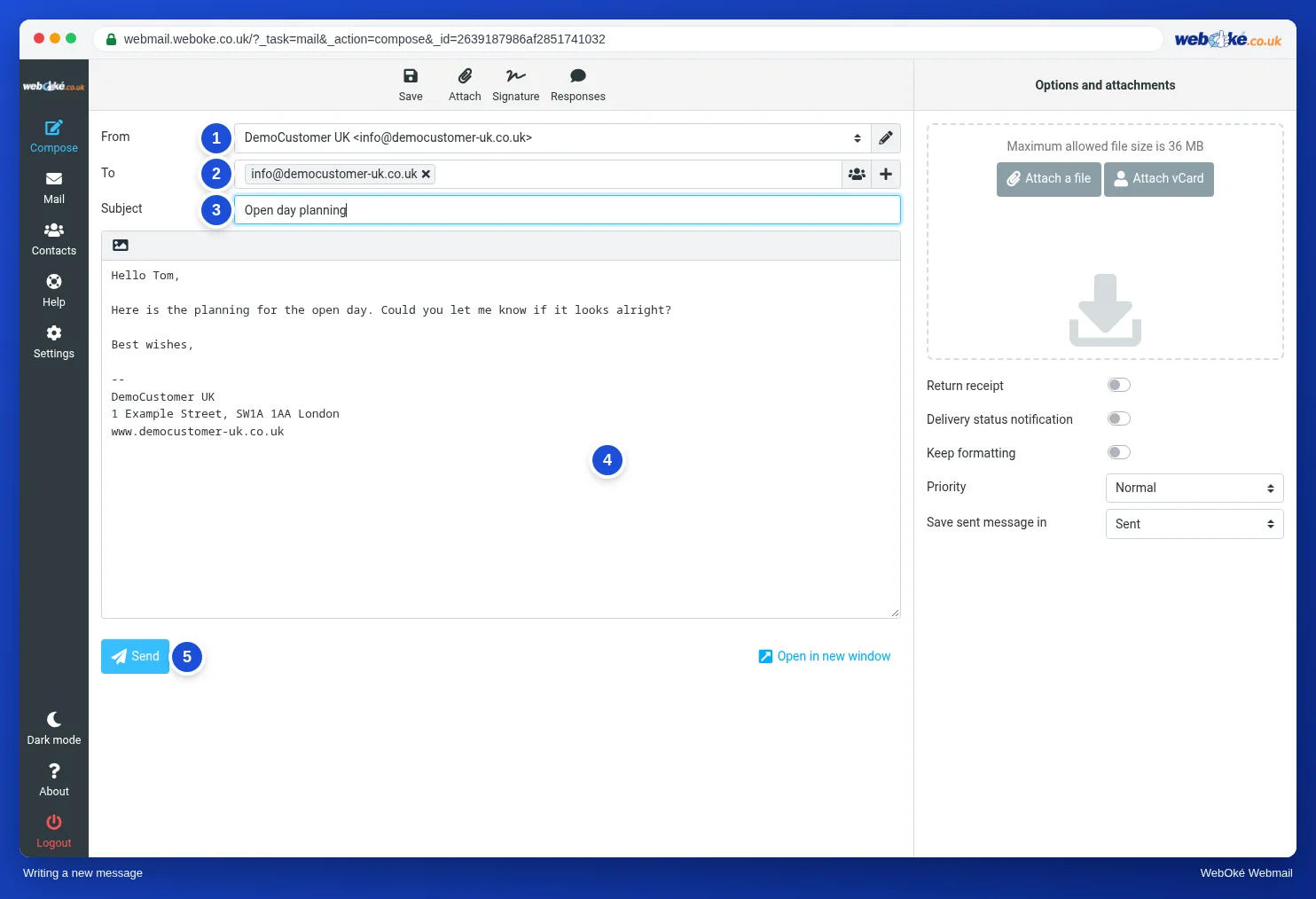
In Compose you'll find the To field. The plus sign to the right of that field adds Cc, Bcc, Reply-To and Followup-To. The button with the little people lets you pick contacts or a group from your address book. Above an opened message you'll find Reply, Reply all (with Reply list under the arrow) and Forward (with the choice inline or as attachment). The steps are in the Roundcube manual. In other webmail, such as Gmail or Outlook.com, the buttons have almost the same names and work in a similar way.
Summary
- To is for people who need to act, Cc for people who read along, Bcc for people who must stay invisible.
- Bcc works through the envelope: the address gets the email, but the Bcc header isn't passed on to the others.
- Visible addresses of people who don't know each other can be a data breach (Article 4(12) GDPR); whether you report it depends on the risk (Article 33).
- Only use Reply all if everyone needs your reply; a Bcc recipient who uses it gives themselves away.
- Reply-To sends replies to a different address; every recipient counts towards the daily limit.
Quiz
Exercise
Exercise A3.1: Who goes where? Read the five situations and choose for each one whether the person or group mentioned belongs in To, Cc or Bcc. (1) Sanne sends the quote for the wedding flowers and wants Ahmed to approve it: where does she put Ahmed? (2) In the same email, Sanne wants Daan to know what has been agreed; Daan doesn't need to do anything and Ahmed may see that Daan is reading along: where does she put Daan? (3) Sanne emails forty customers who don't know each other that the shop is closed on King's Day (Koningsdag): where does she put the customers? (4) Sanne asks both the delivery service (planning@example.org) and Daan to confirm before Friday whether they can make Saturday; she expects a reply from both: where does she put the delivery service? (5) Sanne replies to a customer complaint and wants a copy in her own archive address archief@example.com; that address does nothing with the email and the customer doesn't need to see it: where does she put archief@example.com? For each situation you pick from the selection fields, and the program compares your answers with the answer key. For each situation you see whether your choice is right and why.
Further reading
Where steps in the webmail are given, they apply to the WebOké webmail; other webmail works in a similar way.
- Roundcube Webmail 4.1: Writing a new message
- Roundcube Webmail 4.2: Replying and forwarding
- Roundcube Webmail 13.4: The daily limit has been reached
- Limit for sending mail
- Free course: Staying safe online for business owners 8.2: Data breaches and the duty to report
- Free course Email in order: setting up and making sure it arrives properly 7.2: Consent, unsubscribing and a clean list
- RFC 5322, Internet Message Format: https://www.rfc-editor.org/rfc/rfc5322
- GDPR, Regulation (EU) 2016/679: https://eur-lex.europa.eu/eli/reg/2016/679/oj