
Module 6 · 6.2
English
Designing and testing filters
Module 6: Automatic: filters and out of office · Reading time: 9 minutes
Learning objective: After this lesson you can turn a wish into a filter that does exactly what you mean, avoid the well-known pitfalls and test your filter before you rely on it.
Key concepts: choosing a header, From, To, List-Id, Subject, too-broad filter, order, forwarding, Create filter, test email, Download
From wish to rule
A good filter starts with a sentence in plain language: "All mail from the wholesaler should go into the Suppliers folder." Then you ask three questions:
- How can you recognise that mail for certain? Not "it's usually about orders", but something that is always in the headers: an address, a domain, a header that only that mail has.
- What should happen? Move, copy, redirect, delete, and should the script stop afterwards?
- What must the filter not touch? Think of the mail that looks just like it. That is where filters go wrong.
Which header to filter on
The header you choose determines how reliable your filter is.
- From for mail from a person or company. Filter on the address or on the domain:
@example.netcatches everyone at that company. Don't filter on the display name: anyone can fill in any name (lesson 2.2). - To for mail that arrives via another address. If the address info@example.com forwards to Sanne's mailbox, she recognises that mail by info@ in the To header. Note: mail that someone sent with Bcc doesn't have that address in To.
- List-Id for newsletters and mailing lists. Well-behaved senders add this header (RFC 2919), with a fixed code per list. That is more reliable than the sender address, which sometimes changes for newsletters.
- Subject only if the subject is fixed, such as automatic notifications from a system. Otherwise the subject is the least reliable choice: anyone can put anything in it.
A filter for newsletters from one wholesaler looks like this in Sieve:
# rule:[Groothandel]
if header :contains "List-Id" "nieuws.example.org"
{
	fileinto "INBOX.Leveranciers";
	stop;
}
Four pitfalls
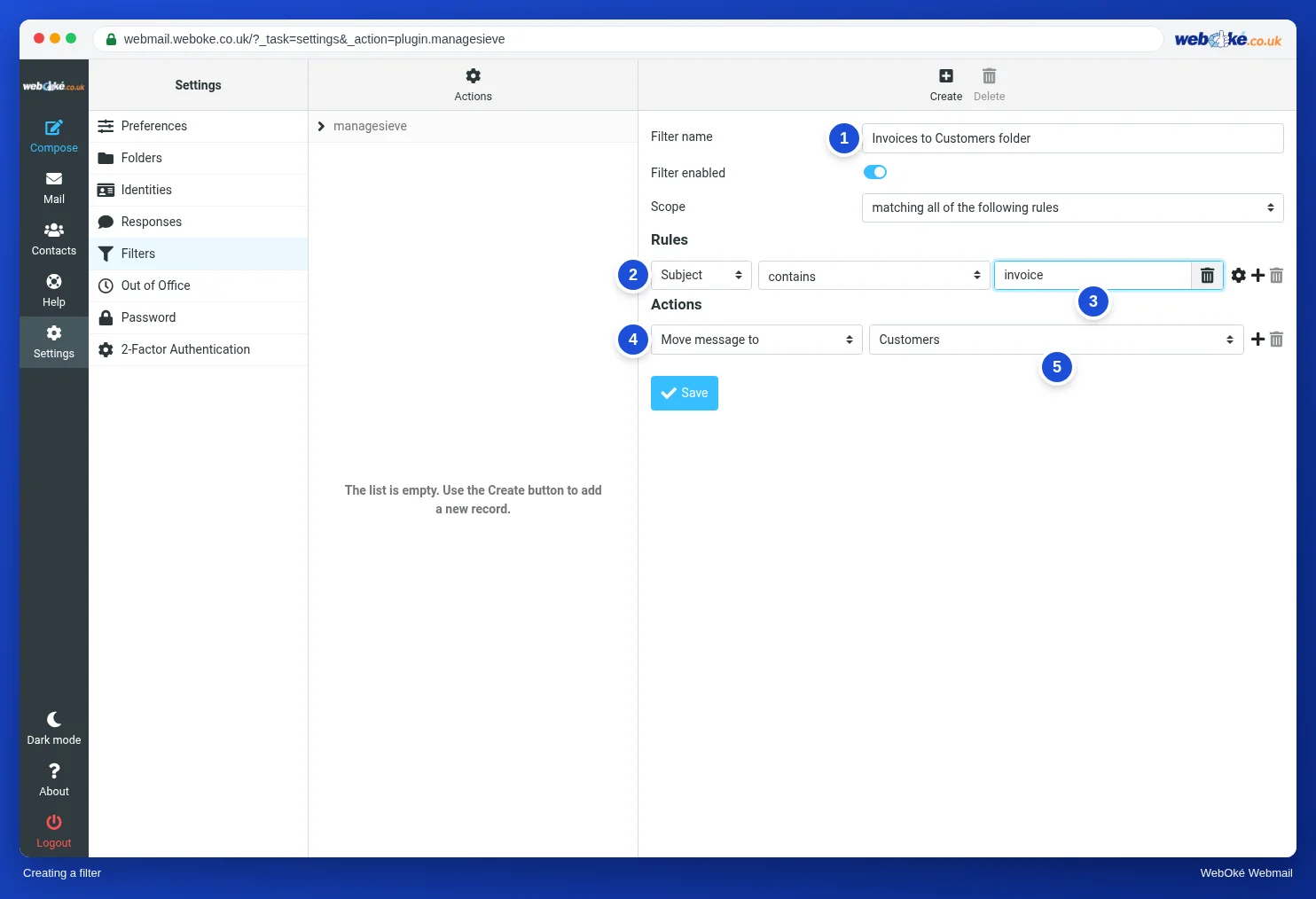
1. Too broad. "Subject contains factuur" (invoice) seems handy, but it also catches phishing with "Uw openstaande factuur" (your outstanding invoice) that the spam filter just missed. It then sits neatly among your real invoices, where you look at it less critically. Make it narrower: "From contains @example.net and Subject contains factuur", with the scope "matching all of the following rules".
2. Order. Filters run from top to bottom (lesson 6.1). A broad filter with stop at the top can sideline a specific filter below it. Put the specific filter at the top: first "newsletter from the wholesaler", only then "everything from example.org".
3. Upper case and spaces. Contains ignores upper and lower case, so you don't need to think about that. One space too many or a typo in the text does make the filter fail. "factuur " with a space after it won't find "factuur.".
4. A folder that changes later. A filter refers to the full name of a folder. If you rename the folder or move it under another folder, the name in the filter is no longer correct. So check your filters after every change to your folders.
Redirecting to an external address
With the action Redirect message to you can send mail to another address, for example an address at Gmail. That has two drawbacks.
First, you also redirect spam that the spam filter didn't stop. The receiving service sees your mail server as the server delivering that spam. That can damage your server's reputation, and with it the delivery of all your normal mail.
Second, the sender checks no longer add up. A redirected email from ahmed@example.net arrives at Gmail from your server. The SPF record of example.net doesn't list your server, so the check fails. As a result, the message may end up in spam or be rejected. The Email in Order course explains SPF and DMARC in detail.
So only redirect to addresses you manage yourself, and preferably with a forwarder in the control panel rather than with a filter.
Creating a filter from a message
The quickest way to create a filter is from an email you want sorted. Open the message and choose More > Create filter. The webmail fills in the sender and the subject for you. Remove what you don't need: usually the sender alone is enough, and the subject actually makes the filter too narrow.
Test before you rely on it
You only notice a filter that silently fails when you miss an important email. So always test:
- A test email to yourself. Your own mail goes through the mail server to your mailbox, so the filters run. Put the word in the subject and check whether the message lands in the right folder.
- Also test what must not match. Send an email without the word and check that it stays in the Inbox. Try upper case too.
- Read the script. With Filters > Actions > Edit filter set you see what the webmail has actually saved. If it says
if false, the filter is switched off. - Keep a copy. With Filters > Actions > Download you get the whole script as a file. Handy as a backup, and for comparing if something suddenly behaves differently.

A filter per mailbox, or for the whole domain
Filters in the webmail apply to one mailbox. If you want to block a sender for all mailboxes on your domain, or make the spam filter stricter, you do that in your hosting control panel. At WebOké that is DirectAdmin, which includes the SPAM Filters section. Don't set the same thing in two places: later you won't know which rule stopped a message.
In practice: how it works in the webmail
You create filters under Settings > Filters with Create, or from a message with More > Create filter. You view the script under Filters > Actions > Edit filter set, and Download gives you a copy. The Roundcube manual has the steps and a table of useful filters. Other webmail works in a similar way: Gmail creates filters from a search, Outlook.com has rules with conditions and actions.
Summary
- Start with a sentence in plain language and ask yourself how you can recognise the mail for certain and what the filter must not touch.
- Filter on address, domain, To or List-Id; the subject is the least reliable.
- Pitfalls: too broad, wrong order, typos and spaces, a renamed folder.
- Redirecting to an external address also redirects spam and makes SPF fail; only do it to addresses you manage yourself.
- Test with mail to yourself, including what the filter must not touch, and keep a copy with Download.
Quiz
Exercise
Exercise A6.2: Get your own filter checked. In your own mailbox, create a filter that moves mail with a word of your choice in the subject to a folder of your choice. On the page, fill in the word and the folder name. Then paste your filter set (Settings > Filters > Actions > Edit filter set, select all and copy) or upload the file you get with Download. The program reads the Sieve script in memory (nothing is stored) and runs three test messages: a message with your word in the subject (must go to your folder), a message without the word (must stay in the Inbox) and a message with your word in capitals (must also go to your folder). Green if all three are correct. You get a warning if the filter is switched off, if the folder name in the script doesn't match what you filled in, or if the script redirects mail to an address outside your own domain.
Further reading
Where steps in the webmail are given, they apply to the WebOké webmail; other webmail works in a similar way.
- Roundcube Webmail 7.1: Creating a filter
- Roundcube Webmail 7.2: Examples of useful filters
- Server-side email rules (filters on the server)
- Forward email to another address (forwarders, catch-all not recommended)
- Free course Email in order: setting up and making sure it arrives properly 3.3: Aliases, forwarding and catch-all: handy, but risky
- Free course Email in order: setting up and making sure it arrives properly 4.1: Why mail ends up in spam
- RFC 2919, List-Id (English): https://www.rfc-editor.org/rfc/rfc2919