
Module 8 · 8.1
English
Password and two-step verification
Module 8: Safe and worry-free · Reading time: 10 minutes
Learning objective: After this lesson you can explain what a strong password for your mailbox is, what you need to do on your devices after changing it, how a code from an authenticator app is created and what two-step verification in webmail does and does not protect.
Key concepts: mailbox password, password manager, two-step verification, TOTP, shared secret, QR code, recovery code, clock drift, IMAP and SMTP without a second step
Why your mailbox is your most important account
Your mailbox is the key ring of your online life. Almost every service sends a link to reset your password to your email. So whoever has your mailbox can also take over your web shop, your accounts and your social media. They can also send email in your name, to customers who trust you. That is why a stolen mailbox is often used for invoice fraud or to send spam. The latter gets your whole domain into trouble: other servers start refusing your email.
Two things keep an intruder out: a good password and a second step when logging in.
A strong password is above all long and unique
Your mailbox password belongs to one email address. It is not the same as the password for your customer account or for the control panel of your hosting package (lesson 1.3).
What makes a password strong? Not an exclamation mark after a word, but length and randomness. Attackers try leaked passwords and lists of commonly used words and patterns. "Zomer2026!" is on such a list; a string of four random words or twenty random characters is not. Just as important is that the password is unique. If a web shop where you used the same password is breached, criminals will try that password on your mailbox too.
The practical solution is a password manager: a program that creates and remembers a long random password for every service. All you need to remember is one strong master password.
After changing it: update all your devices
You change the password in webmail under Settings > Password, or in the control panel of your hosting package if you no longer know the old one. From that moment on the new password applies everywhere: in webmail, on your phone, in your email program.
This is where things often go wrong. Sanne de Vries changes the password of sanne@example.com on Monday. She updates her laptop straight away. She forgets her old tablet in the kitchen. That tablet keeps logging in with the old password every few minutes. After a number of failed attempts, the server's firewall sees a connection that keeps trying a wrong password, and blocks the IP address. Because the tablet and the laptop share the same IP address at home, Sanne suddenly can't reach her email on her laptop either, and sometimes not her website.
So after a change, update all your devices straight away: phone, tablet, the email program on your computer, and any printer or scanner that sends email.
Two-step verification: something you know and something you have
With two-step verification (in webmail it is called 2-Factor Authentication) you need two things to log in: your password (something you know) and a code from your phone (something you have). Someone who gets hold of your password through phishing or a data breach still can't get in.
The code comes from an authenticator app, such as the app of your password manager or a separate app for these codes. The method is called TOTP, time-based one-time password, and is described in RFC 6238. This is how it works:
- When you switch it on, webmail creates a shared secret: a random string of characters. You see it as a secret key and as a QR code.
- You scan the QR code with the app. From now on the server and your phone both know the same secret.
- Every 30 seconds both of them combine the secret with the current time to calculate a six-digit code.
- When you log in, the server compares your code with its own result.
Two things follow from this. The app needs no internet: it only calculates with the secret and the clock. And the clock must be right. If your phone runs a few minutes fast or slow, it calculates with a different time slot and the code won't match. Set the time on your phone to automatic.
A third consequence: the QR code IS the secret. Anyone with a photo or screenshot of it can create the same codes. So never share it and don't keep it as an image.
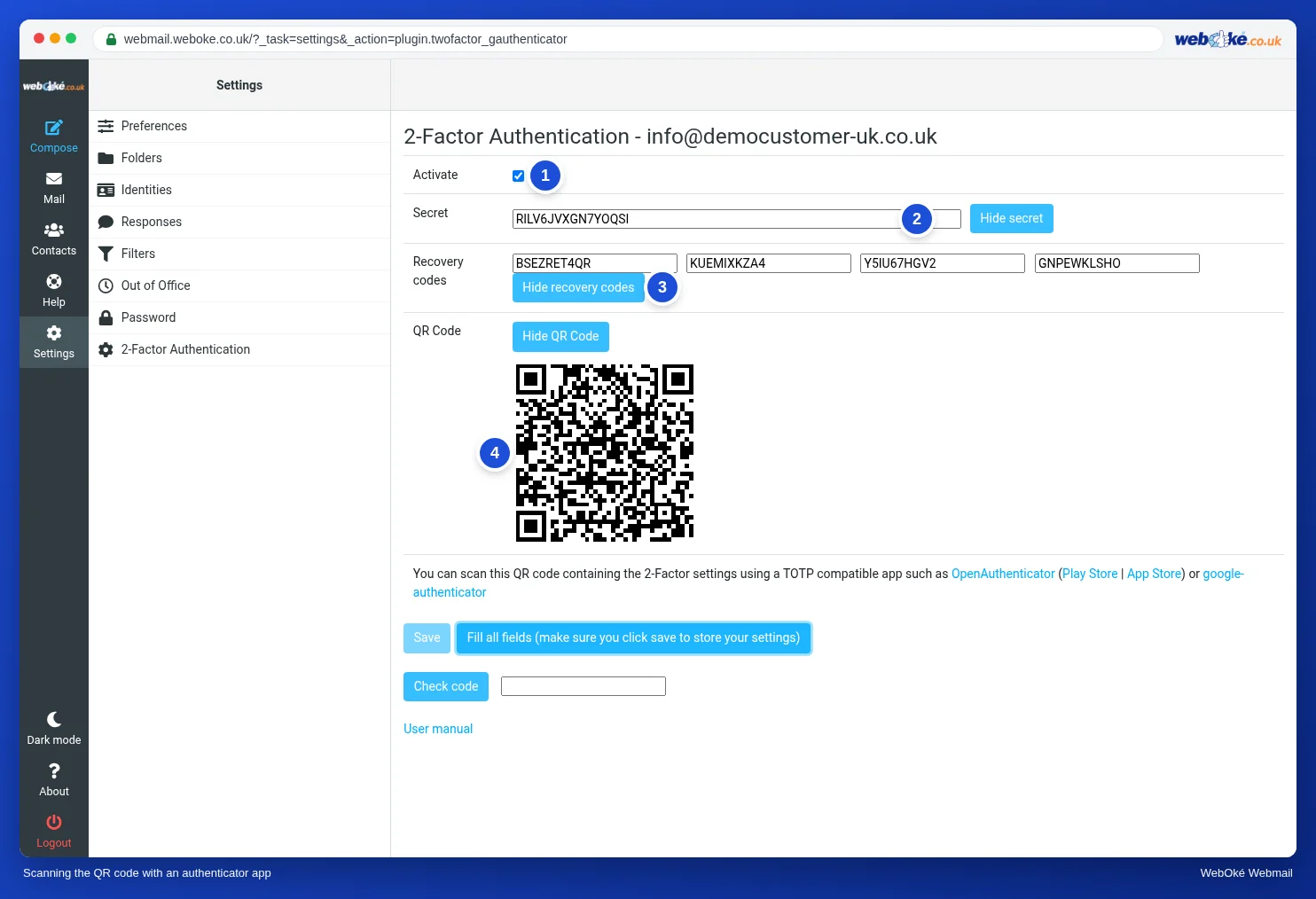
The image shows the screen where you switch on two-step verification, with the secret key, the recovery codes and the QR code.
Recovery codes and a lost phone
When you switch it on, you also get four recovery codes. Each one works once, instead of a code from the app. They are your spare key if your phone is broken, stolen or replaced. Keep them somewhere other than your phone: in your password manager or on paper in a drawer.
If you use a recovery code, set up two-step verification again straight away with your new phone. You will then get new recovery codes too. If you have no recovery codes left, your email provider can switch off the second step for your mailbox after checking who you are.
On your own computer you can choose, when logging in, that webmail won't ask for a code again for 30 days. Never do that on a shared computer.
What two-step verification does not protect
This is the biggest pitfall, and many people don't know about it. Two-step verification in webmail applies only to webmail. Your email program and the mail app on your phone log in via IMAP (fetching) and SMTP (sending), and those only ask for your password. So an attacker with your password can still read your email and send email in your name using an email program.
That is why two-step verification is an addition, not a replacement. Your password still needs to be long and unique. You set up two-step verification for your customer account separately; it is a different account with its own security.
With large services such as Gmail or Outlook.com it works slightly differently: there the second step often applies to the whole account, and an email program needs a separate app password or its own login method. The idea is the same: password plus something you have.
In practice: how it works in webmail
You change your password under Settings > Password, and you switch on two-step verification under Settings > 2-Factor Authentication. There you tick Activate, let webmail fill in the fields, scan the QR code, check a code and save. The steps are in the Roundcube manual (10.3, 10.4 and 10.5). Other webmail has similar settings, often under Security.
Summary
- Your mailbox is the key to your other accounts: protect it with a long, unique password from a password manager.
- After changing your password, update all your devices; a device using the old password can get your IP address blocked.
- TOTP creates a code every 30 seconds from a shared secret and the time; your phone's clock must be right and the QR code is the secret.
- Keep the four recovery codes away from your phone; each code works once.
- Two-step verification in webmail only protects webmail, not IMAP and SMTP in your email program.
Quiz
Exercise
Exercise A8.1: Practise with an authenticator app. Click the button to get a practice secret. You will get a QR code for a practice account. Scan it with an authenticator app of your choice (or type in the key shown) and enter the six-digit code the app displays. The program uses the same practice secret and the time to check whether your code is correct; a code from the previous or next time slot also counts as correct, so a small clock drift is not a problem. Green: the code is correct. Red: the code is not correct; check your phone's clock and whether you are using the right entry in the app. The practice secret is not linked to your mailbox, has no value and disappears within 24 hours. Remove the practice account from your app afterwards.
Further reading
Where steps in webmail are given, they apply to WebOké's webmail; other webmail works in a similar way.
- Roundcube Webmail 10.3: Turning on two-step verification
- Roundcube Webmail 10.4: Logging in with two-step verification
- Roundcube Webmail 10.5: Changing the password of your mailbox
- Change the password or limits of an email address
- Password managers and passkeys: how to keep your logins secure
- Free course: Staying safe online for business owners 2.1: What a strong password really is
- Free course: Staying safe online for business owners 2.3: Two-factor authentication: codes, apps and SMS
- RFC 6238, TOTP: Time-Based One-Time Password Algorithm (English): https://www.rfc-editor.org/rfc/rfc6238