
Change the password or limits of an email address
Forgot the password of a mailbox? You can set a new password in DirectAdmin. You don't need to know the old password. In the same place, you can also change the storage and the sending limit of the mailbox.
Tip: not sure whether you're using the right password in your mail client? Try logging in to the webmail. If that doesn't work either, the password really is wrong.
Changing the password
- Log in to My WebOké, go to My Products and click DirectAdmin next to your package.
- Under E-mail Manager, click E-mail Accounts.
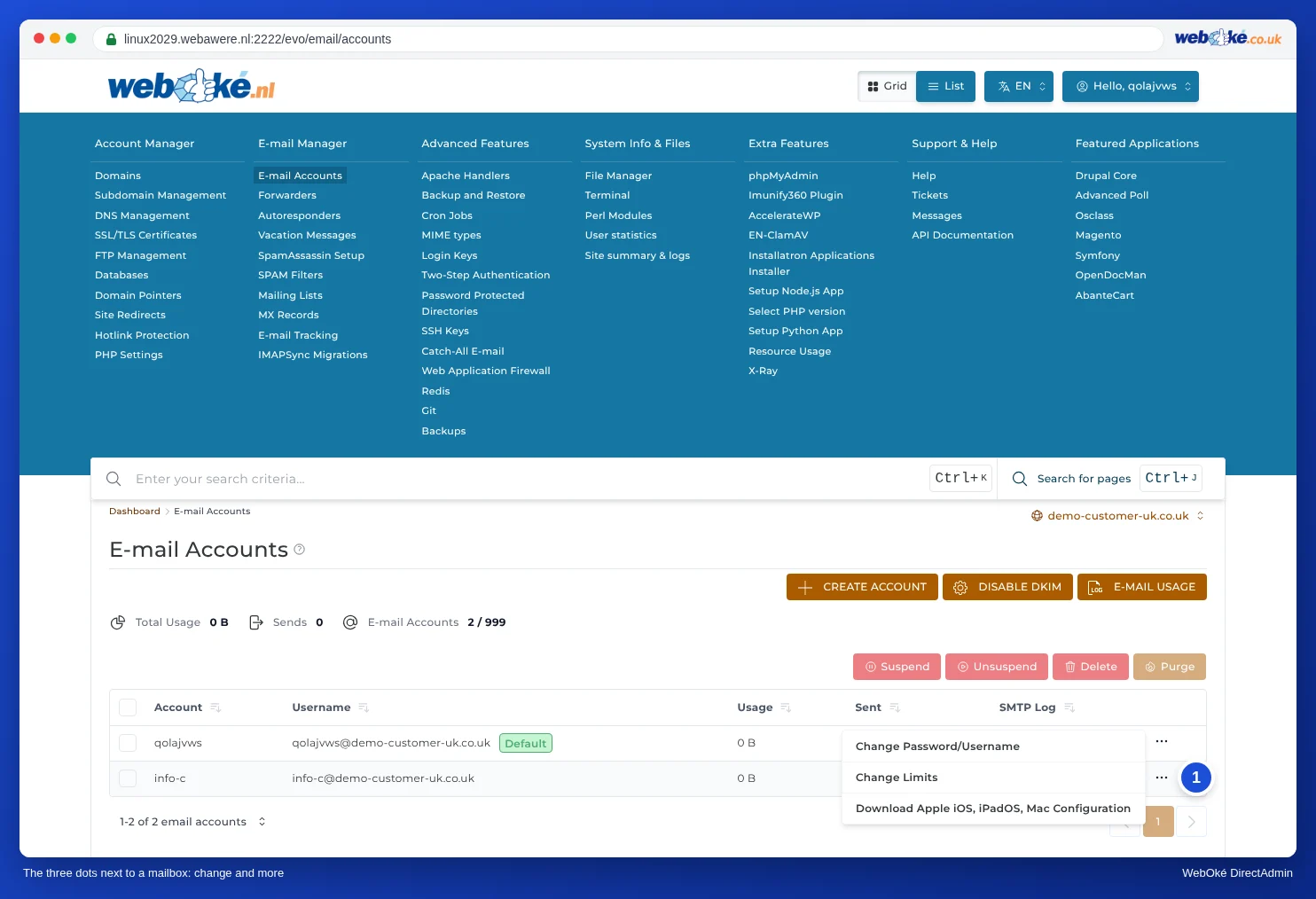
- Click the three dots next to the mailbox.
- Choose Change Password/Username.
- Enter the new password and save it.
Still know the current password and just want to change it? You can also do that in the webmail, under Settings, Password. See Changing the password of your mailbox in the Roundcube guide.
Note: do you use the mailbox in Outlook, Thunderbird, Apple Mail or on your phone? Enter the new password there as well. A device that keeps trying the old password can cause our firewall to block your IP address. You can check this at Am I blocked?
Changing storage or sending limit
- In E-mail Accounts, click the three dots next to the mailbox.
- Choose Change Limits.
- Adjust E-mail Quota (MB) or Daily Send Limit, or tick Max to use your package's value.
- Click Save.
See also in the DirectAdmin guide: Storage per mailbox and what happens when it's full and Sending limits and the 'message limit reached' notification.
Detailed explanation with screenshots: Changing the password of an email address in the DirectAdmin guide.