
Folders and special folders
Module 5: Organising and finding · Reading time: 9 minutes
Learning objective: After this lesson you can explain where your folders really live, which special folders exist and how an email program recognises them, and you can track down a duplicate Sent folder or a wrongly configured spam folder yourself.
Key concepts: folder on the server, special folder, SPECIAL-USE, separator, subfolder, subscribing, archive folder
Your folders live on the server
In module 1 you saw that the webmail talks to the mail server through IMAP. That also applies to folders. A folder you create in the webmail is not created in your browser but on the server. That is why you see the same folder straight away in the email program on your laptop and in the mail app on your phone. If you move a message on your phone to the folder Klanten (Customers), it is in Klanten in the webmail too.
This has three consequences you need to know:
- Deleting a folder is permanent. If you delete a folder, the email in it disappears too, on all devices at once. There is no "Deleted Items for folders".
- All folders count towards your storage. Including folders you hardly ever open, such as Archive or Sent. Lesson 5.4 covers this.
- Renaming affects everything that points to the folder. A filter that moves email to "Facturen" (Invoices) stops working if you rename the folder to "Bills". Lesson 6.2 comes back to this.
Subfolders and the separator
Folders can sit inside each other, for example a folder per customer inside a folder Klanten. On the server, every folder has one full name. The level is shown with a separator: a fixed character between the parts of the name. At WebOké that is a full stop. So the folder Ahmed inside Klanten is called Klanten.Ahmed on the server. A folder inside Inbox is called INBOX.Leveranciers, because on the server Inbox is always called INBOX.
The webmail does not show those full names. You see a tree of indented folders and the friendly name Inbox. Still, it is useful to know the real name. You will come across it in a filter script (module 6), when setting up an email program and in error messages. Other mail servers sometimes use a slash as the separator (Klanten/Ahmed). The idea is the same.
Because the full stop is the separator, you cannot use it in a folder name. If you type "Quotes 2026.1" in the webmail, you get a message that the name contains a character that is not allowed. An email program sometimes turns it into a folder "1" inside "Quotes 2026" without any warning. So choose names without a full stop.
Special folders: Drafts, Sent, Spam, Deleted Items and Archive
Some folders have a fixed job. A draft has to be saved somewhere, and so does a sent message, deleted email and spam. These are the special folders. The tricky part: every email program used to have its own names. Outlook used "Sent Items", Apple Mail "Sent Messages", Thunderbird "Sent". That easily led to three folders for sent email in a single mailbox.
That is why there is a standard: SPECIAL-USE (RFC 6154). The server puts a label on the folder that has a particular job. An email program that knows the standard reads those labels and uses the right folder, whatever it is called. The labels are:
| Label | Job | In the webmail |
|---|---|---|
\Drafts | drafts | Drafts |
\Sent | sent email | Sent |
\Junk | spam | Spam |
\Trash | deleted email | Deleted Items |
\Archive | archive | Archive |
At WebOké these folders are called Drafts, Sent, Junk, Trash and Archive on the server. The webmail shows them under its own names. Pay attention to the spam folder: on the server it is called Junk, the webmail shows it as Spam and an email program as Junk or Junk Email. It is the same folder three times. The spam filter only learns from that folder (lesson 8.2).
Why you sometimes see two Sent folders
An email program that does not read the labels, or is set up wrongly, creates its own folder with its own name. You then see, for example, a folder "Sent Items" inside Inbox next to Sent. The result: what you send from your laptop ends up in one folder, and what you send from the webmail in the other. You can search forever.
Here is how to fix it:
- Find out which folder has the label
\Sent. That is the real one. - In the email program, set that folder as the folder for sent messages.
- Move the messages from the duplicate folder to the real folder.
- Only then delete the empty duplicate folder.
The same can happen with drafts, deleted items and the spam folder. A home-made folder "Spam" inside Inbox is not the spam folder: the spam filter puts nothing in it and does not learn from it either.
Subscribing: show or hide
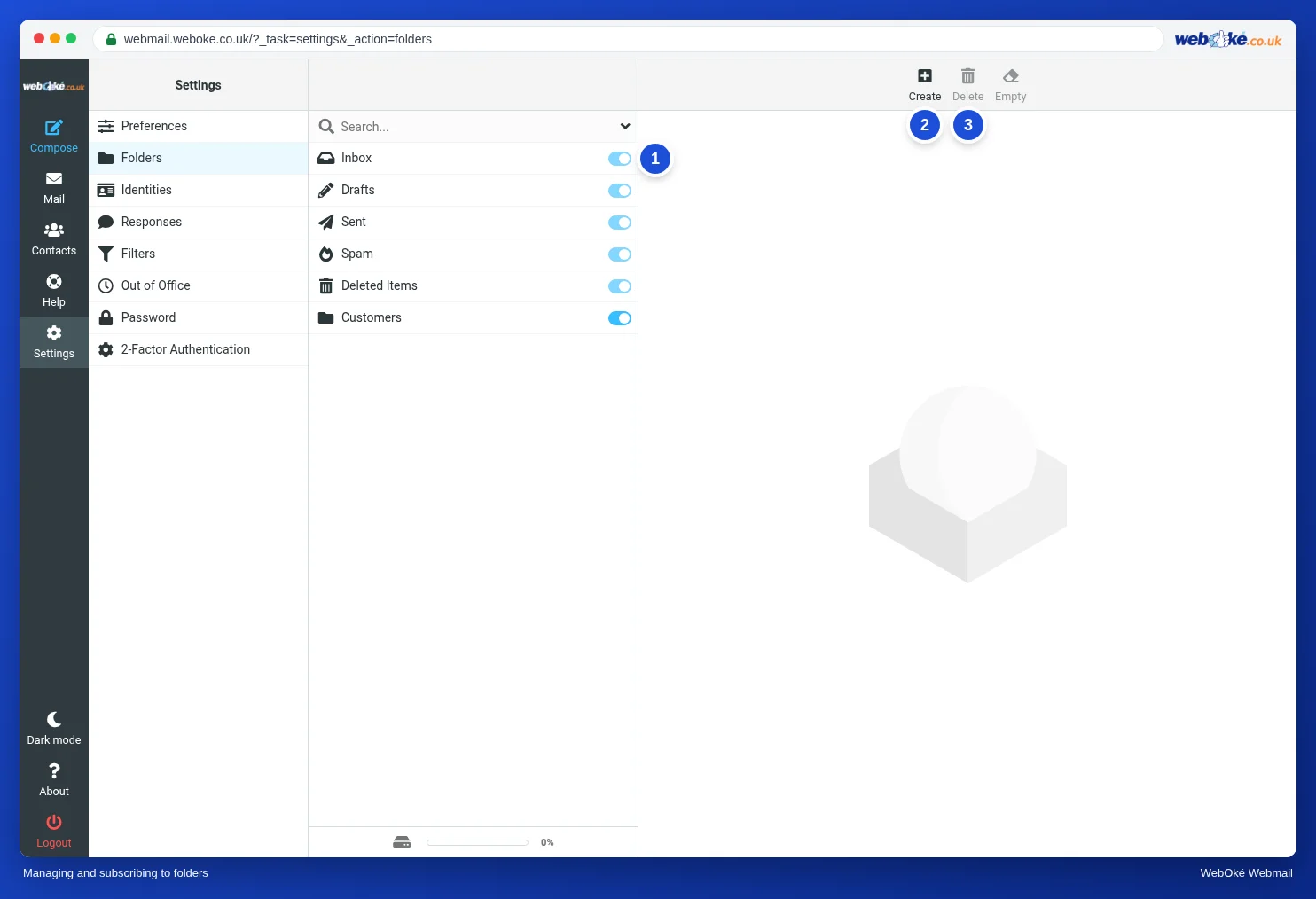
A folder can exist without you seeing it. An email program only shows the folders you are subscribed to. In the webmail, that is the switch next to each folder under Settings > Folders. If you turn it off, the folder disappears from your folder list, but the email in it still exists and counts towards your storage. If a folder is missing, first check whether it is simply hidden.
The archive folder
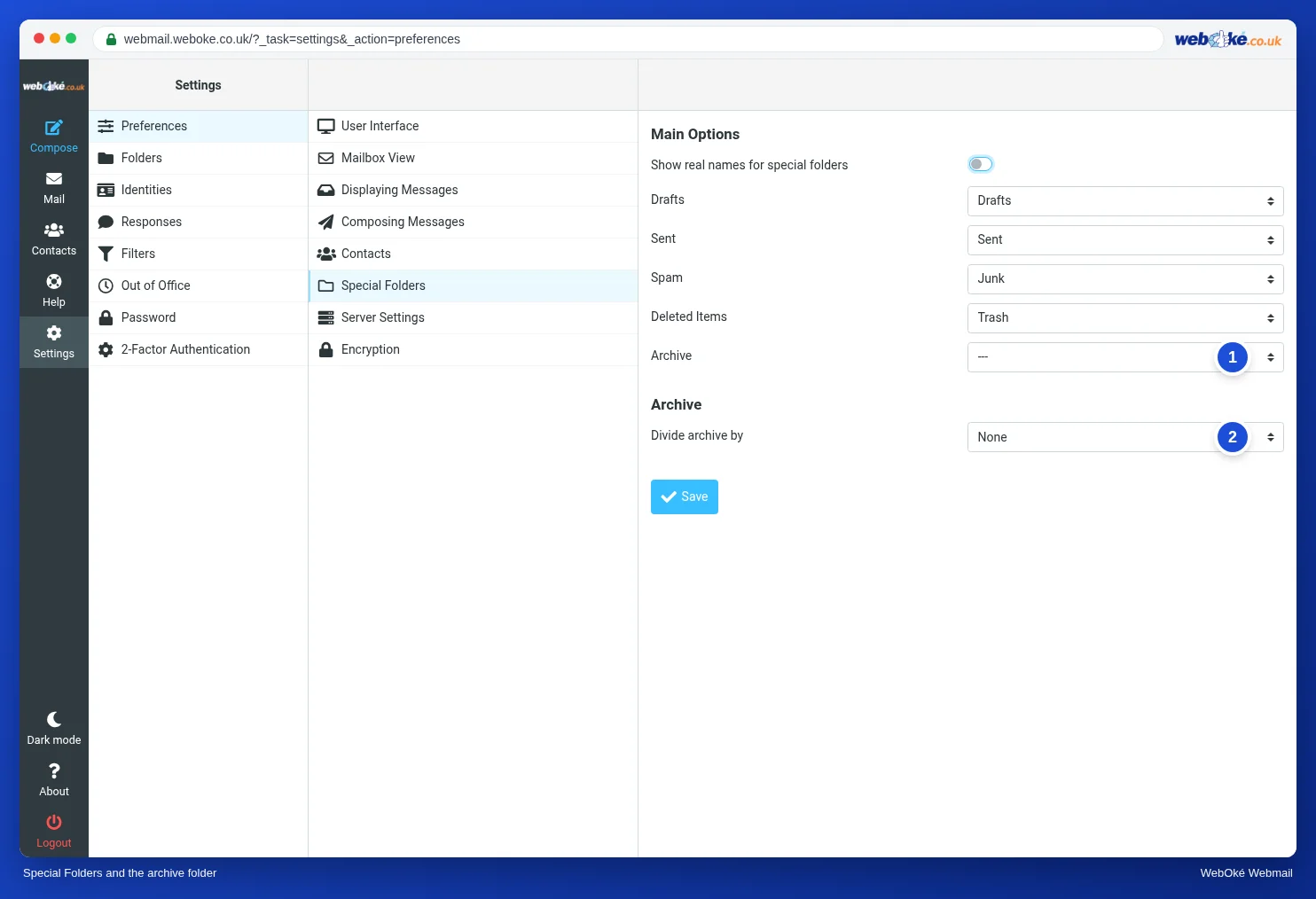
An archive folder is for email that is dealt with but that you want to keep. The difference from an ordinary folder: the webmail gives it its own Archive button. One click and the message is in your archive. Under Divide archive by you choose whether the archive is automatically split into subfolders, for example by year. You then get folders such as Archive.2025 and Archive.2026. That keeps large archives fast, because a folder with tens of thousands of messages loads more slowly.
In practice: how it works in the webmail
You create and manage folders under Settings > Folders; that is also where the subscribe switches are. Which folder the webmail uses for which job is shown under Settings > Preferences > Special Folders. Leave those as they are, unless you know exactly why you are changing something. The steps are in the Roundcube manual (Creating and managing folders, Archiving messages). Other webmail works in a similar way: Gmail uses labels instead of folders, but an email program sees them as folders through IMAP; Outlook.com has folders just like here.
Summary
- Folders live on the server: what you do in the webmail shows up on all your devices, and deleting a folder removes the email in it.
- At WebOké the full stop is the separator:
Klanten.Ahmedis the folder Ahmed inside Klanten,INBOXis Inbox. - You recognise special folders by their label (RFC 6154):
\Drafts,\Sent,\Junk,\Trash,\Archive. On the server the spam folder is called Junk. - Two Sent folders appear when an email program creates its own folder; the folder with
\Sentis the real one. - A hidden folder (not subscribed) still exists and counts towards your storage.
Quiz
Exercise
Exercise A5.1: Reading the server's folder list. Open the material mappen-1.txt. It is the literal output of an IMAP LIST command that an email program uses to request the folders, including the SPECIAL-USE labels. Every line that starts with * LIST is one folder: the attributes in brackets, then the separator in quotation marks, and at the end the full folder name. Fill in four things: the name of the real Sent folder, the name of the spam folder, the separator, and the name of the folder that is redundant because an email program created a duplicate. Type the folder names exactly as they appear in the file, without the surrounding quotation marks. The program compares your answers with the answer key and shows for each answer whether it is correct, with an explanation.
Further reading
Where steps in the webmail are given, they apply to the WebOké webmail; other webmail works in a similar way.
- Roundcube Webmail 6.1: Creating and managing folders
- Roundcube Webmail 6.2: Archiving messages
- Folders in your mailbox: Inbox, Sent, Drafts, Trash, Junk and Archive
- Free course Email in order: setting up and making sure it arrives properly 3.1: Folders and syncing: why you have two "Sent" folders
- RFC 6154, IMAP LIST Extension for Special-Use Mailboxes: https://www.rfc-editor.org/rfc/rfc6154