
Module 4 · 4.3
English
Multiple addresses and mailboxes
Module 4: You as the sender · Reading time: 11 minutes
Learning objective: After this lesson you know the difference between an address and a mailbox, you can choose the best of four ways to work with more addresses for each situation, and you can make good agreements about a shared mailbox.
Key concepts: mailbox, address, alias, forwarder, extra identity, linking another mailbox, switcher, private window, email program, shared mailbox, flags
An address is not the same as a mailbox
Many people use "email address" and "mailbox" as if they mean the same thing. For this lesson the difference matters.
- A mailbox is storage on the server, with its own folders, its own storage limit and its own password. You log in to it.
- An address is just a name that receives mail. Every mailbox has an address, but an address doesn't need its own mailbox. An address without its own storage that passes mail on is called a forwarder (or alias). You can't log in to it.
Example: sanne@example.com is a mailbox. info@example.com can be a second mailbox, with its own password and its own folders. But it can also be a forwarder that sends all mail on to sanne@. For the person sending the email, there is no difference. For Sanne there is: in the first case she has to check two places, in the second case everything arrives in one Inbox.
What you choose depends on one question: does the mail need to stay in its own place, or can it simply arrive with someone? Mail for the accounts that the bookkeeper and later a successor need to read belongs in its own mailbox. Mail for bestellingen@ (orders) that always ends up with Sanne anyway can be a forwarder.
Four ways to work with more addresses
1. Extra identity with a forwarder
If the mail for a second address arrives with you anyway, turn that address into a forwarder to your own mailbox and create an extra identity in the webmail (lesson 4.1). You read everything in one place and choose under From which address you reply from. The server's sender check allows this, because the address forwards to your mailbox.
Good for: one person with several addresses. Not good if the mail for that address needs to be kept separately.
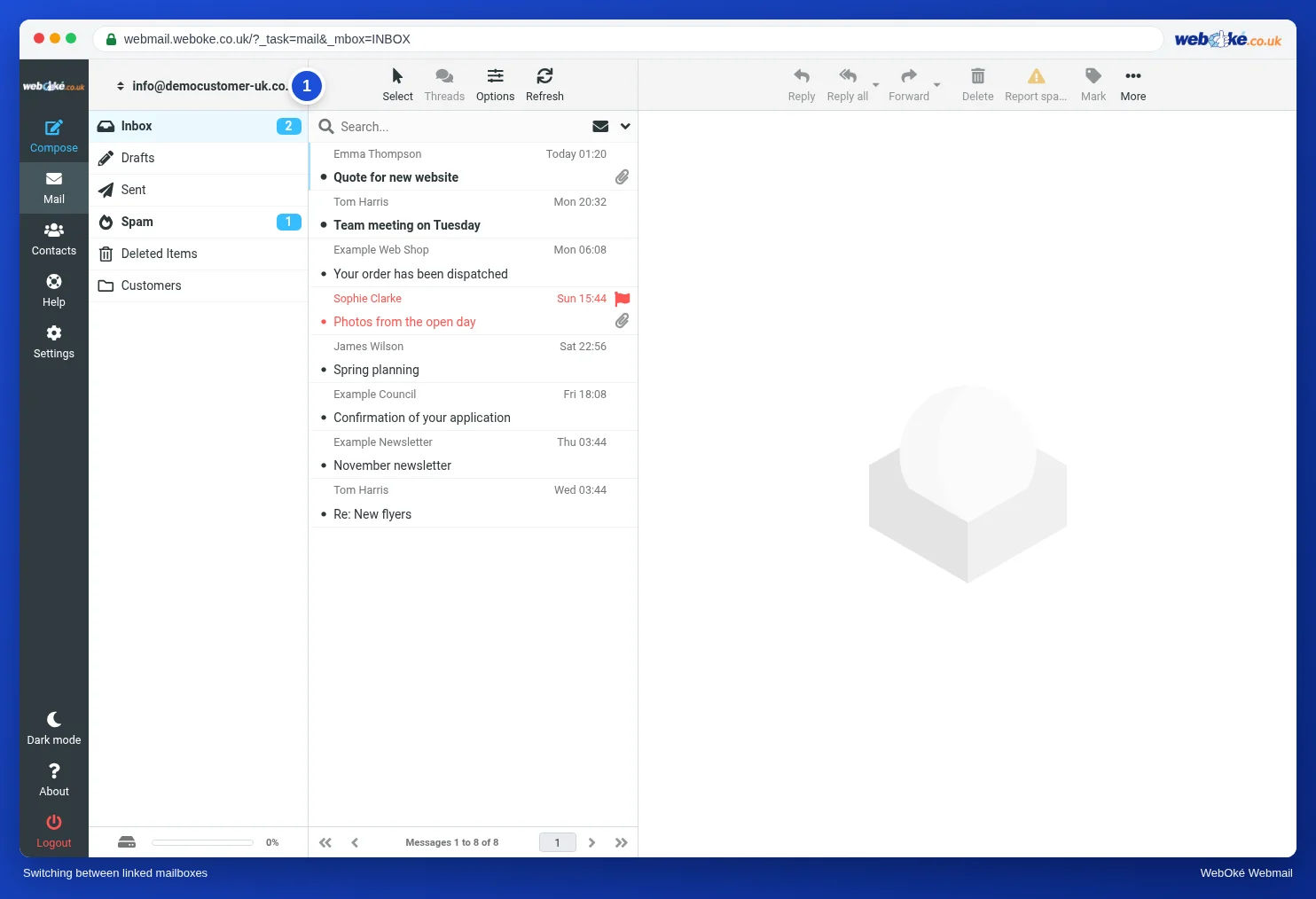
2. Linking another mailbox and switching
If you really have two mailboxes, each with its own password, you can link the second one to an extra identity. To do this, you enter the server name, the address and the password of the second mailbox. After that, a switcher appears above your folders: one click and you're in the other mailbox, with its own folders and mail, without logging in again. Anything you send from there goes out from that mailbox and ends up in its own Sent folder.
Good for: someone who regularly works in two or three mailboxes and doesn't want to keep logging out. Note: if you later change the password of the linked mailbox, update it in the identity as well. In the WebOké webmail you can only link mailboxes hosted at WebOké.
3. Two mailboxes side by side in a private window
Your browser remembers per window who is logged in (lesson 1.3). If you open a private window (called incognito in Chrome and Edge), that window has its own, empty session. You can log in there with a second mailbox while the first stays open in your normal window. Close the private window and that login is gone.
Good for: taking a quick look in another mailbox now and then, without setting anything up. Not practical if you do it every day.
4. An email program with several accounts
An email program such as Thunderbird, Outlook or Apple Mail shows several accounts side by side, with one list of unread mail and notifications for everything. It works via IMAP (lesson 1.2), so you see the same mail as in the webmail. You can also read mail without a connection, for example on the train.
Good for: anyone who works with lots of mailboxes all day. You can easily combine it with the webmail.
A shared mailbox for several people
A common setup: info@example.com is a mailbox of its own, and Sanne and Daan both check it. That works well, as long as you know how IMAP keeps track and you make a few agreements.
What the server shares are flags: read, answered, flagged. If Daan opens a message, it also shows as read for Sanne. If Sanne replies to it from info@, it gets the answered arrow, and Daan sees that too. The Sent folder of info@ shows what has been sent on behalf of info@, by whoever sent it.
That is also where the pitfalls are:
- "Read" doesn't mean "dealt with". Daan opens an email, sees it's meant for Sanne and leaves it. Sanne sees it as read and skips it. Nobody replies.
- Replying twice. Sanne and Daan open the same question at the same time and both reply, with slightly different information.
- Replying from the wrong mailbox. Daan sends a reply from his own mailbox instead of info@. It then doesn't appear in the shared Sent folder, and Sanne doesn't know it has already been handled.
A few agreements that prevent this:
- Whoever picks up an email flags it or moves it to an "In progress" folder. Anyone who sees a flagged email leaves it alone.
- Replies always go out from info@, so they appear in the shared Sent folder. Anyone replying from their own mailbox puts info@ in Cc.
- Once something is dealt with, it goes to Archive. The Inbox only contains what still needs doing (lesson 5.2).
- Each person has their own identity within info@, for example "Daan | Bloemenatelier Example", so the customer knows who is replying.
One last point: if you share the password of info@ with several people, you need to change it when a colleague leaves and pass it on to the others. With a linked mailbox (method 2), you then update it in the identity as well.
In practice: how it works in the webmail
You create an extra identity under Settings > Identities > Create. There you'll also find the section for linking another mailbox, with Enable and the details of the second mailbox. After saving, you switch with the switcher above your folders. You create a forwarder or a new mailbox in your hosting control panel (DirectAdmin at WebOké). You open a private window with Ctrl+Shift+N (Chrome, Edge) or Ctrl+Shift+P (Firefox). The Roundcube manual describes the steps. Other webmail works in a similar way; Gmail and Outlook.com, for example, have their own ways of adding a second account.
Summary
- A mailbox has its own storage and a password; a forwarder is just an address that passes mail on.
- Extra identity with a forwarder: one person, several addresses, everything in one place.
- Linking another mailbox: switch between real mailboxes without logging in again.
- A private window for the occasional look, an email program for anyone working with lots of mailboxes all day.
- In a shared mailbox all users share the flags; agree who picks up what and reply from the shared address.
Quiz
Exercise
Exercise A4.3: Which method fits? Read the four situations and choose the best method for each one: "extra identity with forwarder", "link another mailbox", "private window" or "email program". (1) Sanne also wants to send email as bestellingen@example.com; that address has no mailbox of its own and all mail for it can simply arrive in her own Inbox. (2) Daan has his own mailbox and also manages the mailbox boekhouding@example.com, which has its own password and is with the same provider; he works in the webmail and wants to switch between them with one click several times a day without logging in again. (3) Sanne wants to take a single quick look at an intern's mailbox on her own laptop, alongside her own mailbox, without setting anything up, and afterwards the laptop must not remember anything. (4) Daan works with four mailboxes all day, wants notifications for new mail in all four and wants to read his mail on the train without a connection. You choose for each situation from the drop-down fields; the program compares your answers with the key and explains the reason for each situation.
Further reading
Where steps in the webmail are given, they apply to the WebOké webmail; other webmail works in a similar way.
- Roundcube Webmail 5.3: Sending from a different address
- Roundcube Webmail 5.4: Using multiple mailboxes
- Sending email from multiple aliases, error: Account xxx can not send emails from
- Create a new email address/mailbox
- Forward email to another address (forwarders, catch-all not recommended)
- Free course Email in order: setting up and making sure it arrives properly 3.3: Aliases, forwarding and catch-all: handy, but risky
- IMAP or POP3: what's the difference and which one should you choose?