
Module 2 · 2.2
English
Reading the sender and headers
Module 2: Reading email · Reading time: 10 minutes
Learning objective: After this lesson you can tell a sender's display name from their real address, open a message's headers and read Return-Path, Received, Authentication-Results and List-Unsubscribe. You also know what remote images and read receipts reveal about you.
Key concepts: display name, Reply-To, Headers, Show source, Authentication-Results, alignment, List-Unsubscribe, remote resources, tracking pixel, read receipt
A name is not an address
In the message list you usually don't see an email address, but a name: "Ahmed", "Bloemenatelier Example", "Customer Service". That is the display name. In the From header it comes before the address:
From: Sanne de Vries <sanne@example.com>The sender chooses the display name, and anyone can enter any name. So a scammer can send email as "Sanne de Vries" from a completely different address. In lesson 4.1 you set your own display name; for now, the point is that you don't blindly trust it when others use it.
In the webmail, click Details above an open message. You then see the sender's full address next to the name, plus all recipients. If an email asks you for something, always check the address, especially the part after the @.
Reply-To: where your reply really goes
An email can have a Reply-To header, which the webmail also shows as Reply-To. When you click Reply, your reply goes to that address and not to From. There are good reasons for this. A web shop, for example, sends from noreply@ and puts its customer service address in Reply-To.
But it is also a well-known trick. An email seems to come from the director, with the right address in From, but Reply-To points to the scammer's address. Anyone who replies is talking to the scammer from then on. So with an unexpected request, check in the compose screen which address your reply goes to before you click Send.
Opening the headers
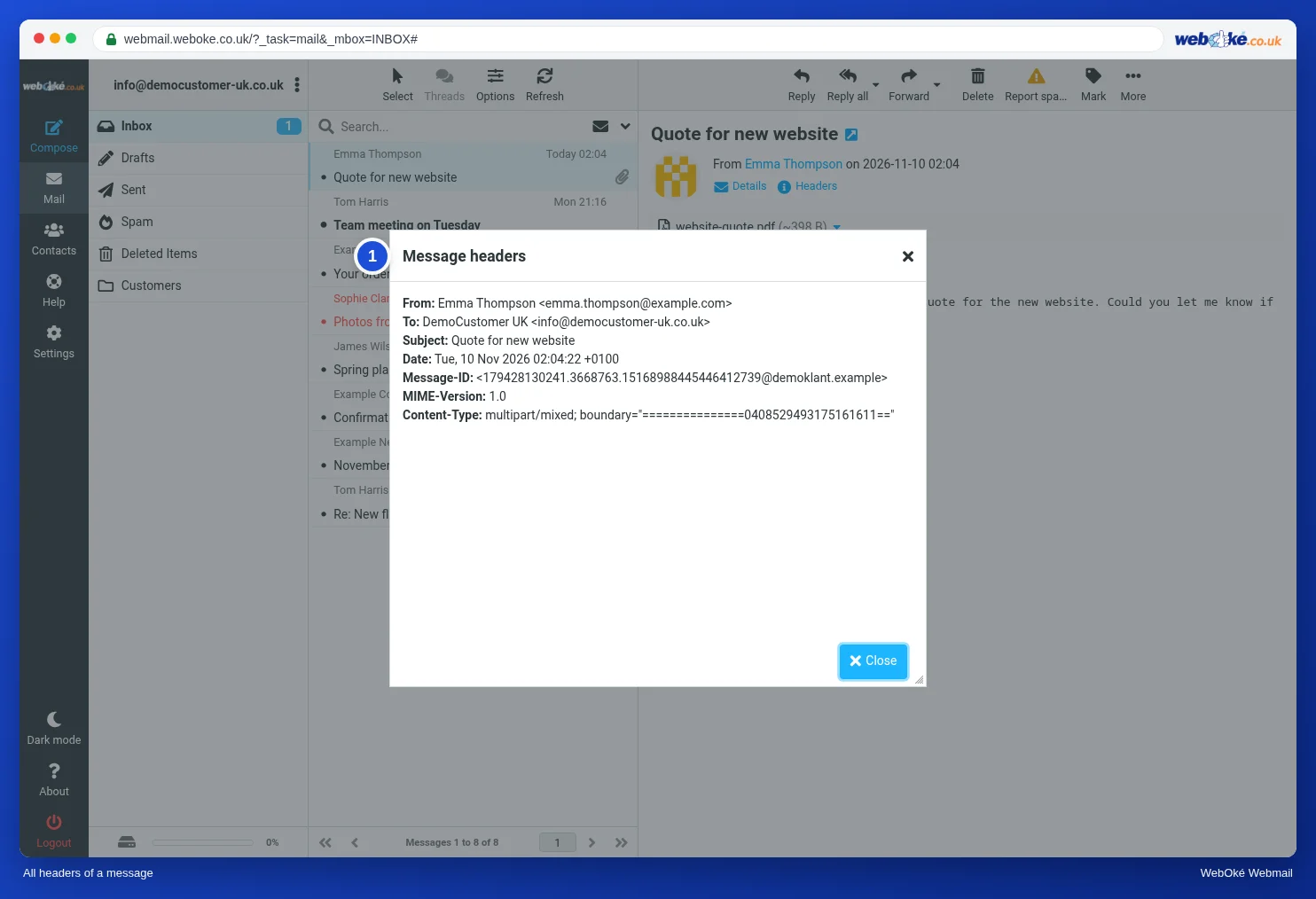
The message view only shows a few headers. You can open the rest in two ways:
- Headers above the message: the webmail opens a window with all the message's headers, as you can see in the image.
- More > Show source: the webmail opens the whole message in a new tab as it is stored on the server, so the headers, a blank line, and then the content and attachments as text.
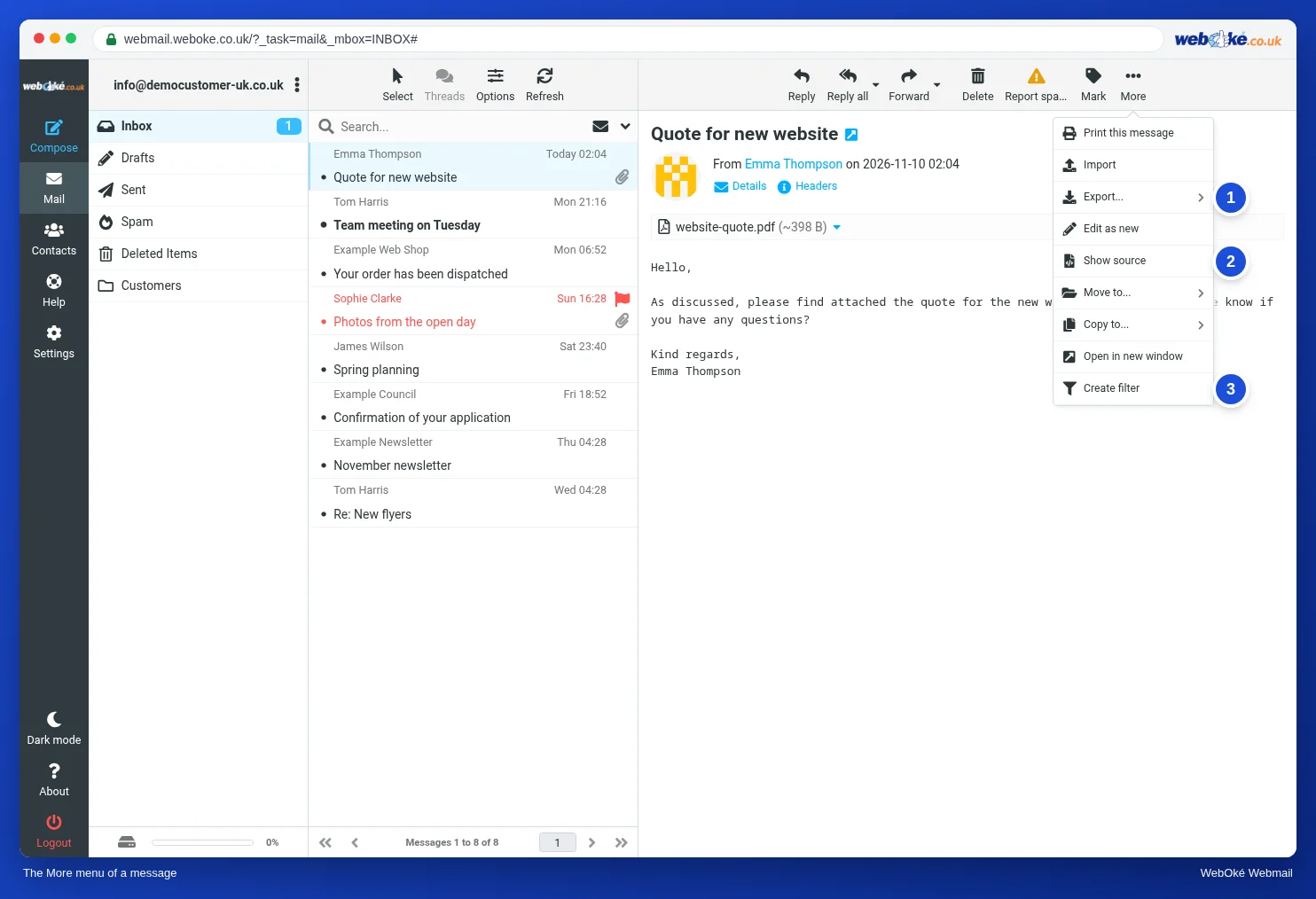
In the More menu you will also find Export.... This downloads the message as an .eml file, for example to give to your provider or a colleague who needs to look at the headers.
At the beginning, the headers look like a mess. You don't need to know them all. Look specifically for four kinds.
Four headers that tell you something
Ahmed receives a newsletter from his wholesaler, "Groothandel Example". Among other things, the headers contain this (shortened):
Return-Path: <bounce-7731@mailer.example.org>
Received: from mailer.example.org (mailer.example.org [198.51.100.40])
        by mx.example.net with ESMTPS
        for <ahmed@example.net>; Mon, 09 Nov 2026 07:02:11 +0100
Authentication-Results: mx.example.net;
        spf=pass smtp.mailfrom=mailer.example.org;
        dkim=pass header.d=example.org;
        dmarc=pass header.from=example.org
From: Groothandel Example <nieuws@example.org>
List-Unsubscribe: <https://www.example.org/afmelden?id=7731>
List-Unsubscribe-Post: List-Unsubscribe=One-Click
Return-Path is the envelope sender address from lesson 1.1. Bounce messages go there. For newsletters this is often a separate address per recipient, so the sender can see which address no longer works.
Received tells you which server passed the email to which server. The top line was added by Ahmed's own server. That is the line you trust most: here you see from which server and which IP address the email really came in.
Authentication-Results is the receiving server's report on the checks from lesson 1.1:
- spf=pass with smtp.mailfrom: the server that delivered the email is allowed to send on behalf of the envelope sender's domain.
- dkim=pass with header.d: the digital signature is valid and was added by that domain.
- dmarc=pass with header.from: the domain in From matches a successful SPF or DKIM check. This is called alignment. Here DKIM was signed by example.org, and From is also example.org. mailer.example.org also counts as aligned, because it falls under the same domain.
Important: only the Authentication-Results from your own receiving server count. A sender can put a fake line with "pass" in their own message. So check which server wrote the line (the first word, here mx.example.net). Not every server adds this line. If you don't see it, you can still check whether there is a DKIM-Signature header and for which domain (d=).
And note: pass only means the email really comes from that domain. A scammer with their own domain, such as example-betaling.example, can easily get a pass for all three. The check tells you who is sending, not whether they can be trusted.
List-Unsubscribe is an unsubscribe address that email programs can use for an unsubscribe button. With List-Unsubscribe-Post added, this works in one click, without first confirming on a website. For a newsletter you signed up for yourself, unsubscribing is the right way. Not for real spam: there you only confirm that your address exists (lesson 8.2).
Remote images and tracking pixels
Many newsletters fetch their images from the internet the moment you open the email. These are remote resources. Such an image can have a unique code in its address, or even be an invisible one-pixel image: a tracking pixel. As soon as you open the email and the image loads, the sender knows that you opened it, when, and from which IP address.
WebOké's webmail does not load remote resources by default. You then see a bar saying they have been blocked, with a button to load them for this one message anyway. Under Settings > Preferences > Displaying Messages, you can set Allow remote resources to never, from my contacts, from trusted senders, or always. Always is not recommended: then any sender, including a spammer, can see that your address exists and is being read.
Read receipts
A sender can ask for a read receipt: a notification when you open the message. The webmail then asks whether you want to send it. You are not obliged to. The receipt also only says the message was on your screen, not that you read or understood it. Under Displaying Messages you choose what the webmail does with such requests; if in doubt, let it ask you every time. Never send one to an unknown sender.
In practice: how it works in the webmail
Above an open message you will find Details, Headers and Plain text. Show source and Export... are under More. You set remote resources under Settings > Preferences > Displaying Messages. The Roundcube manual describes the buttons under Reading a message; the knowledge base also explains how to read headers. Other webmail, such as Gmail or Outlook.com, works in a similar way, although the button for the source has a different name there.
Summary
- The sender chooses the display name; use Details to check the real address and the domain.
- Reply-To decides where your reply goes, and can point to a different domain.
- With Headers or More > Show source you see all headers; read Return-Path, the top Received, Authentication-Results and List-Unsubscribe.
- Only the Authentication-Results from your own server count, and pass tells you who is sending, not whether they can be trusted.
- Remote resources and read receipts tell the sender that you opened the email.
Quiz
Exercise
Exercise A2.2: Analysing a real email. Choose an email you received, for example a newsletter. Open it, choose More > Show source, and copy only the headers: everything up to the first blank line. Paste them into the form and enter the sender's domain (From) and the Return-Path domain. The program analyses the pasted headers in memory (nothing is stored), compares your answers and shows what it found: the Received chain, the DKIM domain and whether the domains are aligned. Green: both answers correct. Orange: one correct. Red: neither.
Further reading
Where steps in the webmail are described, they apply to WebOké's webmail; other webmail works in a similar way.
- Roundcube Webmail 3.1: Reading a message
- Viewing and reading the header lines (headers) of an email
- Free course Email in order: setting up and making sure it arrives properly 1.5: Reading headers: where did this email come from?
- Free course: Staying safe online for business owners 3.3: Reading the sender and headers
- Free course Email in order: setting up and making sure it arrives properly 7.2: Consent, unsubscribing and a clean list
- RFC 5322, Internet Message Format: https://www.rfc-editor.org/rfc/rfc5322
- RFC 2369, List-Unsubscribe and other list headers: https://www.rfc-editor.org/rfc/rfc2369
- RFC 8058, one-click unsubscribe: https://www.rfc-editor.org/rfc/rfc8058