
Module 1 · 1.3
English
Logging in, sessions and logging out safely
Module 1: How your email works · Reading time: 9 minutes
Learning objective: After this lesson you know which details you use to log in to webmail, what a session is and how long it lasts, and how to work and log out safely on your own computer and on a shared one.
Key concepts: username, mailbox password, Server field, session, cookie, Keep me logged in, private window, logging out, IP block
Who are you to the webmail?
To the webmail, you are a mailbox: one email address with its own password and its own storage. That is why you log in with two things:
- your full email address as the username, so sanne@example.com and not just sanne. A mail server holds the mailboxes of many domains. Only with the full address does the server know which mailbox you mean;
- the password of that mailbox.
That second part often goes wrong. Your mailbox password is not the same as the password for your customer account with your provider or for the control panel (at WebOké: My WebOké and DirectAdmin). It is the password that was chosen when the email address was created. If someone else created your address, for example your company's administrator, they may know it, or they can set a new one.

The image shows the login page with the fields Username, Password and Server. The password is case-sensitive. If you can't log in even though you're sure the password is right, first check whether Caps Lock is on.
The Server field: usually empty
WebOké's webmail needs to know which server your mailbox is on. Normally it works this out by itself from your domain. That is why almost everyone leaves the Server field empty.
You only fill it in if your domain doesn't point to WebOké while your mailbox is there, for example while your domain is being moved. In that case you enter the server name of your hosting package. A server from another provider won't work: this webmail is only for mailboxes at WebOké.
A pitfall few people know about: always log in the same way. The webmail stores your settings, identities, signature and address book together with the way you log in. If you log in once with an empty field and another time with a server name, you will see the same email (that is stored on the mail server), but your signature and address book suddenly seem empty. They aren't gone; they belong to the other way of logging in.
Other webmail usually doesn't have this field: there the webmail belongs to a single service, as with Gmail or Outlook.com.
What is a session?
After logging in, you don't want to type your password again with every click. So the webmail creates a session: the server remembers that you are logged in, and your browser gets a cookie containing a long, random code. Your browser sends that code along with every click. That is how the server recognises you.
This has an important consequence: whoever has that cookie is you as far as the webmail is concerned. They don't need your password. That is why it matters so much that a session on someone else's computer is properly ended.
A session ends:
- when you click Logout: the server discards the session, and the cookie is worthless after that;
- when you do nothing for a while and the webmail is no longer open: the server lets the session expire. As long as the tab is open, the webmail keeps the session alive itself by checking for new email now and then;
- when you close the browser, unless you have turned on Keep me logged in.
Keep me logged in and Remember username
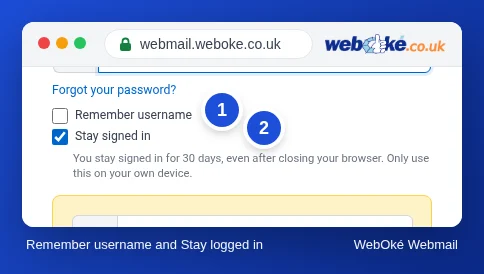
Below the password there are two checkboxes. You can see them in the image, together with the explanation that appears when you turn on Keep me logged in.
- Remember username: next time your email address is already filled in. Handy, and little risk.
- Keep me logged in: you stay logged in for 30 days, even if you close the browser and switch off your computer. The cookie is kept.
Keep me logged in is convenient on your own laptop with a screen lock. On any other device it's a risk: anyone who opens that browser afterwards is in your mailbox. They can read your email, send email in your name, and use "forgot password" on other services to have new passwords emailed to you. Your mailbox is the key to many of your other accounts.
On a shared computer
If you're working on someone else's computer, in a library or on a client's PC, follow these steps:
- Open a private window (Incognito in Chrome, a Private Window in Firefox, a Private Window in Safari). A private window starts without cookies and throws them away when you close all private windows. It doesn't protect you against spyware on that computer, but it does protect you against forgotten cookies.
- Untick both checkboxes.
- Don't let the browser save your password. When asked "Save password?", choose Never or Not now.
- Click Logout when you're done, and then close the private window.
After logging out, the browser's Back button can sometimes still show an old page. That comes from the browser's memory, not from the server. If you click anything, you end up on the login page, because the session no longer exists.
Saving your password in the browser?
On your own device, with a screen lock, a password saved in a password manager (including your browser's) is fine. It even helps against phishing: a password manager only fills in the password on the real webmail address, not on a fake site (lesson 2.4). On a shared device or a computer without your own user account, never save anything.
Too many wrong passwords
Mail servers are attacked all day long by programs that guess passwords. That is why the server's firewall blocks an IP address that tries a wrong password too often. This protects your mailbox, but it can also hit you.
The classic example: Daan changes his email password but forgets about it on his old tablet in the drawer. That tablet tries to log in with the old password every few minutes. After a while the firewall blocks the office's IP address. Then the webmail stops working for everyone in the office, and often the website too, while it still works over 4G on a phone. That last point is the clue: the problem lies with the address of your connection, not with your mailbox.
The solution always has two parts: set the correct password on all devices, and then have the block lifted.
In practice: how it works in the webmail
You open WebOké's webmail at webmail.weboke.nl. You log out with the Logout button at the bottom left of the menu. The steps are in the Roundcube manual under Logging in to webmail, The Server field and Staying logged in and logging out. If you can't log in, see Login doesn't work. With two-step verification (lesson 8.1), the webmail asks for a code after your password. Other webmail, such as Gmail or Outlook.com, works in a similar way: there too the checkbox is called something like Stay signed in, and the same rules apply on a shared computer.
Summary
- You log in with your full email address and the mailbox password, not with your customer or control panel password.
- Leave the Server field empty unless your domain is hosted elsewhere, and always log in the same way.
- A session is a cookie the server uses to recognise you; whoever has the cookie is you as far as the webmail is concerned.
- Use Keep me logged in (30 days) only on your own device; on a shared computer: private window, checkboxes off, log out.
- A device with an old password can get your IP address blocked.
Quiz
Exercise
Exercise D1.3: Practise logging in and out. Open a private window in your browser and log in to the webmail. Look at which checkboxes appear below the password and what appears when you turn on Keep me logged in (turn it off again before you log in). Log in, open a message, and click Logout. Then press your browser's Back button and click something on the page you see. Then answer these questions: What happened when you pressed Back after logging out and then clicked, and why? On which of the devices you use would you turn on Keep me logged in, and on which not? Do you have a device somewhere that may still have an old email password on it?
Exercise D1.3: Practise logging in and out
You do this exercise yourself; no one checks it. Tick off what you've done and mark the exercise as done.
Remembering your username and staying logged in are handy on your own device with a screen lock, never on a shared computer. After logging out, Back takes you to the login page or an expired page: the session has ended. A private window forgets everything as soon as you close it.
Your ticks and notes only stay in this browser; we don't send them anywhere. If you're signed in, we only save in My courses that you've done the exercise.
Further reading
Where steps in the webmail are described, they apply to WebOké's webmail; other webmail works in a similar way.
- Roundcube Webmail 1.2: Logging in to webmail
- Roundcube Webmail 1.3: The Server field: when do you fill it in?
- Roundcube Webmail 1.4: Staying signed in and logging out
- Roundcube Webmail 13.1: Can't log in
- Going to webmail and what to do if you can't log in
- Change the password or limits of an email address
- Password managers and passkeys: how to keep your logins secure
- Free course: Staying safe online for business owners 5.2: Using your laptop and phone safely