
Chapter 6 · 6.2
Archiving messages
Want to keep your Inbox empty without throwing mail away? Use an archive folder. With one click, you move a message you've finished with to the archive.
Setting up the archive folder
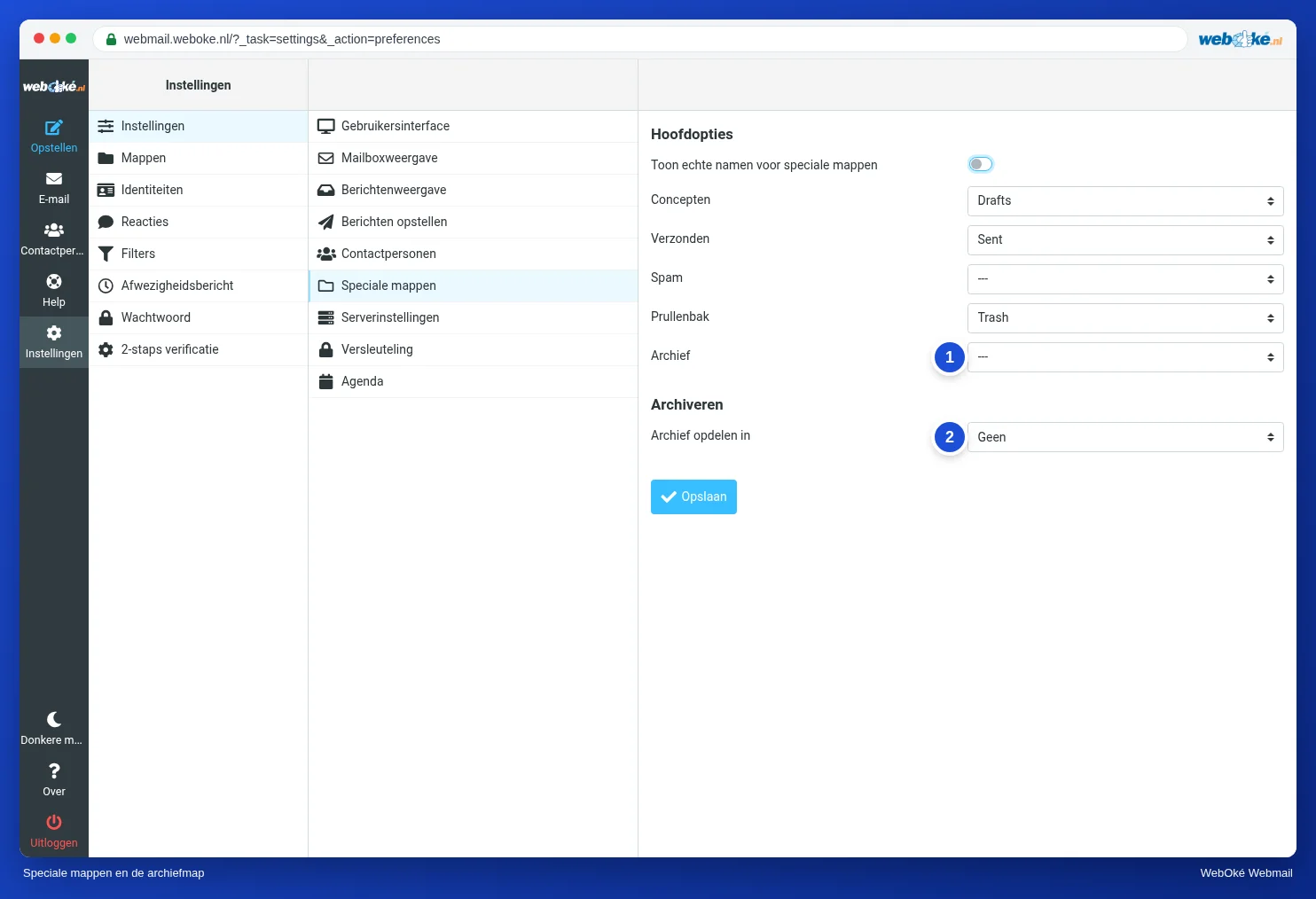
- First create a folder, for example Archive. See Creating and managing folders.
- Go to Settings, Preferences, Special Folders.
- At Archive (1), choose your archive folder.
- If you like, choose at Divide archive by (2) how the archive is organised, for example by year or by month. With None, everything goes into one folder.
- Click Save.
Archiving a message
Once you've chosen an archive folder, an Archive button appears among the other buttons when you open a message. Click it and the message goes to your archive. If you select several messages first, you archive them all at once.
Special Folders
On the same page, you can see which folder the webmail uses for Drafts, Sent, Spam and Deleted Items. Leave them as they are, unless you know why you want to change them. If you also use a mail program, choose the same folders there. Otherwise you may end up with two Sent folders, for example. See Folders and synchronisation: why you have "Sent" twice.
Please note: an archive folder is also stored on the server and counts towards your mailbox storage. If you really want to free up space, read Your mailbox is full.