
Chapter 4 · 4.3
Sending attachments
Here's how to send a file with your message.

- Click Attach at the top, or Attach a file (2) on the right.
- Choose the file on your computer. You can also select several files at once.
- The attachment appears in the box on the right (1). Click the bin icon next to it to remove it again.
You can also drag a file from your computer into the box on the right.
How large can an attachment be?
A message can be up to 50 MB, and this applies to all WebOké mail servers. Attachments grow by about a third when you send them, because they are converted to text. That's why one message can hold about 36 MB of attachments. You'll also see this in the box: Maximum allowed file size is 36 MB.
Many recipients accept smaller messages. For large files, it's better to share a download link, for example from your Nextcloud. See also 552 Mailbox full of message too big.
A reminder if you forget the attachment
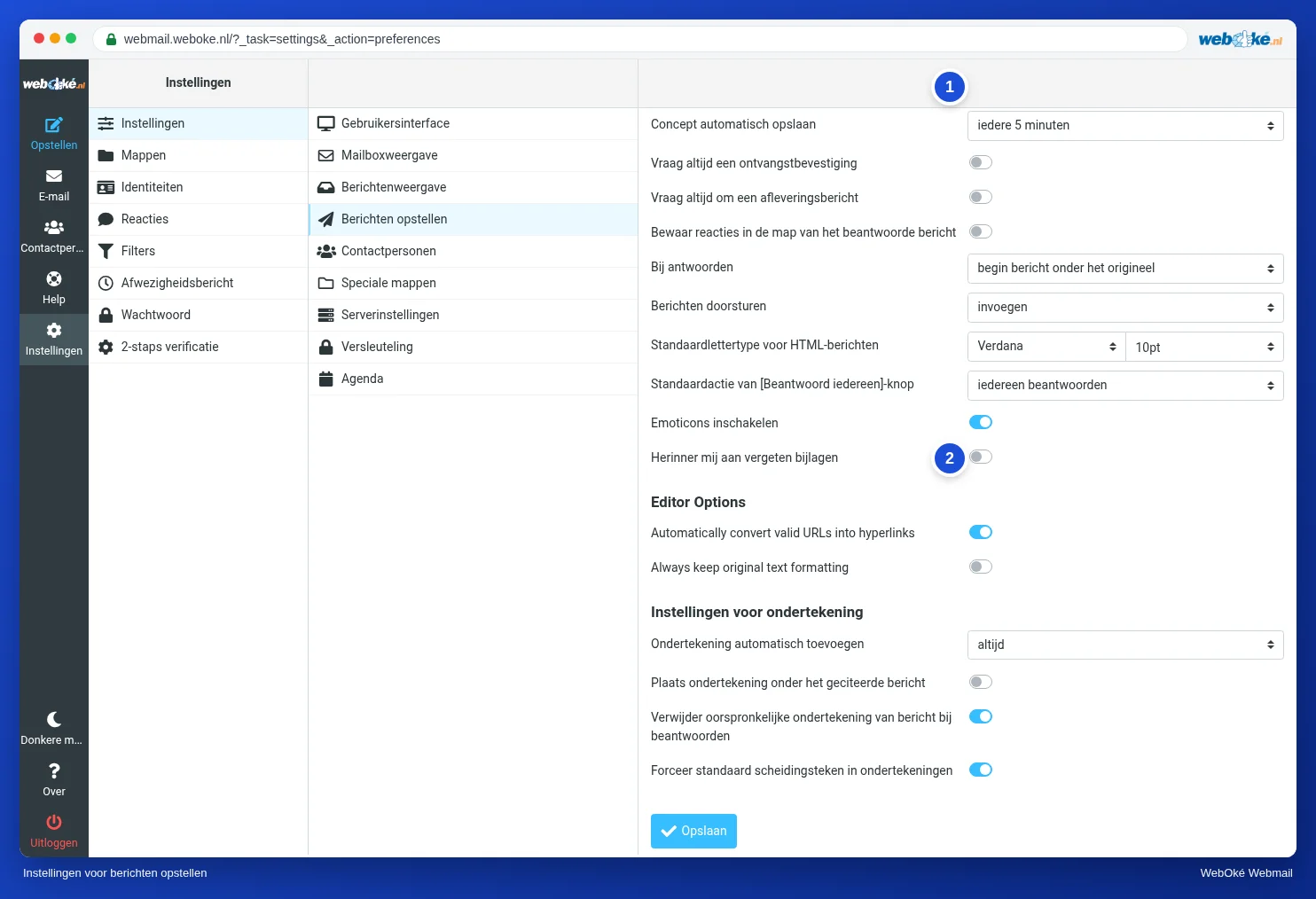
Did you write that something is attached, but forget to add it? The webmail can warn you before you send. This reminder is off by default. Here's how to turn it on:
- Go to Settings, Preferences, Composing Messages.
- Turn on Remind about forgotten attachments (1).
- Click Save.
Sending your business card
With Attach vCard you send a contact from your address book as a business card. The recipient can add it to their own address book in one go.