
Chapter 2 · 2.1
The screen at a glance
After logging in, you'll see your Inbox. The screen has a few fixed parts. Once you know them, you'll find everything quickly.
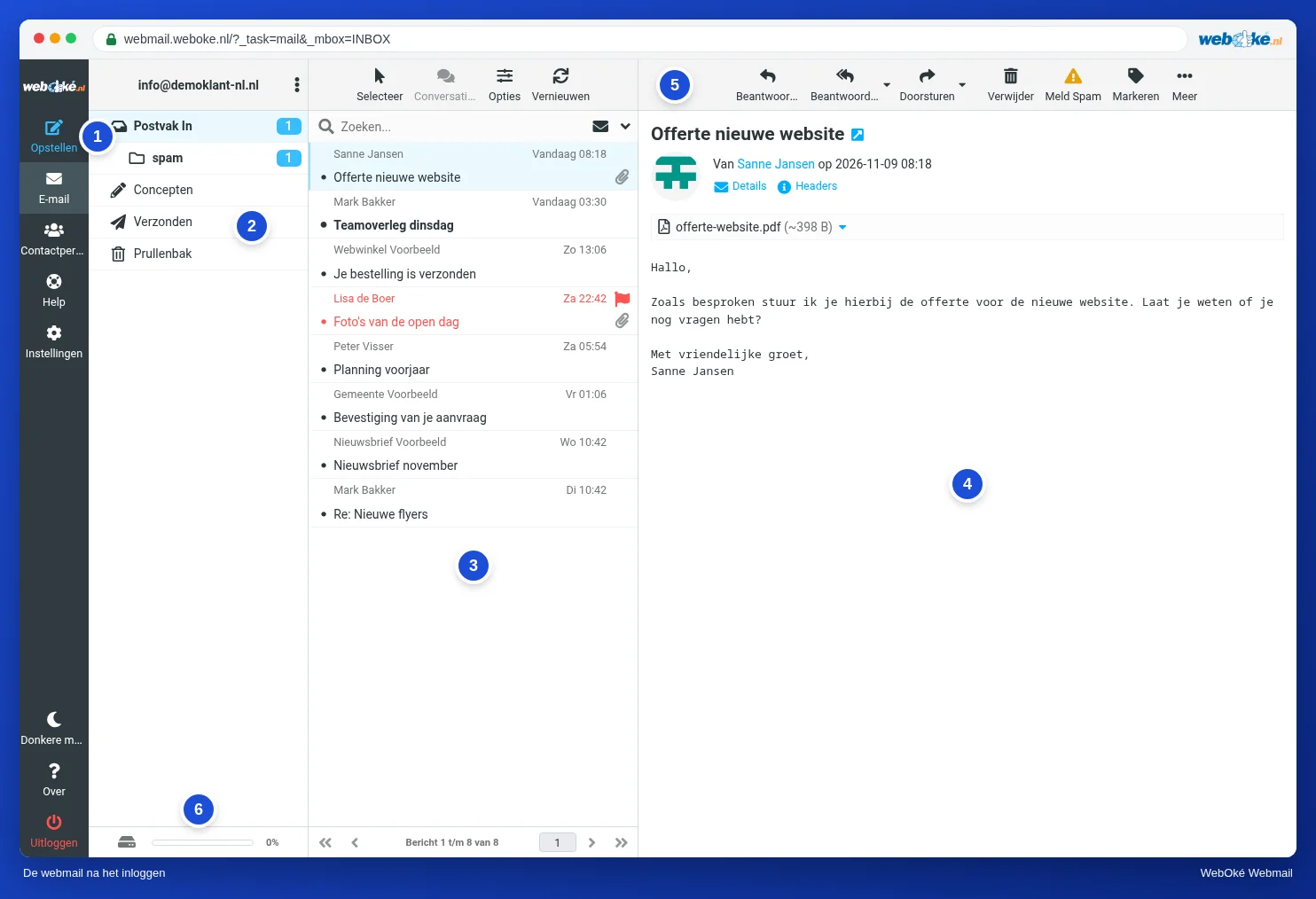
| Part | What do you use it for? |
|---|---|
| (1) The menu | On the far left. Compose for a new message, Mail, Contacts (your address book), Help and Settings. At the bottom you'll find Dark mode, About and Logout. |
| (2) The folders | Inbox, Drafts, Sent, Trash and your own folders. The number after a folder is the number of unread messages. |
| (3) The message list | The messages in the selected folder. At the top you'll find Select, Threads, Options and Refresh, plus the search box. |
| (4) The message | Click a message in the list and you'll see it here. |
| (5) The buttons | Reply, Reply all, Forward, Delete, Report spam, Mark and More. |
| (6) Storage | The bar at the bottom left shows how full your mailbox is. See Your mailbox is full. |
Work faster with the right mouse button
Right-click a message or a folder. You'll get a menu with the most common actions, such as replying, marking, moving and deleting.
Dragging
Drag a message to a folder in the folder list to move it. Hold down Ctrl (on a Mac Cmd) to select several messages at once.
On a smaller screen
If your window is narrow, some parts disappear behind a button. On your phone, you'll only see the list at first. See Webmail on your phone or tablet.