
Chapter 3 · 3.9
Creating a template for your letterhead
A template is a starting document, for example your letterhead with your logo, address and the right fonts. That way every new letter starts off correctly. Word uses dotx, LibreOffice uses ott.
In LibreOffice Writer
Creating the template
- Create a document with your logo and details in the header and footer (Adding headers, footers and page numbers) and set up the styles (Use styles instead of manual formatting).
- Choose File > Templates > Save as Template.... Give it a name, choose a category (for example My Templates) and click Save.
Creating a new letter
- Choose File > Templates > Manage Templates (Ctrl + Shift + N).
- Double-click your template. You get a new, untitled document. The template itself stays unchanged.
Set as Default: in Manage Templates, right-click your template and choose Set as Default. Every new text document will then start with your letterhead.
Do you also work with Word or Euro-Office? Then use File > Save As... to save the template as a Word template (dotx). You can use that file in all three.
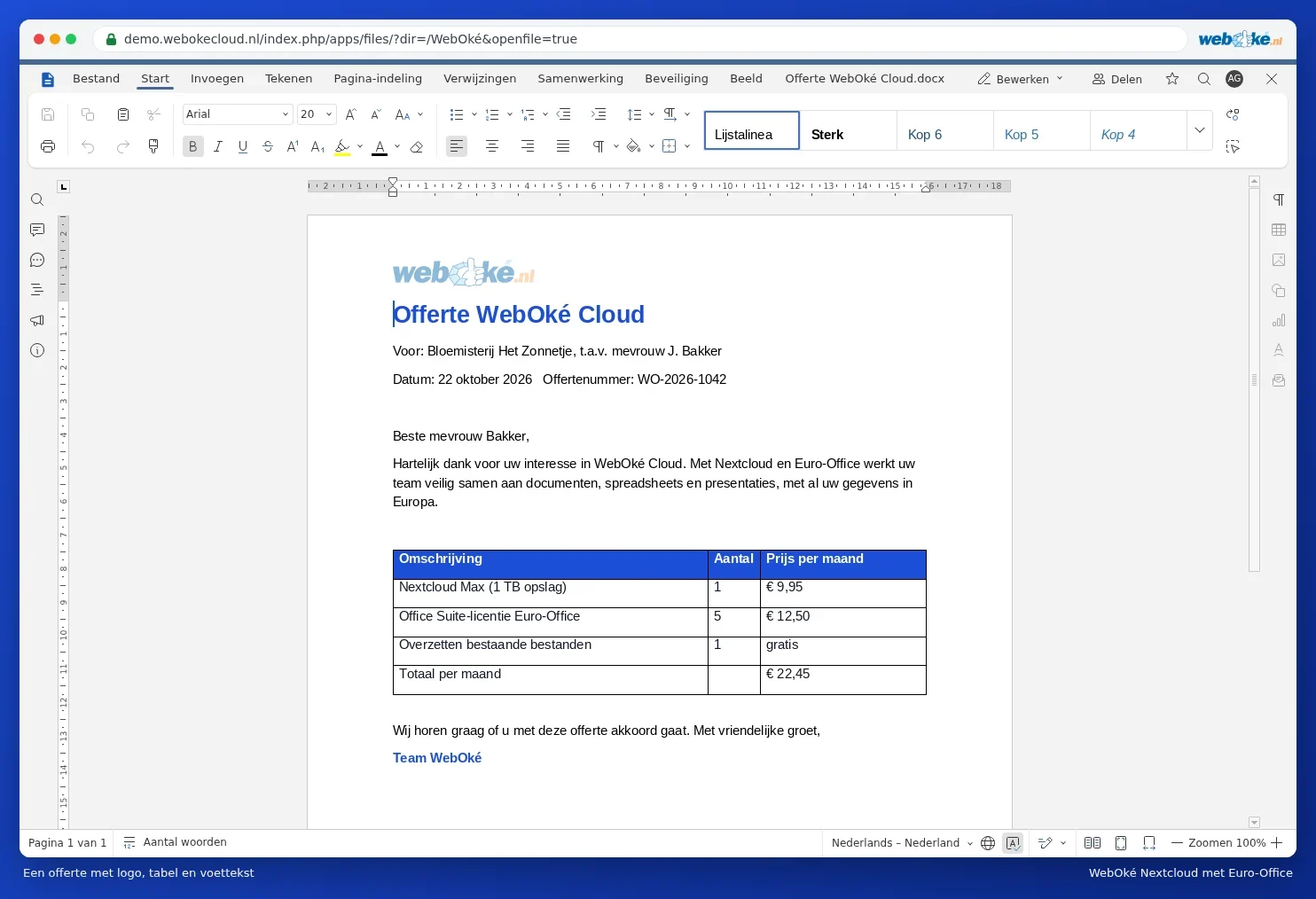
In Euro-Office
Create one document with your letterhead and put it in a folder called Templates in your Nextcloud. For a new letter, open the template and choose File > Save Copy As, with a new name. Then open the copy and fill it in. See Creating a letter or quotation.
Tip: give most colleagues read-only access to the Templates folder in your Nextcloud. That way nobody changes the original by accident. You can read how to set permissions in Sharing a document with a colleague.