
Chapter 3 · 3.8
Comparing two versions of a document
Has someone sent back an edited version without tracked changes? With compare, you can still see exactly what has changed. In Word, this is Review, Compare.
In LibreOffice Writer
- Open the newest version, which is the document you got back.
- Choose File > Compare Document....
- Select your older, original version and click the button to open it.
- LibreOffice marks the differences as tracked changes in the document and opens the Manage Changes window. Text that was added is shown as inserted; text that was removed is shown as deleted.
- Choose Accept or Reject for each change, or Accept All in one go.
- Save the result with File > Save As... under a new name.
Please note: always start with the newest version and compare it with the older one. If you do it the other way round, everything that was added will show up as deleted.
In Euro-Office
- Open your own (older) version.
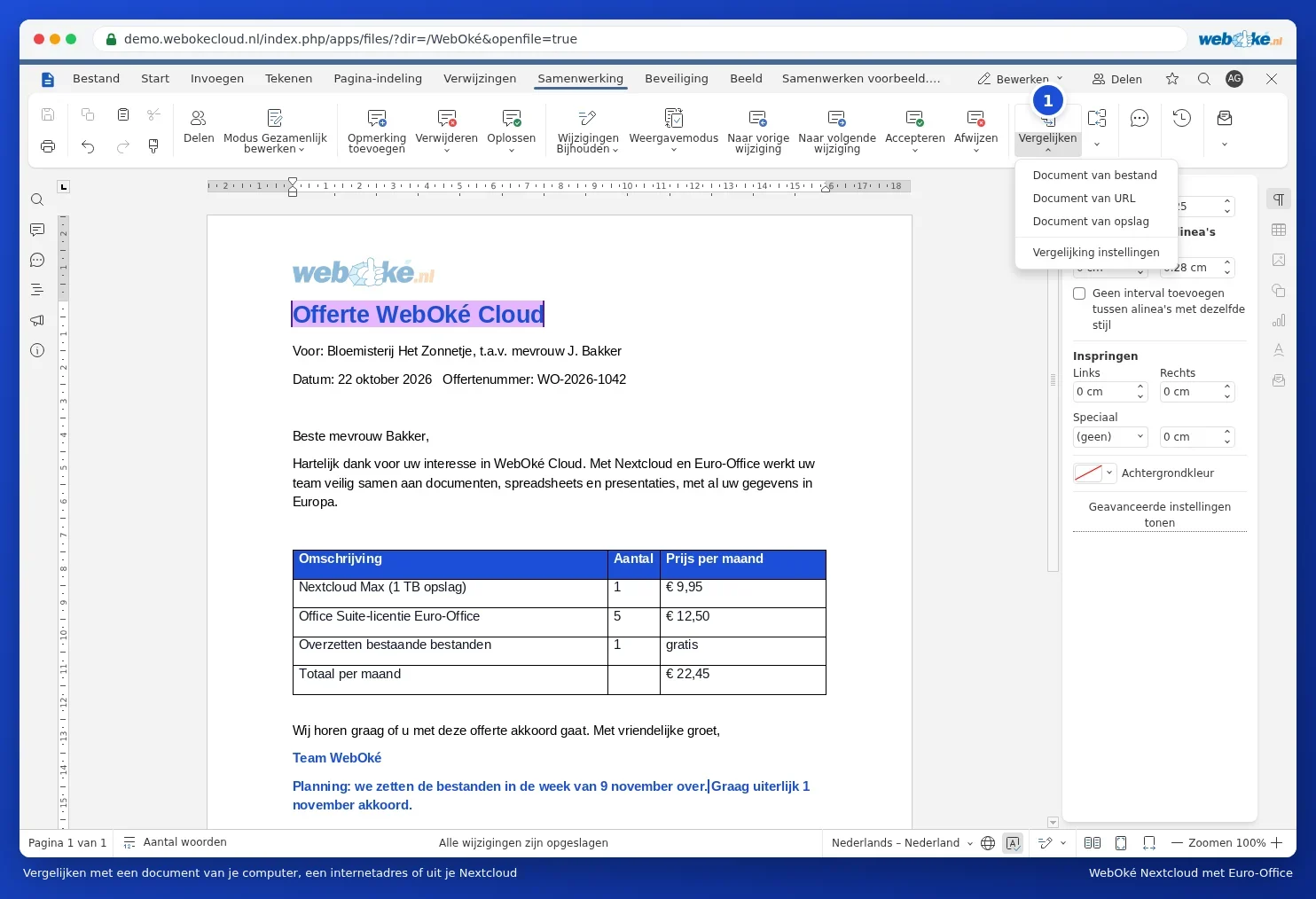
- Go to the Collaboration tab and click Compare. Choose Document from storage to select the other version from your Nextcloud.
- The differences appear as tracked changes. Choose Accept or Reject for each change.
Read more in Comparing documents and Seeing what changed between two versions of a contract.
Tip: if you work together in your Nextcloud, you often don't need to compare at all. Every saved version is kept, and you can restore an older one. See Version history: restoring an older version.