
Chapter 5 · 5.2
Your logo on every slide with the slide master
Do you want your logo, your brand colour and a footer on every slide? Put them in the slide master. Anything you place there appears on every slide that uses that master. PowerPoint calls it the Slide Master as well.
In LibreOffice Impress
- Choose View > Master Slide. On the left, you now see the master slides instead of your slides.
- Click the master that your slides use.
- Insert your logo with Insert > Image... and move it into place. You can also change the background and the formatting of the title and text here.
- Click Close Master View (on the toolbar), or choose View > Normal.
Slide number, date or footer on every slide: choose Insert > Header and Footer..., tick what you want and click Apply to All.
To choose a different master slide, for example from a template: Slide > Change Slide Master....
Please note: is the logo missing from one slide? Then that slide uses a different master slide. Right-click the slide in the slide pane and choose the right master, or choose Slide > Change Slide Master....
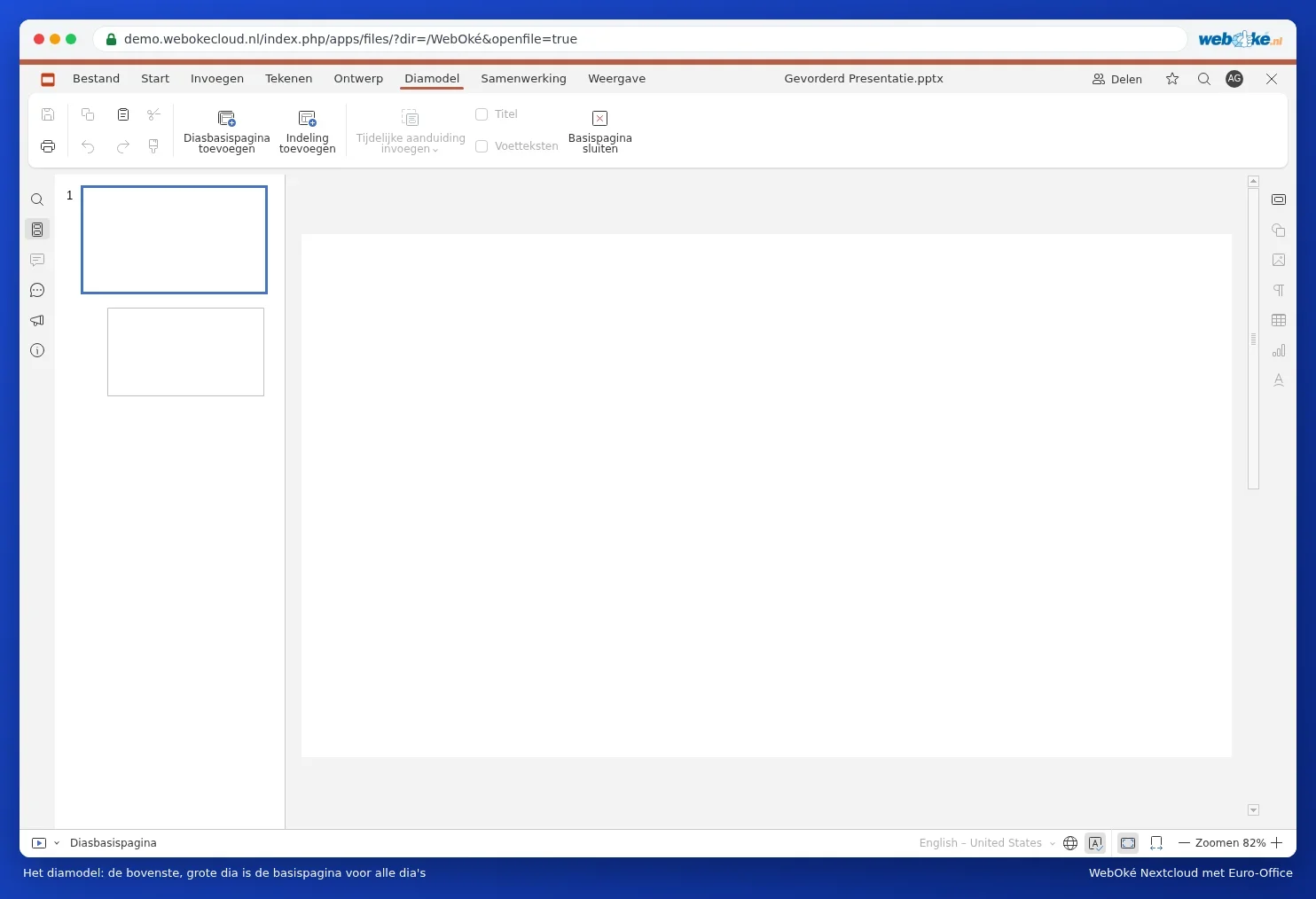
In Euro-Office
- Go to the View tab and click Slide Master.
- On the left, click the top, largest slide: the master. Insert your logo via Insert, Picture.
- Click Close Master.
Read more in Putting the logo on all slides at once and Layouts and themes.