
Chapter 3 · 3.10
Setting the spell check and language to English
Is almost every word in a document underlined in red? Then the text language is usually set wrong, for example to German. This often happens with documents you receive from someone else.
In LibreOffice
- Language of the whole text: choose Tools > Language > For All Text and select English (UK) or English (USA).
- Language of part of the text, for example a French sentence: select the text and choose Tools > Language > For Selection.
- The status bar at the bottom shows the language at your cursor. Click it to change it quickly.
- Default language for new documents: Tools > Options... > Languages and Locales > General, under Western.
- Check spelling: Tools > Spelling... (F7). To turn the red wavy lines on or off while you type, use Tools > Automatic Spell Checking.
If English has no spell check icon in the language list, the dictionary is missing. Choose Tools > Language > More Dictionaries Online... and install the English dictionary.
In Euro-Office
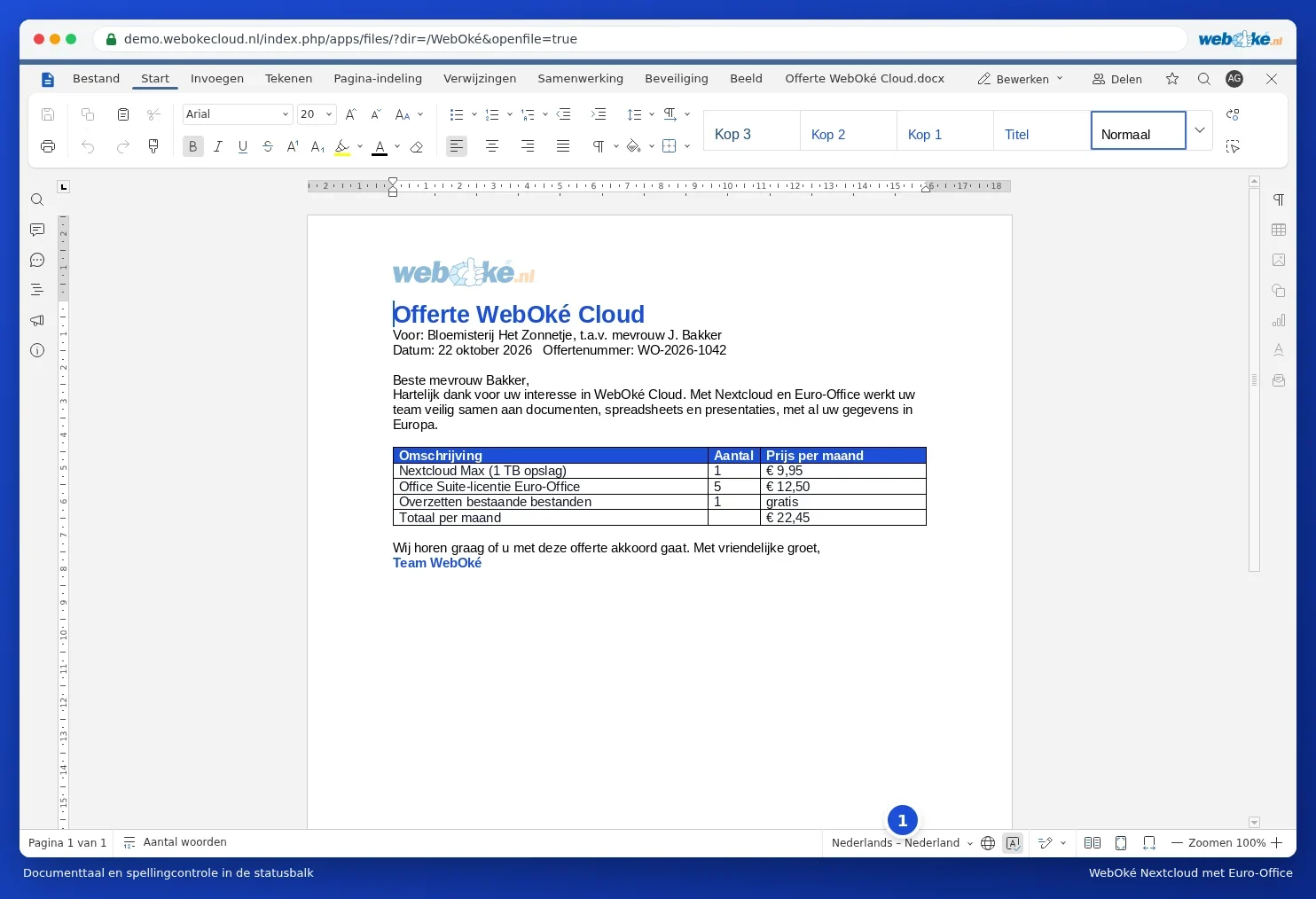
The status bar at the bottom right shows the text language. Click the globe icon (Set document language) and choose English for the whole document. Use the Spell checking button next to it to turn the check on or off.
Read more in Language, spell checking and dictionary.