
Chapter 3 · 3.3
Adding headers, footers and page numbers
A header or footer is where you put your logo, your company details or the page number. It appears on every page.
In LibreOffice Writer
Quickly add a page number
- Choose Insert > Page Number.... The Page Number Wizard opens.
- Under Position, choose Bottom of page (Footer) or Top of page (Header). Under Alignment, choose left, centred or right.
- Want "page 2 of 5"? Then tick Include page total.
- Click OK. LibreOffice creates the footer if needed.
Create your own header or footer
- Choose Insert > Header and Footer > Header (or Footer) and choose the page style of your pages, usually Default. You can also click at the top or bottom of a page and then click the plus button that appears.
- Type your text or insert an image.
- For a page number at a fixed spot in your text, use Insert > Field > Page Number.
No header on the first page: choose Format > Page Style..., go to the Header (or Footer) tab and untick Same content on first page. You can now leave the header on the first page empty. Untick Same content on left and right pages to create separate headers for even and odd pages.
Please note: in LibreOffice, a header or footer belongs to a page style, not to a section as in Word. If you use several page styles in a document, for example for a landscape page (Make one page landscape in a portrait document, like in Word), you switch on the footer for each style.
In Euro-Office
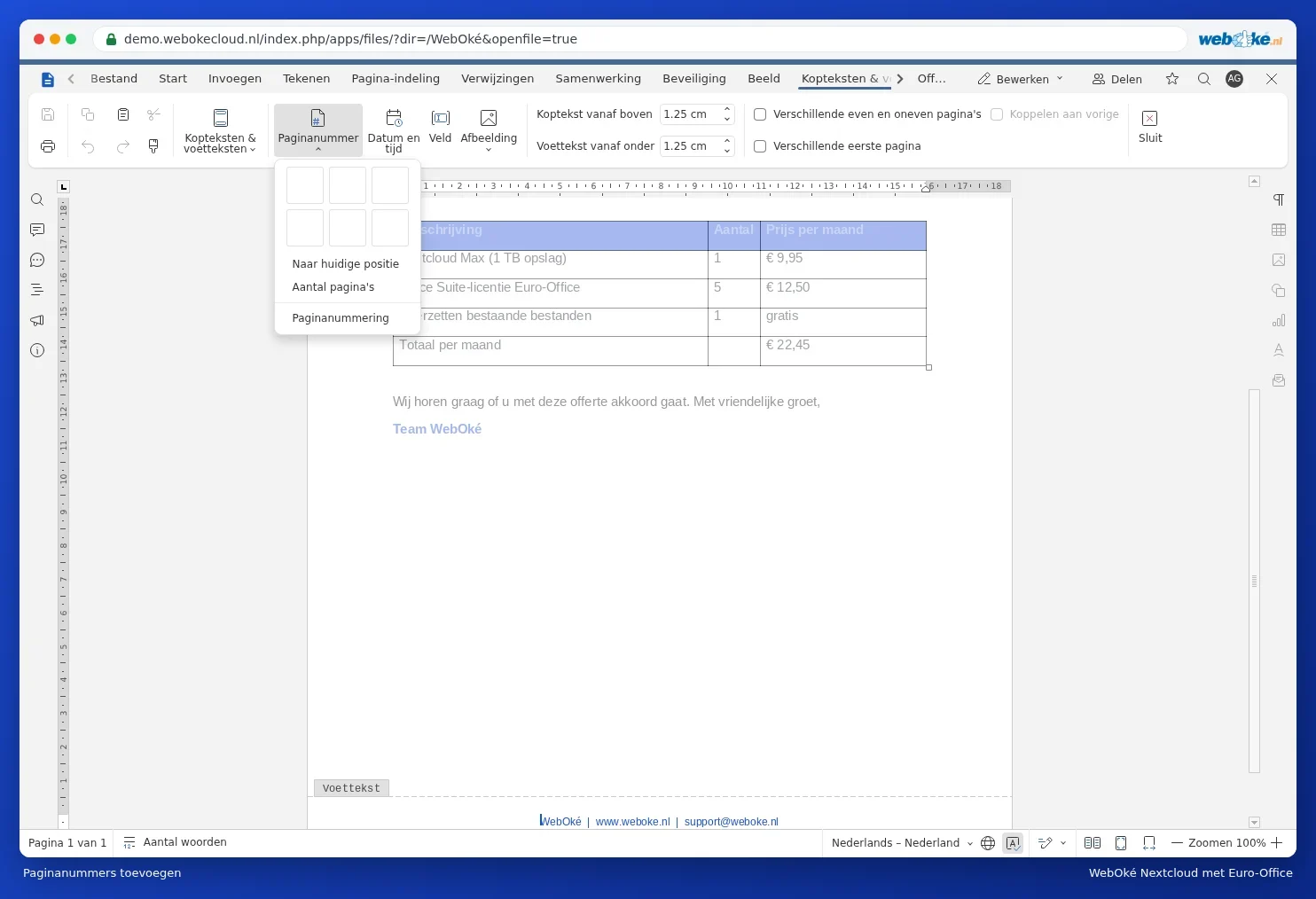
- Go to the Insert tab and click Header & Footer. Choose Edit header or Edit footer. You can also double-click at the top or bottom of the page.
- Click Page number and choose the position. Number of pages gives you "page 2 of 5".
- No header on the cover page: tick Different first page.
Read more in Headers, footers and page numbers. Should the numbering start later in the document? See Start page numbers from page 3.