
Chapter 4 · 4.7
Opening, splitting and saving a CSV file correctly
Exports from your online shop, bank or accounting software are often CSV files. Two complaints keep coming up: everything ends up in one column, or you see odd characters such as ë instead of ë. A leading zero in a phone number or postcode can also disappear. In LibreOffice you fix this when you open the file.
In LibreOffice Calc: opening
- Open the CSV file with File > Open.... The Text Import window opens.
- Check the preview at the bottom to see whether the letters look right. If you see odd characters, choose a different one under Character set: Unicode (UTF-8) for most modern exports, or the Western European Windows character set (Windows-1252) for older programs.
- Under Separator Options, choose Separated by and tick the right character: usually Semicolon for exports from continental European software, Comma for English ones.
- Columns with phone numbers, postcodes or codes starting with a zero: click the column header in the preview and choose Text under Column type. The zero then stays.
- Click OK.
Splitting data in one column
Is everything still in one column, or do you want to split a name into first name and surname? Select the column and choose Data > Text to Columns.... Choose the separator, for example Semicolon or Space, and click OK. Make sure there are enough empty columns to the right. Splitting on a space goes wrong with name prefixes such as "de Vries"; a solution using formulas is in Splitting first name and surname from one column.
Saving as CSV
- Choose File > Save As... and select Text CSV (.csv) as the file type.
- Tick Edit filter settings and click Save. If LibreOffice asks which format you want, choose the button with Use Text CSV Format!.
- Choose the Character set (often UTF-8) and the Field delimiter the other program expects.
Please note: a CSV only stores the values of the current sheet: no formatting, no formulas and no other sheets. So save your work as ODS or XLSX as well.
In Euro-Office
If you click a CSV file in your Nextcloud, it opens as plain text. To turn it into a table, import it into a spreadsheet: Data tab, Get Data, then choose the separator and the encoding.
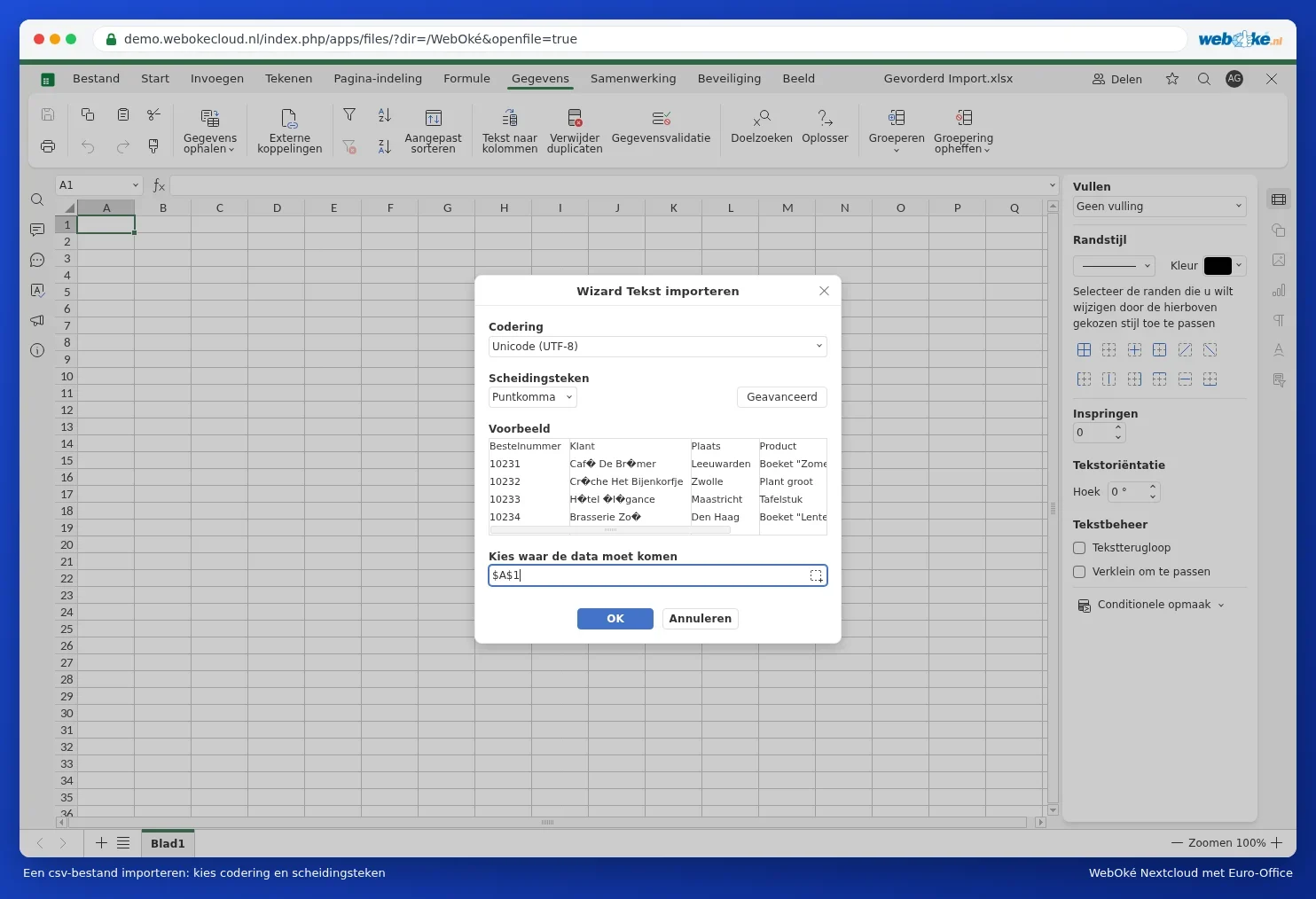
Step by step in Opening a CSV with semicolons and odd characters correctly and Importing and exporting CSV files.