
Chapter 2 · 2.3
Fonts: why your document looks different
Does a document from Word look slightly different in LibreOffice or Euro-Office? It's almost always the font. A document names its font, for example Calibri, but usually doesn't contain the font itself. If the program doesn't have that font, it picks a substitute.
Substitutes with exactly the same width
For the best-known Microsoft fonts, there are open source fonts with exactly the same width per character. Your text then flows the same way; only the shape of the letters is slightly different.
| In the document | Substitute |
|---|---|
| Calibri | Carlito |
| Cambria | Caladea |
| Arial | Liberation Sans |
| Times New Roman | Liberation Serif |
| Courier New | Liberation Mono |
LibreOffice installs these substitutes automatically. In Euro-Office they're on the server. Fonts such as Verdana, Tahoma, Georgia, Garamond, Century Gothic or your own corporate font don't have a substitute like this.
In LibreOffice
- Is the font on your computer? Then LibreOffice simply uses it. On a Windows computer with Office, Calibri and Cambria are often already installed.
- Choose a substitute yourself: Tools > Options... > LibreOffice > Fonts. Tick Apply replacement table, choose the missing font under Font and the substitute under Replace with, then click the tick to add it. This only changes how you see the document, not what's in it.
- Send the fonts along: choose File > Properties..., tab Font, and tick Embed fonts in the document. The recipient then sees the same letters, even without the font installed. Do check that the font's licence allows this. It also makes the file larger.
In Euro-Office
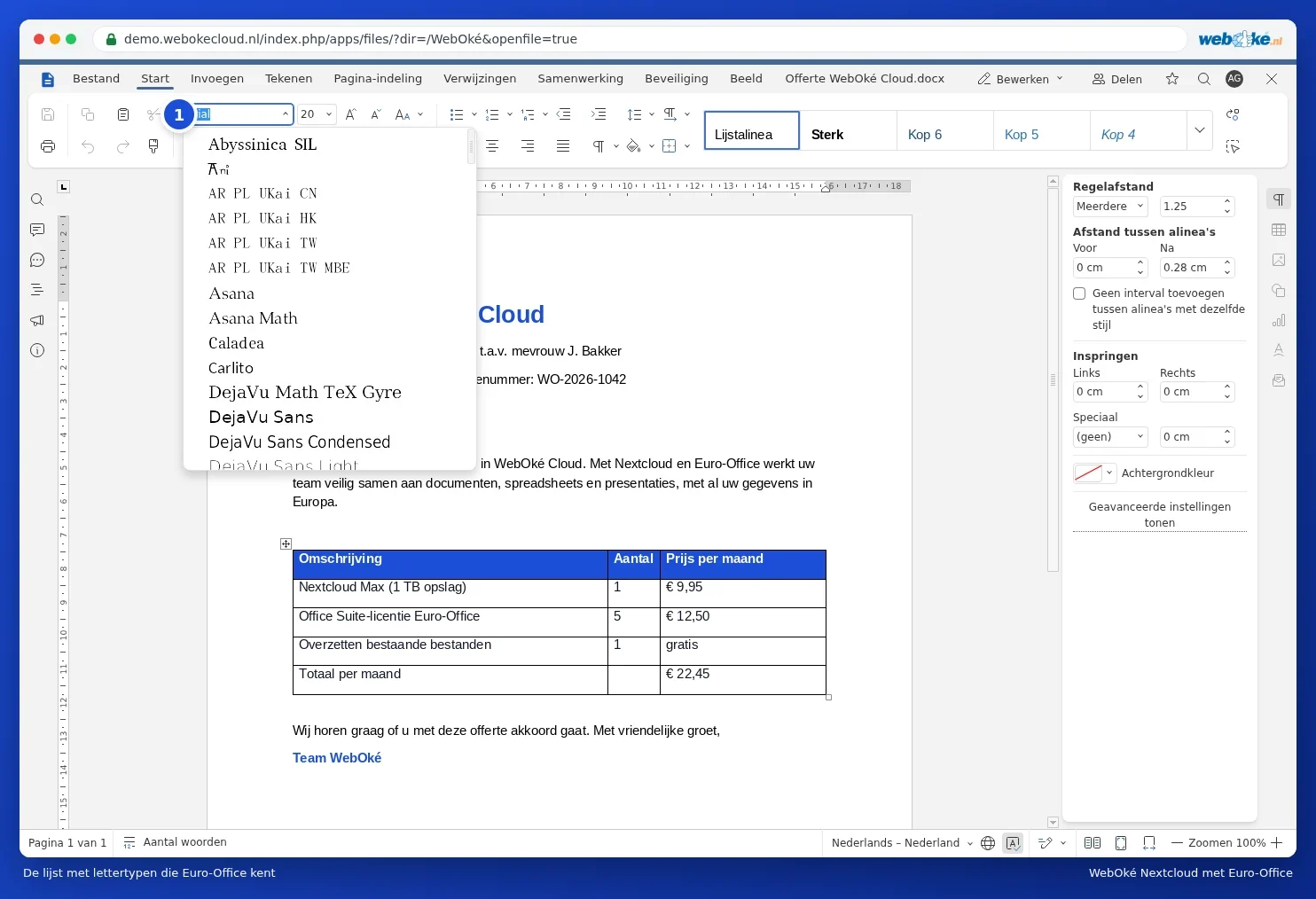
Euro-Office can only show fonts that are on the server. The name of the original font stays in your document. If you later open it in Word on a computer that has that font, it looks the way it was made again. More in Fonts look different.
How to prevent shifts
- Choose a font from the table above for your templates, or a free font that's available everywhere.
- Send a document that must look exactly right as a PDF (see Saving a document as PDF or PDF/A).
- Use styles instead of direct formatting (see Use styles instead of manual formatting). If the font needs to change later, you only adjust it in one place.