
Chapter 3 · 3.4
Start page numbers from page 3
In a thesis, annual report or quotation, the cover page and the table of contents have no number. Numbering starts at 1 on page 3. In Word you do this with a section break and "Link to Previous". In LibreOffice you use two page styles.
In LibreOffice Writer
The idea: pages 1 and 2 get a style without a footer, and from page 3 you use the Default style with a page number.
Step 1: create a style without a footer
- Press F11 (or choose View > Styles). In the sidebar, click the icon for Page Styles.
- Right-click Default and choose New....
- On the General tab, type a name such as Front matter under Name and also choose Front matter under Follow Style.
- On the Footer tab, untick Footer on (and if needed, untick Header on on the Header tab). Click OK.
Step 2: restart at 1 from page 3
- Is there already an ordinary page break between pages 2 and 3? Remove it first, otherwise you will get a blank page.
- Place the cursor at the start of the first line on page 3.
- Choose Insert > More Breaks > Manual Break.... Choose Page Break, select Default under Page Style, tick Change page number and enter 1. Click OK.
Step 3: assign the styles and insert the number
- Place the cursor on page 1 and double-click Front matter in the sidebar. Pages 1 and 2 now have no footer.
- Place the cursor on page 3 and choose Insert > Page Number... (see Adding headers, footers and page numbers). Page 3 gets number 1.
Tip: only want the cover page without a number? Then it's simpler: place the cursor on page 1 and double-click First Page under the page styles in the sidebar. That style applies to that one page only; after it, the document continues with Default.
In Euro-Office
- Place the cursor at the end of page 2. Go to Layout, Breaks, Insert section break, Next Page.
- Double-click in the footer of page 3 and turn off Link to Previous.
- Insert the page number, click Page Numbering and set Start at to 1.
- Clear the footer on pages 1 and 2.
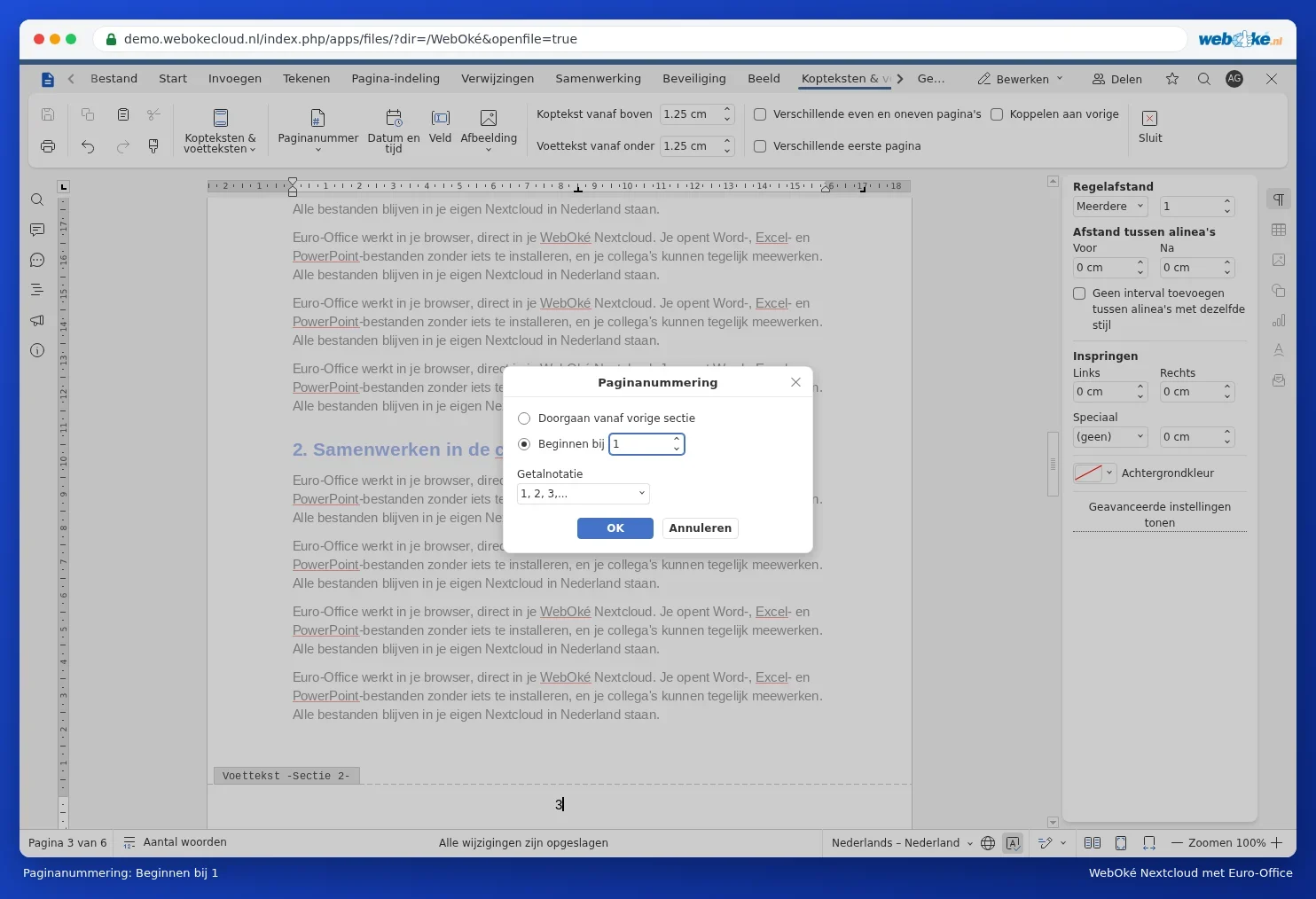
Step by step with screenshots in Start page numbers from page 3. This works the same way as in Word.