
Chapter 3 · 3.2
Creating an automatic table of contents
An automatic table of contents pulls the chapters and sections from your headings, with the correct page numbers. The only requirement is that your headings use a heading style, such as Heading 1 and Heading 2 (see Use styles instead of manual formatting). Word works the same way.
In LibreOffice Writer
- Give your chapter titles the Heading 1 style (Ctrl + 1) and your section titles Heading 2 (Ctrl + 2). You'll also find them in the Styles menu.
- Place the cursor where you want the table of contents to go.
- Choose Insert > Table of Contents and Index > Table of Contents, Index or Bibliography....
- On the Type tab, under Type, choose Table of Contents. Change the title if needed, and under Evaluate up to level choose how many heading levels to include. You'll see a preview on the right.
- Click OK.
Update after making changes: right-click in the table of contents and choose Update Index, or choose Tools > Update > Indexes and Tables. Just like Word, LibreOffice doesn't update the table of contents automatically.
Hold down Ctrl and click a line in the table of contents to jump to that chapter.
In Euro-Office
- Give your headings the Heading 1, Heading 2 (and so on) style.
- Place the cursor in the right spot, go to the References tab and click Table of Contents. Choose a layout.
- After making changes, click Update Table.
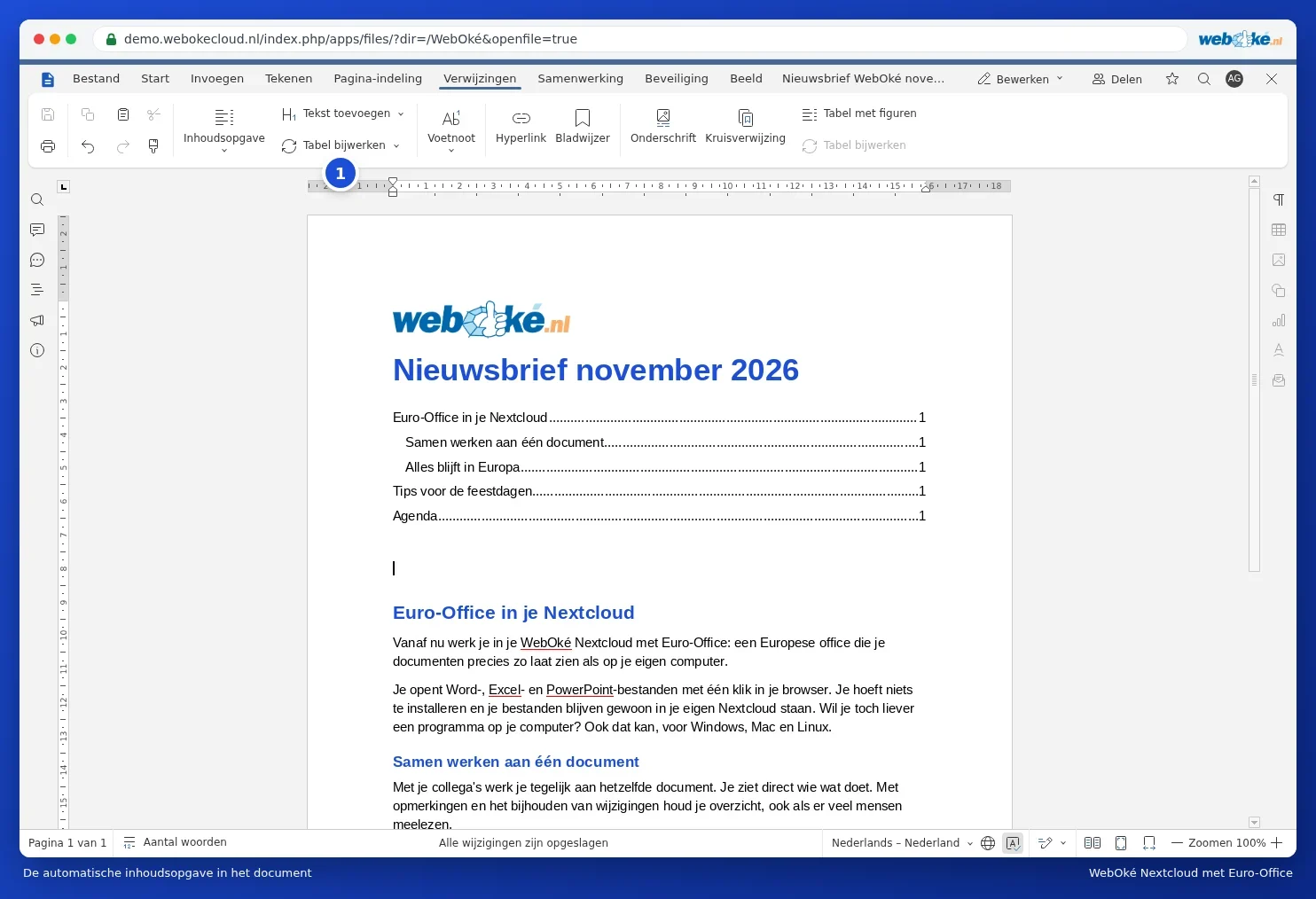
Read more in Creating an automatic table of contents.
Tip: a table of contents from Word stays a real table of contents in LibreOffice and Euro-Office. Update it once after opening the file, so the page numbers are correct even if the font flows slightly differently.